PowerShell Convert HTML to Plain Text (4 Methods with Examples)

If you’ve ever pulled data from a web page or processed an email body in PowerShell, you’ve probably ended up with a string full of <p><br><div>, and a dozen other HTML tags cluttering your output. All you wanted was the readable text underneath all that markup.

That’s exactly what this tutorial covers — how to strip HTML tags and get clean, plain text using PowerShell. I’ll walk you through four different methods to convert HTML to plain text using PowerShell, explain when to use each one, and show you real, working code you can drop right into your scripts.

Let’s get into it.

What You’re Actually Trying to Do

Before jumping into code, it helps to be clear about the goal.

When you “convert HTML to plain text,” you’re essentially doing two things:

  • Removing HTML tags — things like <p></div><strong><a href="...">, etc.
  • Decoding HTML entities — things like &amp; (which should be &), &nbsp; (a non-breaking space), &lt; (which is <), and so on.

Some methods handle both. Some only handle one. I’ll be clear about what each approach does so you can pick the right one for your situation.

Method 1: Using Regex to Strip HTML Tags

This is the simplest and fastest approach. If your HTML is relatively straightforward and you just need the tags gone quickly, regex works perfectly.

Here’s the basic script:

$html = "<p>Hello, <strong>World!</strong> This is a <a href='#'>test</a>.</p>"
$plainText = $html -replace '<[^>]+>', ''
Write-Output $plainText

Output:

Hello, World! This is a test.

The -replace operator uses the pattern <[^>]+>, which matches any string that starts with <, has one or more characters that aren’t >, and ends with >. In plain English — it matches HTML tags and replaces them with nothing.

Also, you can see the exact output in the screenshot below:

PowerShell Convert HTML to Plain Text

Handle HTML Entities Too

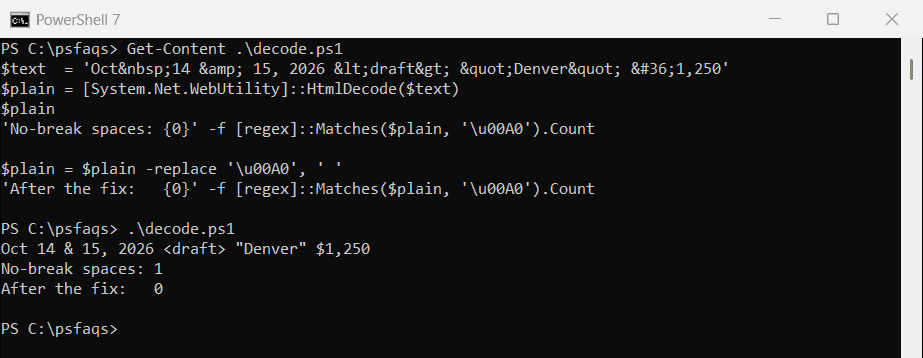
Regex strips tags but leaves entities like &amp; behind. To fix that, use [System.Web.HttpUtility]::HtmlDecode():

# Load the assembly first (needed in some environments)
Add-Type -AssemblyName System.Web

$html = "<p>Five &amp; Ten &lt;br&gt; Test &nbsp; Done</p>"
$stripped = $html -replace '<[^>]+>', ''
$plainText = [System.Web.HttpUtility]::HtmlDecode($stripped)
Write-Output $plainText

Output:

Five & Ten <br> Test   Done

HtmlDecode converts all those encoded entities back to their readable characters, including &nbsp; becoming a real space.

When to Use This Method

  • You need something quick and lightweight
  • The HTML is simple and predictable
  • You don’t want to install any external modules

Watch Out For

Regex is not an HTML parser. If your HTML has nested tags, malformed markup, or script/style blocks with content you don’t want, regex can leave behind garbage text.

For example, a <style> block will have all its CSS text exposed once the tags are stripped. I’ll show you how to handle that in the next method.

Check out Convert HTML to PDF in PowerShell

Method 2: Using the HTMLFile COM Object

This method is my personal favorite for Windows environments. It uses an actual HTML parser built into Windows — the HTMLFile COM object — to process the HTML the same way Internet Explorer would. You get the innerText of the document, which is clean, human-readable text.

function ConvertTo-PlainText {
param (
[string]$HtmlContent
)

$htmlDoc = New-Object -ComObject "HTMLFile"
$encodedBytes = [System.Text.Encoding]::Unicode.GetBytes($HtmlContent)

try {
# Works in PowerShell 5 and later
$htmlDoc.write($encodedBytes)
} catch {
# Fallback for older versions
$htmlDoc.IHTMLDocument2_write($encodedBytes)
}

$body = $htmlDoc.all | Where-Object { $_.tagName -eq 'BODY' }
return $body.innerText
}

$html = @"
<html>
<body>
<h1>Welcome</h1>
<p>This is a <strong>sample</strong> paragraph with a <a href="#">link</a>.</p>
<ul>
<li>Item One</li>
<li>Item Two</li>
</ul>
</body>
</html>
"@

$result = ConvertTo-PlainText -HtmlContent $html
Write-Output $result

Output:

Welcome
This is a sample paragraph with a link.
Item One
Item Two

Here is the exact output in the screenshot below:

Convert HTML to Plain Text using PowerShell

Notice it even preserves line breaks and structure to some degree. That’s because innerText reflects what a browser would actually render.

Why This Is Better Than Regex

  • It handles malformed HTML gracefully
  • Script and style content is automatically excluded from innerText
  • HTML entities are already decoded — no extra step needed
  • Line breaks from block elements (<p><br><li>) are respected

Important Note

The HTMLFile COM object is only available on Windows. If you’re running PowerShell on Linux or macOS (PowerShell 7+), this method won’t work. For cross-platform scripts, jump to Method 3 or 4.

Read Convert CSV to HTML Table in PowerShell

Method 3: Using the PSParseHTML Module

If you’re doing heavier HTML processing, the PSParseHTML module from the PowerShell Gallery is worth knowing about. It wraps the popular HTML Agility Pack library under the hood and gives you a clean, PowerShell-native way to parse and extract text from HTML.

Install It First

Install-Module -Name PSParseHTML -Scope CurrentUser

Once it’s installed, you can extract inner text from a full HTML document like this:

Import-Module PSParseHTML

$html = @"
<html>
<body>
<h2>Report Title</h2>
<p>This report covers <em>quarterly</em> results for Q1 2025.</p>
<table>
<tr><td>Revenue</td><td>$120,000</td></tr>
<tr><td>Expenses</td><td>$80,000</td></tr>
</table>
</body>
</html>
"@

$parsed = ConvertFrom-Html -Content $html
$plainText = $parsed.InnerText
Write-Output $plainText

Output:

Report Title
This report covers quarterly results for Q1 2025.
RevenueExpenses$120,000$80,000

You’ll notice the table cells run together without spacing — that’s a known limitation when using InnerText directly. For tables, you’d want to loop through cells and add your own formatting. But for general paragraph-style content, this works really well.

Targeting Specific Elements

One of the best things about PSParseHTML is that you can extract text from specific tags only:

$parsed = ConvertFrom-Html -Content $html
$paragraphs = $parsed.SelectNodes("//p")

foreach ($p in $paragraphs) {
Write-Output $p.InnerText
}

This gives you just the content of <p> tags. You can use any XPath selector you like — //h1//div[@class='content'], etc.

When to Use This Method

  • You need to process large, complex HTML documents
  • You want to target specific elements rather than stripping everything
  • You’re comfortable installing a module from the PowerShell Gallery
  • Cross-platform compatibility matters (this works on PowerShell 7+)

Check out Create an HTML Table in PowerShell

Method 4: Using Invoke-WebRequest to Fetch and Extract Text

This method is slightly different — instead of converting HTML you already have as a string, you’re pulling it directly from a URL and extracting the text in one go.

$response = Invoke-WebRequest -Uri "https://example.com"
$plainText = $response.ParsedHtml.body.innerText
Write-Output $plainText

This works well in Windows PowerShell 5.1 because Invoke-WebRequest there includes a ParsedHtml property backed by the IE engine, which gives you a fully parsed DOM.

However, in PowerShell 7+ParsedHtml was removed because it relied on Internet Explorer. So if you’re on a newer version, combine Invoke-WebRequest with the HTMLFile COM method or PSParseHTML:

# PowerShell 7+ compatible approach
$response = Invoke-WebRequest -Uri "https://example.com"
$rawHtml = $response.Content

# Now use the regex method or PSParseHTML to strip tags
$plainText = $rawHtml -replace '<[^>]+>', ''
$plainText = [System.Web.HttpUtility]::HtmlDecode($plainText)
$plainText = $plainText -replace '\s{2,}', ' ' # clean up extra whitespace
Write-Output $plainText.Trim()

That last line with \s{2,} collapses multiple spaces and blank lines into a single space, which keeps the output tidy.

Deal with Extra Whitespace

One thing you’ll run into, regardless of which method you use, is messy whitespace. HTML documents are full of newlines, tabs, and multiple spaces that look fine in a browser but are ugly in plain text.

Here’s a reusable cleanup function:

function Clean-PlainText {
param ([string]$Text)

# Replace multiple spaces/tabs with a single space
$Text = $Text -replace '[ \t]+', ' '

# Replace 3+ consecutive newlines with just 2
$Text = $Text -replace '(\r?\n){3,}', "`n`n"

return $Text.Trim()
}

Use it after any of the stripping methods above:

$cleanOutput = Clean-PlainText -Text $plainText

Read Create an HTML Table from Variables in PowerShell

Quick Method Comparison

Here’s a quick summary to help you decide which method fits your use case:

MethodWorks on PS 7+Handles EntitiesHandles Script/StyleNeeds Module
Regex -replaceYesWith HtmlDecodeNo (manual)No
HTMLFile COMNo (Windows only)YesYesNo
PSParseHTMLYesYesYesYes
Invoke-WebRequestYes (partial)With HtmlDecodePartialNo

A Real-World Example: Processing Email HTML Bodies

Here’s a practical scenario. Let’s say you’re pulling email bodies from a mailbox using Microsoft Graph or Exchange and want to save them as plain text files:

Add-Type -AssemblyName System.Web

function Convert-HtmlToText {
param ([string]$Html)

# Use HTMLFile COM if available (Windows PS 5.1)
if ($PSVersionTable.PSVersion.Major -le 5) {
$doc = New-Object -ComObject "HTMLFile"
$bytes = [System.Text.Encoding]::Unicode.GetBytes($Html)
try { $doc.write($bytes) } catch { $doc.IHTMLDocument2_write($bytes) }
$body = $doc.all | Where-Object { $_.tagName -eq 'BODY' }
return $body.innerText
}
else {
# PowerShell 7+ fallback
$text = $Html -replace '<[^>]+>', ''
$text = [System.Web.HttpUtility]::HtmlDecode($text)
$text = $text -replace '[ \t]+', ' '
$text = $text -replace '(\r?\n){3,}', "`n`n"
return $text.Trim()
}
}

# Example usage
$emailBody = "<p>Hi John,</p><p>Please review the <strong>Q1 report</strong> attached.</p><p>Thanks &amp; Regards,<br/>Sarah</p>"
$result = Convert-HtmlToText -Html $emailBody

Write-Output $result
# Output:
# Hi John,
# Please review the Q1 report attached.
# Thanks & Regards,
# Sarah

This handles both PowerShell 5.1 and 7+ in a single function — useful when you’re writing scripts that might run in different environments.

Check out Convert String to HTML Table in PowerShell

Things to Keep in Mind

Before you wrap up, here are a few practical notes:

  • Don’t parse HTML with regex alone for complex documents. Regex is fine for simple cases, but it’s not a real parser. If the HTML has <style> or <script> blocks, you’ll get CSS/JavaScript dumped into your text unless you strip those blocks first.
  • HtmlDecode is easy to forget. Plenty of times I’ve seen scripts that strip tags but still end up with &amp; and &nbsp; in the output. Always decode entities after stripping.
  • Whitespace cleanup matters. The output from any of these methods will often have uneven spacing. A quick regex pass to clean it up makes the output much more readable.
  • Test with your actual HTML. HTML from emails, web pages, and SharePoint are all different beasts. Always test on a real sample before deploying your script.

Conclusion

In this tutorial, I explained how to convert HTML to plain text using PowerShell using various examples.

You may also like the following tutorials:

100 PowerShell cmdlets download free

100 POWERSHELL CMDLETS E-BOOK

FREE Download an eBook that contains 100 PowerShell cmdlets with complete script and examples.