
When I build server inventory scripts, I often collect values such as whether BitLocker is enabled, a service is running, or a disk is online. PowerShell returns these values as Boolean data: $true or $false. That works well in an if statement, but it becomes a problem when a CSV file, database field, or API expects 1 or 0.
The clean fix is simple: convert $true to 1 and $false to 0. I use this pattern regularly when I normalize Windows server audit results before exporting them.
This guide shows how to convert Boolean to Int in PowerShell, validate the result, and use the conversion safely in a practical server-inventory script.
Understand Boolean and Integer Values
A Boolean value represents a yes-or-no result. In PowerShell, it has only two possible values:
$true
$false
An integer is a whole number. For this conversion, you normally use these values:
1
0
The expected mapping is straightforward:
| Boolean value | Integer value |
|---|---|
$true | 1 |
$false | 0 |
This conversion helps when another system does not understand PowerShell Boolean values. For example, a SQL table may use 1 and 0 for a status column. A CSV export may also require numeric values for reporting tools.
Before converting anything, it helps to confirm the incoming data type. You can use .GetType() or review the PowerShell type of an object when a value behaves unexpectedly.
$bitLockerEnabled = $true

$bitLockerEnabled.GetType().FullName
The output should look like this:
System.Boolean
A Boolean value is not text. $true differs from the string "true", and that difference matters during conversion.
Convert Boolean to Int in PowerShell
The most direct way to convert Boolean to Int in PowerShell is to use the [int] type accelerator.
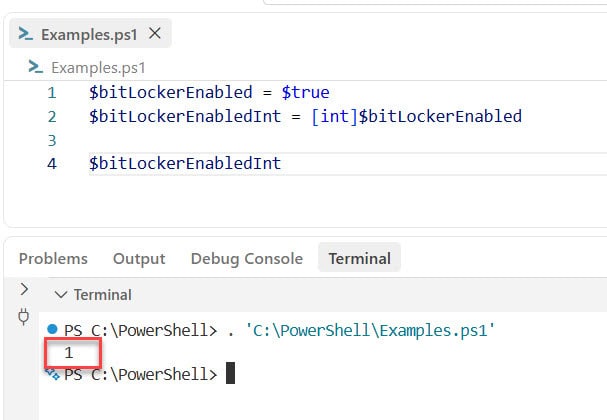
$bitLockerEnabled = $true
$bitLockerEnabledInt = [int]$bitLockerEnabled

$bitLockerEnabledInt
Output:
1
You can see the exact output in the screenshot below:
Now try the same conversion with $false:
$bitLockerEnabled = $false
$bitLockerEnabledInt = [int]$bitLockerEnabled

$bitLockerEnabledInt
Output:
0
Here is what each line does:
$bitLockerEnabled = $truestores a Boolean value in a variable.[int]$bitLockerEnabledcasts, or converts, the Boolean into an integer.$bitLockerEnabledIntnow stores either1or0.
This approach works in both Windows PowerShell 5.1 and PowerShell 7. It is short, readable, and ideal when you already know the input contains a real Boolean value.
You can also convert values directly without storing the result first:
[int]$true
[int]$false
That returns:
1
0
I use this direct format inside calculated properties and custom objects when building audit reports.
Use Convert.ToInt32 for Clear Scripts
Another reliable option uses the .NET Convert class:
$serviceRunning = $true
$serviceRunningInt = [Convert]::ToInt32($serviceRunning)

$serviceRunningInt
Output:
1
For a false value:
$serviceRunning = $false
$serviceRunningInt = [Convert]::ToInt32($serviceRunning)

$serviceRunningInt
Output:
0
[Convert]::ToInt32() clearly states your intent. It converts a value to a 32-bit integer, which is the normal integer type used in most PowerShell scripts.
Use [int] when you want compact code. Use Convert.ToInt32 when you want a highly explicit conversion in a shared script or automation runbook.
For example, this server health object uses Convert.ToInt32() to prepare a status value for export:
$service = Get-Service -Name "W32Time"

$serverStatus = [PSCustomObject]@{
    ServerName       = $env:COMPUTERNAME
    ServiceName      = $service.Name
    ServiceRunning   = $service.Status -eq "Running"
    ServiceRunningId = [Convert]::ToInt32($service.Status -eq "Running")
}

$serverStatus
The Get-Service cmdlet retrieves the Windows Time service. The -eq comparison operator checks whether its status equals Running. That comparison returns $true or $false, and Convert.ToInt32() changes it into 1 or 0.
If you need more help with conditions, review PowerShell comparison operators. They are the foundation for generating Boolean results in scripts.
Pro Tip: I have found that exporting both the original Boolean value and the numeric value makes troubleshooting much easier. Keep
ServiceRunningas$trueor$falsefor humans, then addServiceRunningIdas1or0for databases and reporting tools.
Convert Boolean Results in a Pipeline
A pipeline sends output from one PowerShell command to the next command. It is one of the most useful PowerShell techniques for processing many objects without writing repetitive code.
Suppose you need to audit several Windows services and export their running state as integers. You can use Get-Service, ForEach-Object, and Export-Csv together.
$serviceNames = "W32Time", "Spooler", "WinRM"

$serviceNames |
    ForEach-Object {
        $service = Get-Service -Name $_ -ErrorAction SilentlyContinue

        if ($null -ne $service) {
            [PSCustomObject]@{
                ServerName      = $env:COMPUTERNAME
                ServiceName     = $service.Name
                ServiceStatus   = $service.Status
                IsRunning       = $service.Status -eq "Running"
                IsRunningNumber = [int]($service.Status -eq "Running")
            }
        }
    } |
    Export-Csv -Path "C:\Reports\ServiceStatus.csv" -NoTypeInformation
Here is what happens in this PowerShell script:
$serviceNamesstores the services you want to check.- The pipeline sends each service name to ForEach-Object.
- Get-Service retrieves one service at a time.
-ErrorAction SilentlyContinueprevents a missing service from stopping the full script.if ($null -ne $service)ensures the script only creates an object when the service exists.IsRunningstores the readable Boolean result.IsRunningNumberconverts that same result to1or0.- Export-Csv writes the final objects to a CSV report.
Your CSV file will contain values similar to this:
ServerName,ServiceName,ServiceStatus,IsRunning,IsRunningNumber
FILESERVER01,W32Time,Running,True,1
FILESERVER01,Spooler,Stopped,False,0
FILESERVER01,WinRM,Running,True,1
This pattern works well for Windows automation, server reporting, Active Directory checks, and Microsoft 365 inventory scripts.
Handle Boolean Strings Before Conversion
A common mistake occurs when your value looks Boolean but actually comes from a CSV file, text file, environment variable, or API response as a string.
For example:
$enabled = "true"
[int]$enabled
This does not reliably convert the string into the expected numeric Boolean value. PowerShell sees "true" as text, not as $true.
Convert the string to a Boolean first:
$enabledText = "true"
$enabledBoolean = [bool]::Parse($enabledText)
$enabledInt = [int]$enabledBoolean

$enabledInt
Output:
1
The process has two steps:
[bool]::Parse()converts"true"or"false"text into a Boolean.[int]converts the Boolean into1or0.
For CSV data that may contain different values, such as Yes, No, Enabled, or Disabled, normalize the values before conversion. You can learn more about handling text values in this guide on converting a string to Boolean in PowerShell.
$enabledText = "Yes"

$enabledBoolean = switch ($enabledText.ToLower()) {
    "yes"     { $true }
    "enabled" { $true }
    "true"    { $true }
    default   { $false }
}

$enabledInt = [int]$enabledBoolean
The switch statement checks several possible text values. It returns $true for recognized enabled values and $false for everything else.
Use If Statements When Rules Differ
Sometimes you should not use a direct type conversion. For example, a monitoring tool may return $null when it cannot read a service status. In that situation, you may need a third value such as -1 for unknown.
$service = Get-Service -Name "WinRM" -ErrorAction SilentlyContinue

if ($null -eq $service) {
    $serviceStatusNumber = -1
}
elseif ($service.Status -eq "Running") {
    $serviceStatusNumber = 1
}
else {
    $serviceStatusNumber = 0
}

$serviceStatusNumber
This produces three meaningful outcomes:
1means the service is running.0means the service exists but is stopped.-1means PowerShell could not find or read the service.
This is more useful than treating every missing value as false. In production scripts, I prefer explicit status codes when a failed check needs different handling from a negative result.
PowerShell 7 also supports the ternary operator, which provides a compact conditional expression:
$serviceRunningNumber = ($service.Status -eq "Running") ? 1 : 0
The expression before ? is the condition. PowerShell returns 1 when the condition is true and 0 when it is false. Do not use this syntax in Windows PowerShell 5.1 because it only works in PowerShell 7 and later.
Things to Keep in Mind
- Confirm the data type: Check whether a value is a Boolean, string, integer, or
$nullbefore converting it. - Treat
$nulldeliberately: A missing service or failed API response does not always mean false; use a separate status code when needed. - Keep the original value: Export both the Boolean and integer columns when you need human-readable reports and database-friendly data.
- Use clear variable names: Names such as
$isRunningand$isRunningNumberprevent confusion during maintenance. - Test with both outcomes: Run your script with
$true,$false, and unexpected text values before using it in production. - Log conversion failures: Use Try/Catch when external input may contain invalid values or incomplete records.
Frequently Asked Questions
How do I convert $true to 1 in PowerShell?
Use [int]$true. PowerShell returns 1 because it converts a true Boolean value into its numeric equivalent.
[int]$true
How do I convert $false to 0 in PowerShell?
Use [int]$false. PowerShell returns 0, which is useful for CSV files, databases, and API payloads.
[int]$false
Does Boolean to Int conversion work in Windows PowerShell 5.1?
Yes. Both [int]$true and [Convert]::ToInt32($true) work in Windows PowerShell 5.1 and PowerShell 7. The ternary operator approach only works in PowerShell 7 or later.
Can I convert the string "true" directly to an integer?
Do not convert it directly. First convert the string into a Boolean with [bool]::Parse("true"), then cast it with [int].
[int][bool]::Parse(“true”)
How do I convert a Boolean property while exporting to CSV?
Create a calculated property in a PSCustomObject and cast the Boolean with [int]. Then pipe the object to Export-Csv.
[PSCustomObject]@{
Enabled = [int]$user.Enabled
}
Why should I use 1 and 0 instead of true and false?
Some databases, legacy applications, and reporting tools expect numeric status fields. Using 1 and 0 also makes it easier to count enabled, disabled, running, or stopped records.
Converting Boolean values to integers in PowerShell is as simple as using [int]$true for 1 and [int]$false for 0, then applying that pattern to your reports and automation scripts. I hope you found this article helpful.
You May Also Like
- Convert a string to an integer in PowerShell
- Convert a double to an integer in PowerShell
- Use Try/Catch for PowerShell error handling
- Log error messages to a file with PowerShell
- Set the PowerShell execution policy

Bijay Kumar is an esteemed author and the mind behind PowerShellFAQs.com, where he shares his extensive knowledge and expertise in PowerShell, with a particular focus on SharePoint projects. Recognized for his contributions to the tech community, Bijay has been honored with the prestigious Microsoft MVP award. With over 15 years of experience in the software industry, he has a rich professional background, having worked with industry giants such as HP and TCS. His insights and guidance have made him a respected figure in the world of software development and administration. Read more.
