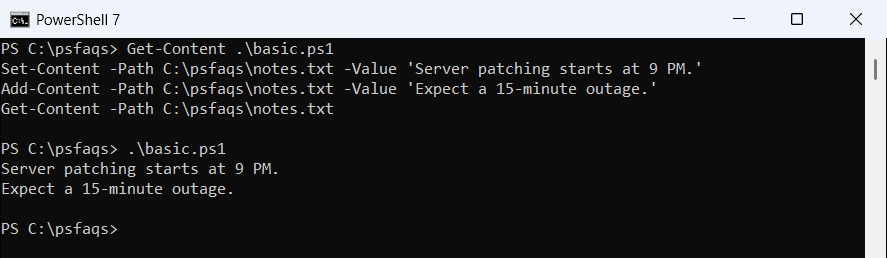
Writing strings to files in PowerShell is a task you might perform regularly as a system administrator or a developer. In this PowerShell tutorial, we’ll explore how to write string to file using PowerShell using various methods and scenarios, including appending and overwriting content, avoiding newlines, and ensuring UTF-8 encoding.
To write a string to a file in PowerShell, you can use the Out-File, Set-Content, or Add-Content cmdlets. For example, to overwrite a file with the string “Hello, PowerShell” and ensure UTF-8 encoding, you would use: Set-Content -Path “C:\example.txt” -Value “Hello, PowerShell” -Encoding UTF8. To append to the file without adding a newline, you would use: Add-Content -Path “C:\example.txt” -Value “Appending text” -NoNewline.
I will show you here, three methods to write string to file in PowerShell.
1. Write String to File with Out-File in PowerShell
The Out-File cmdlet is a built-in PowerShell cmdlet that sends output to a file, leveraging PowerShell’s formatting system. It’s a straightforward method to write data to a file in PowerShell.
Here is an example:
"Hello, World!" | Out-File -FilePath C:\MyFolder\example.txtThis command writes the string “Hello, World!” to the file example.txt at the C:\MyFolder location. If the file doesn’t exist, it will be created. If it does exist, the content will be overwritten by default.
After executing the PowerShell script using VS code, you can see the output in the screenshot below.

Append Content to File in PowerShell
To append a string to an existing file in PowerShell, you can use the -Append parameter:
"Let's append this line." | Out-File -FilePath C:\MyFolder\example.txt -AppendThis command adds “Let’s append this line.” to the end of example.txt without overwriting the existing content.
Overwrite Content to File in PowerShell
As mentioned earlier, Out-File overwrites file content by default in PowerShell. However, you can explicitly specify the -NoClobber parameter to prevent overwriting:
"New content" | Out-File -FilePath C:\MyFolder\example.txt -NoClobberThis command will write “New content” only if example.txt does not already exist.
Write Without a Newline to File in PowerShell
Out-File does not have a dedicated parameter to avoid adding a newline at the end of the output. However, you can use the .NET class method System.IO.File]::WriteAllText to achieve this:
[System.IO.File]::WriteAllText("C:\MyFolder\example.txt", "String without newline")This method directly writes the specified string to the file without appending a newline character at the end.
Specifying Encoding
To write a file with UTF-8 encoding in PowerShell, use the -Encoding parameter:
"String with UTF-8 encoding" | Out-File -FilePath C:\MyFolder\example.txt -Encoding UTF8This command ensures that example.txt is saved with UTF-8 encoding.
2. Using Set-Content to Write to Files in PowerShell
Set-Content is another cmdlet used for writing content to files in PowerShell. It’s more focused on string manipulation and works well with text files.
Basic Writing
Set-Content -Path C:\MyFolder\example.txt -Value "Hello, World!"This example writes “Hello, World!” to example.txt, overwriting any existing content.
Appending Content
To append content to a string in a file in PowerShell with Set-Content, you must use the -Append parameter:
Set-Content -Path C:\MyFolder\example.txt -Value "Appending this line." -AppendThis will add “Appending this line.” to the end of example.txt.
Overwriting Content
As with Out-File, Set-Content overwrites content by default. To prevent this, you can use a conditional check before writing:
if (-Not (Test-Path -Path C:\MyFolder\example.txt)) {
Set-Content -Path C:\MyFolder\example.txt -Value "New content"
}This script checks if example.txt exists before writing “New content” to avoid overwriting.
Writing Without a Newline
Set-Content naturally adds a newline to the end of the string. To write to a file without a newline in PowerShell, you can use the .NET class method as shown earlier.
Specifying Encoding
To specify encoding with Set-Content in PowerShell, use the -Encoding parameter:
Set-Content -Path C:\MyFolder\example.txt -Value "String with UTF-8 encoding" -Encoding UTF8This ensures the file is saved with UTF-8 encoding.
3. Append to Files with Add-Content in PowerShell
Add-Content is specifically designed to append data to a file in PowerShell and is quite similar to Set-Content.
Appending Content
Below is the PowerShell script to write a string to a file using Add-Content.
Add-Content -Path C:\MyFolder\example.txt -Value "Appending content with Add-Content."This command appends the string to example.txt without overwriting the existing data.
Writing Without a Newline
To append content without a newline in PowerShell, you can use the -NoNewline parameter:
Add-Content -Path C:\MyFolder\example.txt -Value "Content without newline" -NoNewlineThis appends the string to the end of the file without adding a newline character.
Specifying Encoding
To specify UTF-8 encoding with Add-Content in PowerShell, use the -Encoding parameter:
Add-Content -Path C:\MyFolder\example.txt -Value "UTF-8 encoded content" -Encoding UTF8This appends the string with UTF-8 encoding to the file in PowerShell.
Conclusion
Writing strings to files in PowerShell is a very common requirement and is possible by using various methods. Whether you’re overwriting content with Out-File, manipulating text with Set-Content, or appending data with Add-Content, PowerShell provides the flexibility to handle your file-writing needs effectively.
In this PowerShell tutorial, I have explained how to write string to file in PowerShell using various methods.
You may also like:
- How to Find Strings in Files in PowerShell?
- How to Read a File Line by Line in PowerShell?
- How to Check if a File Exists in PowerShell?
- How to Get the Size of a File in PowerShell?
Bijay Kumar is an esteemed author and the mind behind PowerShellFAQs.com, where he shares his extensive knowledge and expertise in PowerShell, with a particular focus on SharePoint projects. Recognized for his contributions to the tech community, Bijay has been honored with the prestigious Microsoft MVP award. With over 15 years of experience in the software industry, he has a rich professional background, having worked with industry giants such as HP and TCS. His insights and guidance have made him a respected figure in the world of software development and administration. Read more.