
To read a file line by line in PowerShell, loop over Get-Content. It returns one string per line, so a foreach loop handles each line in turn:
foreach ($line in Get-Content -Path C:\psfaqs\servers.txt) {
    "Checking $line"
}
Output:
Checking WEB01
Checking WEB02
Checking SQL01
Checking FILE01
Below I cover line numbers, reading into an array, the first and last lines, skipping a header, and one encoding problem in Windows PowerShell 5.1. I ran every example in PowerShell 7.6 and 5.1.
Show line numbers
Every line that Get-Content returns carries its line number in a ReadCount property, so you don’t need your own counter:
Get-Content -Path C:\psfaqs\servers.txt | ForEach-Object {
    "Line $($_.ReadCount): $_"
}
Output:
Line 1: WEB01
Line 2: WEB02
Line 3: SQL01
Line 4: FILE01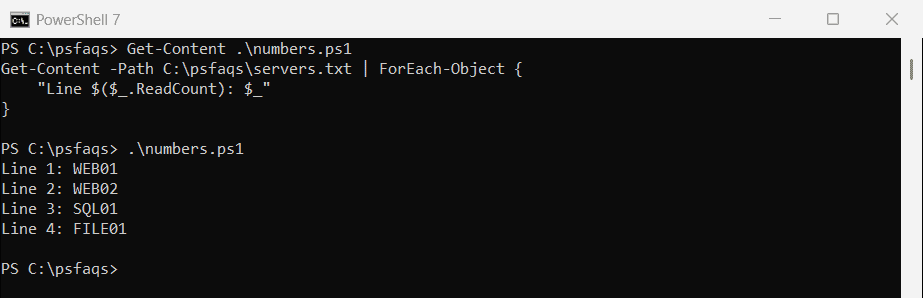
If you only need the total, see counting lines in a file.
Read a file into an array
Assign Get-Content to a variable and you have an array of lines. Index it like any other array, and use -1 for the last line:
$lines = Get-Content -Path C:\psfaqs\servers.txt

"Lines:  $($lines.Count)"
"First:  $($lines[0])"
"Last:   $($lines[-1])"
"Second and third: $($lines[1..2] -join ', ')"
Output:
Lines:  4
First:  WEB01
Last:   FILE01
Second and third: WEB02, SQL01
The one-line file trap
If the file has only one line, Get-Content returns a single string instead of an array. Indexing a string gives you letters:
$lines = Get-Content -Path C:\psfaqs\one-line.txt
"Without @(): first = [$($lines[0])], rest = [$($lines[1..($lines.Count - 1)] -join ', ')]"

$lines = @(Get-Content -Path C:\psfaqs\one-line.txt)
"With @():    first = [$($lines[0])], rest = [$(($lines | Select-Object -Skip 1) -join ', ')]"
Output:
Without @(): first = [A], rest = [u, A]
With @(): first = [Austin], rest = []![PowerShell one-line file returns a string so [0] gives the first letter](https://powershellfaqs.com/wp-content/uploads/2026/09/powershell-one-line-file-array-index-trap.png)
$lines[0] returned the letter A, and the range 1..0 counted backwards through the letters. Wrapping Get-Content in @() keeps it an array, and Select-Object -Skip is safer than a range.
Read the first or last line
-TotalCount reads only the first lines and stops, and -Tail reads from the end of the file:
"First line: $(Get-Content -Path C:\psfaqs\servers.txt -TotalCount 1)"
"Last line:  $(Get-Content -Path C:\psfaqs\servers.txt -Tail 1)"
"Last two:   $((Get-Content -Path C:\psfaqs\servers.txt -Tail 2) -join ', ')"
Output:
First line: WEB01
Last line:  FILE01
Last two:   SQL01, FILE01
Both are faster than reading the whole file on big logs. The Get-Content documentation lists their aliases, -First and -Last.
Skip the first line
To skip a header row, pipe the lines to Select-Object -Skip 1:
Get-Content -Path C:\psfaqs\states.csv | Select-Object -Skip 1Output:
California,39538223
Texas,29145505
Florida,21538187
Ohio,11799448
For CSV files, you usually don’t need to skip the header yourself. Import-Csv uses it to name the columns:
$rows = Import-Csv -Path C:\psfaqs\states.csv

"First row: $(($rows | Select-Object -First 1).State)"
"Last row:  $(($rows | Select-Object -Last 1).State)"
Output:
First row: California
Last row:  Ohio
Looping through CSV rows covers Import-Csv in more detail.
Why do special characters look wrong in Windows PowerShell 5.1?
cafe.txt is saved as UTF-8 without a byte order mark, which is how most editors and Linux tools save text today. Here’s how each version reads it:
"Default:        $(Get-Content -Path C:\psfaqs\cafe.txt)"
"-Encoding UTF8: $(Get-Content -Path C:\psfaqs\cafe.txt -Encoding UTF8)"
Output in PowerShell 7:
Default:        Café in San José
-Encoding UTF8: Café in San José
Output in Windows PowerShell 5.1:
Default:        Café in San José
-Encoding UTF8: Café in San José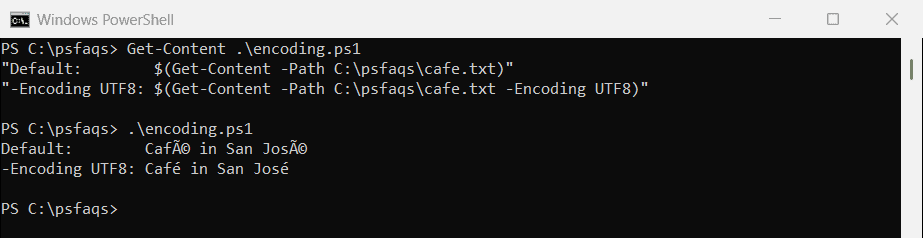
Windows PowerShell 5.1 assumes the older Windows code page when there’s no byte order mark, so é turns into two wrong characters. Add -Encoding UTF8 in 5.1. PowerShell 7 reads UTF-8 by default.
Reading very large files
Get-Content is fine for most files, but it’s slow on files with hundreds of thousands of lines. [System.IO.File]::ReadLines() reads one line at a time and is much faster:
foreach ($line in [System.IO.File]::ReadLines('C:\Logs\big.log')) {
    if ($line -like '*ERROR*') { $line }
}
Give ReadLines a full path. Counting lines in a file has timing results for these methods on a 300,000-line log.
Frequently Asked Questions
How do I read a file line by line in PowerShell?
Use foreach ($line in Get-Content -Path file.txt) { ... }. Get-Content returns each line as a separate string.
How do I read only the first line of a file?
Use Get-Content -Path file.txt -TotalCount 1. It stops reading after the first line. Use -Tail 1 for the last line.