
To get the length of a string in PowerShell, read its .Length property. It returns the number of characters, including spaces:
$city = 'San Francisco'
"'$city' has $($city.Length) characters"
Output:
'San Francisco' has 13 charactersThat works for everyday text. Arrays, numbers, emoji and byte counts behave differently, and I cover each one below. I ran every example in PowerShell 7.6 and Windows PowerShell 5.1, with the same results.
Common .Length surprises
$names = 'Alice', 'Bob', 'Christopher'
$zip   = 78701

"Array .Length:        $($names.Length) (the number of items)"
"Longest name:         $(($names | Measure-Object -Property Length -Maximum).Maximum)"
"Number .Length:       $($zip.Length)"
"As text:              $($zip.ToString().Length)"
"Padded ' Austin '.Length: $(' Austin '.Length), trimmed: $(' Austin '.Trim().Length)"
Output:
Array .Length:        3 (the number of items)
Longest name:         11
Number .Length:       1
As text:              5
Padded ' Austin '.Length: 8, trimmed: 6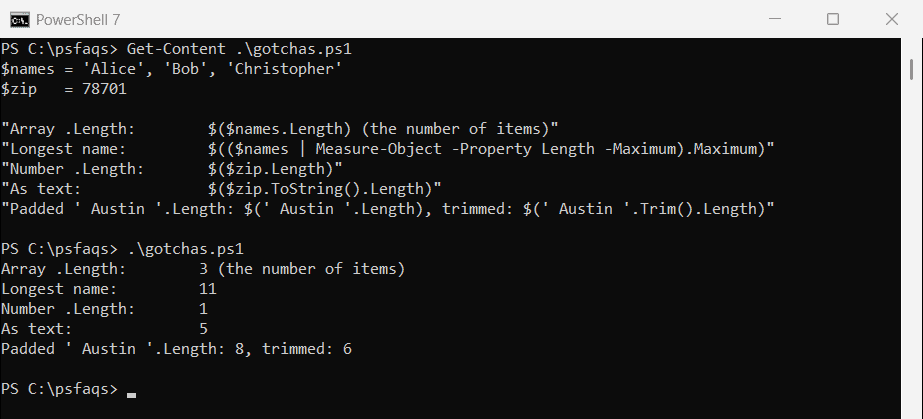
On an array, .Length is the number of items, not the length of each string. A number isn’t text, so .Length returns 1. Convert it with .ToString() first.
Spaces count too, so trim input before you measure it.
Emoji and accented letters
.Length counts UTF-16 code units, not the characters you see. Most letters are one unit, but an emoji can be two:
$thumb = [char]::ConvertFromUtf32(0x1F44D)    # the thumbs-up emoji
$cafe  = "Caf$([char]0xE9)"                    # Cafe with an accented e

"Emoji .Length:           $($thumb.Length)"
"Emoji characters you see: $([System.Globalization.StringInfo]::new($thumb).LengthInTextElements)"
"'$cafe' .Length:          $($cafe.Length)"
Output:
Emoji .Length:           2
Emoji characters you see: 1
'Café' .Length:          4
If you’re checking a limit that a person sees, like a display name, StringInfo.LengthInTextElements counts visible characters. Microsoft covers it in the StringInfo documentation.
Get the length of a string in bytes
The number of bytes depends on the encoding. Database columns, APIs and file formats often have byte limits, not character limits:
$cafe = "Caf$([char]0xE9)"

"UTF-8 bytes:  $([System.Text.Encoding]::UTF8.GetByteCount($cafe))"
"UTF-16 bytes: $([System.Text.Encoding]::Unicode.GetByteCount($cafe))"
"ASCII bytes:  $([System.Text.Encoding]::ASCII.GetByteCount('Austin'))"
Output:
UTF-8 bytes:  5
UTF-16 bytes: 8
ASCII bytes:  6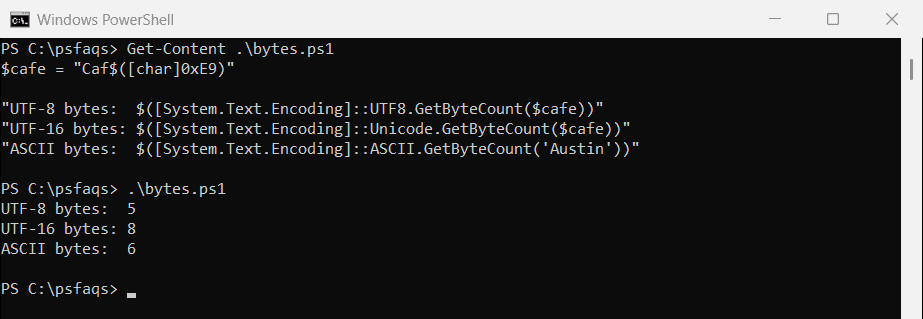
The accented é takes two bytes in UTF-8, so the four-letter word needs five bytes. In UTF-16, the encoding .NET uses in memory, every character here takes two.
Byte counts also matter for encodings like Base64, covered in converting a string to Base64.
Count specific characters, letters or digits
[regex]::Matches() counts anything you can describe with a pattern:
$text = 'Order 1042 ships to Austin on Monday'

"Letter a:  $(([regex]::Matches($text, 'a', 'IgnoreCase')).Count)"
"Letters:   $(([regex]::Matches($text, '[A-Za-z]')).Count)"
"Digits:    $(([regex]::Matches($text, '\d')).Count)"
"Spaces:    $(([regex]::Matches($text, ' ')).Count)"
"Words:     $(($text -split '\s+').Count)"
Output:
Letter a:  2
Letters:   26
Digits:    4
Spaces:    6
Words:     7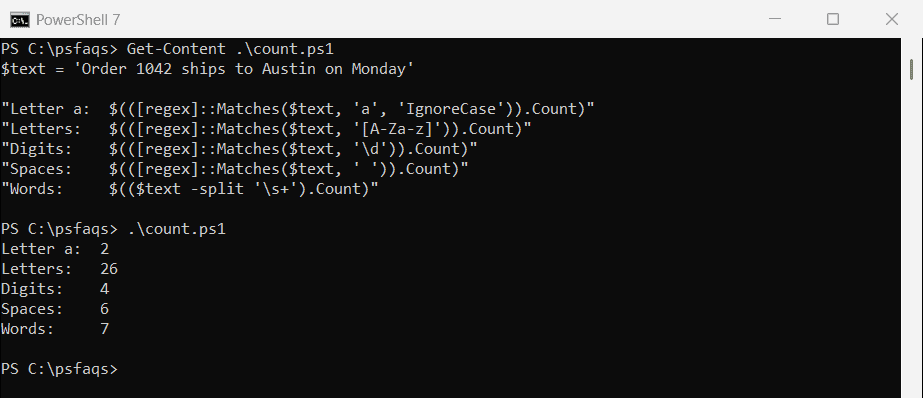
The 'IgnoreCase' option counts both a and A. For whole files instead of strings, see counting lines and words in a file.
Enforce a length on function parameters
Instead of checking the length inside a function, let PowerShell reject values that are too short or too long:
function Set-SiteCode {
    param(
        [ValidateLength(3, 8)]
        [string]$Code
    )
    "Site code set to $Code"
}

Set-SiteCode -Code 'ATX01'
try { Set-SiteCode -Code 'AUSTIN-DOWNTOWN' } catch { 'Rejected: the code must be 3 to 8 characters' }
Output:
Site code set to ATX01
Rejected: the code must be 3 to 8 characters
[ValidateLength(3, 8)] takes the minimum and maximum. about_Functions_Advanced_Parameters lists the other validation attributes.
Frequently Asked Questions
How do I get the length of a string in PowerShell?
Use the Length property: $text.Length. It counts every character, including spaces.
How do I get the length of a string in bytes?
Use an encoding, like [System.Text.Encoding]::UTF8.GetByteCount($text). The result depends on the encoding you choose.
Why does .Length return 1 for a number?
A number isn’t a string. Convert it first: $zip.ToString().Length.
Why is .Length 2 for an emoji?
.Length counts UTF-16 code units, and many emoji use two. Use [System.Globalization.StringInfo]::new($text).LengthInTextElements for visible characters.
How do I count how many times a character appears in a string?
Use ([regex]::Matches($text, 'a')).Count. Add the ‘IgnoreCase’ option to count upper and lower case. See Microsoft’s StringInfo documentation.
For more work with strings: