
To remove newlines from a string in PowerShell, replace them with the -replace operator and the pattern \r?\n, which matches both Windows and Unix line breaks:
$oneLine = $text -replace '\r?\n', ' 'Below I show it on a real address, clean text read from a file, collapse blank lines and remove the extra newline that Out-String adds.
See the hidden characters first
Newlines are invisible, which makes them hard to debug. This small helper shows them as \r and \n, and every example below starts with it:
function Show-Hidden ($Text) { $Text -replace "`r", '\r' -replace "`n", '\n' }Windows ends lines with \r\n (carriage return and line feed). Linux, macOS and many web APIs use just \n. Text that passed through several systems often has both.
To find other hidden characters, see finding a character in a string.
For more ways to detect a stray carriage return, including inside files, see how to find a carriage return in a string in PowerShell.
Replace newlines with -replace
This address has one Windows line break and one Unix line break. \r?\n catches both, because the \r is optional:
function Show-Hidden ($Text) { $Text -replace "`r", '\r' -replace "`n", '\n' }

$address = "1200 Main Street`r`nSuite 400`nAustin, TX 78701"
"Before: $(Show-Hidden $address)"

$oneLine = $address -replace '\r?\n', ', '
"After:  $oneLine"
Output:
Before: 1200 Main Street\r\nSuite 400\nAustin, TX 78701
After:  1200 Main Street, Suite 400, Austin, TX 78701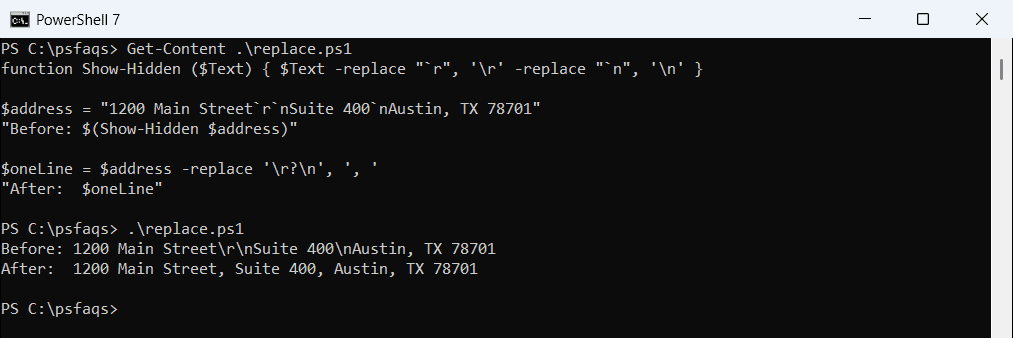
Replace with an empty string, ”, to join the lines with nothing in between. Use a comma or space when the words would otherwise run together.
Remove newlines from file content
Get-Content -Raw reads a file as one string, including the line break at the end. Trim() removes that, then -replace joins the rest:
function Show-Hidden ($Text) { $Text -replace "`r", '\r' -replace "`n", '\n' }

$raw = Get-Content -Path .\address.txt -Raw
"Raw:      $(Show-Hidden $raw)"
"Trimmed:  $(Show-Hidden $raw.Trim())"
"One line: $($raw.Trim() -replace '\r?\n', ', ')"
Output:
Raw:      1200 Main Street\r\nSuite 400\r\nAustin, TX 78701\r\n
Trimmed:  1200 Main Street\r\nSuite 400\r\nAustin, TX 78701
One line: 1200 Main Street, Suite 400, Austin, TX 78701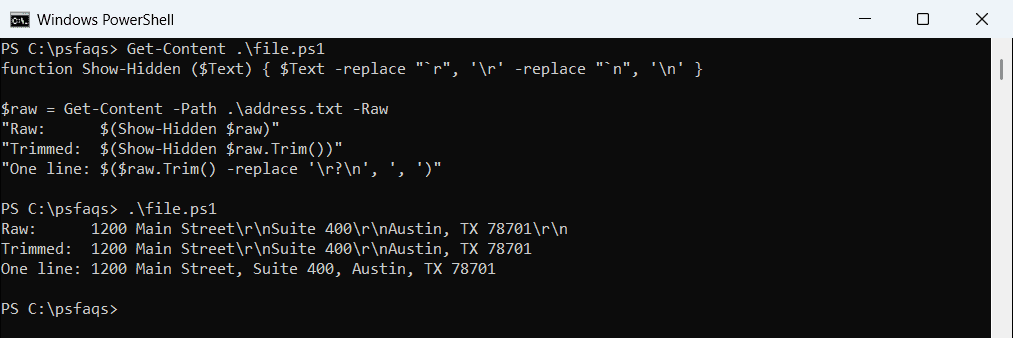
Trim() also removes spaces and tabs at both ends. Use TrimEnd() to clean only the end. Details on -Raw are in the Get-Content reference.
Or read the lines and join them
Without -Raw, Get-Content returns each line as a separate string with no line breaks at all. -join puts them back together:
$lines = Get-Content -Path .\address.txt
"Lines read: $($lines.Count)"
$lines -join ', '
Output:
Lines read: 3
1200 Main Street, Suite 400, Austin, TX 78701
This is the simplest option when you start from a file. More in joining arrays in PowerShell.
Collapse blank lines
To keep one line break but drop the empty lines, match one or more newlines in a row with (\r?\n)+:
function Show-Hidden ($Text) { $Text -replace "`r", '\r' -replace "`n", '\n' }

$note = "Order ORD-6001`r`n`r`n`r`nShip to Denver`n`nPriority"
"Blank lines kept:     $(Show-Hidden ($note -replace '(\r?\n)+', "`n"))"
"All on one line:      $($note -replace '(\r?\n)+', ' | ')"
Output:
Blank lines kept:     Order ORD-6001\nShip to Denver\nPriority
All on one line:      Order ORD-6001 | Ship to Denver | Priority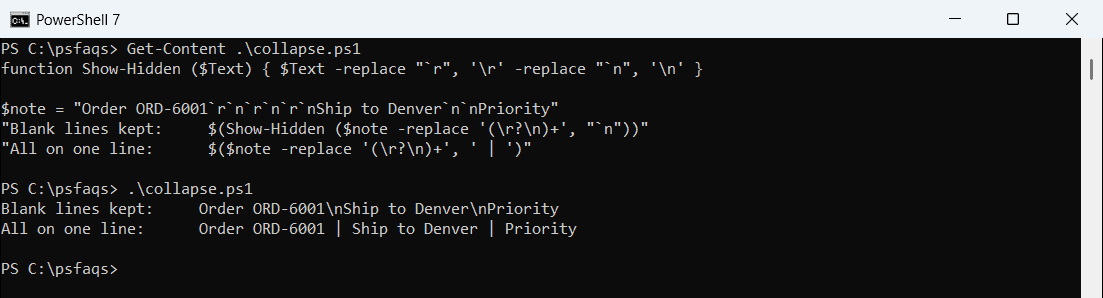
The same pattern with a separator flattens everything onto one line. For arrays of lines, see removing blank lines from an array.
Remove the newline Out-String adds
Out-String turns command output into one string, but it always ends with a line break. That breaks comparisons and file names:
function Show-Hidden ($Text) { $Text -replace "`r", '\r' -replace "`n", '\n' }

$text = Get-Date -Date '2026-10-04' -Format 'yyyy-MM-dd' | Out-String
"Out-String gives: $(Show-Hidden $text)"
"After Trim():     $(Show-Hidden $text.Trim())"
Output:
Out-String gives: 2026-10-04\r\n
After Trim():     2026-10-04
Add .Trim() whenever you use Out-String to build a value.
Which newline does PowerShell use?
[Environment]::NewLine is the system’s line break. The backtick-n escape is always just a line feed:
function Show-Hidden ($Text) { $Text -replace "`r", '\r' -replace "`n", '\n' }

"Environment newline: $(Show-Hidden ([Environment]::NewLine))"
"Backtick n:          $(Show-Hidden "`n")"
Output:
Environment newline: \r\n
Backtick n:          \n
On Windows, NewLine is \r\n in both versions. PowerShell 7 on Linux or macOS returns just \n. The escape sequences are listed in about_Special_Characters.
Frequently Asked Questions
How do I remove newlines from a string in PowerShell?
Use $text -replace '\r?\n', ' '. It replaces both Windows (\r\n) and Unix (\n) line breaks.
How do I remove the trailing newline from a string?
Call $text.TrimEnd(), or .Trim() to clean both ends.