
To print a variable in PowerShell, type its name on a line by itself. PowerShell sends the value to the output, which is the same as calling Write-Output. Write-Host prints it too:
$city = 'Austin'

$city
Write-Output $city
Write-Host $city
Output:
Austin
Austin
Austin
All three lines look the same on screen, but they don’t behave the same inside functions and scripts. That difference is the most useful thing to know here, so I cover it first.
I ran every example in PowerShell 7.6 and Windows PowerShell 5.1. The only difference was how Write-Host prints a hashtable.
Should I use Write-Output or Write-Host?
Write-Output sends values down the pipeline, so they can be stored or passed on. Write-Host writes straight to the screen. Here’s what that means in a function:
function Get-BackupStatus {
    Write-Host 'Checking backup jobs...'
    Write-Output 'All 12 backups completed'
}

$result = Get-BackupStatus
"Captured in `$result: $result"
Output:
Checking backup jobs...
Captured in $result: All 12 backups completed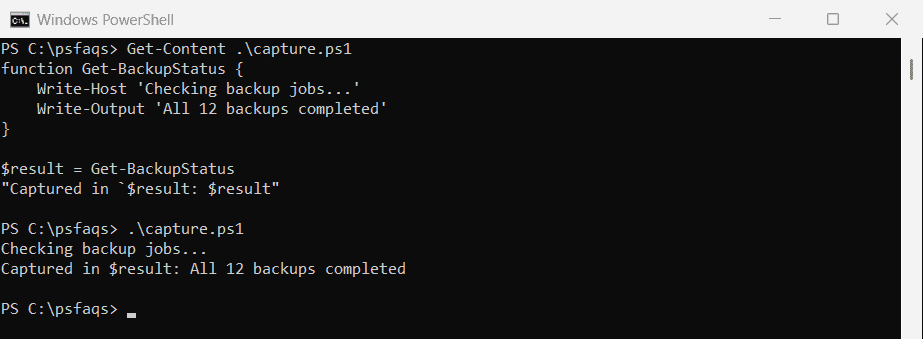
The Write-Host message appeared on screen, but $result only holds the Write-Output value. So use Write-Output, or just the variable name, for data, and Write-Host for messages to the person running the script.
To let a function update a variable you pass in, read how [ref] reference variables work.
Since PowerShell 5, Write-Host writes to the information stream, number 6, so you can still capture it if you need to:
function Get-BackupStatus {
    Write-Host 'Checking backup jobs...'
    Write-Output 'All 12 backups completed'
}

$everything = Get-BackupStatus 6>&1
"Captured $($everything.Count) lines: $($everything -join ' | ')"
Output:
Captured 2 lines: Checking backup jobs... | All 12 backups completedMore on the two in Write-Host vs Write-Output.
Print a variable inside a string
Put a variable inside double quotes and PowerShell replaces it with its value. For a property, though, you need $( ) around it:
$user = [pscustomobject]@{ Name = 'Maria Garcia'; City = 'Austin' }

"User: $user.Name"
"User: $($user.Name) from $($user.City)"
Output:
User: @{Name=Maria Garcia; City=Austin}.Name
User: Maria Garcia from Austin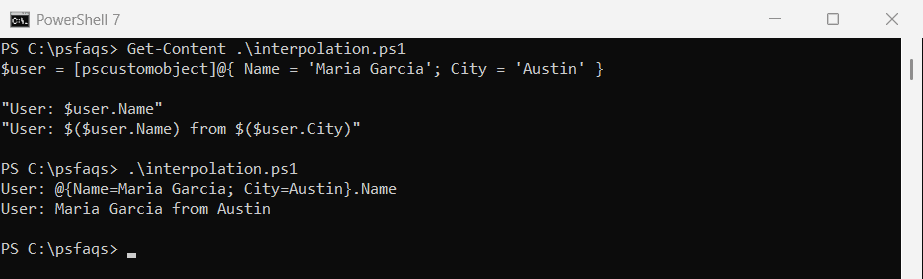
Without $( ), PowerShell expands only $user and prints .Name as plain text. The same applies to method calls and calculations.
Format numbers while printing
The -f operator fills numbered placeholders and formats them, which is handy for money and counts:
$total = 1249.5
$items = 3

'Order total: {0:C} for {1} items' -f $total, $items
Output:
Order total: $1,249.50 for 3 itemsSee how to convert variables to strings for more format codes.
Print an array
An array prints one item per line on its own, but on one line with Write-Host or inside a string:
$servers = 'WEB01', 'WEB02', 'SQL01'

$servers
Write-Host $servers
"In a string: $servers"
"With -join:  $($servers -join ', ')"
Output:
WEB01
WEB02
SQL01
WEB01 WEB02 SQL01
In a string: WEB01 WEB02 SQL01
With -join:  WEB01, WEB02, SQL01
Inside a string, PowerShell joins the items with spaces. Use -join when you want commas or another separator.
Print a hashtable
A hashtable prints as a two-column table. Write-Host is where PowerShell 7 and 5.1 differ:
$config = [ordered]@{ Environment = 'Production'; Region = 'East US' }

$config
Write-Host $config
"Region: $($config.Region)"
Output in PowerShell 7:
Name                           Value
----                           -----
Environment                    Production
Region                         East US
[Environment, Production] [Region, East US]
Region: East US
Windows PowerShell 5.1 printed System.Collections.DictionaryEntry twice instead of the keys and values. To print one value, use its key, as in the last line.
Print in color with Write-Host
Write-Host can color text and stay on the same line with -NoNewline, which is what it’s best at:
$failed = 2
Write-Host 'Backup finished. ' -NoNewline
Write-Host "$failed jobs failed" -ForegroundColor Red
Write-Host 'Report saved.' -ForegroundColor Green
Output:
Backup finished. 2 jobs failed
Report saved.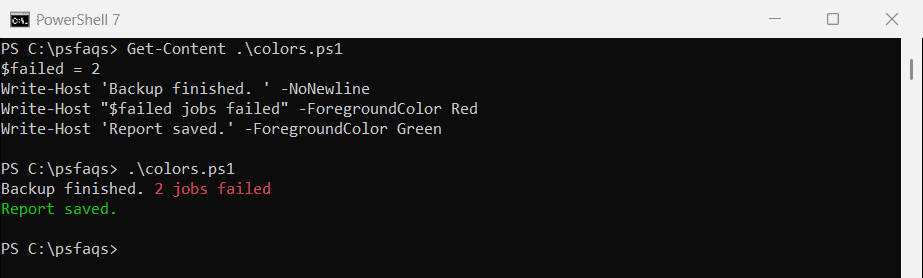
The text output above loses the colors, which is exactly why Write-Host is for people, not for data. The Write-Host documentation lists the available colors.
Print a variable’s name, value and type
Get-Variable prints variables with their names, which is handy when you check several at once:
$city  = 'Austin'
$count = 12

Get-Variable -Name city, count | Format-Table -Property Name, Value
Output:
Name  Value
----  -----
city  Austin
count 12
Pass the names without the $. To see what kind of value a variable holds, call GetType():
$total   = 1249.5
$servers = 'WEB01', 'WEB02'
$user    = [pscustomobject]@{ Name = 'Maria Garcia' }

"total is a $($total.GetType().Name)"
"servers is a $($servers.GetType().Name)"
"user is a $($user.GetType().Name)"
Output:
total is a Double
servers is a Object[]
user is a PSCustomObject