
To save output to a file in PowerShell, pipe it to Out-File, or use the > redirection operator, which does the same thing:
Get-Service | Out-File -FilePath C:\Reports\services.txt
Get-Service > C:\Reports\services.txt
Both save the output exactly as it looks on screen. Below I compare every option with the same three sample orders, so you can see which file each one produces.
Which method should you use?
| Method | What ends up in the file | Best for |
|---|---|---|
Out-File, > | The text you see on screen | Quick logs and reports to read |
>>, Out-File -Append | Same, added to the end | Growing log files |
Set-Content, Add-Content | Each object as a plain string | Writing strings and lines |
Tee-Object | Screen text, and still shown | Watching output while saving it |
Export-Csv | Properties as CSV columns | Data you’ll open in Excel or import later |
Out-File has the most options of these methods, and they’re covered in PowerShell Out-File.
Save output with Out-File
Here are the sample orders I used. Every example below starts with this array:
$orders = @(
    [pscustomobject]@{ Order = 'ORD-1001'; City = 'Austin';  Items = 3 }
    [pscustomobject]@{ Order = 'ORD-1002'; City = 'Denver';  Items = 1 }
    [pscustomobject]@{ Order = 'ORD-1003'; City = 'Seattle'; Items = 12 }
)
Out-File writes the same table you’d see in the console:
$orders = @(
    [pscustomobject]@{ Order = 'ORD-1001'; City = 'Austin';  Items = 3 }
    [pscustomobject]@{ Order = 'ORD-1002'; City = 'Denver';  Items = 1 }
    [pscustomobject]@{ Order = 'ORD-1003'; City = 'Seattle'; Items = 12 }
)

$orders | Out-File -FilePath .\orders.txt
Get-Content -Path .\orders.txt
Output:
Order    City    Items
-----    ----    -----
ORD-1001 Austin      3
ORD-1002 Denver      1
ORD-1003 Seattle    12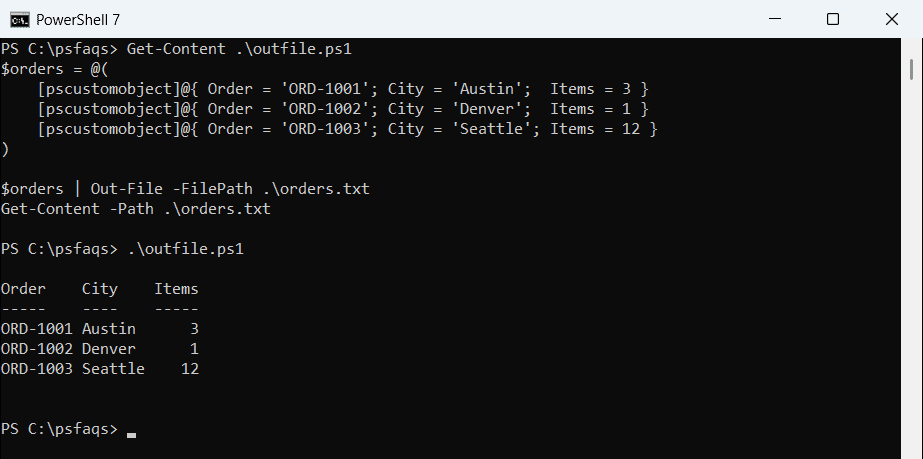
Add -Append to add to an existing file, and -NoClobber to refuse to overwrite one. PowerShell Out-File covers width and encoding options in depth.
Use > and >> redirection
> creates or overwrites a file, and >> appends to it. They’re shortcuts for Out-File and Out-File -Append:
'Report started: 2026-10-04 08:00' > .\run-log.txt
'Orders processed: 3' >> .\run-log.txt
'Report finished: 2026-10-04 08:02' >> .\run-log.txt
Get-Content -Path .\run-log.txt
Output:
Report started: 2026-10-04 08:00
Orders processed: 3
Report finished: 2026-10-04 08:02
This is my go-to for a quick log in a script. For timestamps and log levels, see writing to a log file in PowerShell.
Set-Content and Add-Content write strings, not tables
Set-Content doesn’t format anything. It turns each object into a string, which for custom objects looks like this:
$orders = @(
    [pscustomobject]@{ Order = 'ORD-1001'; City = 'Austin';  Items = 3 }
    [pscustomobject]@{ Order = 'ORD-1002'; City = 'Denver';  Items = 1 }
    [pscustomobject]@{ Order = 'ORD-1003'; City = 'Seattle'; Items = 12 }
)

$orders | Set-Content -Path .\orders-set.txt
Get-Content -Path .\orders-set.txt
Output:
@{Order=ORD-1001; City=Austin; Items=3}
@{Order=ORD-1002; City=Denver; Items=1}
@{Order=ORD-1003; City=Seattle; Items=12}
That’s why Set-Content is the wrong tool for command output but the right one for text you build yourself. Add-Content appends lines in the same way. See PowerShell Add-Content and writing a string to a file.
Save and show output with Tee-Object
Out-File hides the output from the console. Tee-Object saves it and passes it on, so you see it too:
Get-Date -Date '2026-10-04' -Format 'dddd, MMMM d, yyyy' | Tee-Object -FilePath .\run-date.txt
"Saved to file: $(Get-Content -Path .\run-date.txt)"
Output:
Sunday, October 4, 2026
Saved to file: Sunday, October 4, 2026