
To create a table with headers in PowerShell, make [pscustomobject] rows. The property names become the column headers, and PowerShell prints the rows as a table:
$servers = @(
    [pscustomobject]@{ Server = 'WEB01'; Role = 'Web';      City = 'Austin' }
    [pscustomobject]@{ Server = 'SQL01'; Role = 'Database'; City = 'Denver' }
)
$servers
Output:
Server Role     City
------ ----     ----
WEB01  Web      Austin
SQL01  Database Denver
For custom header text, widths and number formats, use Format-Table with calculated columns. I ran every example in PowerShell 7.6 and Windows PowerShell 5.1, and the tables match apart from a few blank lines.
Five or more columns switch to a list
PowerShell shows objects with up to four properties as a table and five or more as a list. Pipe to Format-Table to keep the table:
$stores = @(
    [pscustomobject]@{ Store = 101; City = 'Austin'; State = 'TX'; Sales = 18250; Manager = 'Alice Johnson' }
    [pscustomobject]@{ Store = 102; City = 'Denver'; State = 'CO'; Sales = 12400; Manager = 'Bob Smith' }
    [pscustomobject]@{ Store = 103; City = 'Dallas'; State = 'TX'; Sales = 20975; Manager = 'Carol Diaz' }
)

'Default view:'
$stores[0]
'With Format-Table:'
$stores | Format-Table
Output:
Default view:

Store   : 101
City    : Austin
State   : TX
Sales   : 18250
Manager : Alice Johnson

With Format-Table:

Store City   State Sales Manager
----- ----   ----- ----- -------
  101 Austin TX    18250 Alice Johnson
  102 Denver CO    12400 Bob Smith
  103 Dallas TX    20975 Carol Diaz
Creating an array of objects covers building the rows themselves.
Custom column headers and number formats
Pass hashtables to Format-Table to rename columns. Label sets the header, Expression the value, and FormatString and Align control how it looks:
$stores = @(
    [pscustomobject]@{ Store = 101; City = 'Austin'; State = 'TX'; Sales = 18250; Manager = 'Alice Johnson' }
    [pscustomobject]@{ Store = 102; City = 'Denver'; State = 'CO'; Sales = 12400; Manager = 'Bob Smith' }
    [pscustomobject]@{ Store = 103; City = 'Dallas'; State = 'TX'; Sales = 20975; Manager = 'Carol Diaz' }
)

$stores | Format-Table -Property @{ Label = 'Store #'; Expression = { $_.Store } },
    City,
    @{ Label = 'Sales (USD)'; Expression = { $_.Sales }; FormatString = 'C0'; Align = 'Right' },
    @{ Label = 'Store Manager'; Expression = { $_.Manager } }
Output:
Store # City   Sales (USD) Store Manager
------- ----   ----------- -------------
    101 Austin     $18,250 Alice Johnson
    102 Denver     $12,400 Bob Smith
    103 Dallas     $20,975 Carol Diaz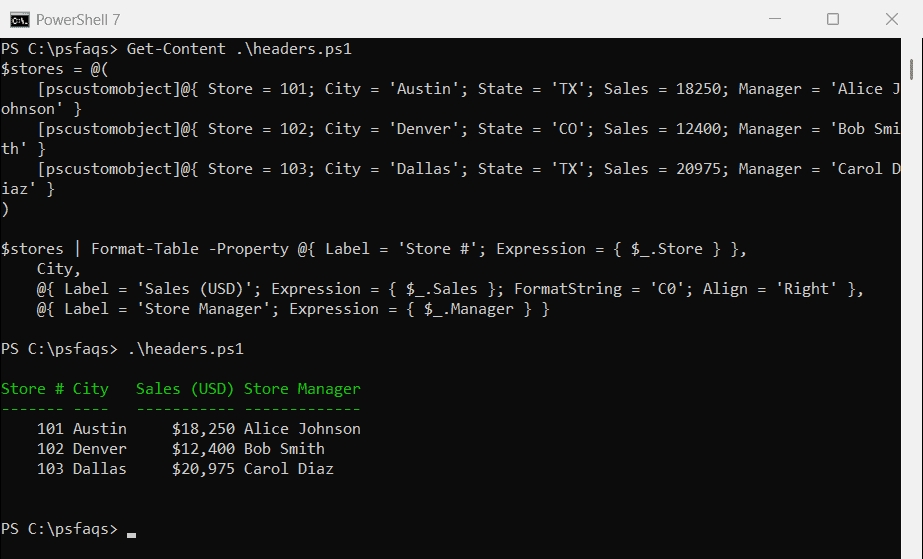
Don’t export Format-Table output
Format-Table produces formatting instructions for the console, not data. Export them and you get columns like these:
$stores = @(
    [pscustomobject]@{ Store = 101; City = 'Austin'; State = 'TX'; Sales = 18250; Manager = 'Alice Johnson' }
    [pscustomobject]@{ Store = 102; City = 'Denver'; State = 'CO'; Sales = 12400; Manager = 'Bob Smith' }
    [pscustomobject]@{ Store = 103; City = 'Dallas'; State = 'TX'; Sales = 20975; Manager = 'Carol Diaz' }
)

$stores | Format-Table City, Sales | Export-Csv -Path C:\psfaqs\stores.csv -NoTypeInformation
"CSV header: $((Get-Content -Path C:\psfaqs\stores.csv -TotalCount 1).Substring(0, 60))..."
Output:
CSV header: "ClassId2e4f51ef21dd47e99d3c952918aff9cd","pageHeaderEntry",...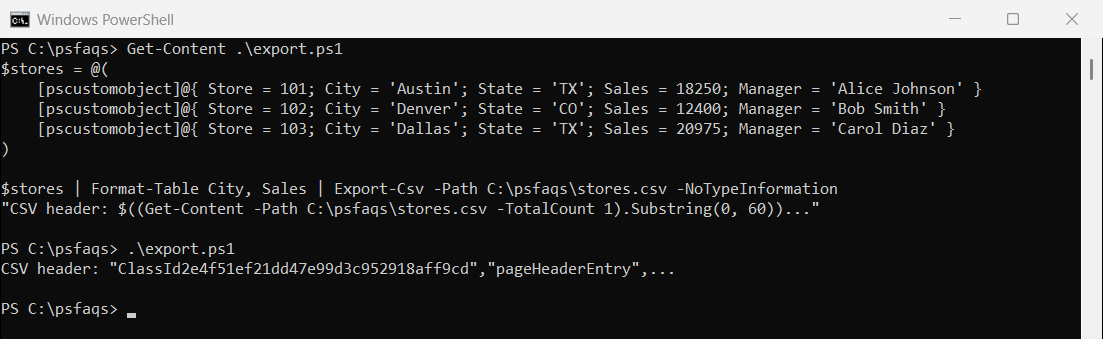
Rename columns with Select-Object instead, which keeps real objects you can export:
$stores = @(
    [pscustomobject]@{ Store = 101; City = 'Austin'; State = 'TX'; Sales = 18250; Manager = 'Alice Johnson' }
    [pscustomobject]@{ Store = 102; City = 'Denver'; State = 'CO'; Sales = 12400; Manager = 'Bob Smith' }
    [pscustomobject]@{ Store = 103; City = 'Dallas'; State = 'TX'; Sales = 20975; Manager = 'Carol Diaz' }
)

$report = $stores | Select-Object -Property @{ Name = 'Store #'; Expression = { $_.Store } }, City,
    @{ Name = 'Sales (USD)'; Expression = { '{0:C0}' -f $_.Sales } }

$report | Export-Csv -Path C:\psfaqs\stores.csv -NoTypeInformation
"CSV header: $(Get-Content -Path C:\psfaqs\stores.csv -TotalCount 1)"
Output:
CSV header: "Store #","City","Sales (USD)"Put Format-Table last, only when you want to look at the result on screen. Export-Csv covers the export side.
Group rows under a heading
-GroupBy prints a separate table for each value. Sort by the same property first, or the groups break apart:
$stores = @(
    [pscustomobject]@{ Store = 101; City = 'Austin'; State = 'TX'; Sales = 18250; Manager = 'Alice Johnson' }
    [pscustomobject]@{ Store = 102; City = 'Denver'; State = 'CO'; Sales = 12400; Manager = 'Bob Smith' }
    [pscustomobject]@{ Store = 103; City = 'Dallas'; State = 'TX'; Sales = 20975; Manager = 'Carol Diaz' }
)

$stores | Sort-Object -Property State, City | Format-Table -Property City, Sales, Manager -GroupBy State
Output:
   State: CO

City   Sales Manager
----   ----- -------
Denver 12400 Bob Smith

   State: TX

City   Sales Manager
----   ----- -------
Austin 18250 Alice Johnson
Dallas 20975 Carol Diaz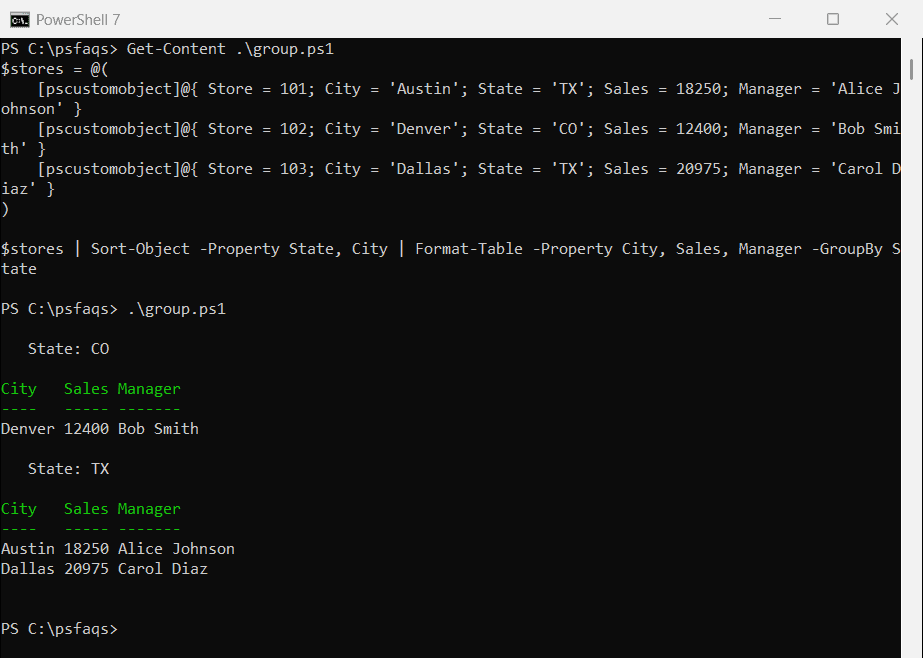
I sorted by City too because Windows PowerShell 5.1 doesn’t keep equal items in order, as sorting arrays shows.
A real table object: DataTable
When you need typed columns, calculations or to pass the table to .NET code, use System.Data.DataTable:
$table = [System.Data.DataTable]::new('Stores')
[void]$table.Columns.Add('City', [string])
[void]$table.Columns.Add('Sales', [int])

[void]$table.Rows.Add('Austin', 18250)
[void]$table.Rows.Add('Denver', 12400)

"Columns: $($table.Columns.ColumnName -join ', ')"
"Rows: $($table.Rows.Count), total sales: $($table.Compute('SUM(Sales)', ''))"
Output:
Columns: City, Sales
Rows: 2, total sales: 30650
Compute runs SQL-style aggregates on a column. Microsoft’s DataTable reference covers filtering and sorting, and the Format-Table documentation covers -AutoSize and -Wrap.