
To find a character in a string with PowerShell, use Contains() to check whether it’s there, or IndexOf() to get its position. IndexOf counts from 0 and returns -1 when the character isn’t found:
$email = 'emma.carter@contoso.com'

"Contains @:     $($email.Contains('@'))"
"Position of @:  $($email.IndexOf('@'))"
"Position of #:  $($email.IndexOf('#'))"
Output:
Contains @:     True
Position of @:  11
Position of #:  -1
Below I cover the operator versions, case sensitivity, the second or nth occurrence, every position and counting matches. Every example ran in PowerShell 7.6 and Windows PowerShell 5.1, with the same results.
Use -like or -match for a yes/no check
The -like and -match operators return True or False and work well in if statements. -match takes a regular expression, so it can look for several characters at once:
$path = 'C:\Reports\Q3\sales.csv'

"-like '*\*':        $($path -like '*\*')"
"-match '\\':        $($path -match '\\')"
"-match '[?*<>|]':   $($path -match '[?*<>|]')"
Output:
-like '*\*':        True
-match '\\':        True
-match '[?*<>|]':   False
In a regex, a backslash must be written as \\. Checking if a string contains text compares these options in more depth.
Methods are case-sensitive, operators are not
IndexOf and Contains match case exactly, so they miss a lowercase a when you search for A. The -like and -match operators ignore case by default:
$code = 'TX-2026-a17'

"IndexOf('A'):                  $($code.IndexOf('A'))"
"IndexOf('A', OrdinalIgnoreCase): $($code.IndexOf('A', [StringComparison]::OrdinalIgnoreCase))"
"Contains('A'):                 $($code.Contains('A'))"
"-like '*A*':                   $($code -like '*A*')"
Output:
IndexOf('A'):                  -1
IndexOf('A', OrdinalIgnoreCase): 8
Contains('A'):                 False
-like '*A*':                   True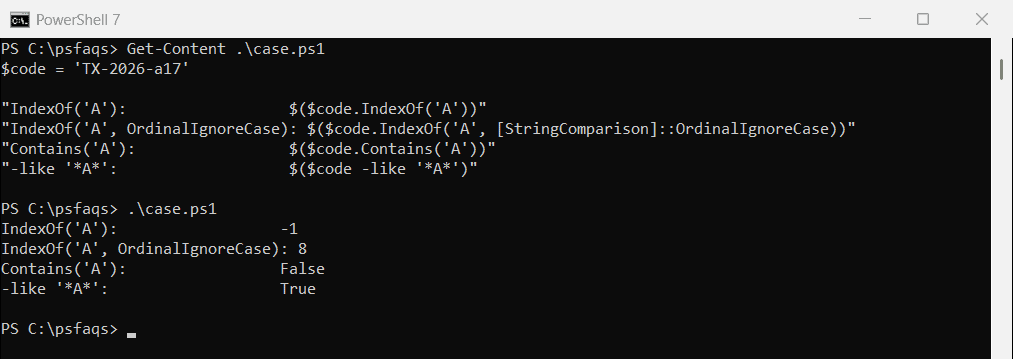
Pass [StringComparison]::OrdinalIgnoreCase to IndexOf to ignore case. For case-sensitive operators, use -clike and -cmatch.
Find the second occurrence
IndexOf takes a second argument: where to start searching. Start one position after the first match to find the second:
$line = 'web01,Seattle,WA,98101,active'

$first = $line.IndexOf(',')
$second = $line.IndexOf(',', $first + 1)
"First comma at $first, second comma at $second"
"Text between them: $($line.Substring($first + 1, $second - $first - 1))"
Output:
First comma at 5, second comma at 13
Text between them: Seattle
That’s how you pull out a field between two separators. Getting a substring covers Substring in detail.
Find the nth occurrence
Repeat the same step in a loop to find any occurrence. The function returns -1 when there aren’t that many:
function Get-NthIndex {
    param([string]$Text, [string]$Find, [int]$N)
    $index = -1
    for ($i = 1; $i -le $N; $i++) {
        $index = $Text.IndexOf($Find, $index + 1)
        if ($index -lt 0) { return -1 }
    }
    $index
}

$line = 'web01,Seattle,WA,98101,active'
foreach ($n in 1..5) { 'Comma #{0}: position {1}' -f $n, (Get-NthIndex -Text $line -Find ',' -N $n) }
Output:
Comma #1: position 5
Comma #2: position 13
Comma #3: position 16
Comma #4: position 22
Comma #5: position -1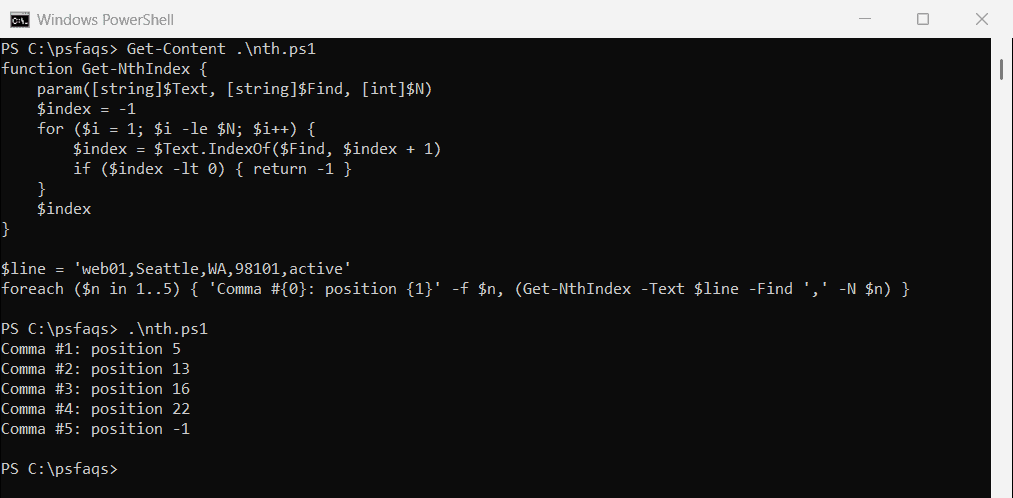
For CSV-style lines, -split is often simpler: ($line -split ',')[1] returns the second field directly.
Find every position
A for loop can keep calling IndexOf until it returns -1. For multi-character patterns, [regex]::Matches returns every match with its Index:
$text = 'Mississippi'
$positions = for ($i = $text.IndexOf('s'); $i -ge 0; $i = $text.IndexOf('s', $i + 1)) { $i }
"Every 's' is at: $($positions -join ', ')"

$regexPositions = [regex]::Matches($text, 'ss') | ForEach-Object { $_.Index }
"Every 'ss' is at: $($regexPositions -join ', ')"
Output:
Every 's' is at: 2, 3, 5, 6
Every 'ss' is at: 2, 5
Each number is the position where a match starts, counting from 0. Regex matches never overlap, so a pattern like ‘aa’ counts twice in ‘aaaa’, not three times.
Find the last occurrence
LastIndexOf searches from the end. IndexOfAny finds the first of several characters at once:
$file = 'C:\Reports\2026\Q3\sales.final.csv'

"First backslash: $($file.IndexOf('\'))"
"Last backslash:  $($file.LastIndexOf('\'))"
"Last dot:        $($file.LastIndexOf('.'))"
"First of . or \: $($file.IndexOfAny([char[]]'.\'))"
Output:
First backslash: 2
Last backslash:  18
Last dot:        30
First of . or \: 2
LastIndexOf(‘.’) is the usual way to find a file extension, since names can contain other dots.
Once you know the position, you can replace the text before that character.
Count how many times a character appears
Split the string into characters and filter them. -eq ignores case, so use -ceq when E and e should be counted separately:
$text = 'Elevated Services'

"Count of 'e' (-eq ignores case):    $(($text.ToCharArray() -eq 'e').Count)"
"Count of 'e' (-ceq, exact case):     $(($text.ToCharArray() -ceq 'e').Count)"
"Count of 'e' with regex, exact case: $([regex]::Matches($text, 'e').Count)"
Output:
Count of 'e' (-eq ignores case):    5
Count of 'e' (-ceq, exact case):     4
Count of 'e' with regex, exact case: 4