
To create an object in PowerShell, cast a hashtable to [pscustomobject]. The keys become properties, in the order you wrote them:
$employee = [pscustomobject]@{
    Name   = 'Alice Johnson'
    Title  = 'Systems Engineer'
    Office = 'Austin'
    Salary = 98000
}

$employee
"Office: $($employee.Office)"
Output:
Name          Title            Office Salary
----          -----            ------ ------
Alice Johnson Systems Engineer Austin  98000
Office: Austin
That covers most scripts. Below I add methods and computed properties, use classes for typed objects, and turn strings into objects. I ran every example in PowerShell 7.6 and Windows PowerShell 5.1.
Add properties and methods with Add-Member
Add-Member adds a plain value (NoteProperty), a value calculated when you read it (ScriptProperty), or a method (ScriptMethod). Inside the script block, $this is the object:
$order = [pscustomobject]@{ Id = 1042; Price = 20.00 }

$order | Add-Member -MemberType NoteProperty -Name Status -Value 'Open'
$order | Add-Member -MemberType ScriptProperty -Name WithTax -Value { [Math]::Round($this.Price * 1.0825, 2) }
$order | Add-Member -MemberType ScriptMethod -Name Close -Value { $this.Status = 'Closed' }

$order.Price = 100
$order.Close()
"Status: $($order.Status), price with tax: $($order.WithTax)"
Output:
Status: Closed, price with tax: 108.25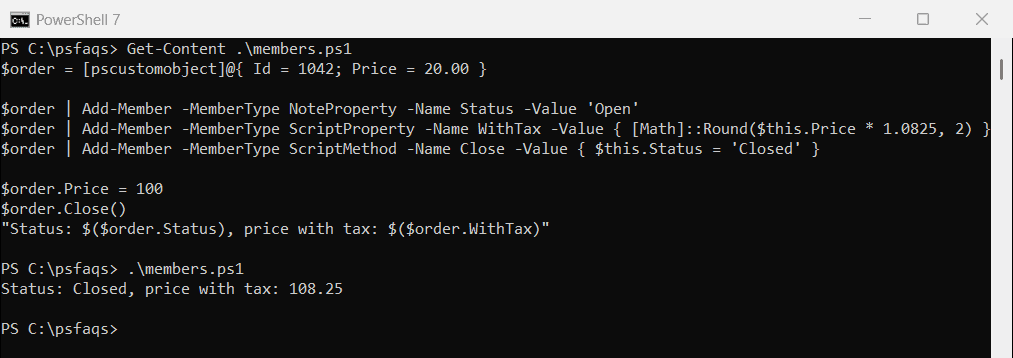
WithTax used the new price because a ScriptProperty runs every time you read it. The 8.25% rate is the Texas maximum. Microsoft’s Add-Member documentation lists the other member types.
Once you have objects, you’ll usually collect them, as shown in creating an array of objects.
Use a class for typed objects
A class defines the properties, their types and the methods once. PowerShell then converts or rejects values to match:
class Employee {
    [string]$Name
    [int]$Age

    Employee([string]$name, [int]$age) {
        $this.Name = $name
        $this.Age  = $age
    }

    [string] Describe() { return "$($this.Name), age $($this.Age)" }
}

$alice = [Employee]::new('Alice Johnson', '42')
$alice.Describe()
"Age is stored as $($alice.Age.GetType().Name)"
try { $alice.Age = 'forty' } catch { "Setting Age to 'forty' failed, the class only takes numbers" }
Output:
Alice Johnson, age 42
Age is stored as Int32
Setting Age to 'forty' failed, the class only takes numbers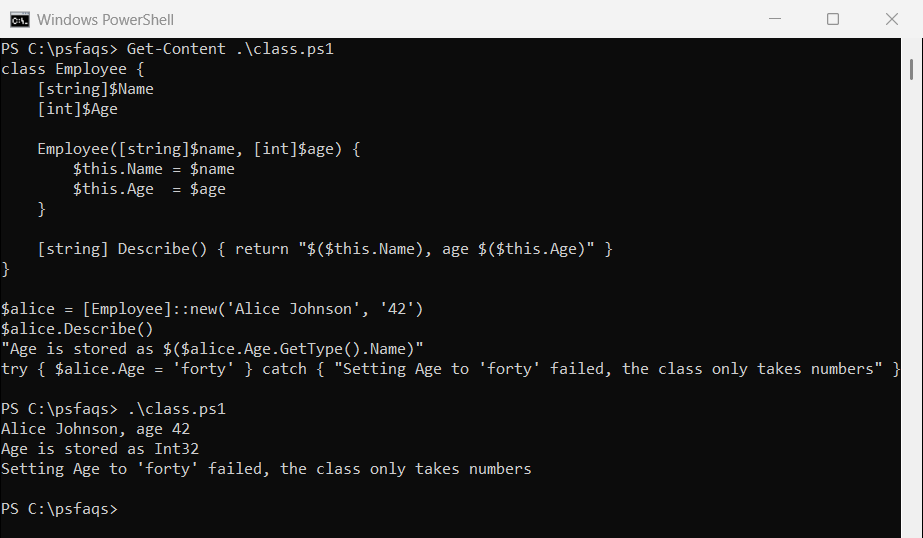
Classes work in Windows PowerShell 5.1 and later. Use them when many scripts share the same kind of object. Microsoft covers constructors and inheritance in about_Classes.
Convert a string to an object
Delimited text: ConvertFrom-Csv
For comma-separated text, ConvertFrom-Csv makes one object per line, using the first line as property names:
$text = @'
Name,State,Sales
Alice,TX,18250
Bob,CO,12400
'@

$rows = $text | ConvertFrom-Csv
$rows | ForEach-Object { "$($_.Name) in $($_.State) sold $($_.Sales)" }
"Sales is a $($rows[0].Sales.GetType().Name), cast it before doing math"
Output:
Alice in TX sold 18250
Bob in CO sold 12400
Sales is a String, cast it before doing math
Every value is a string, so cast numbers with [int] or [decimal] before you sort or add them.
key = value text: ConvertFrom-StringData
Settings in key = value form become a hashtable, which you can cast to an object:
$config = @'
Server = SQL01
Port = 1433
'@ | ConvertFrom-StringData

"Server: $($config.Server), port: $($config.Port) ($($config.Port.GetType().Name))"
$obj = [pscustomobject]$config
"As an object: $($obj.Server)"
Output:
Server: SQL01, port: 1433 (String)
As an object: SQL01
PowerShell 7 adds -Delimiter for other separators, like a colon. The ConvertFrom-StringData documentation covers escaping backslashes.
Log lines: a regex with named groups
For text with a fixed pattern, like log lines, capture each part with a named group and build the object yourself:
$line = '2026-09-28 ERROR WEB01 Disk D is full'

if ($line -match '^(?<Date>\S+) (?<Level>\S+) (?<Server>\S+) (?<Message>.+)$') {
    $entry = [pscustomobject][ordered]@{
        Date    = [datetime]$Matches.Date
        Level   = $Matches.Level
        Server  = $Matches.Server
        Message = $Matches.Message
    }
}
$entry | Format-List
Output:
Date    : 9/28/2026 12:00:00 AM
Level   : ERROR
Server  : WEB01
Message : Disk D is full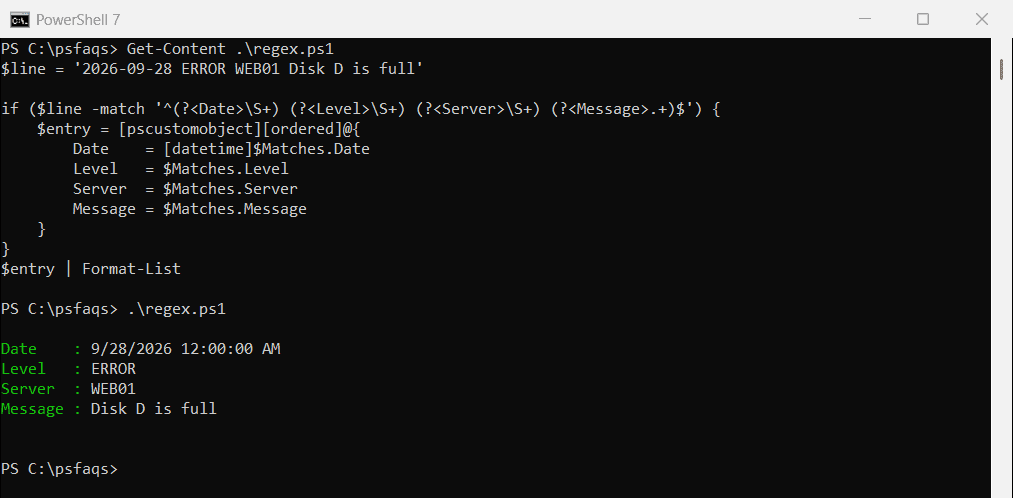
Use [ordered] as shown. Casting $Matches straight to [pscustomobject] works, but the properties come out in a random order.
Skip ConvertFrom-String
Older posts use ConvertFrom-String, which guesses types from the text and runs differently in PowerShell 7:
$person = 'Alice 42' | ConvertFrom-String -PropertyNames Name, Age
"Name: $($person.Name), Age: $($person.Age) stored as a $($person.Age.GetType().Name)"
"ConvertFrom-String is a $((Get-Command -Name ConvertFrom-String).CommandType) here"
Output in PowerShell 7:
Name: Alice, Age: 42 stored as a Byte
ConvertFrom-String is a Function here
Output in Windows PowerShell 5.1:
Name: Alice, Age: 42 stored as a Byte
ConvertFrom-String is a Cmdlet here
It stored the age as a Byte, which fails above 255. In PowerShell 7 it’s a proxy that runs in a hidden Windows PowerShell 5.1 session, like Get-WmiObject. Use the regex method instead.
Copy an object
PSObject.Copy() makes a new object, but properties that hold lists or other objects still point to the same data:
$original = [pscustomobject]@{ Name = 'WEB01'; Tags = [System.Collections.Generic.List[string]]@('web') }

$clone = $original.PSObject.Copy()
$clone.Name = 'WEB02'
$clone.Tags.Add('prod')

"Original name: $($original.Name)"
"Original tags: $($original.Tags -join ', ')"
Output:
Original name: WEB01
Original tags: web, prod
The name stayed separate, but adding a tag to the copy als