
To convert a file to Base64 in PowerShell, read its bytes with [System.IO.File]::ReadAllBytes and pass them to [System.Convert]::ToBase64String:
$bytes  = [System.IO.File]::ReadAllBytes('C:\Files\invoice.pdf')
$base64 = [System.Convert]::ToBase64String($bytes)
It works the same in PowerShell 7 and 5.1. Below I encode and decode a sample file, fix the -Encoding Byte error, stream large files and compare certutil.
Encode a file to Base64
Here I encode a small text file so you can see the result. Binary files such as PDFs and images work exactly the same way:
$path  = (Resolve-Path -Path .\Files\invoice.txt).Path
$bytes = [System.IO.File]::ReadAllBytes($path)
$base64 = [System.Convert]::ToBase64String($bytes)

$base64
"File: $($bytes.Length) bytes, Base64: $($base64.Length) characters"
Output:
SW52b2ljZSBJTlYtNzAwMTogJDI0OS45OQ==
File: 25 bytes, Base64: 36 characters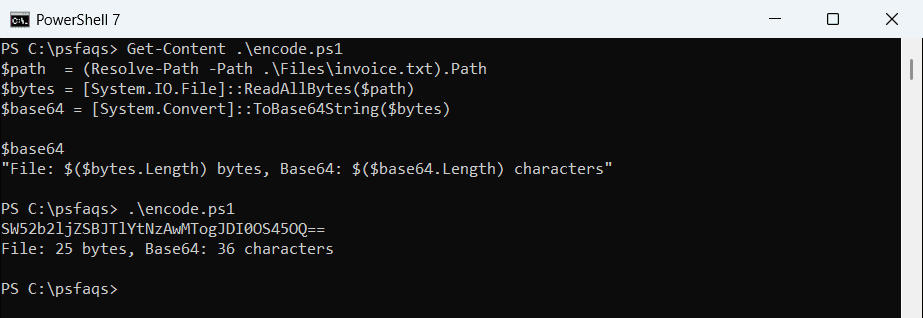
Base64 output is about a third larger than the file, because every 3 bytes become 4 characters. The == at the end is padding. Use a full path with ReadAllBytes, because .NET doesn’t follow PowerShell’s current folder.
Decode Base64 back into a file
FromBase64String turns the text back into bytes, and WriteAllBytes saves them. Get-FileHash proves the copy is identical:
$path   = (Resolve-Path -Path .\Files\invoice.txt).Path
$base64 = [System.Convert]::ToBase64String([System.IO.File]::ReadAllBytes($path))

$copy = Join-Path -Path (Split-Path -Path $path) -ChildPath 'invoice-copy.txt'
[System.IO.File]::WriteAllBytes($copy, [System.Convert]::FromBase64String($base64))

Get-Content -Path $copy
"Same file: $((Get-FileHash -Path $path).Hash -eq (Get-FileHash -Path $copy).Hash)"
Output:
Invoice INV-7001: $249.99
Same file: True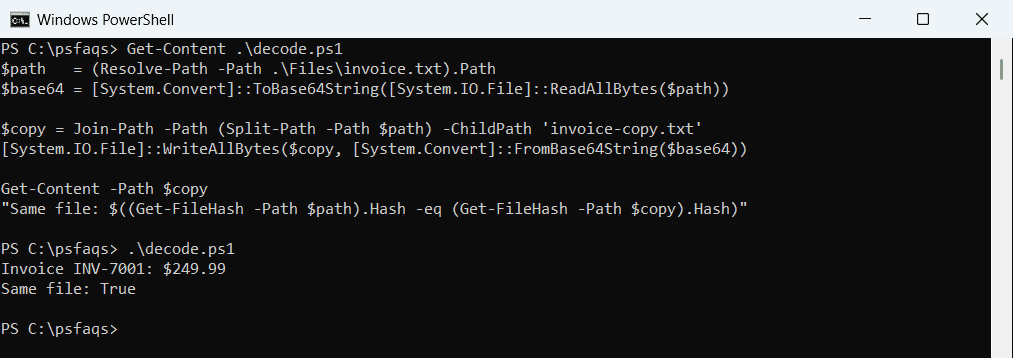
If you’re working with text rather than files, see converting a string to Base64.
Why Get-Content -Encoding Byte fails in PowerShell 7
Older examples read bytes with Get-Content -Encoding Byte. PowerShell 7 removed that value:
try {
    $bytes = Get-Content -Path .\Files\invoice.txt -Encoding Byte -ErrorAction Stop
    "-Encoding Byte read $($bytes.Count) bytes"
}
catch { "Failed. $($_.Exception.Message)" }
Output:
Failed. Cannot process argument transformation on parameter 'Encoding'. 'Byte' is not a supported encoding name. For information on defining a custom encoding, see the documentation for the Encoding.RegisterProvider method. (Parameter 'name')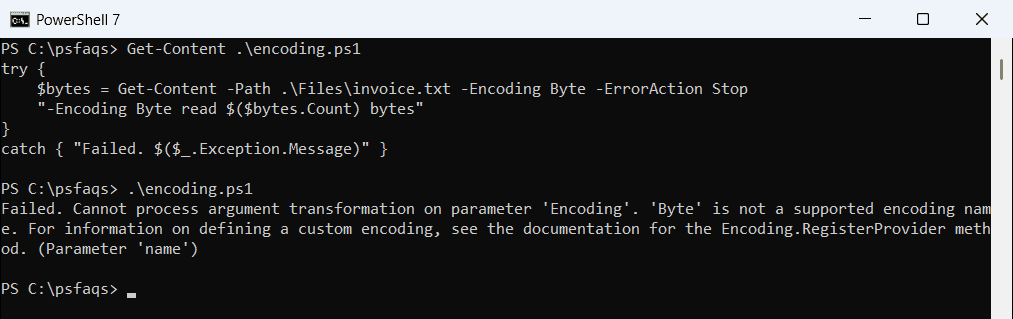
Windows PowerShell 5.1 still reads 25 bytes with it. In PowerShell 7, use Get-Content -AsByteStream -Raw, or just ReadAllBytes, which works in both.
Encode large files without loading them into memory
ReadAllBytes loads the whole file, and the Base64 string is a third bigger again. For large files, stream through ToBase64Transform instead. I checked it against the direct method on a 1 MB file:
$source = (Resolve-Path -Path .\Files\backup-2026-10.bin).Path
$target = "$source.b64"

$in  = [System.IO.File]::OpenRead($source)
$out = [System.IO.File]::Create($target)
$b64 = [System.Security.Cryptography.CryptoStream]::new(
    $out, [System.Security.Cryptography.ToBase64Transform]::new(), 'Write')
$in.CopyTo($b64)
$b64.Dispose(); $in.Dispose()

$direct = [System.Convert]::ToBase64String([System.IO.File]::ReadAllBytes($source))
"Streamed: $((Get-Item -Path $target).Length) characters"
"Matches the direct method: $([System.IO.File]::ReadAllText($target) -eq $direct)"
Output:
Streamed: 1398104 characters
Matches the direct method: True
Some older guides convert each 8 KB buffer separately, which breaks the output because 8,192 isn’t a multiple of 3. The CryptoStream handles the boundaries for you.
Use certutil instead
certutil is built into Windows and works from cmd too. It wraps the Base64 in header lines:
certutil.exe -encode .\Files\invoice.txt .\Files\invoice.b64 | Out-Null
Get-Content -Path .\Files\invoice.b64
Output:
-----BEGIN CERTIFICATE-----
SW52b2ljZSBJTlYtNzAwMTogJDI0OS45OQ==
-----END CERTIFICATE-----
Decode with certutil -decode invoice.b64 invoice.txt. Many tools reject the BEGIN and END lines, so the .NET method is cleaner for APIs.
Embed a file as a data URI
Base64 is how images go straight into HTML or CSS. Add the MIME type in front:
$bytes = [System.IO.File]::ReadAllBytes('C:\Files\logo.png')
$dataUri = 'data:image/png;base64,' + [System.Convert]::ToBase64String($bytes)
"<img src='$dataUri' alt='Logo'>" | Set-Content -Path C:\Files\logo.html
Keep embedded files small. Every image becomes part of the page, and it can’t be cached separately.
Frequently Asked Questions
How do I convert a file to Base64 in PowerShell?
Run [System.Convert]::ToBase64String([System.IO.File]::ReadAllBytes('C:\Files\invoice.pdf')).
How do I convert Base64 back to a file?
Use [System.IO.File]::WriteAllBytes('C:\Files\out.pdf', [System.Convert]::FromBase64String($base64)).
Why does Get-Content -Encoding Byte not work?
PowerShell 7 removed the Byte encoding. Use Get-Content -AsByteStream -Raw or ReadAllBytes.
How much bigger is a Base64 file?
About 33% bigger, because every 3 bytes become 4 characters.
How do I Base64 encode a large file in PowerShell?
Stream it through a CryptoStream with ToBase64Transform instead of reading the whole file into memory. See Microsoft’s