
To check if a file is empty in PowerShell, get the file with Get-Item and test whether its Length is 0. Length is the file’s size in bytes:
$file = Get-Item -Path C:\psfaqs\Check\export.csv

if ($file.Length -eq 0) { "$($file.Name) is empty" }
else { "$($file.Name) has $($file.Length) bytes" }
Output:
export.csv is emptyFolders need a different test, which I cover further down. I ran every example in PowerShell 7.6 and Windows PowerShell 5.1 against the same sample folder, with the same results.
Files that look empty but aren’t 0 bytes
A file can show nothing in Notepad and still have a size. Blank lines, spaces and an invisible byte order mark (BOM) all count as bytes:
foreach ($name in 'export.csv', 'blank-lines.txt', 'bom-only.txt', 'orders.csv') {
    $path = "C:\psfaqs\Check\$name"
    $bytes = (Get-Item -Path $path).Length
    $noText = [string]::IsNullOrWhiteSpace((Get-Content -Path $path -Raw))
    '{0,-16} {1} bytes, no real text: {2}' -f $name, $bytes, $noText
}
Output:
export.csv       0 bytes, no real text: True
blank-lines.txt  6 bytes, no real text: True
bom-only.txt     3 bytes, no real text: True
orders.csv       24 bytes, no real text: False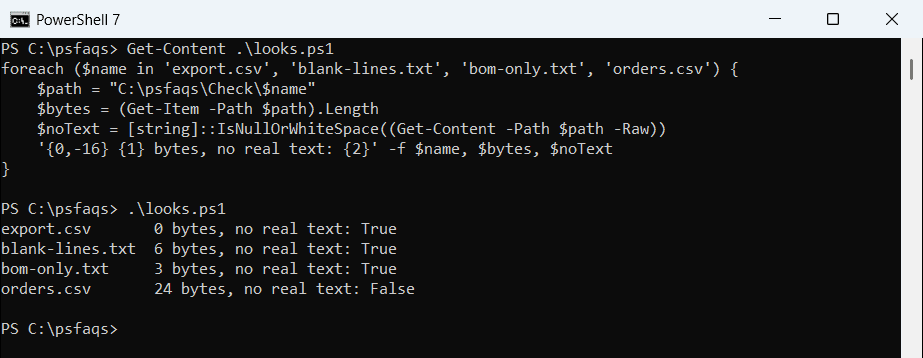
To treat those as empty too, read the file with Get-Content -Raw and test it with [string]::IsNullOrWhiteSpace. Get-Content skips the BOM, and an empty file returns $null, which also counts as empty.
Use the Length check for big files, since it doesn’t read the contents. Save the text check for small files like CSV exports and config files.
Check that the file exists first
Get-Item throws an error for a file that isn’t there. Test-Path with -PathType Leaf confirms it’s a file before you check the size:
$path = 'C:\psfaqs\Check\report-2026-09.csv'

if (-not (Test-Path -Path $path -PathType Leaf)) { "$path doesn't exist" }
elseif ((Get-Item -Path $path).Length -eq 0) { "$path is empty" }
else { "$path has data" }
Output:
C:\psfaqs\Check\report-2026-09.csv doesn't existTest-Path has more ways to check files and folders.
Find all empty files in a folder
Filter Get-ChildItem results by Length. -Recurse includes subfolders, and -Force includes hidden files:
Get-ChildItem -Path C:\psfaqs\Check -File -Recurse -Force |
    Where-Object Length -EQ 0 |
    ForEach-Object { $_.FullName.Replace('C:\psfaqs\Check\', '') }
Output:
export.csv
Logs\app-2026-09-28.log
Add | Remove-Item at the end to delete them, after a first run with -WhatIf. Listing all files in a folder covers the other Get-ChildItem filters.
Check if a folder is empty
A folder is empty when Get-ChildItem returns nothing. The catch is hidden files: without -Force, Get-ChildItem skips them, so a folder holding only a hidden desktop.ini looks empty:
foreach ($name in 'Empty', 'OnlyHidden', 'OnlySubfolders', 'Logs') {
    $path = "C:\psfaqs\Check\$name"
    $plain = -not (Get-ChildItem -Path $path)
    $force = -not (Get-ChildItem -Path $path -Force)
    '{0,-15} empty without -Force: {1,-6} with -Force: {2}' -f $name, $plain, $force
}
Output:
Empty           empty without -Force: True   with -Force: True
OnlyHidden      empty without -Force: True   with -Force: False
OnlySubfolders  empty without -Force: False  with -Force: False
Logs            empty without -Force: False  with -Force: False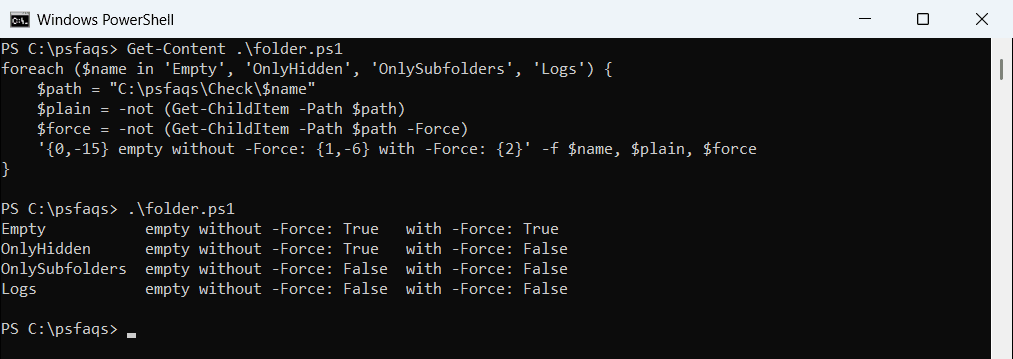
Always add -Force for this check. The Get-ChildItem documentation explains which items it skips by default. Listing hidden files shows how to see them.
A folder with only empty subfolders
OnlySubfolders above isn’t empty, because it holds folders. If you only care about files, search the whole tree with -File -Recurse:
foreach ($name in 'Empty', 'OnlySubfolders', 'Logs') {
    $files = Get-ChildItem -Path "C:\psfaqs\Check\$name" -File -Recurse -Force
    '{0,-15} files anywhere inside: {1}' -f $name, @($files).Count
}
Output:
Empty           files anywhere inside: 0
OnlySubfolders  files anywhere inside: 0
Logs            files anywhere inside: 2
@() around the result makes Count work in both versions, even when nothing or only one file comes back.
A faster check for big folders
Get-ChildItem lists everything before you test it. EnumerateFileSystemEntries stops at the first item, so it returns right away even for folders with thousands of files:
function Test-EmptyFolder {
    param([Parameter(Mandatory)] [string]$Path)
    -not [System.IO.Directory]::EnumerateFileSystemEntries($Path).GetEnumerator().MoveNext()
}

Test-EmptyFolder -Path C:\psfaqs\Check\Empty
Test-EmptyFolder -Path C:\psfaqs\Check\OnlyHidden
Output:
True
False
It includes hidden files, so no -Force is needed.
Find all empty folders
Test each subfolder with the same -Force check. The result includes the deepest folders in a chain, like 2026\09 here:
Get-ChildItem -Path C:\psfaqs\Check -Directory -Recurse -Force |
    Where-Object { -not (Get-ChildItem -Path $_.FullName -Force) } |
    ForEach-Object { $_.FullName.Replace('C:\psfaqs\Check\', '') }
Output:
Empty
Logs\Archive
OnlySubfolders\2026\09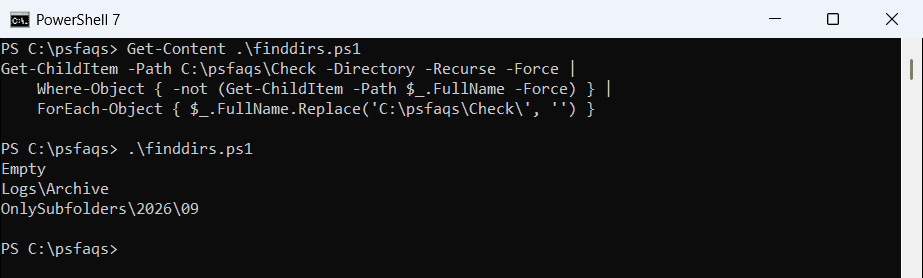
To delete them, remove the deepest first, so their parents become empty too. Deleting old files has a cleanup script that does this.