
To get the PowerShell array length, read the array’s .Count or .Length property. Both return the number of items, so $cities.Count gives 5 for a five-city array:
$cities = 'Austin', 'Denver', 'Seattle', 'Boston', 'Miami'
$cities.Count    # 5
$cities.Length   # 5
The tricky part is what happens when a command returns one item, no items, or a collection that isn’t a plain array. I ran every case below in PowerShell 7 and Windows PowerShell 5.1, and they don’t always agree.
Get the array length with .Count or .Length
Every PowerShell array has three size properties. Count and Length are 32-bit integers, and LongLength is a 64-bit version for arrays with more than 2,147,483,647 items. This works the same for an array of custom objects as for strings:
$cities = 'Austin', 'Denver', 'Seattle', 'Boston', 'Miami'
"Count:      $($cities.Count)"
"Length:     $($cities.Length)"
"LongLength: $($cities.LongLength)"
"Last item:  $($cities[$cities.Count - 1])"
Output:
Count:      5
Length:     5
LongLength: 5
Last item:  Miami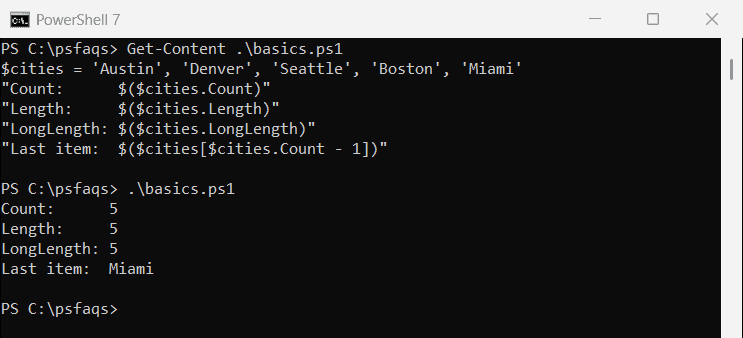
Indexes start at 0, so the last item sits at Count - 1. I use Count in my scripts because it also works on lists, hashtables and anything else that holds items.
Is Count the same as Length in PowerShell?
For an array, yes, they always match. Under the hood they’re wired up differently in the two versions, which Get-Member shows:
$cities = 'Austin', 'Denver', 'Seattle'
Get-Member -InputObject $cities -Name Count, Length |
    ForEach-Object { "$($_.Name) -> $($_.MemberType) ($($_.Definition))" }
$city = 'Denver'
"String Length: $($city.Length), String Count: $($city.Count)"
Output:
Count -> Property (int Count {get;})
Length -> Property (int Length {get;})
String Length: 6, String Count: 1
In Windows PowerShell 5.1 the output reads Count -> AliasProperty (Count = Length), so Count is just another name for Length. PowerShell 7 lists Count as a real int Count {get;} property. The value you get is the same either way.
The difference that matters is on single objects. A string’s Length is its number of characters, while its Count is always 1. Keep that in mind for the next sections.
Count array items with Measure-Object
Measure-Object counts whatever comes down the pipeline and can add sums and averages in the same pass. It’s handy when you need the count and the totals together:
$orders = 120, 75, 210, 95
$stats = $orders | Measure-Object -Sum -Average
"Items: $($stats.Count), Total: $($stats.Sum) USD, Average: $($stats.Average)"
"InputObject count: $((Measure-Object -InputObject $orders).Count)"
Output:
Items: 4, Total: 500 USD, Average: 125
InputObject count: 1
Piping the array counted 4 orders. Passing it with -InputObject counted 1, because the whole array went in as a single object. Pipe the array instead, as the Measure-Object guide explains in more detail.
For a plain count, .Count is faster and shorter. Reach for Measure-Object when you also want Sum, Average, Minimum or Maximum.
Why does .Count return the wrong number for one result?
When a command returns a single object, PowerShell doesn’t wrap it in an array. The variable holds the object itself, so .Length reports that object’s own length. Wrap the command in @() to always get an array:
$cities = 'Austin', 'Denver', 'Seattle', 'Boston', 'Miami'
$d = $cities | Where-Object { $_ -like 'D*' }
"No @():  type $($d.GetType().Name), Count $($d.Count), Length $($d.Length)"
$d = @($cities | Where-Object { $_ -like 'D*' })
"With @(): type $($d.GetType().Name), Count $($d.Count), Length $($d.Length)"
$z = $cities | Where-Object { $_ -like 'Z*' }
"No match: is null $($null -eq $z), Count $($z.Count)"
"Trap:     @(`$null).Count = $(@($null).Count)"
Output:
No @():  type String, Count 1, Length 6
With @(): type Object[], Count 1, Length 1
No match: is null True, Count 0
Trap:     @($null).Count = 1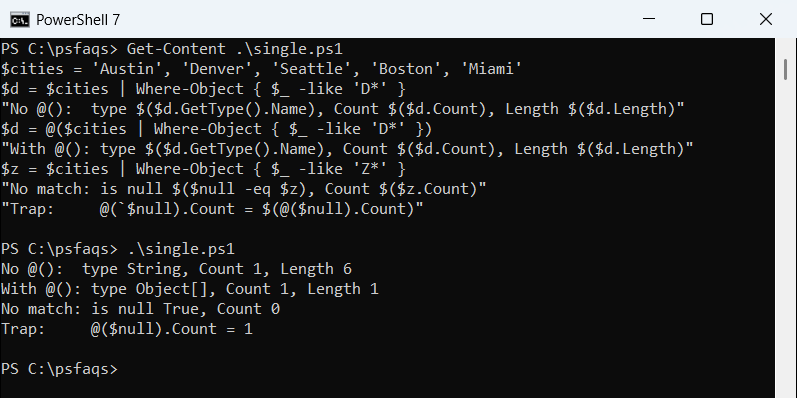
Without @(), ‘Denver’ came back as a String, so Length was 6, the letter count. With @() it’s an Object[] with one item. No match at all returns $null, and its Count is 0.
Watch the last line: @($null) is an array holding one null item, so its Count is 1. Filter nulls first, as in Where-Object for null or empty values. You can also declare the variable as [string[]] to keep it an array.
Count on $null, numbers and custom objects in 7 vs 5.1
Since Windows PowerShell 3.0, $null and single objects get Count and Length too, so scripts that expect a collection don’t break. Custom objects are the exception in 5.1:
$n = $null
"null:        Count '$($n.Count)'  Length '$($n.Length)'"
$num = 42
"number:      Count '$($num.Count)'  Length '$($num.Length)'"
$office = [pscustomobject]@{ City = 'Austin'; Seats = 25 }
"object:      Count '$($office.Count)'  Length '$($office.Length)'"
$rows = "City,Seats`nDenver,40" | ConvertFrom-Csv
"one CSV row: Count '$($rows.Count)'  with @() '$(@($rows).Count)'"
Output:
null:        Count '0'  Length '0'
number:      Count '1'  Length '1'
object:      Count '1'  Length '1'
one CSV row: Count '1'  with @() '1'