
To convert pwdLastSet to a date in PowerShell, pass the number to [datetime]::FromFileTimeUtc(). pwdLastSet is a Windows FILETIME, the count of 100-nanosecond ticks since January 1, 1601 in UTC:
[datetime]::FromFileTimeUtc(134339562000000000)Below I convert it to Eastern time, handle the special 0 value, turn a date back into a FILETIME for LDAP filters and build a password age report.
My test PC isn’t on a domain, so I used real FILETIME values for 2026 dates. Both PowerShell 7 and 5.1 gave the same output.
Convert pwdLastSet with FromFileTimeUtc
FromFileTimeUtc returns the moment in UTC, and ToString picks the format:
$pwdLastSet = 134339562000000000
$date = [datetime]::FromFileTimeUtc($pwdLastSet)
"Password last set: $($date.ToString('yyyy-MM-dd HH:mm')) UTC"
Output:
Password last set: 2026-09-15 14:30 UTC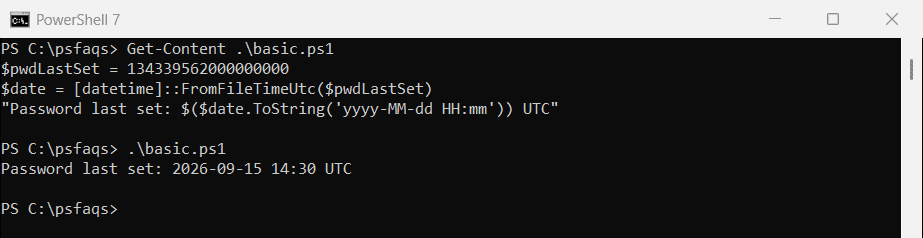
[datetime]::FromFileTime() works too, but it returns your PC’s local time, so reports differ between servers in different time zones. More format strings are in formatting dates in PowerShell.
Show it in a US time zone
Help desk staff usually want local office time. ConvertTimeBySystemTimeZoneId takes a Windows time zone ID and handles daylight saving time for you:
$utc = [datetime]::FromFileTimeUtc(134339562000000000)
$eastern = [System.TimeZoneInfo]::ConvertTimeBySystemTimeZoneId($utc, 'Eastern Standard Time')
"UTC:     $($utc.ToString('yyyy-MM-dd HH:mm'))"
"Eastern: $($eastern.ToString('yyyy-MM-dd HH:mm'))"
Output:
UTC:     2026-09-15 14:30
Eastern: 2026-09-15 10:30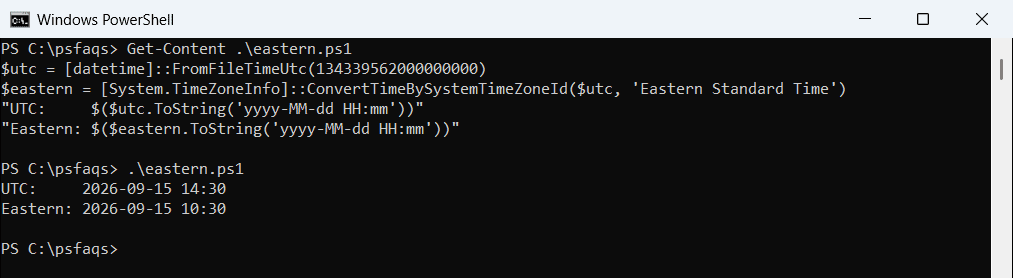
Use ‘Central Standard Time’, ‘Mountain Standard Time’ or ‘Pacific Standard Time’ for the other US zones. The name stays the same in summer. For more on UTC, see Get-Date in UTC.
When pwdLastSet is 0
A value of 0 doesn’t mean the password was set in 1601. It means the user must change the password at the next sign-in. Check for it before converting:
foreach ($value in 134339562000000000, 0) {
    if ($value -eq 0) { "$value -> must change password at next sign-in" }
    else              { "$value -> $([datetime]::FromFileTimeUtc($value).ToString('yyyy-MM-dd HH:mm')) UTC" }
}
"Raw 0 converts to: $([datetime]::FromFileTimeUtc(0).ToString('yyyy-MM-dd'))"
Output:
134339562000000000 -> 2026-09-15 14:30 UTC
0 -> must change password at next sign-in
Raw 0 converts to: 1601-01-01
Without the check, reports show 1601-01-01, and that account looks like the oldest password in the domain. To find those users, see checking the password expiration date.
Read pwdLastSet from Active Directory
With the ActiveDirectory module, ask for the raw attribute and convert it. Get-ADUser also offers PasswordLastSet, which is the same value already converted to local time:
Get-ADUser -Identity jsmith -Properties pwdLastSet, PasswordLastSet |
    Select-Object -Property SamAccountName, PasswordLastSet,
        @{ Name = 'PwdLastSetUtc'; Expression = { [datetime]::FromFileTimeUtc($_.pwdLastSet) } }
For a quick check without PowerShell code, w32tm /ntte 134339562000000000 converts the number too, but it prints local time. See checking whether an account is locked for another AD account check.
Convert a date back to pwdLastSet
LDAP filters compare raw numbers, so turn your cutoff date into a FILETIME with ToFileTimeUtc:
$cutoff = [datetime]::new(2026, 7, 6, 0, 0, 0, [DateTimeKind]::Utc)
$fileTime = $cutoff.ToFileTimeUtc()
"FILETIME for $($cutoff.ToString('yyyy-MM-dd')): $fileTime"
"LDAP filter: (&(objectCategory=person)(pwdLastSet<=$fileTime)(!(pwdLastSet=0)))"
Output:
FILETIME for 2026-07-06: 134277696000000000
LDAP filter: (&(objectCategory=person)(pwdLastSet<=134277696000000000)(!(pwdLastSet=0)))
Create the date with DateTimeKind Utc, as above, so the number doesn’t shift by your time zone. To build cutoffs relative to today, use AddDays.
Report password age and expiry
With sample users and today fixed at October 4, 2026, this loop builds one row per user with the date, the age in days and the expiry date for a 90-day policy:
$users = @(
    [pscustomobject]@{ SamAccountName = 'jsmith';     pwdLastSet = 134339562000000000 }
    [pscustomobject]@{ SamAccountName = 'mlopez';     pwdLastSet = 0 }
    [pscustomobject]@{ SamAccountName = 'svc-backup'; pwdLastSet = 134081199000000000 }
)
$today = [datetime]::new(2026, 10, 4, 0, 0, 0, [DateTimeKind]::Utc)

$users | ForEach-Object {
    $set = if ($_.pwdLastSet) { [datetime]::FromFileTimeUtc($_.pwdLastSet) }
    [pscustomobject]@{
        SamAccountName  = $_.SamAccountName
        PasswordLastSet = $(if ($set) { $set.ToString('yyyy-MM-dd') } else { 'Must change' })
        AgeDays         = $(if ($set) { ($today - $set).Days })
        Expires         = $(if ($set) { $set.AddDays(90).ToString('yyyy-MM-dd') })
    }
}
Output:
SamAccountName PasswordLastSet AgeDays Expires
-------------- --------------- ------- -------
jsmith         2026-09-15           18 2026-12-14
mlopez         Must change
svc-backup     2025-11-20          317 2026-02-18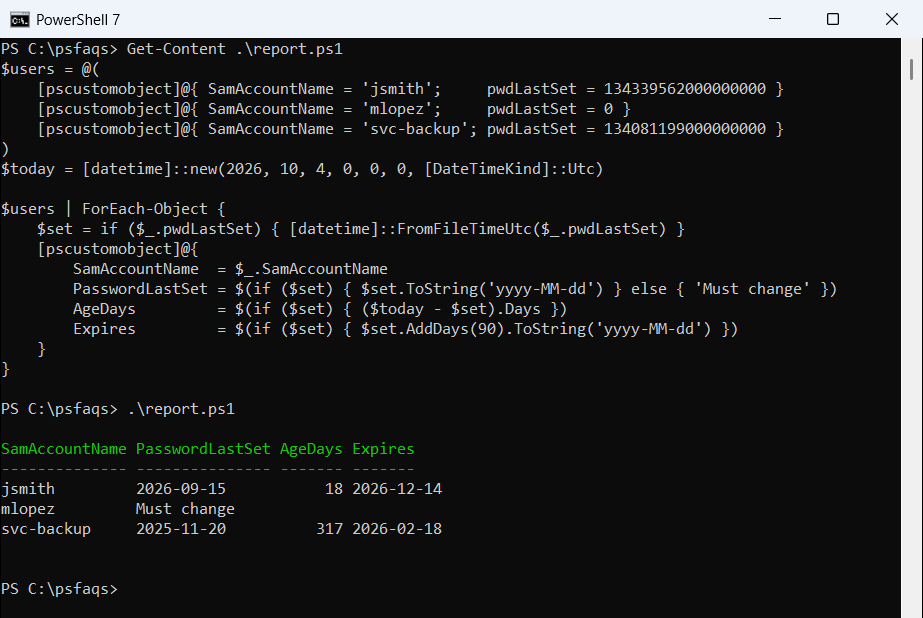
Keep the $( ) around each if. PowerShell 7 accepts a bare if as a hashtable value, but Windows PowerShell 5.1 stops with The hash literal was incomplete.
svc-backup expired months ago, which is typical for service accounts. Swap $users for Get-ADUser output to run it on your domain. Date math is covered in date differences in PowerShell.
Frequently Asked Questions
How do I convert pwdLastSet to a readable date in PowerShell?
Use [datetime]::FromFileTimeUtc($user.pwdLastSet). It returns the date in UTC, as described in the FromFileTimeUtc reference.