
Look, I’ll be honest with you. When I first started working with PowerShell, the comparison operators threw me off a bit. Coming from other languages, I expected to see the familiar > symbol. But PowerShell does things differently, and once you get the hang of it, it actually makes a lot of sense.
Today, I’m going to walk you through everything you need to know about checking if a value is greater than 0 in PowerShell. We’ll start simple and build up to real-world examples you can actually use.
Understanding PowerShell Comparison Operators
Before we jump into the “greater than 0” stuff, let’s talk about how PowerShell handles comparisons.
In most programming languages, you’d write something like if (x > 0). PowerShell uses -gt instead of >. Here’s why: PowerShell was designed to work with text and pipes, and the > symbol was already taken for redirecting output to files.
Here are the basic comparison operators you need to know:
-eqmeans “equal to”-nemeans “not equal to”-gtmeans “greater than”-gemeans “greater than or equal to”-ltmeans “less than”-lemeans “less than or equal to”
So when you want to check if something is greater than 0, you’ll use -gt 0.
Your First “Greater Than 0” Example
Let’s start with the most basic example:
$number = 5

if ($number -gt 0) {
    Write-Host "The number is positive"
}
When you run this, you’ll see “The number is positive” printed to your console.
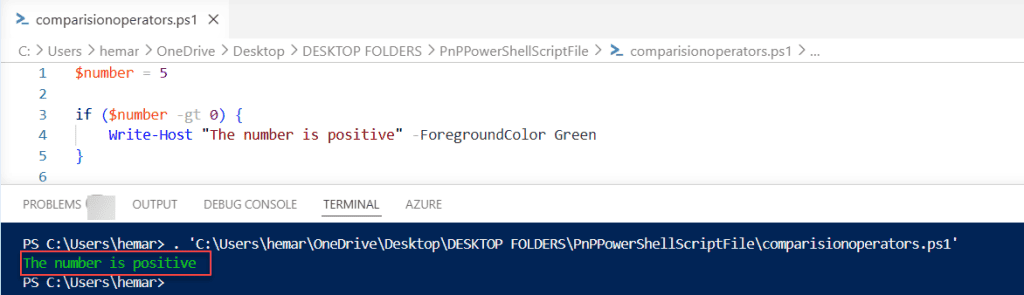
What’s happening here? PowerShell is checking if the value stored in $number is greater than 0. Since 5 is indeed greater than 0, the code inside the curly braces runs.
Now let’s make it more complete with an else statement:
$number = -3

if ($number -gt 0) {
    Write-Host "The number is positive"
} else {
    Write-Host "The number is zero or negative"
}
This time, you’ll see “The number is zero or negative” because -3 is not greater than 0.
Adding More Conditions with elseif
What if you want to handle zero separately from negative numbers? Use elseif:
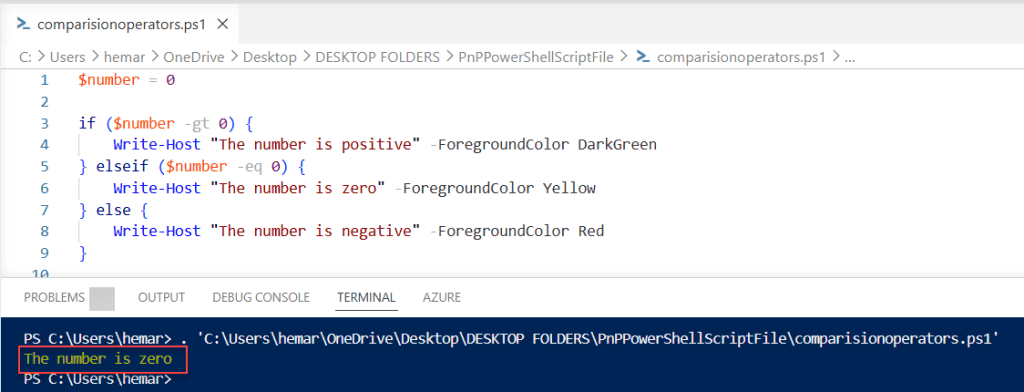
$number = 0

if ($number -gt 0) {
    Write-Host "The number is positive"
} elseif ($number -eq 0) {
    Write-Host "The number is zero"
} else {
    Write-Host "The number is negative"
}
This gives you three distinct paths depending on the value of your number. Pretty straightforward, right?
Check out PowerShell Convert Byte Array to Hex String
Real-World Example: Checking File Sizes
Here’s where things get practical. Let’s say you want to check if a file actually has content in it:
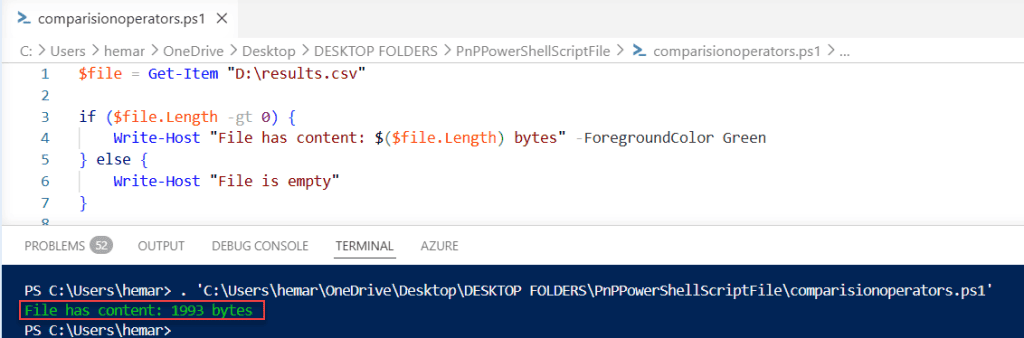
$file = Get-Item "D:\results.csv"

if ($file.Length -gt 0) {
    Write-Host "File has content: $($file.Length) bytes" -ForegroundColor Green
} else {
    Write-Host "File is empty"
}
This is something I use all the time in scripts. You don’t want to process empty files, so checking if the file size is greater than 0 saves you from errors down the line.
Working with Arrays and Collections
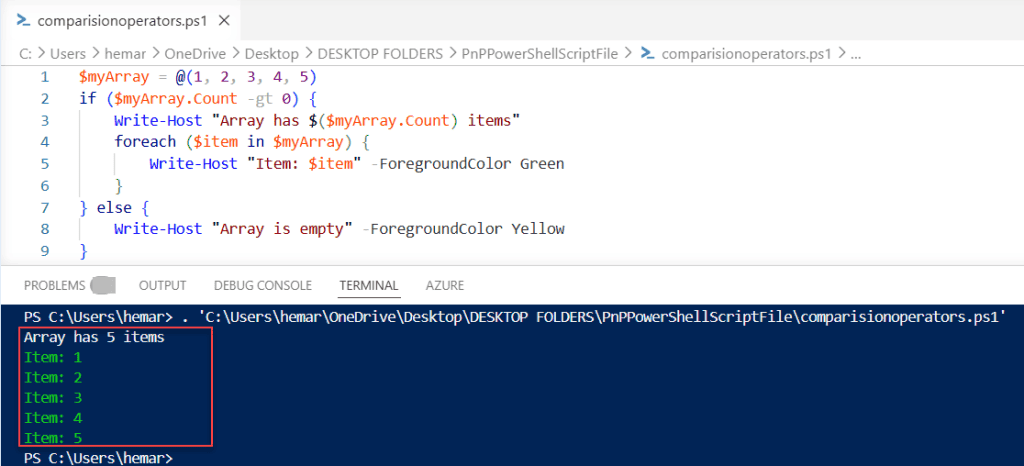
Let’s say you’ve got an array and you want to check if it has any items:
$myArray = @(1, 2, 3, 4, 5)

if ($myArray.Count -gt 0) {
    Write-Host "Array has $($myArray.Count) items"
    foreach ($item in $myArray) {
        Write-Host "Item: $item"
    }
} else {
    Write-Host "Array is empty"
}
This pattern is super useful when you’re working with results from database queries or file searches. You always want to check if you actually got results before trying to process them.
Checking Process Counts
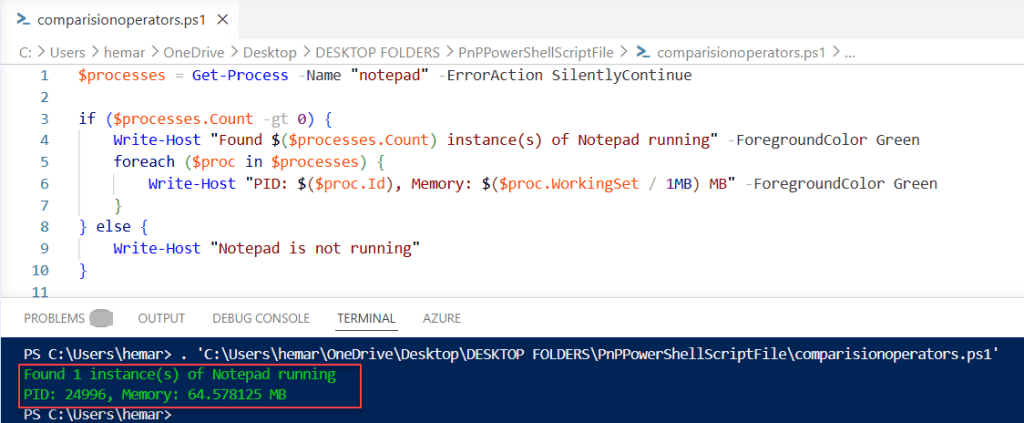
Here’s a practical system administration example. Let’s check if a specific process is running:
$processes = Get-Process -Name "notepad" -ErrorAction SilentlyContinue

if ($processes.Count -gt 0) {
    Write-Host "Found $($processes.Count) instance(s) of Notepad running"
    foreach ($proc in $processes) {
        Write-Host "PID: $($proc.Id), Memory: $($proc.WorkingSet / 1MB) MB"
    }
} else {
    Write-Host "Notepad is not running"
}
The -ErrorAction SilentlyContinue part prevents PowerShell from throwing an error if the process isn’t found. This is cleaner than dealing with error messages.
Comparing Greater Than 0 in Loops
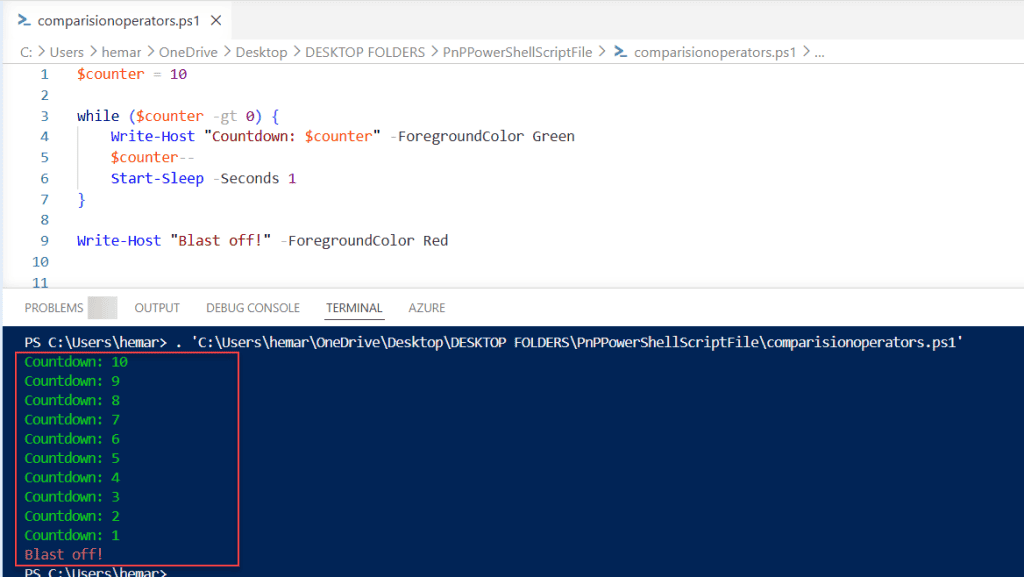
Sometimes you need to keep checking a value in a loop. Here’s an example that counts down:
$counter = 10

while ($counter -gt 0) {
    Write-Host "Countdown: $counter"
    $counter--
    Start-Sleep -Seconds 1
}

Write-Host "Blast off!"
This creates a simple countdown timer. The loop continues as long as $counter is greater than 0.
Check out PowerShell If Null Then Empty
Filtering with Where-Object
You can use the greater than comparison when filtering collections. This is really powerful:
$numbers = 1..20

$positiveNumbers = $numbers | Where-Object { $_ -gt 0 }

Write-Host "Positive numbers: $($positiveNumbers -join ', ')"
The $_ represents each item as it flows through the pipeline. This example is a bit silly since all numbers from 1 to 20 are positive, but let’s look at a more realistic one:
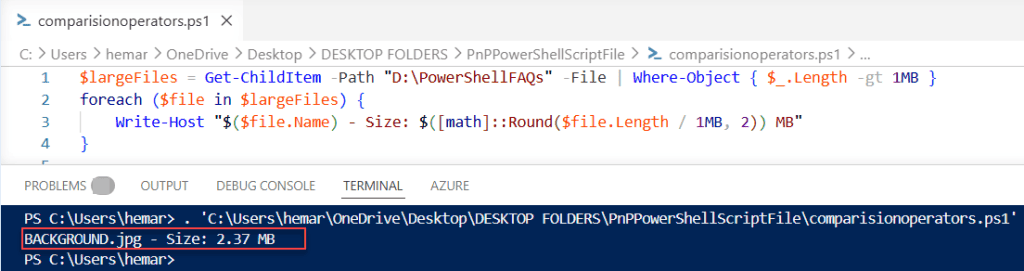
$largeFiles = Get-ChildItem -Path "C:\temp" -File | Where-Object { $_.Length -gt 1MB }

foreach ($file in $largeFiles) {
    Write-Host "$($file.Name) - Size: $([math]::Round($file.Length / 1MB, 2)) MB"
}
This finds all files in a folder that are larger than 1 MB. Handy for cleaning up disk space.
Checking Numeric Input from Users
When you’re building scripts that accept user input, you need to validate it. Here’s a practical example:
$userInput = Read-Host "Enter a positive number"

if ($userInput -match '^\d+$') {
    $number = [int]$userInput

    if ($number -gt 0) {
        Write-Host "You entered: $number"
        Write-Host "Double that is: $($number * 2)"
    } else {
        Write-Host "Please enter a number greater than 0"
    }
} else {
    Write-Host "That's not a valid number"
}
This checks two things: first, that the input is actually a number, and second, that it’s greater than 0.
Working with Performance Counters
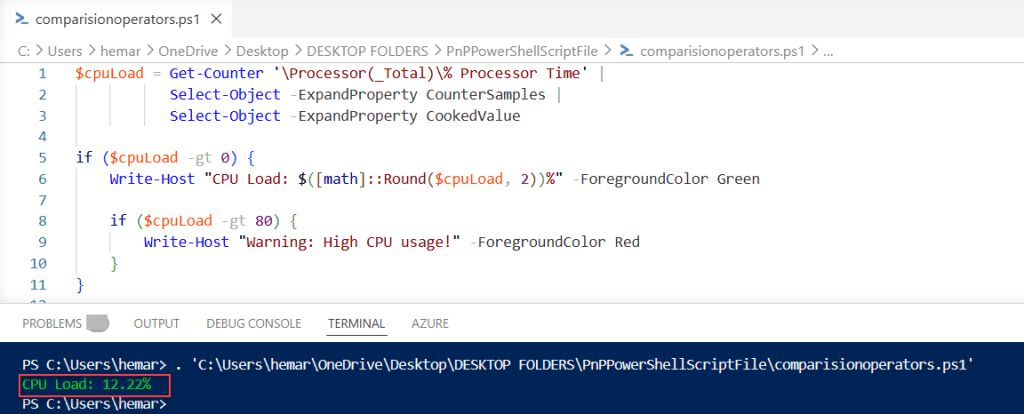
Here’s a monitoring example that checks if CPU usage is above 0 (which it always should be on a running system):
$cpuLoad = Get-Counter '\Processor(_Total)\% Processor Time' |
           Select-Object -ExpandProperty CounterSamples |
           Select-Object -ExpandProperty CookedValue

if ($cpuLoad -gt 0) {
    Write-Host "CPU Load: $([math]::Round($cpuLoad, 2))%"

    if ($cpuLoad -gt 80) {
        Write-Host "Warning: High CPU usage!" -ForegroundColor Red
    }
}
Handling Null Values
One thing that trips people up: what happens if your variable is null or doesn’t exist?
$undefinedVariable = $null

if ($undefinedVariable -gt 0) {
    Write-Host "Greater than zero"
} else {
    Write-Host "Not greater than zero (or null)"
}
A null value is not greater than 0, so the else block executes. Sometimes you want to check for null explicitly:
if ($null -ne $undefinedVariable -and $undefinedVariable -gt 0) {
    Write-Host "Variable exists and is greater than zero"
} else {
    Write-Host "Variable is null or not greater than zero"
}
The -and operator lets you chain conditions. Both must be true for the if block to run.
Check out How to Check if a Variable is Null in PowerShell?
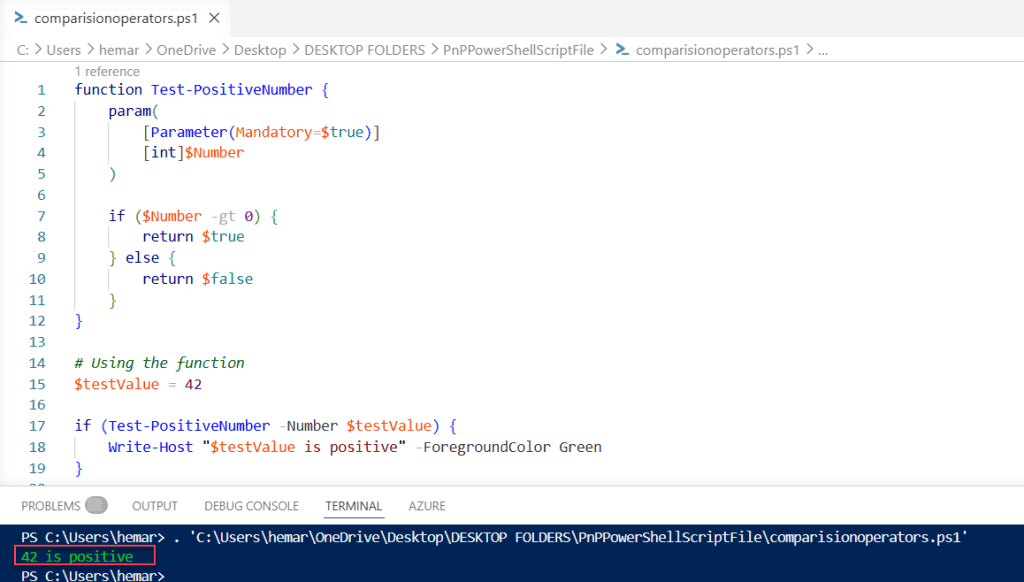
Comparing Against Zero in Functions
Let’s wrap our comparison in a reusable function:
function Test-PositiveNumber {
    param(
        [Parameter(Mandatory=$true)]
        [int]$Number
    )

    if ($Number -gt 0) {
        return $true
    } else {
        return $false
    }
}

# Using the function
$testValue = 42

if (Test-PositiveNumber -Number $testValue) {
    Write-Host "$testValue is positive"
}
This gives you a clean, reusable way to check if numbers are positive throughout your scripts.
Quick Reference: Common Mistakes to Avoid
Let me share some mistakes I made when learning this:
- Using > instead of -gt: Won’t work. You’ll redirect output to a file named “0” instead of comparing values.
- Forgetting about zero: Remember, 0 is not greater than 0. Use
-geif you want “greater than or equal to.” - String comparisons: If you compare strings, PowerShell tries to be smart about it, but you might get unexpected results. Always convert to integers first if you’re working with numeric values.
- Not checking for null: Always consider if your variable might be null, especially when working with user input or query results.
Wrapping Up
Checking if values are greater than 0 is something you’ll do constantly in PowerShell scripts. Whether you’re validating input, checking file sizes, counting results, or monitoring system resources, this simple comparison is incredibly useful.
The key things to remember:
- Use
-gtfor “greater than” comparisons - Combine with
-ge,-lt,-le,-eq, and-nefor other comparisons - Watch out for null values
- Test your conditions with different values to make sure they work as expected
Start with simple examples and build up. Once you get comfortable with basic if statements, you’ll find yourself using these comparisons everywhere in your scripts. They’re the building blocks of logic in PowerShell.
Now go ahead and try some of these examples yourself. Change the values, break things, see what happens. That’s how you really learn this stuff.
Also, you may like:
- How to Convert Number to String in PowerShell?
- How to Convert String to Number with Decimal in PowerShell?

Bijay Kumar is an esteemed author and the mind behind PowerShellFAQs.com, where he shares his extensive knowledge and expertise in PowerShell, with a particular focus on SharePoint projects. Recognized for his contributions to the tech community, Bijay has been honored with the prestigious Microsoft MVP award. With over 15 years of experience in the software industry, he has a rich professional background, having worked with industry giants such as HP and TCS. His insights and guidance have made him a respected figure in the world of software development and administration. Read more.
