
PowerShell Out-File sends command output to a text file, formatted exactly as it would appear in the console. Pipe any command to it and give it a path:
Get-Service | Out-File -FilePath C:\Reports\services.txtThis guide covers every parameter you’ll actually use, with tests in PowerShell 7 and 5.1. If you’re still choosing between Out-File, Set-Content and Export-Csv, start with saving output to a file in PowerShell.
Write output to a file
Out-File creates the file, or replaces it if it already exists. Here I save two sample server objects:
$servers = @(
    [pscustomobject]@{ Server = 'NYC-SQL-01'; City = 'New York'; Status = 'Online' }
    [pscustomobject]@{ Server = 'DAL-WEB-02'; City = 'Dallas';   Status = 'Offline' }
)

$servers | Out-File -FilePath .\Reports\servers.txt
Get-Content -Path .\Reports\servers.txt
Output:
Server     City     Status
------     ----     ------
NYC-SQL-01 New York Online
DAL-WEB-02 Dallas   Offline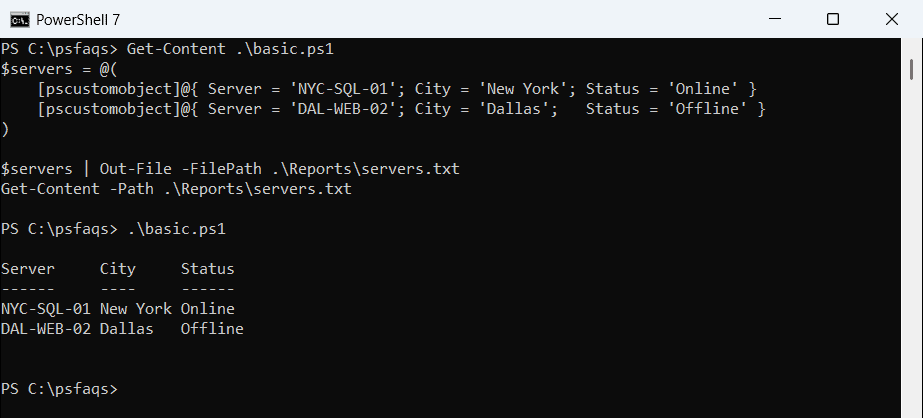
-FilePath is positional, so Out-File .\Reports\servers.txt works too. Use -LiteralPath when the path contains square brackets, which -FilePath treats as wildcards.
To see the output on screen while it’s written, use output to file and console.
Append instead of overwrite
-Append adds to the end of the file. This is the pattern for a simple log:
'2026-10-04 08:00 Backup started' | Out-File -FilePath .\Reports\backup.log
'2026-10-04 08:12 Backup finished' | Out-File -FilePath .\Reports\backup.log -Append
Get-Content -Path .\Reports\backup.log
Output:
2026-10-04 08:00 Backup started
2026-10-04 08:12 Backup finished
The >> operator does the same thing. For timestamps and log levels built in, see writing to a log file in PowerShell.
Don’t overwrite an existing file
-NoClobber protects a file from being replaced. If it exists, Out-File stops with an error instead:
'First report' | Out-File -FilePath .\Reports\daily.txt
try { 'Second report' | Out-File -FilePath .\Reports\daily.txt -NoClobber -ErrorAction Stop }
catch { "Failed. $($_.Exception.Message)" }
Output:
Failed. The file 'C:\psfaqs\Reports\daily.txt' already exists.Catch it, as above, when a script should create a new file name rather than lose an old report. Adding the date to a file name avoids the clash in the first place.
Write without line breaks
-NoNewline leaves out the line break after each item, so everything runs together:
'Austin', 'Denver', 'Seattle' | Out-File -FilePath .\Reports\cities.txt -NoNewline
Get-Content -Path .\Reports\cities.txt
Output:
AustinDenverSeattleIt’s useful when you build a file piece by piece. Usually you’d join the values first, as in ('Austin', 'Denver') -join ','.
Control the line width
Out-File cuts long lines at the console width, 80 characters by default for the console host. -Width sets the limit, and anything longer is truncated, not wrapped:
$server = [pscustomobject]@{
    Server      = 'NYC-SQL-01'
    Description = 'Primary SQL Server for the New York finance team'
}
$server | Out-File -FilePath .\Reports\server-note.txt -Width 50
Get-Content -Path .\Reports\server-note.txt
Output:
Server     Description
------     -----------
NYC-SQL-01 Primary SQL Server for the New York fi…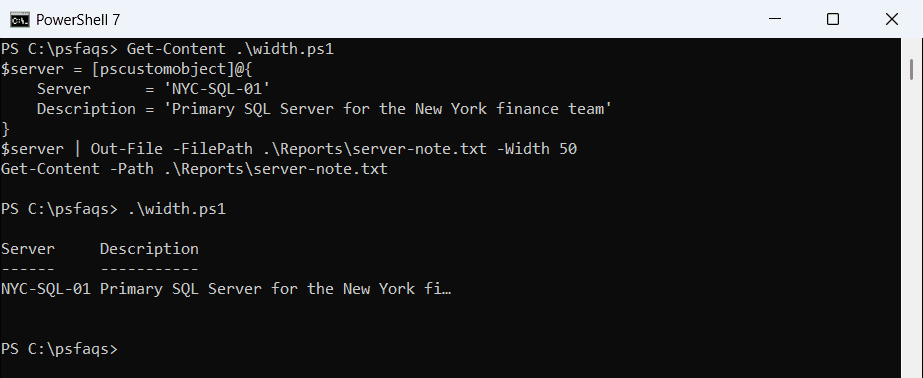
PowerShell 7 marks the cut with an ellipsis character, and 5.1 uses three dots. To keep long values intact, raise -Width, such as -Width 300, or export with Export-Csv instead.
Out-File won’t create missing folders
Some guides say -Force creates the folder. It doesn’t, and the error is the same with or without it:
try { 'test' | Out-File -FilePath .\Reports\2026\october.txt -Force -ErrorAction Stop }
catch { "Failed. $($_.Exception.Message)" }

New-Item -Path .\Reports\2026 -ItemType Directory | Out-Null
'test' | Out-File -FilePath .\Reports\2026\october.txt
"Created: $(Test-Path -Path .\Reports\2026\october.txt)"
Output:
Failed. Could not find a part of the path 'C:\psfaqs\Reports\2026\october.txt'.
Created: True
Create the folder first with New-Item -ItemType Directory. To check first, see checking if a folder exists.
Overwrite a read-only file with -Force
What -Force really does is override the read-only attribute. Without it, Out-File gets access denied:
'Version 1' | Out-File -FilePath .\Reports\final.txt
Set-ItemProperty -Path .\Reports\final.txt -Name IsReadOnly -Value $true

try { 'Version 2' | Out-File -FilePath .\Reports\final.txt -ErrorAction Stop }
catch { "Failed. $($_.Exception.Message)" }

'Version 2' | Out-File -FilePath .\Reports\final.txt -Force
"Now contains: $(Get-Content -Path .\Reports\final.txt)"
Output:
Failed. Access to the path 'C:\psfaqs\Reports\final.txt' is denied.
Now contains: Version 2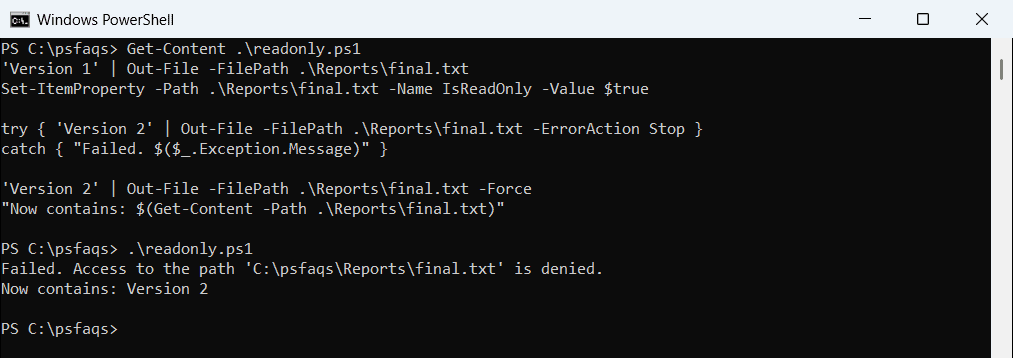
The file stays read-only afterward. -Force doesn’t get around NTFS permissions, only the attribute.
Choose the encoding
The default encoding differs between versions, and so does utf8. In PowerShell 7, utf8 means UTF-8 without a byte order mark. In 5.1, it adds the EF BB BF mark:
'Total: $249.99' | Out-File -FilePath .\Reports\total.txt -Encoding utf8
$bytes = [System.IO.File]::ReadAllBytes((Resolve-Path -Path .\Reports\total.txt))
"First bytes: $(($bytes[0..2] | ForEach-Object { '{0:X2}' -f $_ }) -join ' ')"
Output:
First bytes: 54 6F 74Windows PowerShell 5.1 prints EF BB BF for the same command. In PowerShell 7, use utf8BOM if a program needs the mark. Microsoft lists the values in about_Character_Encoding.
Every parameter is in the Out-File reference.
For every UTF-8 option, including BOM-less files in Windows PowerShell 5.1, see PowerShell write to file UTF-8.