
To convert an object to a string in PowerShell, pipe it to Out-String, which returns the same text you’d see in the console. Add .Trim() to drop the blank lines around it:
$text = ($emp | Out-String).Trim()That works for custom objects, cmdlet output and hashtables. When you want one value in a sentence, you’ll use property expansion, JSON or CSV instead, and I’ll show where .ToString() quietly lets you down.
Convert an object to a string with Out-String
Here’s a PSCustomObject for one employee. Out-String runs it through the formatter, so the result is a table stored as a single string:
$emp = [PSCustomObject]@{ Name = 'Maria Lopez'; City = 'Austin'; Salary = 85000 }
$text = $emp | Out-String

"Length:  $($text.Length)"
"Trimmed: $($text.Trim().Length)"
$text.Trim()
Output:
Length:  85
Trimmed: 79
Name        City   Salary
----        ----   ------
Maria Lopez Austin  85000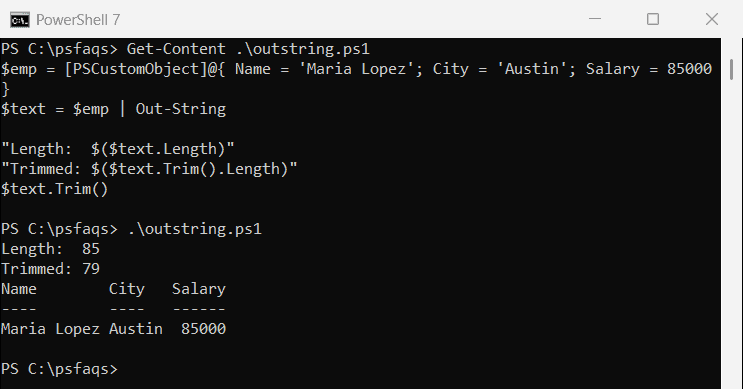
The raw string is 85 characters in PowerShell 7 and 87 in Windows PowerShell 5.1, because 5.1 adds one more blank line at the end. After Trim() both are 79, so trim before you compare or save it.
The layout comes from the formatter, so Format-Table options like -AutoSize and Format-List for one property per line work before Out-String too.
Why does ToString() return an empty string for an object?
Calling .ToString() on a custom object feels natural, but it doesn’t give you the data:
$emp = [PSCustomObject]@{ Name = 'Maria Lopez'; City = 'Austin'; Salary = 85000 }
$team = @{ Name = 'Tom Baker'; Role = 'Admin' }

"ToString():  [$($emp.ToString())]"
"Expanded:    [$emp]"
"Hashtable:   [$team]"
"Type name:   $($emp.GetType().FullName)"
Output:
ToString():  []
Expanded:    [@{Name=Maria Lopez; City=Austin; Salary=85000}]
Hashtable:   [System.Collections.Hashtable]
Type name:   System.Management.Automation.PSCustomObject
A PSCustomObject returns an empty string from ToString(). Putting it inside double quotes gives the @{Name=…} hashtable-style text, and a hashtable gives only its type name.
ToString() is fine for simple values like numbers and dates, which converting variables to strings covers. For objects, pick one of the methods below.
Expand object properties inside a string
Most of the time you want a sentence, not a table. Wrap each property in a subexpression, $( ), so PowerShell reads the property before it builds the string:
$emp = [PSCustomObject]@{ Name = 'Maria Lopez'; City = 'Austin'; Salary = 85000 }
"$($emp.Name) lives in $($emp.City)"

$staff = @(
    [PSCustomObject]@{ Name = 'Maria Lopez'; City = 'Austin' }
    [PSCustomObject]@{ Name = 'Tom Baker'; City = 'Seattle' }
)
"Array: [$staff]"
"Names: $($staff.Name -join ', ')"
Output:
Maria Lopez lives in Austin
Array: [ ]
Names: Maria Lopez, Tom Baker
An array of custom objects expands to blanks, since each object’s ToString() is empty. Pull the property first and join it, as converting an array to a string explains in detail.
Join property values with -join and the -f operator
The hidden PSObject.Properties collection lists every property, so you can join all values without naming them. The format operator gives you full control over the layout:
$emp = [PSCustomObject]@{ Name = 'Maria Lopez'; City = 'Austin'; Salary = 85000 }
$emp.PSObject.Properties.Value -join ' | '
'{0} ({1}) earns ${2:N0}' -f $emp.Name, $emp.City, $emp.Salary
Output:
Maria Lopez | Austin | 85000
Maria Lopez (Austin) earns $85,000
{2:N0} adds the thousands separator. To see which properties an object has before you join them, list all properties of an object. The string concatenation guide has more ways to combine text.
How do I convert cmdlet output to a string?
Objects from Get-Service, Get-Process and Get-ChildItem each have their own ToString(), and string expansion doesn’t always use it. I ran the same script in both shells:
$svc = Get-Service -Name Spooler
"Service ToString: $($svc.ToString())"
"Service in quotes: $svc"
"Service fields: $($svc.Name) is $($svc.Status)"

$proc = Get-Process -Id $PID
"Process: $proc"

$file = Get-ChildItem -Filter report.txt
"File ToString: $($file.ToString())"
"File FullName: $($file.FullName)"
Output:
Service ToString: Spooler
Service in quotes: System.ServiceProcess.ServiceController
Service fields: Spooler is Running
Process: System.Diagnostics.Process (pwsh)
File ToString: C:\psfaqs\report.txt
File FullName: C:\psfaqs\report.txt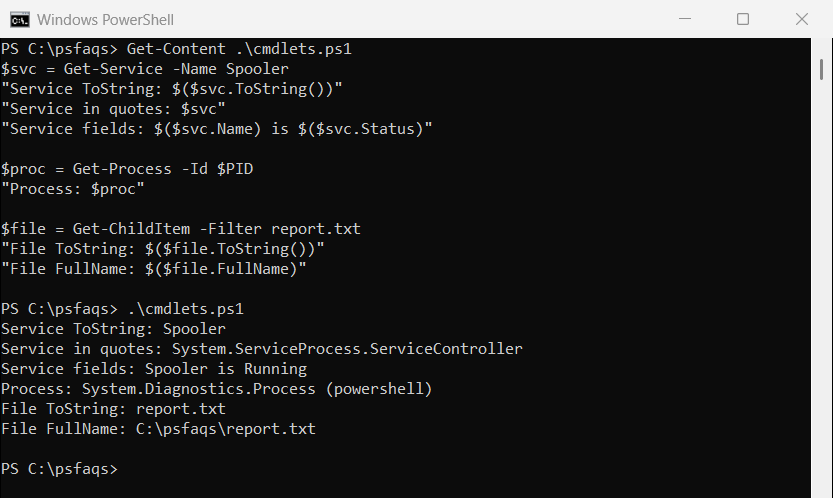
ServiceController.ToString() returns Spooler, but “$svc” prints the type name. The Process string names the host, pwsh or powershell.
The file is the real trap. In PowerShell 7 its ToString() is the full path, while Windows PowerShell 5.1 returns only report.txt. Use $file.FullName or $file.Name so your script works in both.
Out-String -Stream, -Width and -NoNewline
-Stream returns an array with one string per line, which is handy for filtering formatted output with Select-String:
$lines = Get-Service -Name Spooler, W32Time |
    Select-Object Name, Status | Out-String -Stream
"Lines: $($lines.Count)"
$lines | Select-String 'Spooler'
Output:
Lines: 6

Spooler Running
PowerShell 7 returns 6 lines and 5.1 returns 7, again becau