
The quickest PowerShell string starts with test is the StartsWith() method, which returns True or False:
'Austin, TX'.StartsWith('Aus') # TrueStartsWith() is case-sensitive, so I’ll also show the case-insensitive options, the -like and -match operators, and two traps where PowerShell 7 and Windows PowerShell 5.1 give different answers.
Check if a string starts with text using StartsWith()
The method compares the beginning of the string with the value you pass. Add a StringComparison value to ignore case:
$city = 'Austin, TX'
$city.StartsWith('Aus')
$city.StartsWith('aus')
$city.StartsWith('aus', [StringComparison]::OrdinalIgnoreCase)
$city.StartsWith('aus', 'OrdinalIgnoreCase')
Output:
True
False
True
True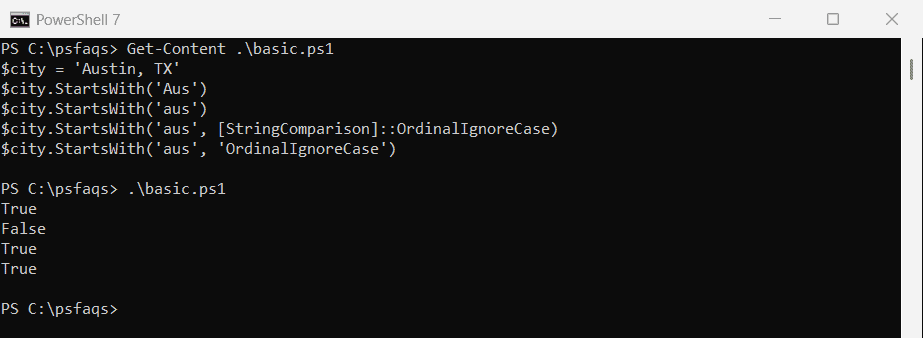
Lowercase ‘aus’ returned False until I passed OrdinalIgnoreCase. PowerShell converts the plain string ‘OrdinalIgnoreCase’ to the enum, so the shorter last line works too.
Without a StringComparison, StartsWith(string) uses the current culture. Ordinal is the safer pick for IDs, file names, and codes; see other ways to compare strings in PowerShell for full matches.
StartsWith() differences in PowerShell 7 vs Windows PowerShell 5.1
PowerShell 7 runs on modern .NET, which adds a StartsWith(char) overload. Windows PowerShell 5.1 runs on .NET Framework, which doesn’t have it:
$order = 'INV-2026-0142'
'Overloads:     ' + $order.StartsWith.OverloadDefinitions.Count
'Char overload: ' + $order.StartsWith([char]'I')
'Null value:    ' + $order.StartsWith($null)
Output:
Overloads:     4
Char overload: True
Null value:    False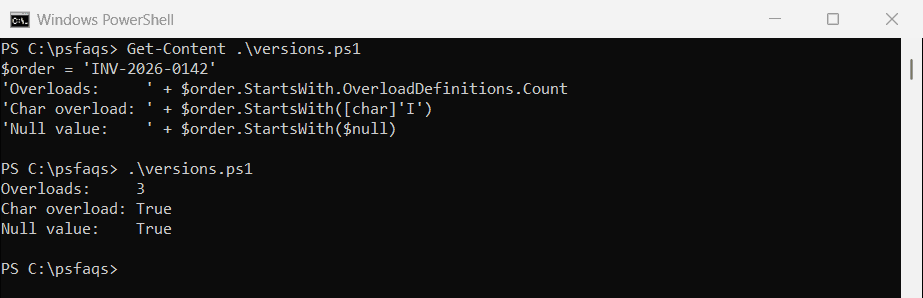
This screenshot is Windows PowerShell 5.1: three overloads, and StartsWith($null) returned True. PowerShell turned $null into an empty string, and every string starts with an empty string.
PowerShell 7 listed four overloads and returned False for the same call, because it picked the char overload. The [char] call worked in both, since 5.1 quietly converts the char to a string.
So never pass a variable that might be empty without checking it first. IsNullOrEmpty catches empty prefixes before they turn every check into True on 5.1.
Use -like ‘text*’ for a case-insensitive starts with check
The -like operator matches a wildcard pattern, and a trailing * means “anything after this”. It ignores case by default, while -clike respects it:
$name = 'Maria Lopez'
$name -like 'mar*'
$name -clike 'mar*'
$name -notlike 'Tom*'

$title = '[Draft] Budget 2026'
$title -like '[Draft]*'
$title -like ([WildcardPattern]::Escape('[Draft]') + '*')
Output:
True
False
True
False
True
The first three lines are True, False, True. The fourth one surprised me: square brackets are wildcard characters too, so ‘[Draft]*’ means “one of D, r, a, f, t” and returns False.
[WildcardPattern]::Escape() makes the brackets literal. The full guide to the -like operator covers ? and the other wildcards.
Use -match ‘^text’ with a regular expression
With -match, the ^ anchor ties the pattern to the start of the string. Escape the prefix if it contains regex characters like + . ( or $:
$product = 'C++ Starter Kit'
$product -match ('^' + [regex]::Escape('C++'))
$product -cmatch '^c'
try { $product -match '^C++' }
catch { "Failed. $($_.Exception.Message)" }
Output:
True
False
Failed. Invalid pattern '^C++' at offset 4. Nested quantifier '+'.
The output above is from PowerShell 7. Windows PowerShell 5.1 returned the same True and False, but its error reads parsing "^C++" - Nested quantifier +. instead.
-cmatch makes the regex case-sensitive. The -match operator and $Matches work the same for any pattern, and the number case has its own guide on how to check if a string starts with a number.
How do I check if a string starts with one of several values?
Put the prefixes in an array and test each one, or join them into one regex with alternation:
$prefixes = 'INV-', 'PO-', 'CR-'
$docs = 'INV-1001', 'po-2044', 'QT-3100', 'CR-0007'

foreach ($doc in $docs) {
    $hit = $prefixes | Where-Object { $doc.StartsWith($_, 'OrdinalIgnoreCase') }
    '{0,-9} {1}' -f $doc, [bool]$hit
}
'Regex: ' + (($docs -match '^(INV|PO|CR)-') -join ', ')
Output:
INV-1001  True
po-2044   True
QT-3100   False
CR-0007   True
Regex: INV-1001, po-2044, CR-0007
Both approaches matched po-2044 regardless of case and skipped the quote QT-3100. Don’t reach for -contains here; the -contains operator checks whole items in a collection, not prefixes.
Filter arrays and files that start with a prefix
Inside Where-Object, any of the three checks works on a property. Here I filter customers by city and invoice files by name:
$customers = @(
    [pscustomobject]@{ Name = 'Dana Reyes';  City = 'Denver' }
    [pscustomobject]@{ Name = 'Tom Baker';   City = 'Dallas' }
    [pscustomobject]@{ Name = 'Maria Lopez'; City = 'Miami' }
)
$customers | Where-Object { $_.City -like 'D*' } | ForEach-Object Name

Get-ChildItem -Path .\Prefix -File |
    Where-Object { $_.Name.StartsWith('INV-') } |
    ForEach-Object Name
'Filter: ' + ((Get-ChildItem -Path .\Prefix -Filter 'inv*').Name -join ', ')
Output:
Dana Reyes
Tom Baker
INV-1001.pdf
INV-1002.pdf
Filter: INV-1001.pdf, INV-1002.pdf, inventory.xlsx