
To create a list in PowerShell, use the .NET generic List class with the type of item it holds, then call Add() to put items in it:
$cities = [System.Collections.Generic.List[string]]::new()
$cities.Add('Austin')
Unlike an array, a list grows and shrinks without being copied. Below I cover adding, finding, removing and sorting items, lists of objects, and when to choose a list over an array or ArrayList.
Create a list and add items
The type in square brackets, here [string], decides what the list can hold. Each Add() puts one item at the end:
$cities = [System.Collections.Generic.List[string]]::new()
$cities.Add('Austin')
$cities.Add('Denver')
$cities.Add('Seattle')

$cities
"Count: $($cities.Count)"
Output:
Austin
Denver
Seattle
Count: 3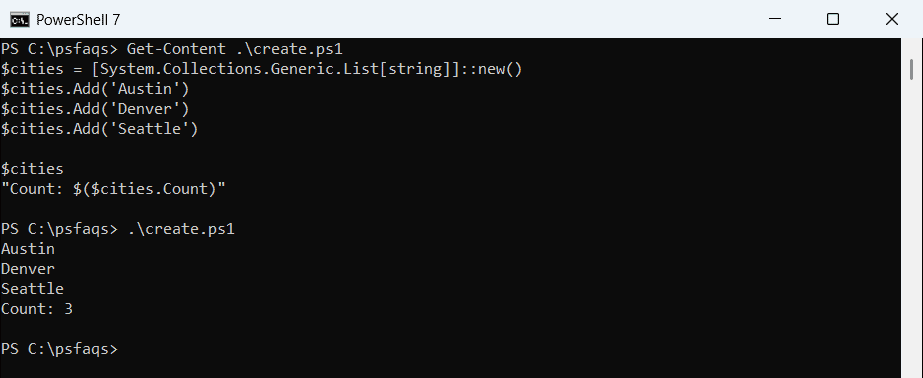
Count tells you how many items there are. Use [int], [datetime], [pscustomobject] or any other type in place of [string].
Shorter type names with using namespace
Put this line at the very top of a script and you can drop the namespace from then on:
using namespace System.Collections.Generic
$cities = [List[string]]::new()
Add several items, insert and search
You can also cast an array straight to a list. AddRange() adds a whole array at once, and Insert() puts an item at a position:
$cities = [System.Collections.Generic.List[string]]@('Austin', 'Denver')
$cities.AddRange([string[]]@('Boston', 'Chicago'))
$cities.Insert(0, 'Atlanta')

$cities -join ', '
"Has Boston: $($cities.Contains('Boston'))"
"Denver is at index $($cities.IndexOf('Denver'))"
Output:
Atlanta, Austin, Denver, Boston, Chicago
Has Boston: True
Denver is at index 2
Indexes start at 0, so Atlanta is now item 0 and Denver is item 2. Contains() and IndexOf() are case-sensitive for strings, unlike PowerShell’s -contains operator.
Remove items from a list
Remove() deletes the first match by value, RemoveAt() deletes by index and RemoveAll() deletes everything that matches a condition:
$cities = [System.Collections.Generic.List[string]]@(
    'Atlanta', 'Austin', 'Denver', 'Seattle', 'Boston', 'San Diego')

$cities.Remove('Denver') | Out-Null      # by value
$cities.RemoveAt(0)                      # by index (Atlanta)
$count = $cities.RemoveAll({ param($city) $city -like 'S*' })

"Removed $count cities that start with S"
$cities -join ', '
Output:
Removed 2 cities that start with S
Austin, Boston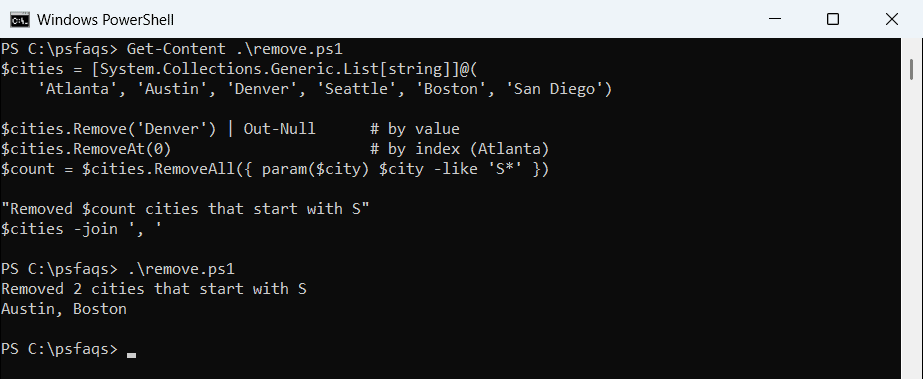
Remove() returns True or False, so I pipe it to Out-Null to keep the output clean. RemoveAll() returns how many items it deleted. Clear() empties the whole list.
Sort, reverse and filter
Sort() and Reverse() change the list in place. FindAll() returns a new list with the items that match:
$cities = [System.Collections.Generic.List[string]]@('Seattle', 'Austin', 'Denver', 'Boston')
$cities.Sort()
"Sorted:   $($cities -join ', ')"
$cities.Reverse()
"Reversed: $($cities -join ', ')"
$long = $cities.FindAll({ param($city) $city.Length -gt 6 })
"Longer than 6 letters: $($long -join ', ')"
Output:
Sorted:   Austin, Boston, Denver, Seattle
Reversed: Seattle, Denver, Boston, Austin
Longer than 6 letters: Seattle
You can still use the pipeline, as in $cities | Where-Object { $_ -like 'B*' }, but the result is then an array, not a list. For arrays, see sorting an array in PowerShell.
Lists of objects
A List[pscustomobject] is perfect for building up results inside a loop, and it works with every cmdlet in the pipeline:
$orders = [System.Collections.Generic.List[pscustomobject]]::new()
$orders.Add([pscustomobject]@{ Order = 'ORD-2001'; City = 'Austin';  Items = 3 })
$orders.Add([pscustomobject]@{ Order = 'ORD-2002'; City = 'Denver';  Items = 12 })
$orders.Add([pscustomobject]@{ Order = 'ORD-2003'; City = 'Seattle'; Items = 7 })

$orders | Where-Object Items -GT 5 | Sort-Object -Property Items
Output:
Order    City    Items
-----    ----    -----
ORD-2003 Seattle     7
ORD-2002 Denver     12