How to Find an HP Laptop Product Number Using PowerShell

Find an HP laptop product number with PowerShell

To find an HP laptop’s product number with PowerShell, read the SystemSKUNumber property of the Win32_ComputerSystem class. That’s the number printed on the sticker, the one HP support asks for: Output: I ran everything in this guide on an HP Pavilion laptop, in PowerShell 7.6 and Windows PowerShell 5.1. A product number and serial number … Read more

PowerShell Select-String: Search Files and Text (With Examples)

PowerShell Select-String examples

Select-String is the PowerShell cmdlet that searches text and files for a pattern, much like grep on Linux or findstr in Command Prompt. Give it a file and a pattern, and it returns every matching line: That’s the sample log I search in this guide. Here’s the first search: Output: Each result shows the file, … Read more

How to Get All Files in a Directory Using PowerShell

Get all files in a directory using PowerShell

To get all files in a directory with PowerShell, run Get-ChildItem with the folder path and -File. -File leaves out the subfolders: Output: Without -File, you’d get the Archive and node_modules folders in the list too. Use -Directory when you want only folders. I ran every example in PowerShell 7.6 and Windows PowerShell 5.1. Include … Read more

How to Create a Folder with the Current Date Using PowerShell

Create a folder with the current date in PowerShell

To create a folder with the current date in PowerShell, format today’s date as text and pass it to New-Item with -ItemType Directory: Output: I used a fixed date so the output doesn’t change. In a real script, use $today = Get-Date. Every example ran in PowerShell 7.6 and Windows PowerShell 5.1, with the same … Read more

How to List Drives in PowerShell?

List Drives in PowerShell

As a PowerShell developer, I have encountered requirements for getting driver details while working on my past projects. If you manage multiple servers, you can use PowerShell to manage drivers. In this tutorial, I will explain how to list drivers in PowerShell using different methods. List All Drives Using Get-PSDrive Cmdlet The primary cmdlet for … Read more

PowerShell Hashtables and Dictionaries: The Complete Guide

PowerShell hashtables and dictionaries

A PowerShell dictionary, usually called a hashtable, stores key and value pairs so you can look up a value by its key. Create one with @{ key = value } and read it with $table[‘key’]: Output: Hashtables are PowerShell’s built-in dictionary, and some older posts call them associative arrays. I ran every example in PowerShell … Read more

How to Rename a Windows Computer Using PowerShell

Rename a Windows computer using PowerShell

To rename a Windows computer with PowerShell, open PowerShell as an administrator and run Rename-Computer -NewName with the new name. Add -Restart, because the new name only takes effect after a restart: It works the same in PowerShell 7 and Windows PowerShell 5.1. I didn’t rename my own PC for this article. Every example below … Read more

PowerShell Sort-Object [With Examples]

PowerShell Sort-Object

In this tutorial, I will explain how to use the PowerShell Sort-Object cmdlet to organize and manipulate data effectively. I will show you a few examples of PowerShell Sort-Object cmdlet here. PowerShell Sort-Object The Sort-Object cmdlet in PowerShell is used to sort objects based on their properties. This cmdlet is useful when you need to … Read more

PowerShell Export-Csv: Export Arrays, Hashtables and Tables to CSV

PowerShell Export-Csv examples

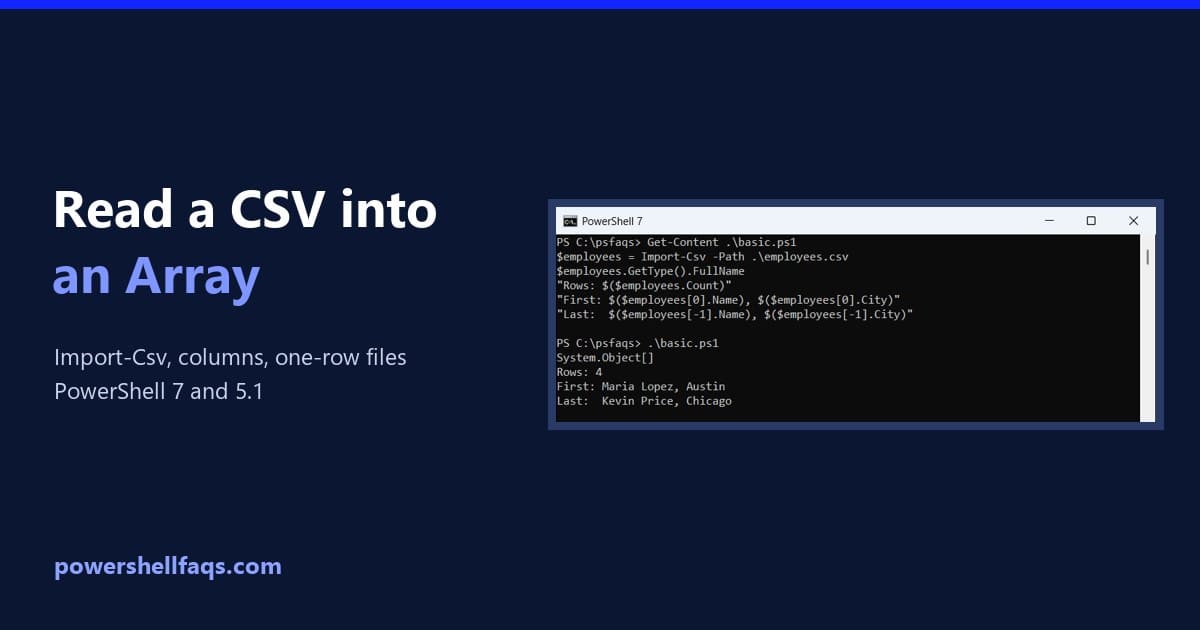
To export data to a CSV file in PowerShell, pipe objects to Export-Csv and give it a path. Each object becomes a row, and each property becomes a column: Output: Add -NoTypeInformation if the script might run in Windows PowerShell 5.1. I ran every example in PowerShell 7.6 and 5.1, and I point out each … Read more

PowerShell New-Item: Create Files, Folders and Empty Files

PowerShell New-Item

To create a file or folder in PowerShell, use New-Item with -ItemType File or -ItemType Directory. It returns the new item, so you can use it right away: Output: A new file is empty, 0 bytes, which makes New-Item the simplest way to create an empty file. I ran every example in PowerShell 7.6 and … Read more