
PowerShell Out-GridView sends command output to an interactive table in its own window, where you can sort, filter and pick rows instead of scrolling the console. Pipe any command to it:
Get-Process | Out-GridViewAdd -PassThru and the rows you select come back into the pipeline, which turns the grid into a quick picker for scripts. I ran every example below in PowerShell 7 and Windows PowerShell 5.1, with a UI Automation script clicking the real window.
Send output to a grid view window
Most of my examples use five sample servers, so the output stays the same on any PC. Here’s the list:
$servers = @(
    [pscustomobject]@{ Name = 'AUS-WEB01'; City = 'Austin';  Status = 'Online';  FreeGB = 120 }
    [pscustomobject]@{ Name = 'DEN-SQL01'; City = 'Denver';  Status = 'Offline'; FreeGB = 45 }
    [pscustomobject]@{ Name = 'SEA-APP02'; City = 'Seattle'; Status = 'Online';  FreeGB = 310 }
    [pscustomobject]@{ Name = 'BOS-FS01';  City = 'Boston';  Status = 'Offline'; FreeGB = 12 }
    [pscustomobject]@{ Name = 'PHX-WEB02'; City = 'Phoenix'; Status = 'Online';  FreeGB = 88 }
)
Piping $servers to Out-GridView opens a window with one column per property. Click a header to sort, and the arrow toggles between ascending and descending.
Use -Title to name the window. Without it, the title bar shows the command you ran, which looks odd when a script opens several grids. To print a table in the console instead, use Format-Table.
Is Out-GridView available in PowerShell 7?
Yes, on Windows. It was reintroduced in PowerShell 7 and lives in the same Microsoft.PowerShell.Utility module, so you don’t install anything. This check prints the module version and parameter sets:
$cmd = Get-Command Out-GridView
"Edition: $($PSVersionTable.PSEdition)"
"Module:  $($cmd.Source) $($cmd.Version)"
"Alias:   ogv -> $((Get-Alias ogv).Definition)"
$main = 'InputObject', 'Title', 'PassThru', 'Wait', 'OutputMode'
foreach ($set in $cmd.ParameterSets) {
    'Set {0,-10} {1}' -f $set.Name, (($set.Parameters.Name | Where-Object { $_ -in $main }) -join ', ')
}
Output:
Edition: Core
Module:  Microsoft.PowerShell.Utility 7.0.0.0
Alias:   ogv -> Out-GridView
Set PassThru   InputObject, Title, PassThru
Set Wait       InputObject, Title, Wait
Set OutputMode InputObject, Title, OutputMode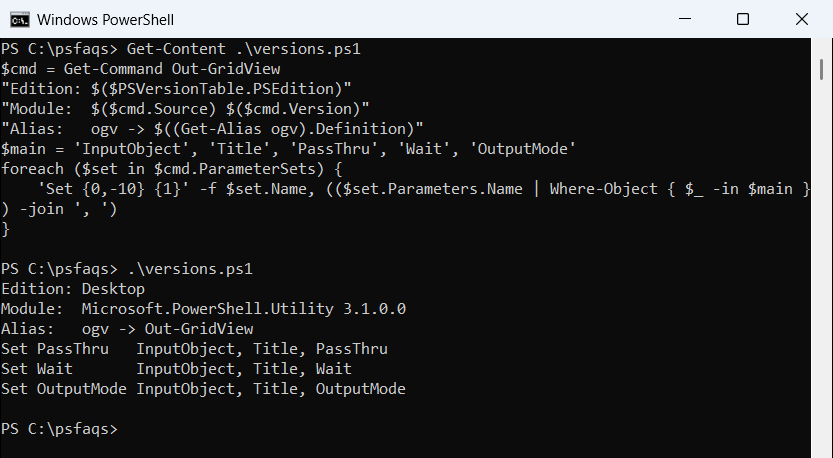
That’s PowerShell 7 output: Edition Core and module 7.0.0.0. Windows PowerShell 5.1 shows Desktop and 3.1.0.0, and the alias and three parameter sets match. To confirm your own shell, see how to check the PowerShell version.
The grid needs the Windows desktop, so it doesn’t work on Server Core, Nano Server, Linux or macOS. There, the ConsoleGuiTools module offers Out-ConsoleGridView, a text-based grid inside the terminal.
Select rows and pass them down the pipeline with -PassThru
By default Out-GridView returns nothing. With -PassThru, the window gets OK and Cancel buttons, and whatever you select when you click OK flows to the next command:
$servers = @(
    [pscustomobject]@{ Name = 'AUS-WEB01'; City = 'Austin';  Status = 'Online';  FreeGB = 120 }
    [pscustomobject]@{ Name = 'DEN-SQL01'; City = 'Denver';  Status = 'Offline'; FreeGB = 45 }
    [pscustomobject]@{ Name = 'SEA-APP02'; City = 'Seattle'; Status = 'Online';  FreeGB = 310 }
    [pscustomobject]@{ Name = 'BOS-FS01';  City = 'Boston';  Status = 'Offline'; FreeGB = 12 }
    [pscustomobject]@{ Name = 'PHX-WEB02'; City = 'Phoenix'; Status = 'Online';  FreeGB = 88 }
)

$picked = $servers | Out-GridView -Title 'Pick servers to restart' -PassThru
foreach ($s in $picked) { "Selected: $($s.Name) ($($s.City), $($s.FreeGB) GB free)" }
Output:
Selected: DEN-SQL01 (Denver, 45 GB free)
Selected: BOS-FS01 (Boston, 12 GB free)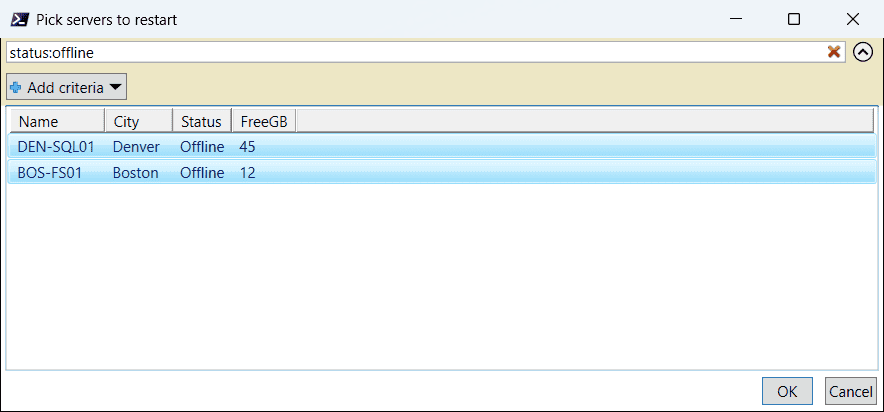
I typed status:offline in the Filter box, pressed Ctrl+A and clicked OK. Both shells returned the same two objects, with every property intact, not just the text you see.
For unattended scripts, filter with Where-Object instead. A grid needs someone sitting at the screen.
Pick one item with -OutputMode Single
-OutputMode accepts None (the default), Single or Multiple, and Multiple is the same as -PassThru. Single lets the user choose at most one row, which makes a handy menu:
$reports = 'Daily backup report', 'Disk space report', 'Login audit report'
$choice = $reports | Out-GridView -Title 'Pick a report' -OutputMode Single
if ($null -eq $choice) { 'Canceled. No report was run.' }
else { "Running: $choice ($($choice.GetType().Name))" }
Output:
Running: Disk space report (String)Strings come back as strings, so you can use $choice directly. If the user clicks Cancel or closes the window, $choice is $null. Here’s the same script when I clicked Cancel:
$reports = 'Daily backup report', 'Disk space report', 'Login audit report'
$choice = $reports | Out-GridView -Title 'Pick a report' -OutputMode Single
if ($null -eq $choice) { 'Canceled. No report was run.' }
else { "Running: $choice" }
Output:
Canceled. No report was run.Always test for $null before acting on the choice. For empty strings too, IsNullOrEmpty covers both cases.
Export the selected rows to CSV
Since -PassThru returns real objects, you can send the selection straight to a file. I filtered on status:online and selected all three rows:
$servers | Out-GridView -Title 'Servers to export' -PassThru |
    Export-Csv -Path .\picked-servers.csv -NoTypeInformation
Get-Content .\picked-servers.csv
Output:
"Name","City","Status","FreeGB"
"AUS-WEB01","Austin","Online","120"
"SEA-APP02","Seattle","Online","310"
"PHX-WEB02","Phoenix","Online","88"
Out-GridView adds no properties of its own, so the CSV has only the four original columns. More export options are in the Export-Csv guide.
Filter and sort data in the grid window
The Filter box at the top searches every column as you type. Several words separated by spaces must all match, and quotes find an exact phrase.