
To convert a log file to HTML with PowerShell, split each line into fields, turn the lines into objects and pipe them to ConvertTo-Html. Out-File saves the page:
$entries | ConvertTo-Html -Property Time, Level, Message -Title 'App log' | Out-File .\app-log.htmlThe parsing step is what makes the table readable. Below I parse a sample application log, build a basic page, then a styled report with a summary and highlighted errors. The output was the same in PowerShell 7 and Windows PowerShell 5.1.
Parse the log lines into objects
My sample log has a date, a time, a level and a message on each line:
2026-10-24 08:15:02 INFO  Service started on NYC-WEB-01
2026-10-24 08:15:09 INFO  Connected to database orders-db
2026-10-24 09:02:44 WARN  Slow response from /api/orders (2.8 s)
2026-10-24 09:17:31 ERROR Payment API returned 503 for order ORD-1042
2026-10-24 09:17:33 INFO  Retry succeeded for order ORD-1042
2026-10-24 10:05:12 ERROR Disk D: below 5% free space
2026-10-24 10:30:00 WARN  Certificate for shop.contoso.com expires in 14 days
A regex with named groups pulls the three fields out of each line. Lines that don’t match, like blank ones, are skipped:
$pattern = '^(?<Time>\S+ \S+) (?<Level>\w+)\s+(?<Message>.+)$'
$entries = Get-Content -Path .\Logs\app-2026-10-24.log | ForEach-Object {
    if ($_ -match $pattern) {
        [pscustomobject]@{ Time = $Matches.Time; Level = $Matches.Level; Message = $Matches.Message }
    }
}

$entries | Format-Table -AutoSize
Output:
Time                Level Message
----                ----- -------
2026-10-24 08:15:02 INFO  Service started on NYC-WEB-01
2026-10-24 08:15:09 INFO  Connected to database orders-db
2026-10-24 09:02:44 WARN  Slow response from /api/orders (2.8 s)
2026-10-24 09:17:31 ERROR Payment API returned 503 for order ORD-1042
2026-10-24 09:17:33 INFO  Retry succeeded for order ORD-1042
2026-10-24 10:05:12 ERROR Disk D: below 5% free space
2026-10-24 10:30:00 WARN  Certificate for shop.contoso.com expires in 14 days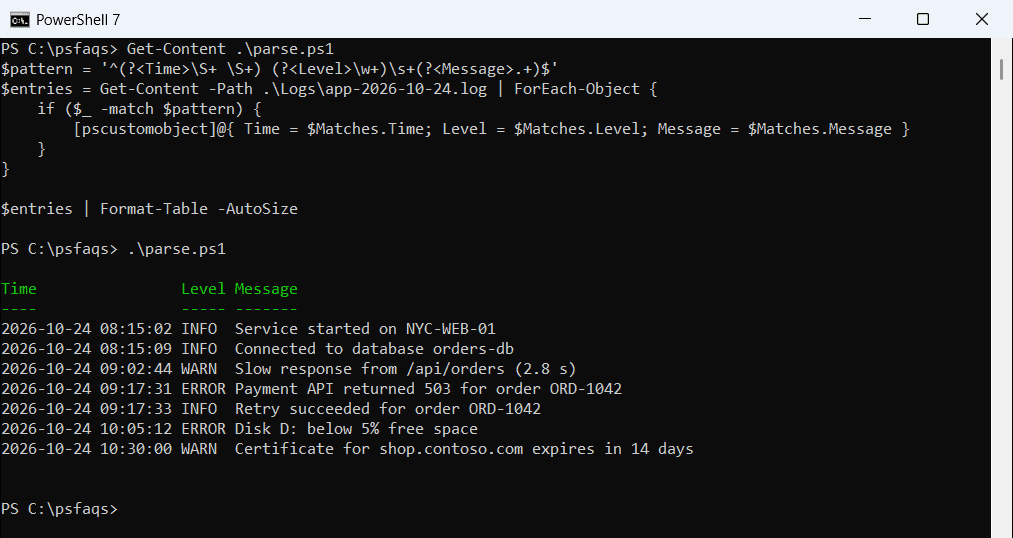
I saved this parsing code as Parse-Log.ps1 and dot-source it in the next examples. Named groups are explained in PowerShell regex.
Create a basic HTML page
ConvertTo-Html makes a complete page with one table row per object. -Property sets the column order:
. .\Parse-Log.ps1
$entries | ConvertTo-Html -Property Time, Level, Message -Title 'App log' |
    Out-File -FilePath .\Logs\app-log.html

$html = Get-Content -Path .\Logs\app-log.html
"Lines: $($html.Count)"
$html | Select-String -Pattern 'ERROR' | ForEach-Object { $_.Line }
Output:
Lines: 17
<tr><td>2026-10-24 09:17:31</td><td>ERROR</td><td>Payment API returned 503 for order ORD-1042</td></tr>
<tr><td>2026-10-24 10:05:12</td><td>ERROR</td><td>Disk D: below 5% free space</td></tr>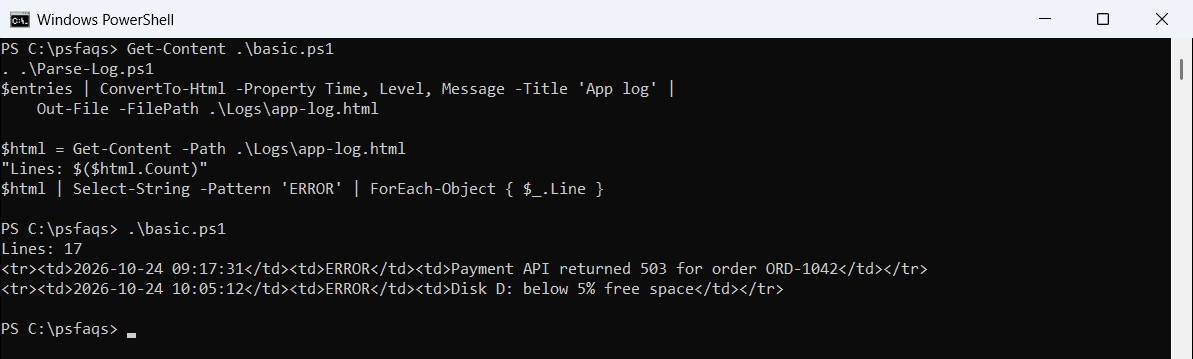
Without parsing, each log line becomes one long cell, which is hard to scan. For more about the cmdlet itself, see creating an HTML table in PowerShell.
Build a styled report with highlighted errors
A useful report needs three things: some CSS, a heading with a summary, and errors that stand out. -Head adds the CSS, -PreContent goes above the table, and a summary made with -Fragment is just a table without the page around it:
. .\Parse-Log.ps1
$css = @'
<style>
  body  { font-family: Segoe UI, Arial, sans-serif; margin: 24px; color: #1f2937; }
  table { border-collapse: collapse; margin-bottom: 18px; }
  th    { background: #1e3a8a; color: #fff; text-align: left; }
  th, td { padding: 6px 12px; border: 1px solid #d1d5db; }
  tr.ERROR { background: #fde2e1; }
  tr.WARN  { background: #fff4ce; }
</style>
'@
$summary = $entries | Group-Object -Property Level |
    Select-Object -Property @{ Name = 'Level'; Expression = { $_.Name } }, Count |
    ConvertTo-Html -Fragment

$html = $entries | ConvertTo-Html -Property Time, Level, Message -Title 'NYC-WEB-01 log' -Head $css `
    -PreContent ('<h1>NYC-WEB-01 log, October 24, 2026</h1>' + ($summary -join ''))
$html = $html -replace '<tr><td>([^<]+)</td><td>(ERROR|WARN)</td>', '<tr class="$2"><td>$1</td><td>$2</td>'
$html | Out-File -FilePath .\Logs\app-report.html -Encoding utf8

"Highlighted rows: $(($html | Select-String -Pattern '<tr class=').Count)"
"Report size:      $((Get-Item -Path .\Logs\app-report.html).Length -gt 0)"
Output:
Highlighted rows: 4
Report size:      True
ConvertTo-Html has no option for row classes, so the -replace line adds class=”ERROR” or class=”WARN” to matching rows after the HTML is built. This is the finished report in a browser:
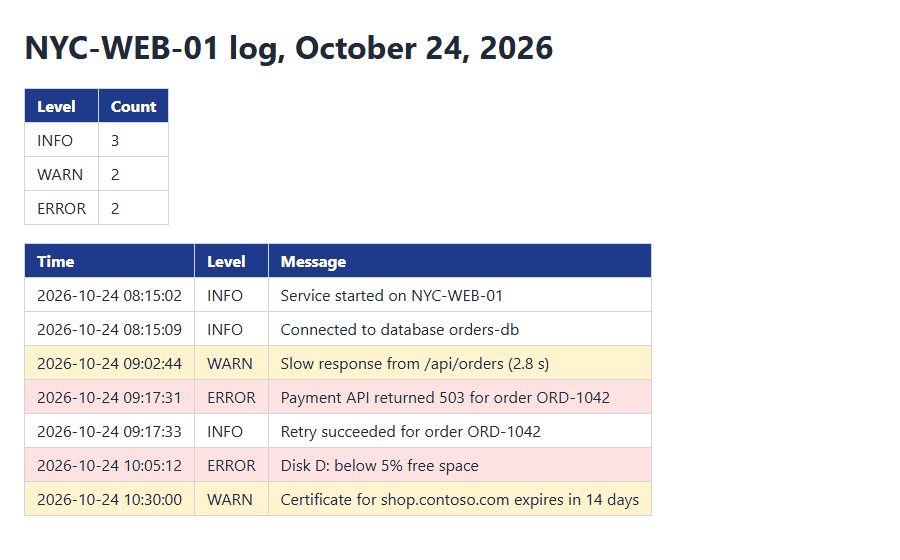
Group-Object did the counting for the summary. More grouping and counting tricks are in Measure-Object in PowerShell.
Special characters in log messages
Log messages often contain <, > or &. ConvertTo-Html encodes them, so a message can’t break the page or inject a script:
$entry = [pscustomobject]@{ Time = '2026-10-24 11:00:00'; Level = 'ERROR'; Message = 'Bad input <script> in R&D form' }
$entry | ConvertTo-Html -Fragment | Select-String -Pattern 'ERROR' | ForEach-Object { $_.Line }
Output:
<tr><td>2026-10-24 11:00:00</td><td>ERROR</td><td>Bad input <script> in R&D form</td></tr>Don’t put raw HTML into message text and expect it to render. Only -Head, -PreContent and -PostContent are inserted as-is. For other ways to escape text, see escaping special characters.
Report only warnings and errors
For a daily email, filter before converting so the page stays short:
. .\Parse-Log.ps1
$problems = $entries | Where-Object Level -ne 'INFO'
$problems | ConvertTo-Html -Property Time, Level, Message -Title 'Problems only' |
    Out-File -FilePath .\Logs\problems.html
"Problem rows: $($problems.Count) of $($entries.Count)"
Output:
Problem rows: 4 of 7To send the page, attach problems.html or put the HTML in the mail body. To read big logs faster, see reading log files with PowerShell.
Going the other direction, you can also convert HTML to JSON with Pow