
To find computers not logged in for 30 days with PowerShell, run Search-ADAccount with -AccountInactive, -ComputersOnly and a 30-day time span:
Search-ADAccount -AccountInactive -ComputersOnly -TimeSpan 30.00:00:00 |
    Where-Object Enabled |
    Select-Object -Property Name, LastLogonDate
It needs the ActiveDirectory module. Below I set that up, show the Get-ADComputer alternative, explain why the dates can be off by up to two weeks, and cover Microsoft Entra ID devices.
My test PC isn’t on a domain, so I ran the filtering and date logic on sample computers, with today set to October 4, 2026. The AD commands are shown as code.
Install the ActiveDirectory module
The module comes with RSAT, the Remote Server Administration Tools. Check whether you have it:
"ActiveDirectory module installed: $([bool](Get-Module -ListAvailable -Name ActiveDirectory))"Output:
ActiveDirectory module installed: False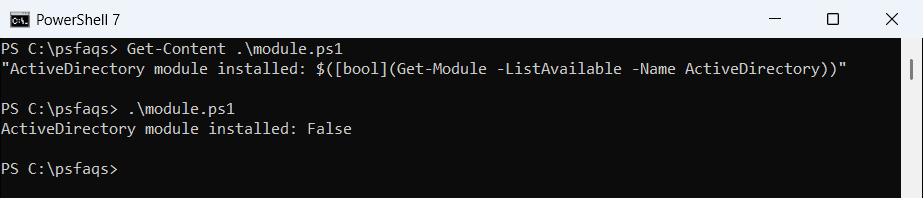
On Windows 11, install it as an optional feature from an elevated window:
Add-WindowsCapability -Online -Name 'Rsat.ActiveDirectory.DS-LDS.Tools~~~~0.0.1.0'Domain controllers already have it. For other features, see listing Windows features with PowerShell.
Find inactive computers with Search-ADAccount
-TimeSpan 30.00:00:00 means 30 days, 0 hours. Search-ADAccount compares it with each computer’s last logon and returns the ones that haven’t signed in since:
$inactive = Search-ADAccount -AccountInactive -ComputersOnly -TimeSpan 30.00:00:00 |
    Where-Object Enabled
$inactive | Sort-Object -Property LastLogonDate | Select-Object -Property Name, LastLogonDate, DistinguishedName
Where-Object Enabled skips computers that are already disabled. Add -SearchBase ‘OU=Workstations,DC=contoso,DC=com’ to search one OU. More filters are in PowerShell Where-Object.
Use Get-ADComputer for more control
Get-ADComputer lets you choose the properties and filter on the server, which is faster in large domains:
$cutoff = (Get-Date).AddDays(-30)
Get-ADComputer -Filter 'Enabled -eq $true -and LastLogonDate -lt $cutoff' -Properties LastLogonDate, OperatingSystem |
    Select-Object -Property Name, LastLogonDate, OperatingSystem
Computers that never signed in have no LastLogonDate, so this filter misses them. The next section shows how to include them. To see where a computer sits, see finding a computer’s OU.
The filtering logic, tested on sample data
These sample objects have the same properties Get-ADComputer returns. The filter keeps enabled computers that were last seen before the cutoff, or never seen at all:
$today = Get-Date -Date '2026-10-04'
$computers = @(
    [pscustomobject]@{ Name = 'NYC-PC014'; Enabled = $true;  LastLogonDate = [datetime]'2026-10-01 14:20' }
    [pscustomobject]@{ Name = 'DAL-PC022'; Enabled = $true;  LastLogonDate = [datetime]'2026-08-20 09:05' }
    [pscustomobject]@{ Name = 'SEA-PC031'; Enabled = $true;  LastLogonDate = [datetime]'2026-07-02 16:45' }
    [pscustomobject]@{ Name = 'NYC-PC040'; Enabled = $false; LastLogonDate = [datetime]'2026-05-11 08:30' }
    [pscustomobject]@{ Name = 'LAB-PC007'; Enabled = $true;  LastLogonDate = $null }
)

$cutoff = $today.AddDays(-30)
$computers |
    Where-Object { $_.Enabled -and ($null -eq $_.LastLogonDate -or $_.LastLogonDate -lt $cutoff) } |
    Select-Object -Property Name,
        @{ Name = 'LastLogon';    Expression = { if ($_.LastLogonDate) { $_.LastLogonDate.ToString('yyyy-MM-dd') } else { 'Never' } } },
        @{ Name = 'DaysInactive'; Expression = { if ($_.LastLogonDate) { ($today - $_.LastLogonDate).Days } else { '-' } } }
Output:
Name      LastLogon  DaysInactive
----      ---------  ------------
DAL-PC022 2026-08-20           44
SEA-PC031 2026-07-02           93
LAB-PC007 Never                 -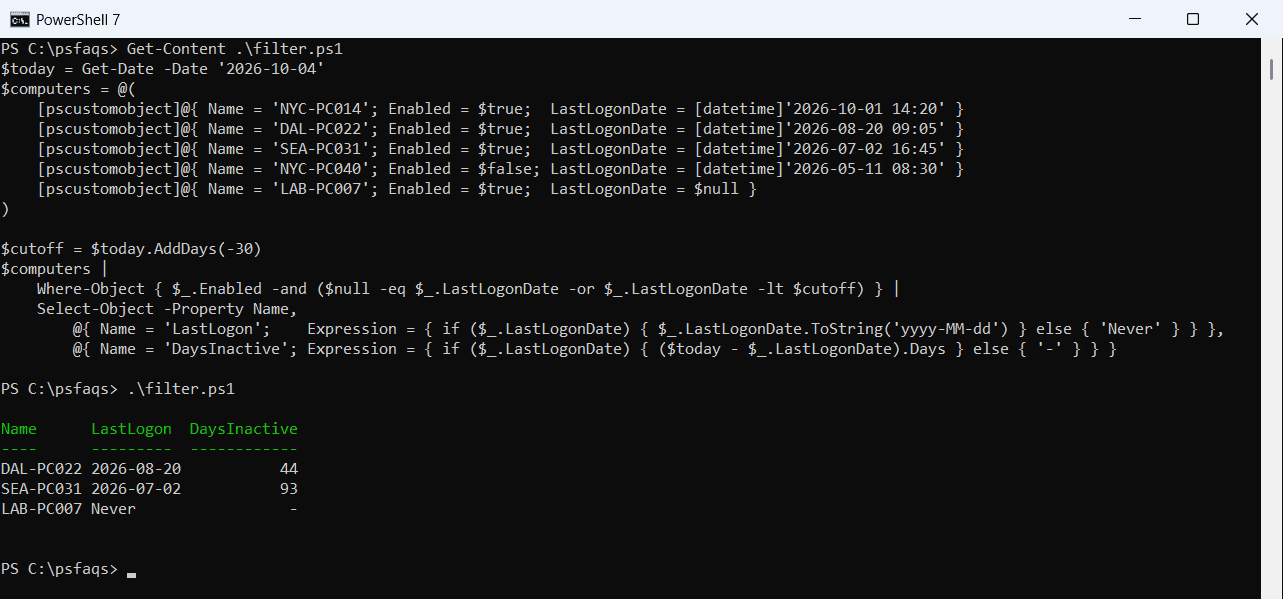
NYC-PC014 signed in three days ago, and NYC-PC040 is already disabled, so both are left out. LAB-PC007 has never signed in, which often means it was set up and never used. The cutoff works like any date comparison.
Why LastLogonDate can be two weeks behind
LastLogonDate comes from the lastLogonTimestamp attribute. Domain controllers only update it when the stored value is older than a sync interval, so it can lag behind the real last logon by up to about two weeks.
That’s on purpose, to keep replication traffic low. Use 45 or 60 days for cleanup jobs, not exactly 30.
Convert the raw lastLogonTimestamp
If you read the raw attribute, it’s a FILETIME number. Convert it with FromFileTimeUtc:
$raw = 134353380000000000, 134316903000000000, 134274843000000000
foreach ($value in $raw) {
    [datetime]::FromFileTimeUtc($value).ToString('yyyy-MM-dd HH:mm') + ' UTC'
}
Output:
2026-10-01 14:20 UTC
2026-08-20 09:05 UTC
2026-07-02 16:45 UTC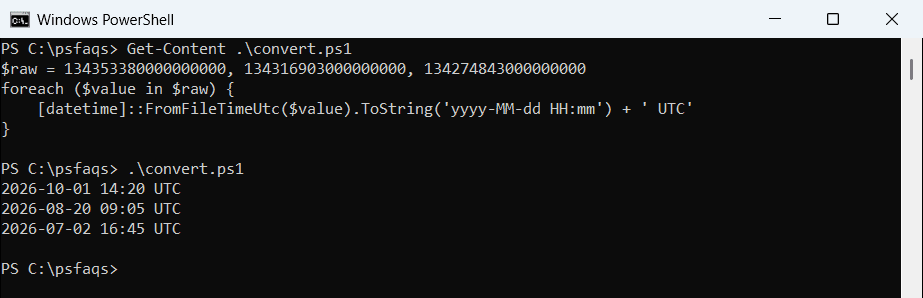
LastLogonDate is the same value already converted for you. For other date tricks, see checking password expiration dates.
Export a report and disable stale computers
Send the list to CSV for review first, as shown in PowerShell Expor