
Split the text into lines, then index the array. That’s the quickest way to get the first and last line of a multiline string in PowerShell, and it works the same in PowerShell 7 and Windows PowerShell 5.1:
$lines = $text -split '\r?\n'
$lines[0]     # first line
$lines[-1]    # last line
Watch out for a trailing newline, a hidden carriage return, and .Split() in 5.1. Each one is shown below with real output.
Get the first and last line with -split
Here’s a small status report saved as a here-string. The pattern \r?\n matches both Windows (CRLF) and Unix (LF) line endings, so you don’t have to know which one the text uses:
$text = @'
Server: web-austin-01
Status: Running
Uptime: 14 days
'@

$lines = $text -split '\r?\n'
"Lines: $($lines.Count)"
"First: $($lines[0])"
"Last:  $($lines[-1])"
Output:
Lines: 3
First: Server: web-austin-01
Last:  Uptime: 14 days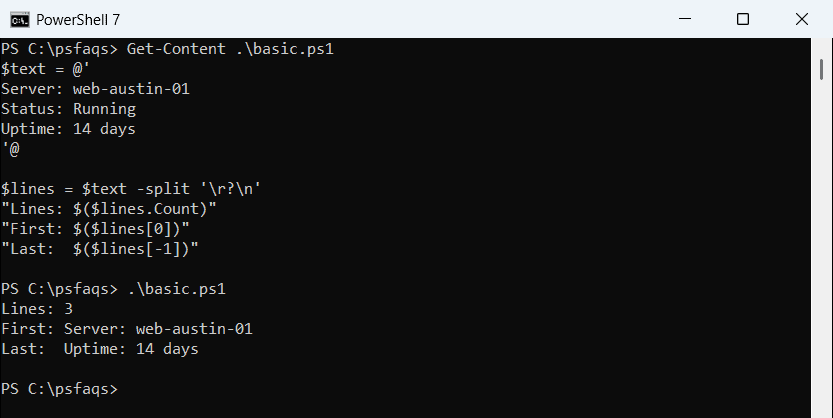
Index 0 is the first element and -1 counts back from the end. More options are in my guide to splitting a string in PowerShell.
If you’re building the text yourself, see how to add a new line to a string with `n and `r`n.
Why is the last line empty?
Text read from a file or a command often ends with a newline. Splitting it leaves an empty string at the end, so [-1] returns nothing:
$report = "Austin: 42 tickets`r`nDenver: 37 tickets`r`nSeattle: 29 tickets`r`n"

$lines = $report -split '\r?\n'
"Before TrimEnd: $($lines.Count) lines, last = [$($lines[-1])]"

$lines = $report.TrimEnd() -split '\r?\n'
"After TrimEnd:  $($lines.Count) lines, last = [$($lines[-1])]"
Output:
Before TrimEnd: 4 lines, last = []
After TrimEnd:  3 lines, last = [Seattle: 29 tickets]
TrimEnd() removes the trailing newline (and spaces) before the split, and the last real line comes back. If there are blank lines in the middle too, remove the blank lines from the array first.
Use Select-Object -First 1 and -Last 1
Select-Object works on items in the pipeline, not on lines. A multiline string is one item, so you must split it before piping:
# $text holds the same three-line here-string as above
"Piped as one string:"
$text | Select-Object -Last 1
"Split first:"
$text -split '\r?\n' | Select-Object -First 1 -Last 1
Output:
Piped as one string:
Server: web-austin-01
Status: Running
Uptime: 14 days
Split first:
Server: web-austin-01
Uptime: 14 days
The unsplit string came back whole. After the split, -First 1 -Last 1 returns both lines in one call.
Change the numbers to get the first or last few lines. The Select-Object cmdlet guide covers -Skip and -Index too.
Get the first line and keep the rest
Sometimes you want the header line and everything after it. The second number in -split is the maximum number of pieces, and the rest stays together in the last piece:
$log = @'
2026-10-24 08:00 Backup started
2026-10-24 08:12 Copied 1,240 files
2026-10-24 08:15 Backup finished
'@

$first, $rest = $log -split '\r?\n', 2
"First line: $first"
"Rest:       $(($rest -split '\r?\n').Count) more lines"

$parts = $log -split '\r?\n', -2
"Pieces with -2: $($parts.Count)"
"Last piece:     $($parts[-1])"
Output:
First line: 2026-10-24 08:00 Backup started
Rest:       2 more lines
Pieces with -2: 2
Last piece:     2026-10-24 08:15 Backup finished
That’s the PowerShell 7 output. A negative number counts pieces from the end, so -2 gives you everything before the last line plus the last line. Negative values were added in PowerShell 7.
Windows PowerShell 5.1 doesn’t throw an error. It ignores the sign and returns all 3 pieces, so code that relies on -2 quietly gives a different count there. To grab one specific line, see getting the second element after a split.
.Split() vs -split in Windows PowerShell 5.1
The string method .Split(“`r`n”) looks the same, but it isn’t in 5.1. This script ran from a file saved with Windows line endings:
$text = @'
Server: web-austin-01
Status: Running
Uptime: 14 days
'@

$pieces = $text.Split("`r`n")
"Split() pieces: $($pieces.Count)"
"-split pieces:  $(($text -split '\r?\n').Count)"
"Second piece:   [$($pieces[1])]"
Output:
Split() pieces: 3
-split pieces:  3
Second piece:   [Status: Running]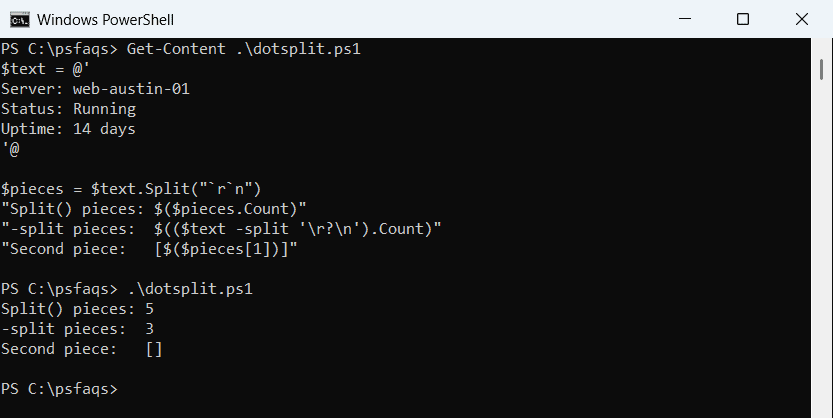
PowerShell 7 runs on .NET, which treats “`r`n” as one separator and returns 3 pieces. Windows PowerShell 5.1 runs on .NET Framework, which splits on each character, so you get an empty piece between every line.
Stick with -split ‘\r?\n’ in scripts that run in both versions.
Get the first and last line with regex
Regex works too, but the dot matches the carriage return:
# $text holds the same three-line here-string as above
if ($text -match '^.*') { "^.* matched $($Matches[0].Length) characters" }

$first = [regex]::Match($text, '^[^\r\n]*').Value
$last  = [regex]::Match($text.TrimEnd(), '[^\r\n]+$').Value
"First: $first ($($first.Length) characters)"
"Last:  $last"
Output:
^.* matched 22 characters
First: Server: web-austin-01 (21 characters)
Last:  Uptime: 14 da