
To get unique values from a CSV in PowerShell, import the file and expand one column with the -Unique switch:
Import-Csv -Path .\orders.csv | Select-Object -ExpandProperty City -UniqueThat’s the whole trick for a single column. The rest of this guide covers sorted lists, duplicate rows, several columns, counts, and the case-sensitivity traps I hit in PowerShell 7 and Windows PowerShell 5.1.
How do I get unique values from a CSV column in PowerShell?
I’ll use a small demo file of seven orders. Notice that Kevin’s city is typed as lowercase austin, and order 1003 appears twice:
OrderId,Customer,City,State,Product,Amount
1001,Maria Lopez,Austin,TX,Laptop,1200
1002,Tom Baker,Denver,CO,Monitor,300
1003,Dana Reyes,Seattle,WA,Laptop,1200
1004,Maria Lopez,Austin,TX,Keyboard,75
1005,Kevin Price,austin,TX,Monitor,300
1006,Tom Baker,Denver,CO,Laptop,1200
1003,Dana Reyes,Seattle,WA,Laptop,1200
Save it as orders.csv, or create a CSV file with headers from PowerShell. Then pick the City column and keep one copy of each value:
Import-Csv -Path .\orders.csv |
    Select-Object -ExpandProperty City -Unique
Output:
Austin
Denver
Seattle
austin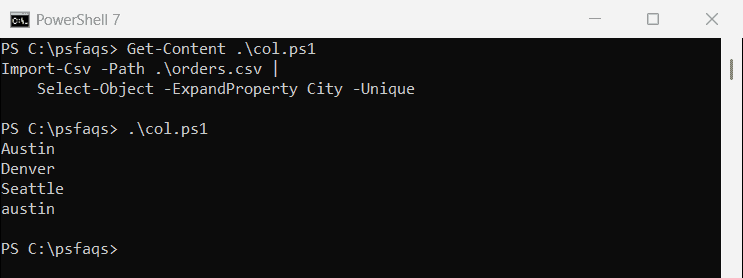
Select-Object -Unique is case-sensitive, so Austin and austin both stay. It also keeps the original order of the file.
-ExpandProperty matters here. It returns plain strings, so you can loop through the values with foreach or join them without a header getting in the way.
Get sorted unique values with Sort-Object -Unique
Sort-Object -Unique sorts the values and drops duplicates in one step. Unlike Select-Object, it ignores case by default:
Import-Csv -Path .\orders.csv |
    Select-Object -ExpandProperty City |
    Sort-Object -Unique
Output:
Austin
Denver
Seattle
The lowercase austin is gone because Sort-Object treated it as a duplicate. Use this when you want a clean, alphabetical list, and see the Sort-Object guide for its other switches.
Why does Get-Unique return duplicates?
Get-Unique only compares each item with the one right after it, so the list must be sorted first. It’s also case-sensitive. Here’s what happened when I sorted the cities and piped them to Get-Unique:
$cities = Import-Csv -Path .\orders.csv | Select-Object -ExpandProperty City
$cities | Sort-Object | Get-Unique
Output:
Austin
austin
Denver
Seattle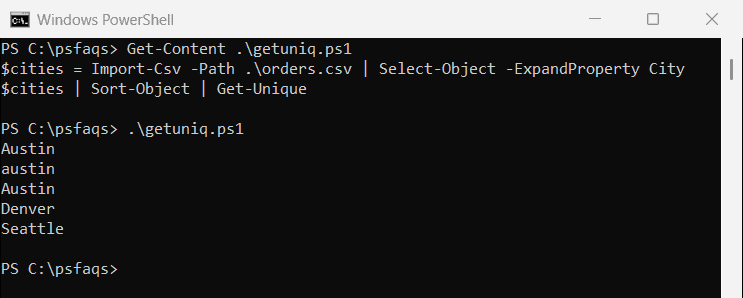
PowerShell 7 printed Austin, austin, Denver, Seattle. Windows PowerShell 5.1 printed Austin, austin, Austin, Denver, Seattle, because its sort isn’t stable and put the lowercase value between the two capitalized ones.
Sorting with -CaseSensitive groups identical spellings together, and both versions then return the same four values:
$cities = Import-Csv -Path .\orders.csv | Select-Object -ExpandProperty City
$cities | Sort-Object -CaseSensitive | Get-Unique
Output:
austin
Austin
Denver
Seattle
The same adjacency rule applies when you remove duplicates from an array, so I reach for Sort-Object -Unique unless I specifically need Get-Unique.
Remove duplicate rows from a CSV file
To drop rows that are identical in every column, select all properties with -Unique. Then save the result with Export-Csv:
$orders = Import-Csv -Path .\orders.csv
$unique = $orders | Select-Object -Property * -Unique
$unique | Export-Csv -Path .\orders-unique.csv -NoTypeInformation
"Rows before: $($orders.Count)"
"Rows after:  $((Import-Csv -Path .\orders-unique.csv).Count)"
Output:
Rows before: 7
Rows after:  6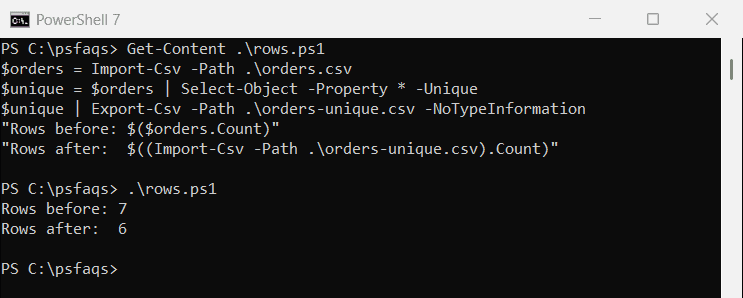
Only the second copy of order 1003 was removed. Keep -NoTypeInformation for Windows PowerShell 5.1; without it, 5.1 writes a #TYPE line at the top of the file.
Get unique combinations of multiple columns
Pass several properties to Sort-Object -Unique to keep one row per combination. This returns each city and state pair once:
Import-Csv -Path .\orders.csv |
    Sort-Object -Property City, State -Unique |
    Select-Object -Property City, State
Output:
City    State
----    -----
Austin  TX
Denver  CO
Seattle WA
Because Sort-Object ignores case, Austin and austin collapse into one TX row. If you need the extra columns too, Select-Object can pick the properties you want to keep.
Count unique values in a CSV column
Group-Object tells you how many times each value appears, and the Count of a unique list gives you the number of distinct values:
$orders = Import-Csv -Path .\orders.csv
$orders | Group-Object -Property Product | Select-Object -Property Name, Count
"Unique products: $(($orders.Product | Sort-Object -Unique).Count)"
Output:
Name     Count
----     -----
Keyboard     1
Laptop       4
Monitor      2
Unique products: 3
The groups came out in a different order in my runs. PowerShell 7 listed them alphabetically (Keyboard, Laptop, Monitor), while Windows PowerShell 5.1 kept the order each product first appears in the file (Laptop, Monitor, Keyboard).
Group-Object ignores case by default, like Sort-Object. For totals and averages on the Amount column, Measure-Object is the better fit.
Find duplicate values in a CSV
Sometimes you want the opposite: the values that repeat. Group by the column and keep groups with more than one row:
Import-Csv -Path .\orders.csv |
    Group-Object -Property OrderId |
    Where-Object Count -gt 1