
To read a CSV file into an array in PowerShell, store the output of Import-Csv in a variable. Each row becomes an object, and the variable holds all of them:
$employees = Import-Csv -Path .\employees.csvThat one line covers most scripts. Below, I’ll show how to grab a single column, why a one-row file trips up Windows PowerShell 5.1, and how to treat numbers, headers, and new rows.
How do I read a CSV file into an array in PowerShell?
My demo file lists four employees. You can create a CSV file with headers from PowerShell or paste this into employees.csv:
EmployeeId,Name,City,State,Salary,StartDate
101,Maria Lopez,Austin,TX,85000,2026-01-12
102,Tom Baker,Denver,CO,92000,2026-02-02
103,Dana Reyes,Seattle,WA,78000,2026-03-16
104,Kevin Price,Chicago,IL,105000,2026-04-06
Import-Csv uses the first line as property names. Here’s what the variable holds once the file is read:
$employees = Import-Csv -Path .\employees.csv
$employees.GetType().FullName
"Rows: $($employees.Count)"
"First: $($employees[0].Name), $($employees[0].City)"
"Last:  $($employees[-1].Name), $($employees[-1].City)"
Output:
System.Object[]
Rows: 4
First: Maria Lopez, Austin
Last:  Kevin Price, Chicago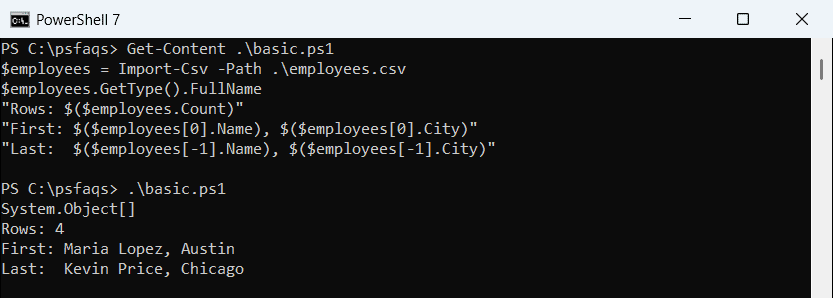
Indexes start at 0, and -1 gets the last row. Both versions printed the same result.
Get one CSV column as an array
Often you only need one column. Dot notation on the array collects that property from every row, and -ExpandProperty does the same through the pipeline:
$employees = Import-Csv -Path .\employees.csv
$cities = $employees.City
$cities -join ', '
$names = $employees | Select-Object -ExpandProperty Name
"$($names.GetType().Name) with $($names.Count) names"
$names[1]
Output:
Austin, Denver, Seattle, Chicago
Object[] with 4 names
Tom Baker
Both give you plain strings without a header. The pipeline form lets you pick columns with Select-Object in longer commands. To act on each row instead, loop through the CSV with foreach.
Why does a one-row CSV not work like an array?
When the file has only one data row, Import-Csv returns a single object, not an array. That’s where PowerShell 7 and 5.1 split:
$rows = Import-Csv -Path .\contractors.csv
"Type:  $($rows.GetType().Name)"
"Count: [$($rows.Count)]"
$fixed = @(Import-Csv -Path .\contractors.csv)
"Fixed: $($fixed.GetType().Name), Count $($fixed.Count)"
Output:
Type:  PSCustomObject
Count: [1]
Fixed: Object[], Count 1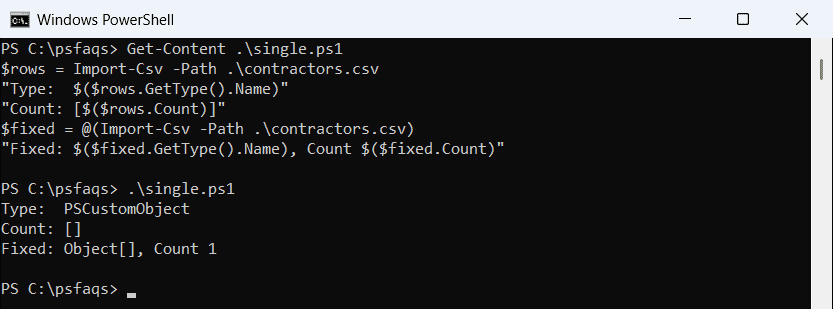
PowerShell 7 reported Count 1, while Windows PowerShell 5.1 printed an empty Count. The same thing happens when Where-Object leaves just one row.
Wrapping the call in @() always gives you an array, so checks like if ($rows.Count -gt 0) work in both. See how to get the array length for more Count details.
Convert CSV values to numbers before sorting
Every value Import-Csv reads is a string, even 85000. That changes how sorting behaves:
$employees = Import-Csv -Path .\employees.csv
$employees[0].Salary.GetType().Name
($employees | Sort-Object -Property Salary).Name -join ', '
($employees | Sort-Object -Property { [int]$_.Salary }).Name -join ', '
"Total: " + ($employees | Measure-Object -Property Salary -Sum).Sum
Output:
String
Kevin Price, Dana Reyes, Maria Lopez, Tom Baker
Dana Reyes, Maria Lopez, Tom Baker, Kevin Price
Total: 360000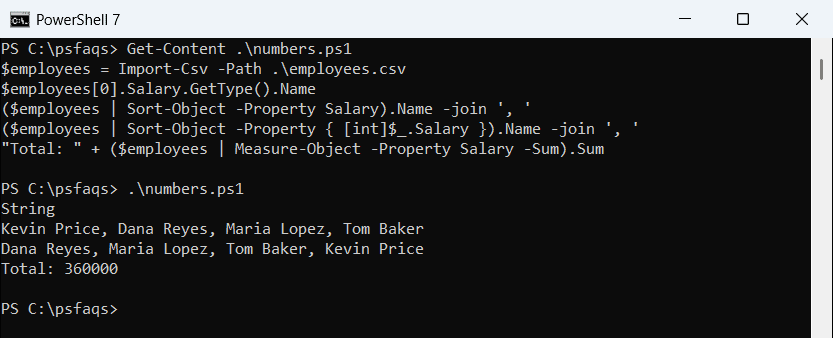
The plain sort compared text, so 105000 came first. Casting inside a script block gives the right order, which the Sort-Object guide covers in depth. Measure-Object converts the strings itself, so the total is correct.
Import a CSV without a header row
If the file starts with data, pass column names with -Header. Don’t use it on a file that already has headers, or the header line becomes an extra row:
301,Luis Ortiz,Phoenix,AZ
302,Emily Carter,Atlanta,GA
$interns = Import-Csv -Path .\interns.csv -Header 'Id', 'Name', 'City', 'State'
$interns | Format-Table -AutoSizeOutput:
Id  Name         City    State
--  ----         ----    -----
301 Luis Ortiz   Phoenix AZ
302 Emily Carter Atlanta GA
CSV text that’s already in a variable doesn’t need a file. ConvertFrom-Csv turns it into the same kind of array:
$text = @'
Product,Price
Laptop,1200
Monitor,300
'@
$products = $text | ConvertFrom-Csv
"$($products.Count) products, first is $($products[0].Product)"
Output:
2 products, first is LaptopCreate an array of arrays from CSV data
Some code expects rows of plain values instead of objects. The unary comma keeps each inner array from being flattened:
$employees = Import-Csv -Path .\employees.csv
$grid = foreach ($row in $employees) { , @($row.Name, $row.City, $row.State) }
"Rows: $($grid.Count), columns: $($grid[0].Count)"
"Row 3, column 2: $($grid[2][1])"
Output:
Rows: 4, columns: 3
Row 3, column 2: Seattle
Row 3, column 2 is Seattle. For grids and true 2D arrays, check out multidimensional arrays in PowerShell.
Add rows to the CSV array and save it
A generic List is faster than += for adding rows, as array vs ArrayList explains. Fill it from the file, add a row, and write it back:
$staff = [System.Collections.Generic.List[object]]::new()
$staff.AddRange(@(Import-Csv -Path .\employees.csv))
$staff.Add([pscustomobject]@{
    EmployeeId = 105; Name = 'Grace Holt'; City = 'Miami'
    State = 'F