
To convert a TIFF to PDF with PowerShell and no extra tools, print each TIFF page to the built-in Microsoft Print to PDF printer with PrintToFile turned on. That writes the PDF silently, with no Save As dialog:
$doc.PrinterSettings.PrinterName   = 'Microsoft Print to PDF'
$doc.PrinterSettings.PrintToFile   = $true
$doc.PrinterSettings.PrintFileName = 'C:\Scans\invoice.pdf'
Below I check the printer, read a multi-page TIFF, wrap the whole conversion in a function and convert a folder of faxes. I drew the sample TIFFs with PowerShell, and every example gave the same result in PowerShell 7 and Windows PowerShell 5.1.
Check that Microsoft Print to PDF is installed
It comes with Windows 10 and 11. Check for it by name:
Add-Type -AssemblyName System.Drawing
$installed = [System.Drawing.Printing.PrinterSettings]::InstalledPrinters
"Microsoft Print to PDF installed: $($installed -contains 'Microsoft Print to PDF')"
Output:
Microsoft Print to PDF installed: TrueIf it says False, turn it back on under Windows features. For other printer tasks, see listing printers with PowerShell.
Read the pages of a multi-page TIFF
Scanners and fax servers often put every page in one TIFF file. GetFrameCount tells you how many pages there are:
Add-Type -AssemblyName System.Drawing
$path  = (Resolve-Path -Path .\Scans\invoice-2026-1031.tif).Path
$image = [System.Drawing.Image]::FromFile($path)
$pages = $image.GetFrameCount([System.Drawing.Imaging.FrameDimension]::Page)
"Pages in the TIFF: $pages"
"Page size:         $($image.Width) x $($image.Height) pixels"
$image.Dispose()
Output:
Pages in the TIFF: 3
Page size:         850 x 1100 pixels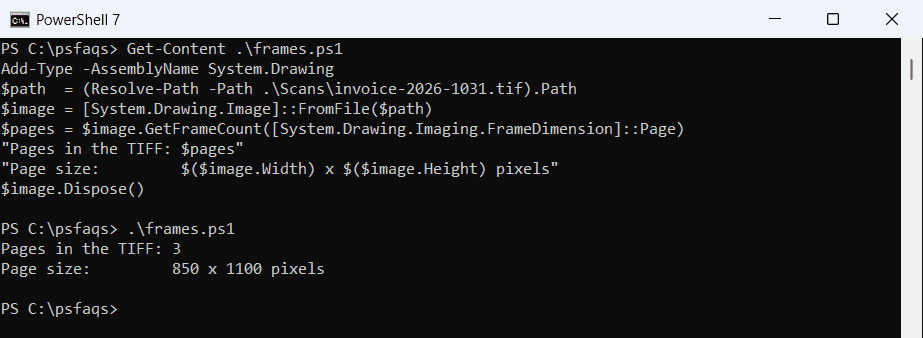
SelectActiveFrame switches between the pages, which the function below uses. Load images with a full path, because .NET doesn’t follow PowerShell’s current folder. See getting the full path of a file.
A ConvertTo-Pdf function
PrintDocument raises a PrintPage event for every page. The handler draws the current TIFF page, scaled to fit the margins, and sets HasMorePages until all pages are printed:
function ConvertTo-Pdf ([string]$TiffPath, [string]$PdfPath) {
    Add-Type -AssemblyName System.Drawing
    $image = [System.Drawing.Image]::FromFile($TiffPath)
    $state = @{ Page = 0; Count = $image.GetFrameCount([System.Drawing.Imaging.FrameDimension]::Page) }

    $doc = [System.Drawing.Printing.PrintDocument]::new()
    $doc.PrinterSettings.PrinterName   = 'Microsoft Print to PDF'
    $doc.PrinterSettings.PrintToFile   = $true
    $doc.PrinterSettings.PrintFileName = $PdfPath
    $doc.DefaultPageSettings.PaperSize = $doc.PrinterSettings.PaperSizes | Where-Object Kind -EQ 'Letter' | Select-Object -First 1
    $doc.DocumentName = Split-Path -Path $TiffPath -Leaf

    $doc.add_PrintPage({
        param($sender, $e)
        [void]$image.SelectActiveFrame([System.Drawing.Imaging.FrameDimension]::Page, $state.Page)
        $box   = $e.MarginBounds
        $scale = [Math]::Min($box.Width / $image.Width, $box.Height / $image.Height)
        $e.Graphics.DrawImage($image, $box.X, $box.Y, [int]($image.Width * $scale), [int]($image.Height * $scale))
        $state.Page++
        $e.HasMorePages = $state.Page -lt $state.Count
    })
    try { $doc.Print() } finally { $doc.Dispose(); $image.Dispose() }

    $deadline = (Get-Date).AddSeconds(15)              # the print spooler writes the file
    while (-not (Test-Path -Path $PdfPath) -and (Get-Date) -lt $deadline) { Start-Sleep -Milliseconds 200 }
}
I set the paper to Letter explicitly, so the PDF doesn’t depend on the PC’s default paper size. I also added a small Get-PdfPageCount helper that counts page objects in the PDF:
function Get-PdfPageCount ($Path) {
    $text = [System.IO.File]::ReadAllText($Path, [System.Text.Encoding]::ASCII)
    [regex]::Matches($text, '/Type\s*/Page[^s]').Count
}
Both functions are in ConvertTo-Pdf.ps1, which I dot-source here:
. .\ConvertTo-Pdf.ps1
$tif = (Resolve-Path -Path .\Scans\invoice-2026-1031.tif).Path
$pdf = [System.IO.Path]::ChangeExtension($tif, '.pdf')
ConvertTo-Pdf -TiffPath $tif -PdfPath $pdf

$head = -join [char[]][System.IO.File]::ReadAllBytes($pdf)[0..4]
"Created:  $(Split-Path -Path $pdf -Leaf)"
"Starts:   $head"
"Pages:    $(Get-PdfPageCount $pdf)"
Output:
Created:  invoice-2026-1031.pdf
Starts:   %PDF-
Pages:    3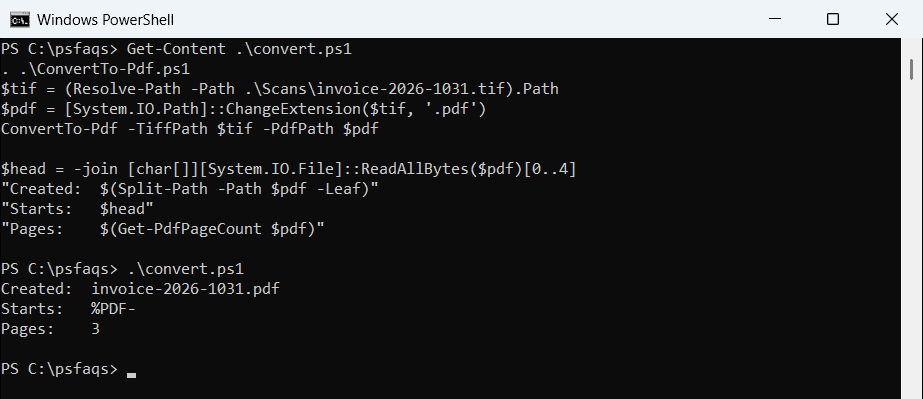
Every PDF file starts with %PDF-, which makes a quick sanity check. To combine images of other types, see converting JPG to PDF.
Convert every TIFF in a folder
Loop through the folder and write a PDF next to each TIFF:
. .\ConvertTo-Pdf.ps1
Get-ChildItem -Path .\Scans\Inbox -Filter *.tif | ForEach-Object {
    $pdf = [System.IO.Path]::ChangeExtension($_.FullName, '.pdf')
    ConvertTo-Pdf -TiffPath $_.FullName -PdfPath $pdf
    '{0,-15} -> {1}, pages: {2}' -f $_.Name, (Split-Path -Path $pdf -Leaf), (Get-PdfPageCount $pdf)
}
Output:
fax-austin.tif  -> fax-austin.pdf, pages: 2
fax-denver.tif  -> fax-denver.pdf, pages: 1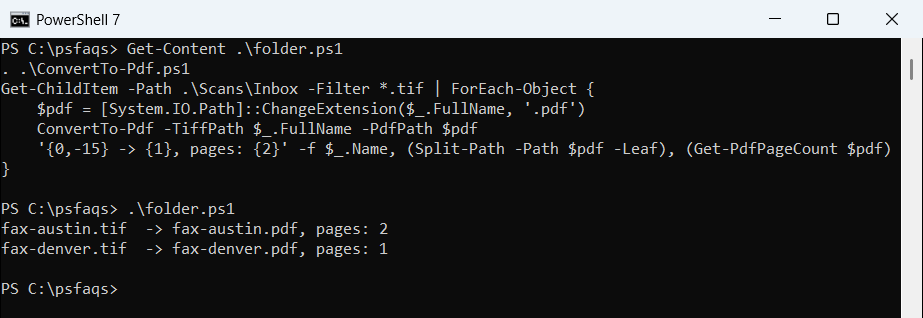
The originals stay untouched. Add -Recurse to Get-ChildItem to include subfolders, as shown in PowerShell foreach file in a folder.
Things to know
System.Drawing and Microsoft Print to PDF are Windows-only, so this doesn’t work in PowerShell 7 on Linux or macOS. There, a tool like ImageMagick converts TIFF to PDF in one command.
The PDF holds images, not text, so you can’t search it. Run OCR afterward if you need searchable text. For sending the finished PDFs, see moving files to a folder.
Frequently Asked Questions
How do I convert TIFF to PDF in PowerShell without extra software?
Print the TIFF pages to the Microsoft Print to PDF printer with PrintToFile set to $true and PrintFileName set to the PDF path. See the PrinterSettings.PrintToFile reference.
How do I convert a multi-page TIFF to one PDF?
Use GetFrameCount to count the pages and SelectActiveFrame to switch pages in the PrintPage event,