
To convert a PDF to CSV with PowerShell, first extract the PDF’s text with a text extraction tool, then parse the lines into objects and save them with Export-Csv. PowerShell can’t read PDF text on its own:
pdftotext -layout .\INV-2026-1105.pdf .\INV-2026-1105.txt
ConvertFrom-InvoiceText -Path .\INV-2026-1105.txt | Export-Csv -Path .\INV-2026-1105.csv -NoTypeInformation
The extraction is one command. Turning the text into clean rows is where the real work is, and that’s what most of this post covers. I tested the parsing on a sample invoice in PowerShell 7 and Windows PowerShell 5.1.
Extract the text from the PDF
pdftotext comes with the free Xpdf and Poppler tools. The -layout option keeps columns lined up the way they look on the page, which makes tables much easier to parse:
pdftotext -layout C:\Invoices\INV-2026-1105.pdf C:\Invoices\INV-2026-1105.txt
Get-ChildItem -Path C:\Invoices -Filter *.pdf | ForEach-Object {
    pdftotext -layout $_.FullName ([System.IO.Path]::ChangeExtension($_.FullName, '.txt'))
}
Only text-based PDFs work. Scanned PDFs contain images, so they need OCR first.
Word can open PDFs too, but when I automated it, Word stopped at a conversion prompt and the script hung. For running tools like pdftotext from scripts, see PowerShell Start-Process.
Split the columns on two or more spaces
Item names often contain spaces, so splitting on a single space breaks them apart. Columns in -layout output are separated by at least two spaces:
$line = 'Desk chair, mesh               2         $189.50        $379.00'
"Split on one space:   $(($line -split ' ').Count) pieces"
"Split on 2+ spaces:   $(($line -split '\s{2,}').Count) pieces"
($line -split '\s{2,}') -join ' | '
Output:
Split on one space:   35 pieces
Split on 2+ spaces:   4 pieces
Desk chair, mesh | 2 | $189.50 | $379.00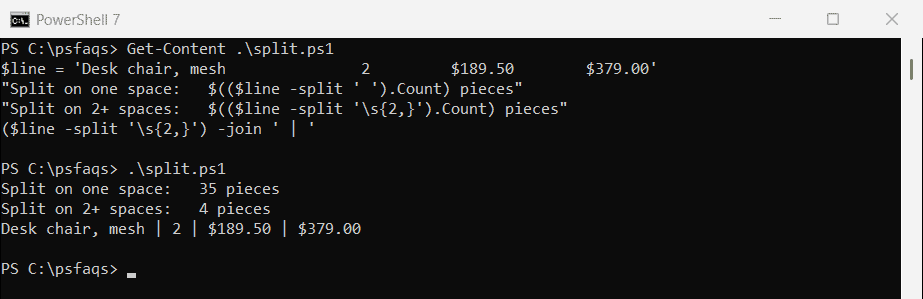
Trim the line first, so leading spaces don’t create an empty first column. More splitting options are in splitting a string in PowerShell.
Handle pages, headers and footers
pdftotext puts a form feed character between pages. Each page also repeats the table header, and there are footers like Page 1 of 2:
$text  = Get-Content -Path .\Invoices\INV-2026-1105.txt -Raw
$pages = $text -split '\f'
"Pages in the text: $($pages.Count)"
"Header lines:      $(@(($text -split '\r?\n') -match '^Item\s{2,}Qty').Count)"
Output:
Pages in the text: 2
Header lines:      2
The parser below doesn’t need to remove these lines. It keeps only lines that look like an invoice row: four columns, a whole-number quantity and a dollar amount at the end. For more pattern matching, see PowerShell regex.
Parse the lines into objects and export CSV
This function reads the text, splits it into lines and pages, and turns each matching line into an object. Amounts like $2,645.95 become real numbers:
function ConvertFrom-InvoiceText ([string]$Path) {
    $toNumber = { param($s) [decimal]($s -replace '[$,]', '') }
    foreach ($line in (Get-Content -Path $Path -Raw) -split '\r?\n|\f') {
        $cols = $line.Trim() -split '\s{2,}'
        if ($cols.Count -eq 4 -and $cols[1] -match '^\d+$' -and $cols[3] -match '^\$[\d,]+\.\d{2}$') {
            [pscustomobject]@{
                Invoice   = [System.IO.Path]::GetFileNameWithoutExtension($Path)
                Item      = $cols[0]
                Qty       = [int]$cols[1]
                UnitPrice = & $toNumber $cols[2]
                Amount    = & $toNumber $cols[3]
            }
        }
    }
}
I saved it as ConvertFrom-InvoiceText.ps1 and dot-source it below:
. .\ConvertFrom-InvoiceText.ps1
$rows = ConvertFrom-InvoiceText -Path (Resolve-Path -Path .\Invoices\INV-2026-1105.txt).Path
$rows | Export-Csv -Path .\Invoices\INV-2026-1105.csv -NoTypeInformation
"Rows exported: $($rows.Count)"
Import-Csv -Path .\Invoices\INV-2026-1105.csv | Format-Table -Property Item, Qty, UnitPrice, Amount
Output:
Rows exported: 5

Item                   Qty UnitPrice Amount
----                   --- --------- ------
Standing desk          2   450       900
Monitor 27-inch        3   229       687
Desk chair, mesh       2   189.5     379
Keyboard and mouse set 5   49.99     249.95
USB-C dock             2   215       430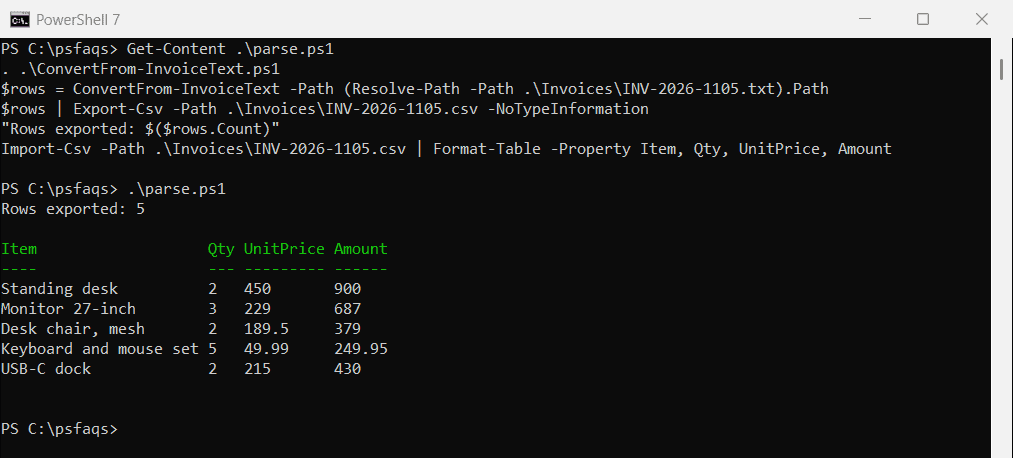
Rows from both pages ended up in one CSV, and the headers and footers were skipped.
Look at the prices, though. PowerShell 7 wrote 450 and 189.5, while Windows PowerShell 5.1 wrote 450.00 and 189.50 for the same [decimal] values. If an accounting import needs two decimals, format them before exporting:
$rows | Select-Object -Property Invoice, Item, Qty,
    @{ Name = 'UnitPrice'; Expression = { $_.UnitPrice.ToString('F2', [cultureinfo]::InvariantCulture) } },
    @{ Name = 'Amount';    Expression = { $_.Amount.ToString('F2', [cultureinfo]::InvariantCulture) } } |
    Export-Csv -Path .\INV-2026-1105.csv -NoTypeInformation
InvariantCulture keeps the period as the decimal separator on any PC. More export options are in PowerShell Export-Csv.
Check the totals
Parsing can quietly miss a row, for example when a long item name pushes a column out of line. Comparing the sum of the rows with the invoice total catches that:
. .\ConvertFrom-InvoiceText.ps1
$path  = (Resolve-Path -Path .\Invoices\INV-2026-1105.txt).Path
$rows  = ConvertFrom-InvoiceText -Path $path
$sum   = ($rows | Measure-Object -Property Amount -Sum).Sum
$line  = (Select-String -Path $path -Pattern 'Total:' | Select-Object -First 1).Line
$total = [decimal]($line -replace '[^\d.]', '')

"Sum of line items: `$$sum"
"Invoice total:     `$$total"
"Totals match:      $($sum -eq $total)"
Output:
Sum of line items: $2645.95
Invoice total:     $2645.95
Totals match:      True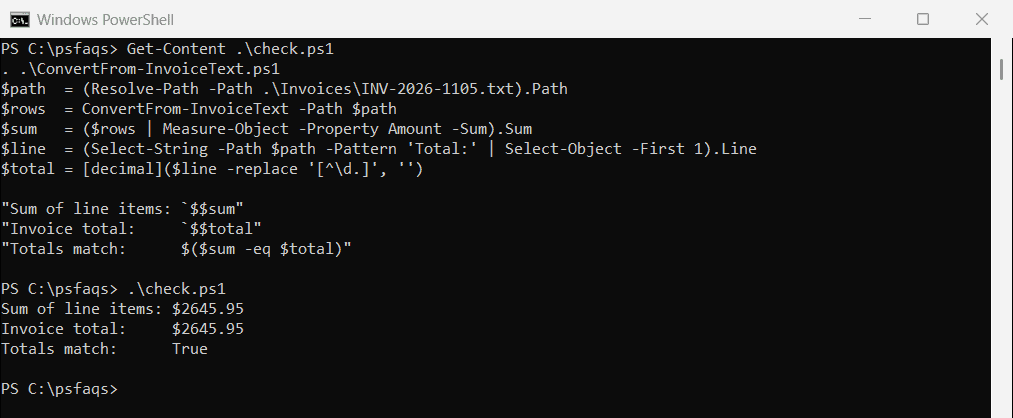
If the totals don’t match, compare the text file with the PDF to find the line that didn’t parse. Summing is covered in Measure-Object in PowerShell.
Combine many invoices into one CSV
The Invoice column records which file each row came from, so you can merge a whole folder into one CSV:
. .\ConvertFrom-InvoiceText.ps1
$all = Get-ChildItem -Path .\Invoices\Batch -Filter *.txt | ForEach-Object { ConvertFrom-InvoiceText -Path $_.FullName }
$all | Export-Csv -Path .\Invoices\all-invoices.csv -NoTypeInformation
"Exported $($all.Count) rows from $(@($all.Invoice | Sort-Object