
To clear variables in PowerShell, use Clear-Variable to empty a variable’s value, or Remove-Variable to delete the variable completely. Both take the name without the $ sign:
$server = 'web01'
Clear-Variable -Name server
"After Clear-Variable: value is null = $($null -eq $server), variable exists = $(Test-Path -Path Variable:\server)"

Remove-Variable -Name server
"After Remove-Variable: variable exists = $(Test-Path -Path Variable:\server)"
Output:
After Clear-Variable: value is null = True, variable exists = True
After Remove-Variable: variable exists = False
Below I compare these with setting a variable to $null, then cover typed variables, collections, read-only variables, scopes and removing every variable a script created. I ran each example in PowerShell 7.6 and Windows PowerShell 5.1, with the same results.
$null vs Clear-Variable vs Remove-Variable
Setting a variable to $null and running Clear-Variable do the same thing: the variable stays, but its value is empty. Remove-Variable deletes the variable itself:
$a = 'Seattle'; $b = 'Austin'; $c = 'Chicago'

$a = $null
Clear-Variable -Name b
Remove-Variable -Name c

foreach ($name in 'a', 'b', 'c') {
    $v = Get-Variable -Name $name -ErrorAction SilentlyContinue
    if ($v) { '${0}: exists, value is null = {1}' -f $name, ($null -eq $v.Value) }
    else { '${0}: removed' -f $name }
}
Output:
$a: exists, value is null = True
$b: exists, value is null = True
$c: removed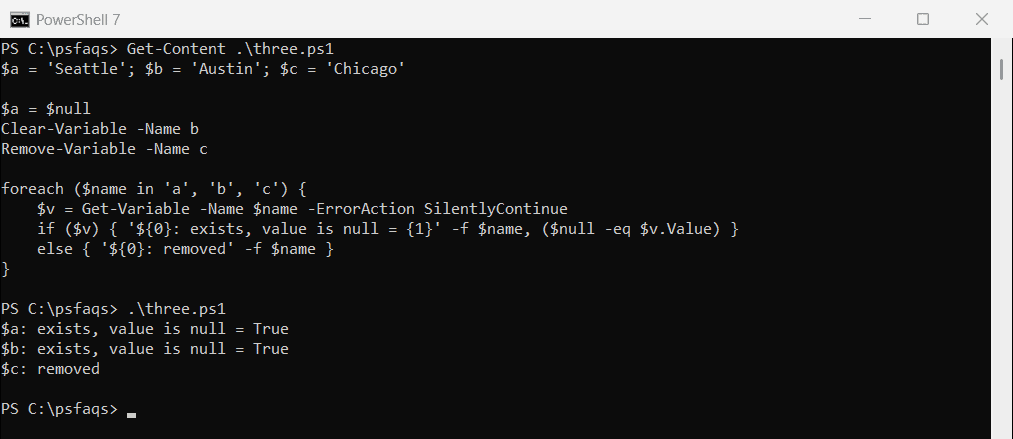
$x = $null is the shortest and most common. Use Remove-Variable when later code checks whether the variable exists at all. Checking if a variable exists shows how.
Don’t put $ in front of the name
Clear-Variable and Remove-Variable want the variable’s name. With a $, PowerShell passes the variable’s value instead, and clears whichever variable has that name:
$report = 'total'
$total = 42

Clear-Variable $report
"`$report is still '$report', but `$total is now '$total'"
Output:
$report is still 'total', but $total is now ''Here Clear-Variable $report became Clear-Variable total. It’s an easy mistake that clears the wrong data without any error.
Typed variables don’t become null
A variable declared with a type keeps that type. Setting it to $null converts $null to the type, so an [int] becomes 0 and a [string] becomes an empty string:
[int]$count = 25
[string]$city = 'Denver'
[bool]$done = $true

$count = $null
$city = $null
$done = $null

"[int] set to null:    '$count'"
"[string] set to null: '$city' (empty = $($city -eq ''), null = $($null -eq $city))"
"[bool] set to null:   '$done'"
Output:
[int] set to null:    '0'
[string] set to null: '' (empty = True, null = False)
[bool] set to null:   'False'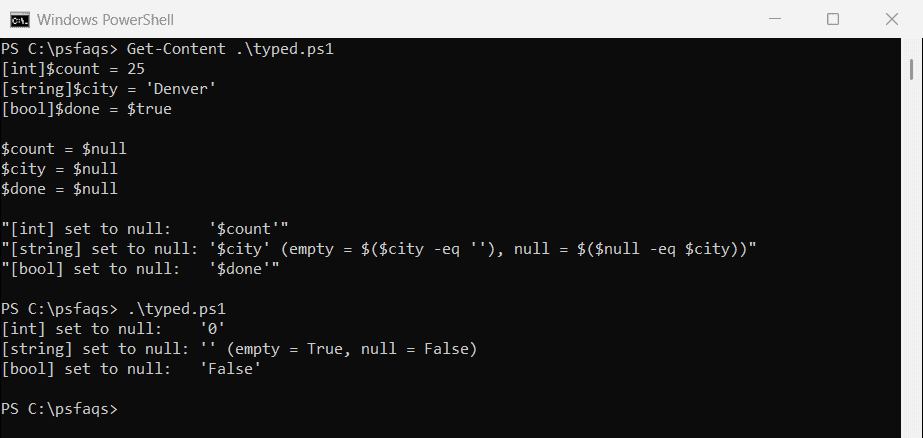
Tests like if ($null -eq $count) then fail. Remove the variable, or check for 0 or an empty string instead. IsNullOrEmpty handles both string cases.
Reset a collection: .Clear() vs $null
Arrays, lists and hashtables are shared by reference. .Clear() empties the collection itself, so every variable pointing to it sees it empty. Setting one variable to $null leaves the others alone:
$servers = [System.Collections.Generic.List[string]]@('web01', 'web02', 'sql01')
$sameList = $servers

$servers.Clear()
"After .Clear(): `$servers has $($servers.Count), `$sameList has $($sameList.Count)"

$servers = [System.Collections.Generic.List[string]]@('web01', 'web02')
$sameList = $servers
$servers = $null
"After = `$null:  `$sameList still has $($sameList.Count)"
Output:
After .Clear(): $servers has 0, $sameList has 0
After = $null:  $sameList still has 2
Use .Clear() on lists and hashtables when you want to reuse them. On a plain array, .Clear() sets each element to $null but keeps the size, so use $array = @() there.
Remove a read-only variable
Variables created with the ReadOnly option refuse Remove-Variable unless you add -Force. Constants can’t be removed at all until the session ends:
Set-Variable -Name TaxRate -Value 0.0825 -Option ReadOnly

try { Remove-Variable -Name TaxRate -ErrorAction Stop }
catch { 'Failed. TaxRate is read-only' }

Remove-Variable -Name TaxRate -Force
"Removed with -Force: $(-not (Test-Path -Path Variable:\TaxRate))"
Output:
Failed. TaxRate is read-only
Removed with -Force: True
Remove all variables a script created
Removing every variable would also delete PowerShell’s own, like $PSVersionTable. Instead, save the names that exist when the script starts and remove only the new ones at the end:
$baseline = (Get-Variable).Name

$region = 'us-west'
$retries = 3
$servers = 'web01', 'web02'

$mine = Get-Variable | Where-Object Name -NotIn $baseline | Where-Object Name -NE 'baseline'
"Variables created by the script: $($mine.Name -join ', ')"

$mine | Remove-Variable
"Still defined: $((Get-Variable -Name region, retries, servers -ErrorAction SilentlyContinue).Count)"
Output:
Variables created by the script: region, retries, servers
Still defined: 0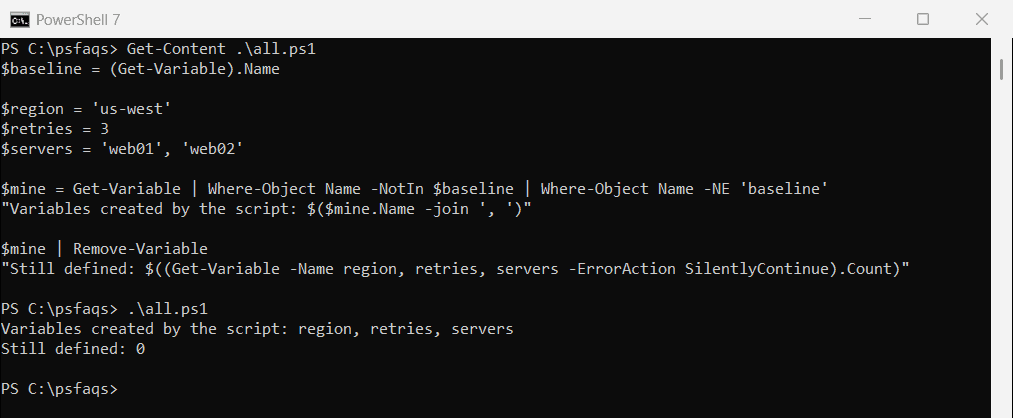
In the console, you can also just open a new PowerShell window, which starts with no variables of your own.
Reset a variable inside a function
A function works on its own copy of a variable. To reset the script’s variable from inside a function, add the script: scope prefix:
$total = 100

function Reset-Total {
    $total = 0
    "Inside the function: $total"
}
function Reset-ScriptTotal {
    $script:total = 0
}

Reset-Total
"After Reset-Total:       $total"
Reset-ScriptTotal
"After Reset-ScriptTotal: $total"
Output:
Inside the function: 0
After Reset-Total:       100
After Reset-ScriptTotal: 0
Clear-Variable and Remove-Variable have a -Scope parameter for the same job.
Removed variables and strict mode
Normally, reading a removed variable just gives $null. With Set-Strict