To get the size of a file in PowerShell, read the Length property of the file object that Get-Item returns. It’s the size in bytes:
(Get-Item 'C:\Reports\q3-deck.pptx').LengthBelow I convert that number to KB, MB and GB, list and total the sizes in a folder, and cover three traps I hit while testing in PowerShell 7 and Windows PowerShell 5.1.
Create sample files to follow along
You don’t need real files to practice. Open PowerShell in an empty test folder and run this to create a reports folder with three files of known sizes:
New-Item -ItemType Directory .\reports\archive -Force | Out-Null
[IO.File]::WriteAllBytes("$PWD\reports\q3-deck.pptx", (New-Object byte[] 5767168))
[IO.File]::WriteAllBytes("$PWD\reports\sales-2026.csv", (New-Object byte[] 48213))
[IO.File]::WriteAllBytes("$PWD\reports\notes.txt", (New-Object byte[] 812))

Get-ChildItem .\reports -File | ForEach-Object Name
Output:
notes.txt
q3-deck.pptx
sales-2026.csv
[IO.File]::WriteAllBytes writes a file of exactly that many bytes, so every number below is predictable. For more ways to list what’s in a folder, see the Get-ChildItem cmdlet.
Get the file size in bytes with Get-Item
Get-Item returns a FileInfo object, and its Length property holds the size. It’s an Int64, so files over 2 GB are fine:
$file = Get-Item .\reports\q3-deck.pptx
$file.Length
$file.Length.GetType().Name
Output:
5767168
Int64
5,767,168 bytes is exactly 5.5 MB. Don’t confuse this with the length of a string, which counts characters, not bytes.
How do I get the file size in KB, MB or GB?
PowerShell has built-in multipliers: 1KB is 1024, 1MB is 1024 squared, and 1GB is 1024 cubed. Divide by one of them, then round:
$bytes = (Get-Item .\reports\q3-deck.pptx).Length

"KB: $([math]::Round($bytes / 1KB, 2))"
"MB: $([math]::Round($bytes / 1MB, 2))"
"GB: $([math]::Round($bytes / 1GB, 4))"
"Formatted: {0:N2} MB" -f ($bytes / 1MB)
Output:
KB: 5632
MB: 5.5
GB: 0.0054
Formatted: 5.50 MB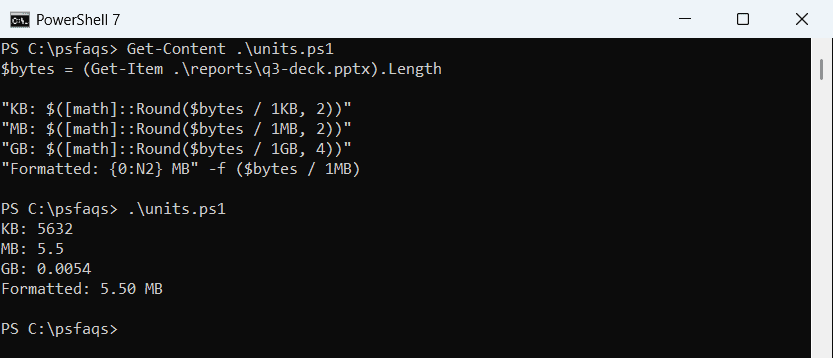
[math]::Round keeps a number you can compare or sort. The -f format operator with N2 returns text with two decimals and a thousands separator. More options are in rounding to 2 decimal places.
Show file sizes in a readable format
For a report, pick the unit per file. This small function chooses GB, MB, KB or bytes based on the size:
function Format-FileSize ([long]$Bytes) {
    if     ($Bytes -ge 1GB) { '{0:N2} GB' -f ($Bytes / 1GB) }
    elseif ($Bytes -ge 1MB) { '{0:N2} MB' -f ($Bytes / 1MB) }
    elseif ($Bytes -ge 1KB) { '{0:N2} KB' -f ($Bytes / 1KB) }
    else                    { "$Bytes bytes" }
}

Get-ChildItem .\reports -File | Sort-Object Length -Descending | ForEach-Object {
    '{0,-16} {1}' -f $_.Name, (Format-FileSize $_.Length)
}
Output:
q3-deck.pptx     5.50 MB
sales-2026.csv   47.08 KB
notes.txt        812 bytes
Sorting on Length before formatting matters, because sorting the text “5.50 MB” would put it in the wrong order. Here’s how Sort-Object sorts by a property.
Get the total size of several files
Pipe the files to Measure-Object with -Property Length and -Sum. It adds up the bytes and counts the files:
$sum = Get-ChildItem .\reports -File | Measure-Object -Property Length -Sum

"Files: $($sum.Count)"
"Total: {0:N0} bytes ({1:N2} MB)" -f $sum.Sum, ($sum.Sum / 1MB)
Output:
Files: 3
Total: 5,816,193 bytes (5.55 MB)
The -File switch skips subfolders such as archive. To include files in subfolders, add -Recurse, as in getting the size of a folder.
As a table, the numbers look different in each version:
Get-ChildItem .\reports -File | Measure-Object -Property Length -Sum -Maximum |
    Format-Table Count, Sum, Maximum
Output:
Count         Sum     Maximum
-----         ---     -------
    3 5816193.000 5767168.000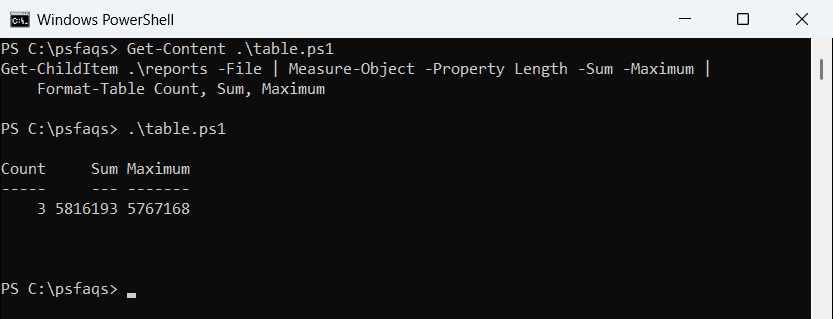
Windows PowerShell 5.1 prints 5816193, while PowerShell 7 prints 5816193.00. It’s the same [double] in both; only the table format differs. Measure-Object can also return the average and minimum.
Why does a folder show a size of 1?
Get-Item works on folders too, but a DirectoryInfo object has no Length property:
$item = Get-Item .\reports

"Length of a folder: $($item.Length)"
"Is a folder:        $($item.PSIsContainer)"
Output:
Length of a folder: 1
Is a folder:        True
The 1 isn’t a size. When an object has no Length, PowerShell falls back to its built-in Length for a single item, which is always 1. Check PSIsContainer, or use Get-ChildItem -File so folders never reach your math.
Get the current size of a file that changes
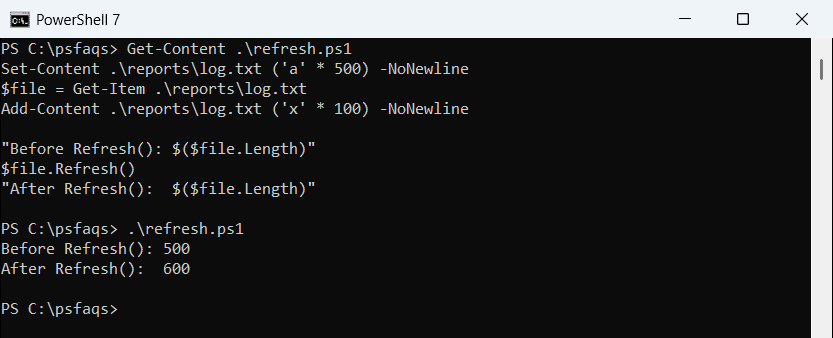
A FileInfo object keeps the size it read. If a log keeps growing after you call Get-Item, call Refresh() before you read Length again:
Set-Content .\reports\log.txt ('a' * 500) -NoNewline
$file = Get-Item .\reports\log.txt
Add-Content .\reports\log.txt ('x' * 100) -NoNewline

"Before Refresh(): $($file.Length)"
$file.Refresh()
"After Refresh():  $($file.Length)"
Output:
Before Refresh(): 500
After Refresh():  600