
To get the Outlook inbox item count with PowerShell on a PC with classic Outlook, open the inbox through Outlook’s COM object and read Items.Count. Folder 6 is the inbox:
$outlook = New-Object -ComObject Outlook.Application
$inbox = $outlook.GetNamespace('MAPI').GetDefaultFolder(6)
"Items: $($inbox.Items.Count)  Unread: $($inbox.UnReadItemCount)"
For Microsoft 365 mailboxes, Microsoft Graph and Exchange Online give the same numbers without Outlook running. Below I cover all three, then build a subfolder breakdown and a report for many mailboxes.
I didn’t read my own mailbox for this post. The reporting steps ran on sample data shaped exactly like the Graph and Exchange Online output, in PowerShell 7 and Windows PowerShell 5.1.
Count items with classic Outlook
The COM approach reads the mailbox that the desktop Outlook profile is connected to, including PST and cached mailboxes:
$outlook = New-Object -ComObject Outlook.Application
$inbox = $outlook.GetNamespace('MAPI').GetDefaultFolder(6)   # 6 = olFolderInbox
[pscustomobject]@{
    Total    = $inbox.Items.Count
    Unread   = $inbox.UnReadItemCount
    Folders  = $inbox.Folders.Count
}
It only works with classic Outlook for Windows, because the new Outlook doesn’t support COM automation. Run it in the same user session as Outlook. To check what’s installed first, see getting a list of installed programs.
Count items with Microsoft Graph
Graph works for any Microsoft 365 mailbox and doesn’t need Outlook. Mail.ReadBasic is enough, and ‘inbox’ is a well-known folder name, so you don’t need the folder ID:
Connect-MgGraph -Scopes 'Mail.ReadBasic'
$me = (Get-MgContext).Account
$inbox    = Get-MgUserMailFolder -UserId $me -MailFolderId 'inbox'
$children = Get-MgUserMailFolderChildFolder -UserId $me -MailFolderId 'inbox' -All
The folder object has totalItemCount, unreadItemCount and childFolderCount. My sample files hold the same fields:
$inbox    = Get-Content -Path .\Mail\inbox.json -Raw | ConvertFrom-Json
$children = (Get-Content -Path .\Mail\inbox-children.json -Raw | ConvertFrom-Json).value

"Inbox items:          $($inbox.totalItemCount)"
"Inbox unread:         $($inbox.unreadItemCount)"
"Subfolders:           $($inbox.childFolderCount)"
"Items incl. folders:  $($inbox.totalItemCount + ($children | Measure-Object -Property totalItemCount -Sum).Sum)"
Output:
Inbox items:          1482
Inbox unread:         37
Subfolders:           2
Items incl. folders:  2337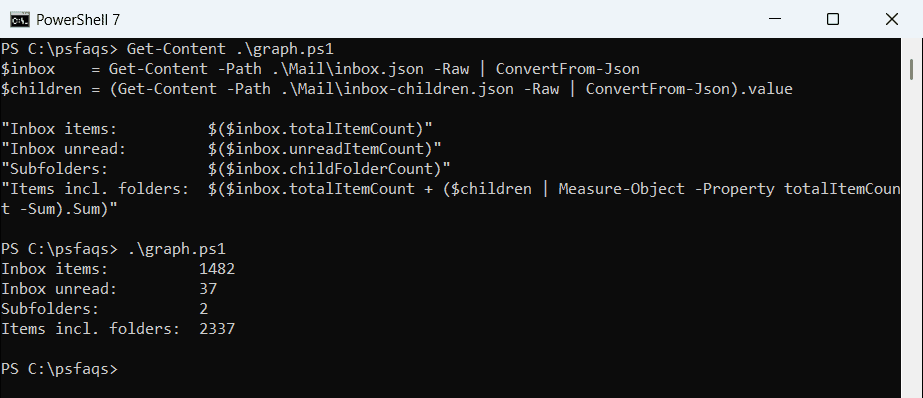
totalItemCount covers only the inbox itself, so add the subfolders if you want the whole tree. Summing is covered in Measure-Object in PowerShell.
Show unread items per folder
Calculated properties turn the raw counts into a small table with an unread percentage:
$inbox    = Get-Content -Path .\Mail\inbox.json -Raw | ConvertFrom-Json
$children = (Get-Content -Path .\Mail\inbox-children.json -Raw | ConvertFrom-Json).value

@($inbox) + $children | Select-Object -Property @{ Name = 'Folder'; Expression = { $_.displayName } },
    @{ Name = 'Total';  Expression = { $_.totalItemCount } },
    @{ Name = 'Unread'; Expression = { $_.unreadItemCount } },
    @{ Name = 'UnreadPct'; Expression = { '{0:N1}%' -f (100 * $_.unreadItemCount / $_.totalItemCount) } } |
    Format-Table -AutoSize
Output:
Folder        Total Unread UnreadPct
------        ----- ------ ---------
Inbox          1482     37 2.5%
Austin Orders   640     12 1.9%
Invoices 2026   215      3 1.4%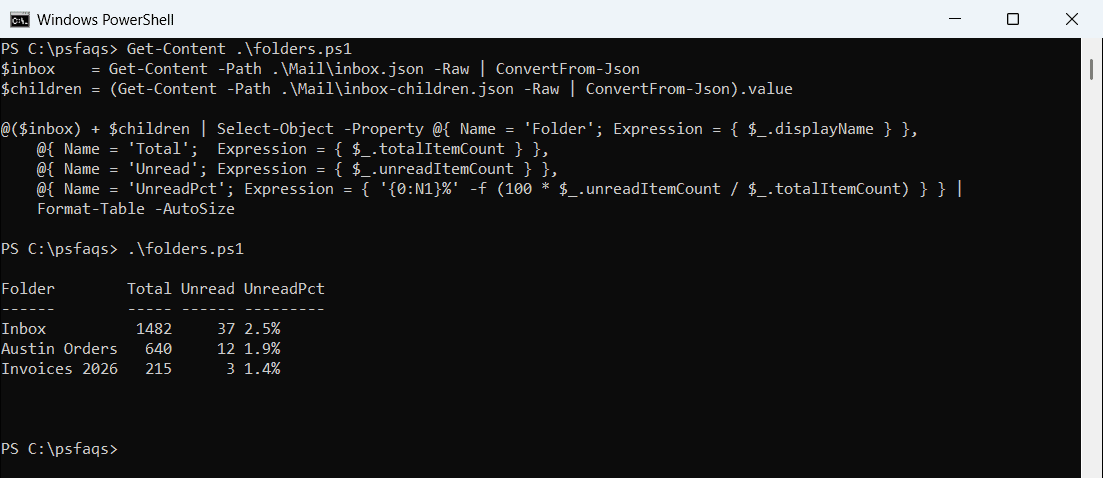
If a folder can be empty, check that totalItemCount isn’t 0 before dividing. For more on number formats, see rounding to 2 decimal places.
Report inbox counts for many mailboxes
Exchange admins can get counts for every mailbox with the ExchangeOnlineManagement module. -FolderScope Inbox limits the output to the inbox and its subfolders:
Connect-ExchangeOnline
$stats = Get-EXOMailbox -ResultSize Unlimited | ForEach-Object {
    Get-EXOMailboxFolderStatistics -Identity $_.UserPrincipalName -FolderScope Inbox |
        Where-Object Name -EQ 'Inbox' |
        Select-Object -Property Identity, Name, ItemsInFolder, ItemsInFolderAndSubfolders
}
With sample results for three mailboxes, this flags anyone over 10,000 items and saves a CSV:
$stats = @(
    [pscustomobject]@{ Identity = 'maria@contoso.com'; ItemsInFolder = 1482;  ItemsInFolderAndSubfolders = 2337 }
    [pscustomobject]@{ Identity = 'tom@contoso.com';   ItemsInFolder = 18950; ItemsInFolderAndSubfolders = 21004 }
    [pscustomobject]@{ Identity = 'dana@contoso.com';  ItemsInFolder = 312;   ItemsInFolderAndSubfolders = 312 }
)

$limit = 10000
$report = $stats | Sort-Object -Property ItemsInFolder -Descending | ForEach-Object {
    [pscustomobject]@{
        Mailbox  = $_.Identity
        Inbox    = $_.ItemsInFolder
        WithSub  = $_.ItemsInFolderAndSubfolders
        OverMax  = $_.ItemsInFolder -gt $limit
    }
}
$report | Export-Csv -Path .\Mail\inbox-counts.csv -NoTypeInformation
"Mailboxes over $($limit): $(@($report | Where-Object OverMax).Count)"
$report | Format-Table -AutoSize
Output:
Mailboxes over 10000: 1

Mailbox           Inbox WithSub OverMax
-------           ----- ------- -------
tom@contoso.com   18950   21004    True
maria@contoso.com  1482    2337   False
dana@contoso.com    312     312   False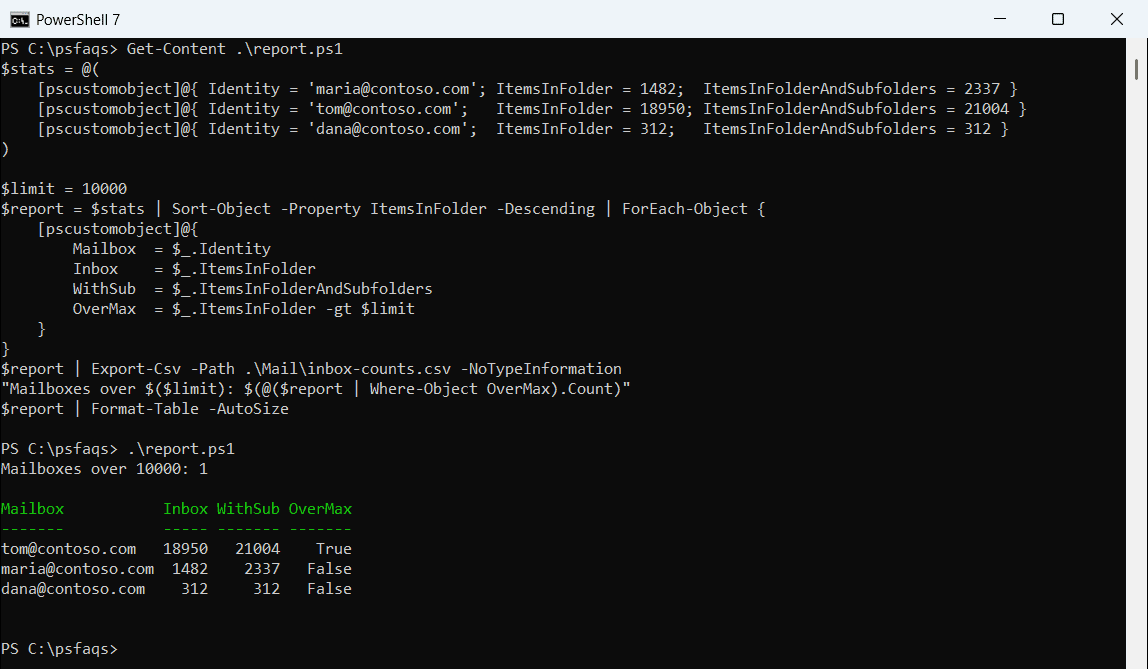
Very full inboxes slow down Outlook searches and sync. The CSV is ready for the help desk, and PowerShell Export-Csv has more export options.
Frequently Asked Questions
How do I count the items in my Outlook inbox with PowerShell?
With classic Outlook, use $outlook.GetNamespace('MAPI').GetDefaultFolder(6).Items.Count.
How do I get the unread count of the inbox?
Read UnReadItemCount from Outlook COM, or unreadItemCount from Get-MgUserMailFolder -MailFolderId 'inbox'.