
To convert MBR to GPT from PowerShell without losing data, run Windows’ built-in MBR2GPT tool from an elevated window, validate first, then convert, and switch the firmware to UEFI:
mbr2gpt.exe /validate /disk:0 /allowFullOS
mbr2gpt.exe /convert /disk:0 /allowFullOS
MBR2GPT only handles the system disk, the one Windows boots from. Below I check the partition style, test a disk against MBR2GPT’s rules, cover BitLocker and the firmware switch, and show the different method for data disks.
I didn’t convert anything on my test PC. The checks below are read-only, and the conversion commands are shown as code.
Check whether a disk is MBR or GPT
Get-Disk shows the partition style of every disk. IsBoot and IsSystem tell you which one Windows runs from:
Get-Disk | Select-Object -Property Number, PartitionStyle, IsBoot, IsSystem | Format-Table -AutoSizeOutput:
Number PartitionStyle IsBoot IsSystem
------ -------------- ------ --------
     0 GPT              True     True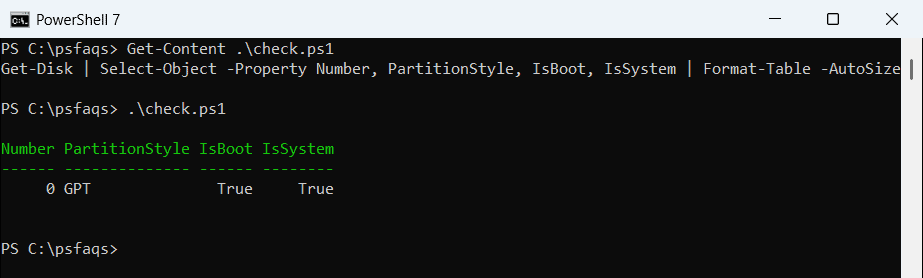
If PartitionStyle says GPT, there’s nothing to do. RAW means the disk was never initialized. For drive letters and free space, see listing drives in PowerShell.
What MBR2GPT checks before it converts
MBR2GPT ships with Windows in the System32 folder. It refuses to touch a disk unless the layout passes its checks:
- The disk uses MBR.
- There are at most three primary partitions.
- One partition is active and is the system partition.
- There’s no extended or logical partition.
- The boot configuration has a default entry that points to Windows.
- There’s a little free space at the start and end of the disk for the GPT tables.
You can look at the help without admin rights:
mbr2gpt.exe /? | Select-Object -First 3Output:
Converts a disk from MBR to GPT partitioning without modifying or deleting data on the disk.Test a layout with PowerShell
The partition rules are easy to check yourself. This function tests sample partitions shaped like Get-Partition output on an MBR disk:
function Test-Mbr2GptLayout ($Partitions) {
    $problems = @()
    $primary  = @($Partitions | Where-Object Type -NotIn 'Extended', 'Logical')
    $extended = @($Partitions | Where-Object Type -In 'Extended', 'Logical')
    if ($primary.Count -gt 3) { $problems += "$($primary.Count) primary partitions (max 3)" }
    if ($extended.Count)      { $problems += 'Has an extended or logical partition' }
    if (-not ($Partitions | Where-Object IsActive)) { $problems += 'No active system partition' }
    if ($problems) { $problems } else { 'Layout looks convertible' }
}

$disk0 = @(
    [pscustomobject]@{ PartitionNumber = 1; Type = 'IFS'; IsActive = $true;  SizeGB = 0.5 }   # System Reserved
    [pscustomobject]@{ PartitionNumber = 2; Type = 'IFS'; IsActive = $false; SizeGB = 237 }   # Windows
    [pscustomobject]@{ PartitionNumber = 3; Type = 'IFS'; IsActive = $false; SizeGB = 0.6 }   # Recovery
)
$disk1 = @(
    [pscustomobject]@{ PartitionNumber = 1; Type = 'IFS';      IsActive = $false; SizeGB = 120 }
    [pscustomobject]@{ PartitionNumber = 2; Type = 'Extended'; IsActive = $false; SizeGB = 340 }
    [pscustomobject]@{ PartitionNumber = 3; Type = 'Logical';  IsActive = $false; SizeGB = 340 }
)

'Disk 0 (Windows):';  Test-Mbr2GptLayout $disk0
'Disk 1 (old data):'; Test-Mbr2GptLayout $disk1
Output:
Disk 0 (Windows):
Layout looks convertible
Disk 1 (old data):
Has an extended or logical partition
No active system partition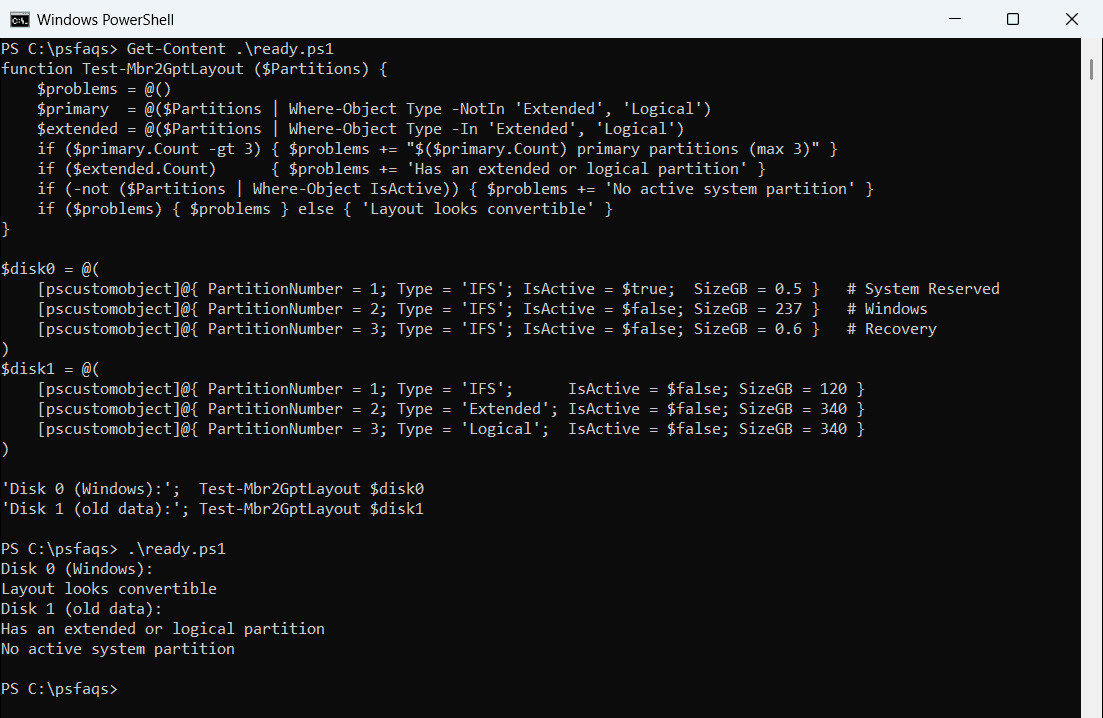
On a real disk, pass Get-Partition -DiskNumber 0 instead. MBR2GPT still runs its own full check, so treat this as a quick first look. More on filters is in Where-Object with multiple conditions.
Convert the system disk with MBR2GPT
First make sure the PC supports UEFI, and back up anything you can’t lose. Then run these from an elevated PowerShell window:
# 1. Suspend BitLocker on the Windows drive, if it's on
Suspend-BitLocker -MountPoint 'C:' -RebootCount 0

# 2. Validate, then convert
mbr2gpt.exe /validate /disk:0 /allowFullOS
mbr2gpt.exe /convert /disk:0 /allowFullOS
"Exit code: $LASTEXITCODE"
/allowFullOS lets the tool run inside Windows instead of Windows PE. In that case it shrinks the Windows partition to make a new 100 MB EFI system partition. To check BitLocker first, see managing BitLocker with PowerShell.
Read the exit code
MBR2GPT returns a number that tells you what happened. A lookup table turns it into words for logs:
$codes = @{ 0 = 'Conversion completed successfully'; 1 = 'Canceled by the user'; 4 = 'Invalid command-line parameters'
            6 = 'A volume on the disk is encrypted'; 7 = 'Disk geometry or layout does not meet requirements'
            100 = 'Converted, but some boot entries could not be restored' }
foreach ($exit in 0, 6, 7) { '{0,3}  {1}' -f $exit, $codes[$exit] }
Output:
  0  Conversion completed successfully
  6  A volume on the disk is encrypted
  7  Disk geometry or layout does not meet requirements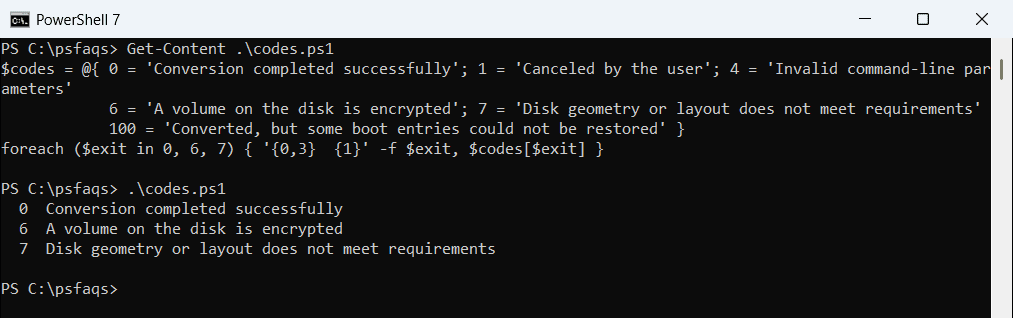
Code 6 is the one people hit most often. Suspend BitLocker and run the conversion again. For error handling in scripts, see PowerShell try catch.
After the conversion
Restart, open the firmware setup and switch the boot mode from Legacy or CSM to UEFI. Windows won’t start until you do. Turning on Secure Boot is a good idea at the same time.
If you suspended BitLocker, delete and recreate the key protectors once Windows is running again, then run Get-Disk to confirm the disk now shows GPT. To restart remotely, see restarting a computer with PowerShell.
Convert a data disk to GPT
MBR2GPT doesn’t convert non-system disks. For a data disk, the PowerShell way erases it and starts over, so copy the files off first:
# Erases everything on disk 1
Clear-Disk -Number 1 -Remov