
To convert a CSV file to tab-delimited with PowerShell, import it and export it again with a tab as the delimiter. In PowerShell, a tab is written “`t”:
Import-Csv -Path .\orders.csv | Export-Csv -Path .\orders.tsv -Delimiter "`t" -NoTypeInformationThat puts quotes around every value. Below I show how to drop them in PowerShell 7, a method that works in Windows PowerShell 5.1 too, reading the file back and converting a whole folder.
Tabs are invisible, so I display them as <TAB> with this small helper:
function Show-Tabs ($Path) { Get-Content -Path $Path | ForEach-Object { $_ -replace "`t", '<TAB>' } }Convert with Export-Csv -Delimiter
My sample orders.csv has an item with a comma in it, which is a good test. Export-Csv quotes every field:
function Show-Tabs ($Path) { Get-Content -Path $Path | ForEach-Object { $_ -replace "`t", '<TAB>' } }

Import-Csv -Path .\Data\orders.csv |
    Export-Csv -Path .\Data\orders.tsv -Delimiter "`t" -NoTypeInformation
Show-Tabs .\Data\orders.tsv
Output:
"Order"<TAB>"City"<TAB>"Item"<TAB>"Total"
"ORD-1001"<TAB>"Austin"<TAB>"Desk, standing"<TAB>"450"
"ORD-1002"<TAB>"Denver"<TAB>"Monitor"<TAB>"229"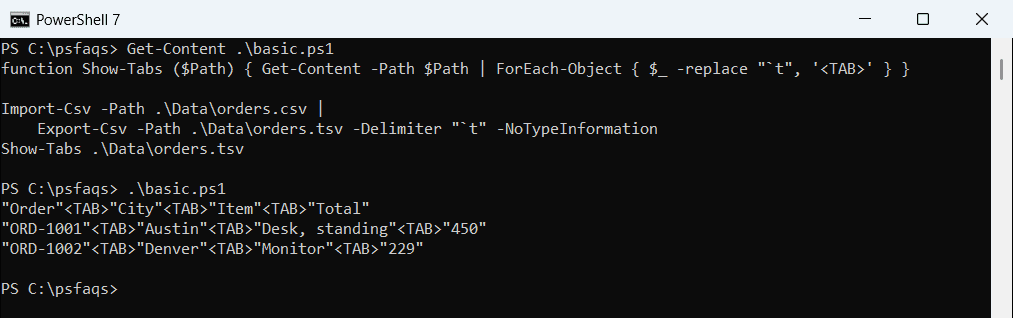
Excel and most databases accept the quotes. Some tools, like older import utilities or bioinformatics programs, expect plain values. The basics are in PowerShell Export-Csv.
Remove the quotes in PowerShell 7
PowerShell 7 added -UseQuotes. AsNeeded quotes only values that need it, such as ones containing a tab or quote:
function Show-Tabs ($Path) { Get-Content -Path $Path | ForEach-Object { $_ -replace "`t", '<TAB>' } }

try {
    Import-Csv -Path .\Data\orders.csv |
        Export-Csv -Path .\Data\orders.tsv -Delimiter "`t" -NoTypeInformation -UseQuotes AsNeeded -ErrorAction Stop
    Show-Tabs .\Data\orders.tsv
}
catch { "Failed. $($_.Exception.Message)" }
Output:
Order<TAB>City<TAB>Item<TAB>Total
ORD-1001<TAB>Austin<TAB>Desk, standing<TAB>450
ORD-1002<TAB>Denver<TAB>Monitor<TAB>229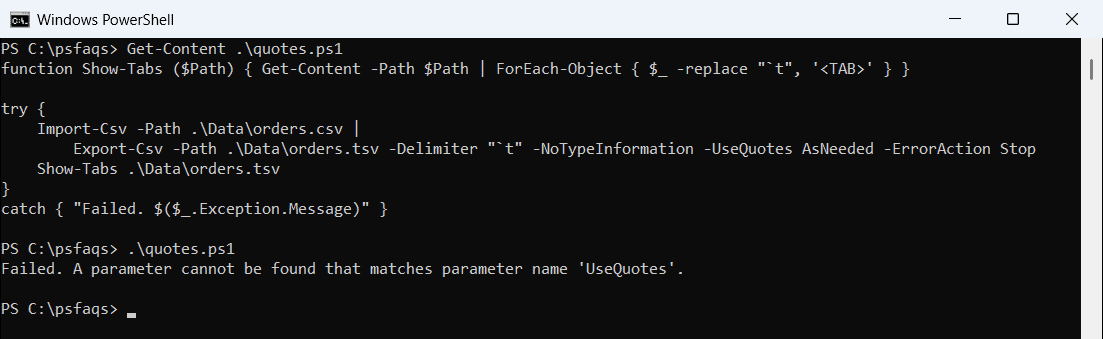
The comma in Desk, standing needs no quotes in a tab-delimited file. Use -UseQuotes Never only when you’re sure no value contains a tab. To check your version, see checking the PowerShell version.
A method that works in both versions
For Windows PowerShell 5.1, build each line yourself by joining the values with tabs. The column order comes from the first row:
function Show-Tabs ($Path) { Get-Content -Path $Path | ForEach-Object { $_ -replace "`t", '<TAB>' } }

$rows    = Import-Csv -Path .\Data\orders.csv
$columns = $rows[0].PSObject.Properties.Name

$lines = @($columns -join "`t")
foreach ($row in $rows) { $lines += ($columns | ForEach-Object { $row.$_ }) -join "`t" }
Set-Content -Path .\Data\orders.tsv -Value $lines

Show-Tabs .\Data\orders.tsv
Output:
Order<TAB>City<TAB>Item<TAB>Total
ORD-1001<TAB>Austin<TAB>Desk, standing<TAB>450
ORD-1002<TAB>Denver<TAB>Monitor<TAB>229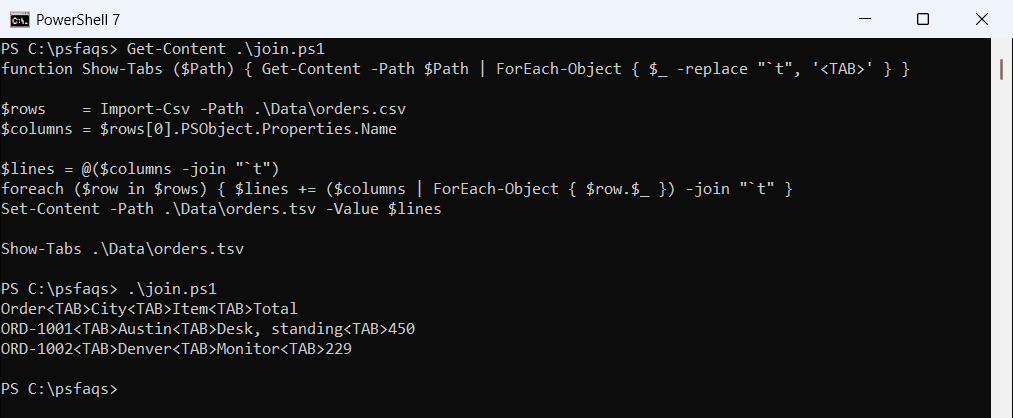
This doesn’t escape anything, so check that no value contains a tab or a line break. For more on -join, see joining arrays in PowerShell.
Read a tab-delimited file back
Import-Csv takes the same -Delimiter parameter, so the tabs turn back into columns:
Import-Csv -Path .\Data\orders.csv |
    Export-Csv -Path .\Data\orders.tsv -Delimiter "`t" -NoTypeInformation

Import-Csv -Path .\Data\orders.tsv -Delimiter "`t" | Format-Table -Property Order, Item, Total
Output:
Order    Item           Total
-----    ----           -----
ORD-1001 Desk, standing 450
ORD-1002 Monitor        229
The comma inside Desk, standing doesn’t split the column, because the delimiter is now a tab. To process each row, see looping through CSV rows.
Convert every CSV in a folder
Loop over the CSV files and write a .tsv next to each one:
Get-ChildItem -Path .\Data\Exports -Filter *.csv | ForEach-Object {
    $target = [System.IO.Path]::ChangeExtension($_.FullName, '.tsv')
    Import-Csv -Path $_.FullName | Export-Csv -Path $target -Delimiter "`t" -NoTypeInformation
    '{0} -> {1} ({2} rows)' -f $_.Name, (Split-Path -Path $target -Leaf), @(Import-Csv -Path $target -Delimiter "`t").Count
}
Output:
austin.csv -> austin.tsv (2 rows)
seattle.csv -> seattle.tsv (1 rows)
For accented names in Windows PowerShell 5.1, add -Encoding UTF8 to Export-Csv, because 5.1 writes ASCII by default and replaces those letters with question marks. PowerShell 7 writes UTF-8 already.
Frequently Asked Questions
How do I convert a CSV to tab-delimited in PowerShell?
Run Import-Csv .\file.csv | Export-Csv .\file.tsv -Delimiter "`t" -NoTypeInformation. See the Export-Csv reference.
How do I export a tab-delimited file without quotes?
In PowerShell 7, add -UseQuotes AsNeeded. In Windows PowerShell 5.1, join the values with “`t” and use Set-Content.
How do I write a tab character in PowerShell?
Use the escape sequence "`t" inside double quotes.
How do I read a tab-delimited file in PowerShell?
Use Import-Csv -Path .\file.tsv -Delimiter "`t", as in the Import-Csv reference.