
To convert a VHD to VHDX in PowerShell, shut down the VM and run Convert-VHD on the Hyper-V host. The new format comes from the file extension you give the destination:
Convert-VHD -Path 'D:\VMs\web-01.vhd' -DestinationPath 'D:\VMs\web-01.vhdx'VHDX supports disks up to 64 TB instead of 2 TB and handles power failures better, so it’s worth converting older disks. Below I cover the requirements, a safe step-by-step conversion, a folder dry run and how to spot disks with the wrong extension.
What you need first
Convert-VHD is part of the Hyper-V module, which comes with the Hyper-V role. On my laptop, which doesn’t run Hyper-V, PowerShell can’t find it:
try { Get-Command -Name Convert-VHD -ErrorAction Stop }
catch { "Failed. $($_.Exception.Message)" }
"Hyper-V module installed: $([bool](Get-Module -ListAvailable -Name Hyper-V))"
Output:
Failed. The term 'Convert-VHD' is not recognized as a name of a cmdlet, function, script file, or executable program.
Check the spelling of the name, or if a path was included, verify that the path is correct and try again.
Hyper-V module installed: False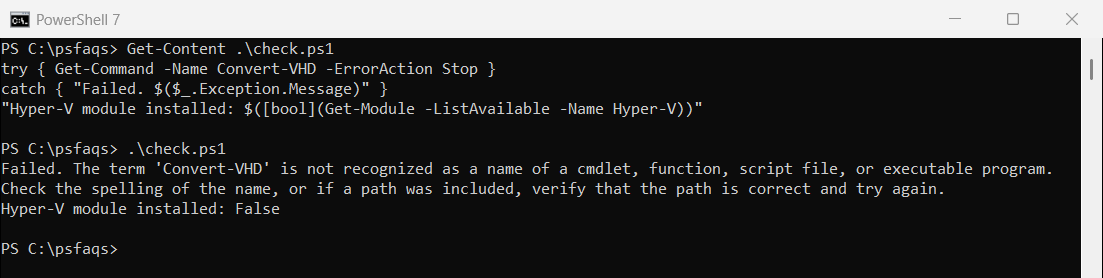
Windows PowerShell 5.1 words the error slightly differently, but it means the same thing. Run the conversion on a Hyper-V host from an elevated PowerShell window.
To add Hyper-V on a server or on Windows 11 Pro or Enterprise, run one of these as administrator and restart. To see which features are already on, list the Windows features first:
# Windows Server
Install-WindowsFeature -Name Hyper-V -IncludeManagementTools -Restart

# Windows 11 Pro or Enterprise
Enable-WindowsOptionalFeature -Online -FeatureName Microsoft-Hyper-V-All
Convert one disk step by step
Conversion is an offline operation, so the disk can’t be attached to a running VM. This is the order I follow on a production host:
$vm  = 'WEB-01'
$vhd = 'D:\VMs\web-01.vhd'
$new = 'D:\VMs\web-01.vhdx'

Stop-VM -Name $vm
Convert-VHD -Path $vhd -DestinationPath $new -VHDType Dynamic

$drive = Get-VMHardDiskDrive -VMName $vm | Where-Object Path -EQ $vhd
Set-VMHardDiskDrive -VMHardDiskDrive $drive -Path $new
Start-VM -Name $vm
Convert-VHD copies the data into a new file, so you need free space for both disks. Without -VHDType, the new disk keeps the source type, fixed or dynamic. Check the host’s free space first, as shown in checking hard drive space.
Check the result with Get-VHD -Path $new. The VhdFormat property should say VHDX.
Remove the old VHD
Once the VM boots and works, delete the old file. I keep it for a day or two first. If you’re sure, -DeleteSource removes it as part of the conversion:
Convert-VHD -Path $vhd -DestinationPath $new -DeleteSourceDon’t convert a disk that has checkpoints. Delete or merge the checkpoints first, because the differencing files point at the original VHD.
Plan a whole folder first
Before converting many disks, list what would change. I used small test files in a VMs folder, two .vhd and two .vhdx. First, a trap that caught me in testing:
(Get-ChildItem -Path .\VMs -Filter *.vhd).NameOutput:
sql-01.vhd
web-01.vhd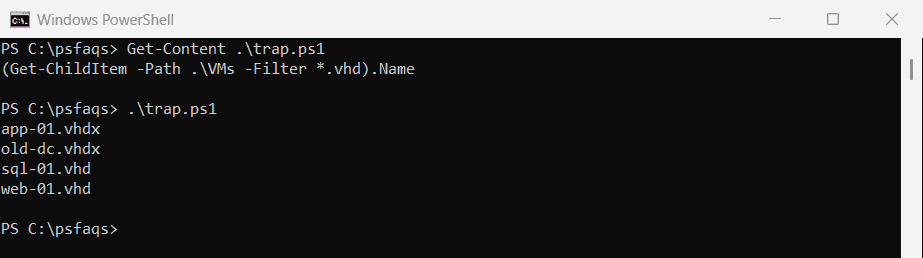
The output above is from PowerShell 7. In Windows PowerShell 5.1, -Filter *.vhd also matched both .vhdx files, because Windows matches the short 8.3 file names. Filter on the Extension property instead, which works the same in both. More filter quirks are in Get-ChildItem -Filter:
Get-ChildItem -Path .\VMs -File | Where-Object Extension -EQ '.vhd' | ForEach-Object {
    $target = [System.IO.Path]::ChangeExtension($_.FullName, '.vhdx')
    [pscustomobject]@{
        Source   = $_.Name
        Target   = Split-Path -Path $target -Leaf
        SizeMB   = $_.Length / 1MB
        Conflict = Test-Path -Path $target
    }
}
Output:
Source     Target      SizeMB Conflict
------     ------      ------ --------
sql-01.vhd sql-01.vhdx     12    False
web-01.vhd web-01.vhdx      8    False
The dry run builds each target name and checks that it doesn’t exist yet. When the list looks right, loop over the same files with Convert-VHD on the host.
Check a disk’s real format
Convert-VHD trusts the file extension, but files get renamed. The format is written inside the file: a VHDX starts with the text vhdxfile, and a VHD has conectix in its last 512 bytes.
The function below reads both. I ran it on four test files that hold only those signatures, including one VHD that was renamed to .vhdx:
function Get-VirtualDiskFormat ([string]$Path) {
    $fs = [System.IO.File]::OpenRead($Path)
    try {
        $buffer = [byte[]]::new(8)
        [void]$fs.Read($buffer, 0, 8)
        if ([System.Text.Encoding]::ASCII.GetString($buffer) -eq 'vhdxfile') { return 'VHDX' }
        $fs.Position = $fs.Length - 512                       # VHD footer
        [void]$fs.Read($buffer, 0, 8)
        if ([System.Text.Encoding]::ASCII.GetString($buffer) -eq 'conectix') { return 'VHD' }
        'Unknown'
    }
    finally { $fs.Dispose() }
}

Get-ChildItem -Path .\VMs -Include *.vhd, *.vhdx -Recurse | ForEach-Object {
    [pscustomobject]@{
        Name       = $_.Name
        Extension  = $_.Extension
        RealFormat = Get-VirtualDiskFormat $_.FullName
    }
}
Output:
Name        Extension RealFormat
----        --------- ----------
app-01.vhdx .vhdx     VHDX
old-dc.vhdx .vhdx     VHD
sql-01.vhd  .vhd      VHD
web-01.vhd  .vhd      VHD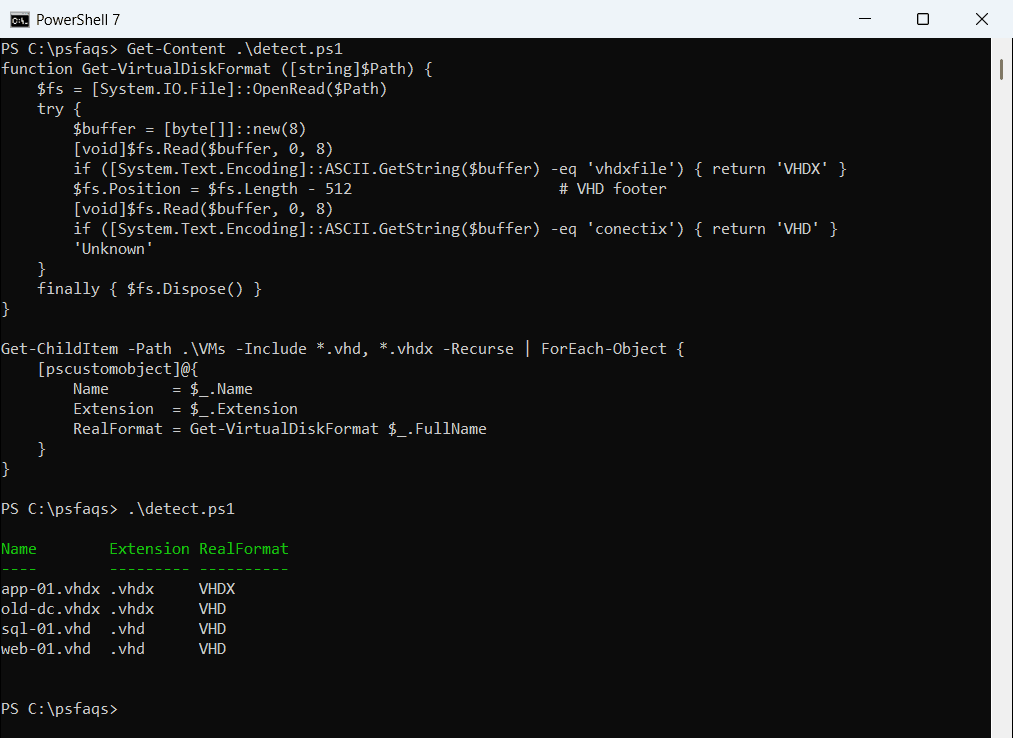
This only reads the files, so it works without Hyper-V. On a host, Get-VHD shows the same VhdFormat for real disks. To get the file sizes too, see getting the size of a file.
Frequently Asked Questions
How do I convert VHD to VHDX in PowerShell?
Stop the VM, then run Convert-VHD -Path disk.vhd -DestinationPath disk.vhdx on the Hyper-V host. Every parameter is in Microsoft’s Convert-VHD reference.
Can I convert a VHD while the VM is running?
No. Conversion is offline, so the disk must not be attached to a running VM. Shut the VM down first.
Why is Convert-VHD not recognized?
It comes with the Hyper-V role. Install Hyper-V as Microsoft’s Install Hyper-V guide shows, or run the command on a Hyper-V host.