
To write a variable to a CSV file in PowerShell, put the values in a [pscustomobject] and pipe it to Export-Csv. Each property becomes a column:
$row = [pscustomobject]@{ Server = $server; Status = $status }
$row | Export-Csv -Path .\status.csv -NoTypeInformation
Piping a plain string or a hashtable gives you a surprising file instead. Below I show what goes wrong, and how to write strings, arrays, hashtables and loop results the right way. Every example ran in PowerShell 7 and Windows PowerShell 5.1.
Why a string variable writes Length
Export-Csv writes the properties of each object, not its value. A string has only one property, Length, so that’s what you get:
$city = 'Austin'
$city | Export-Csv -Path .\Reports\city.csv -NoTypeInformation
Get-Content -Path .\Reports\city.csv
Output:
"Length"
"6"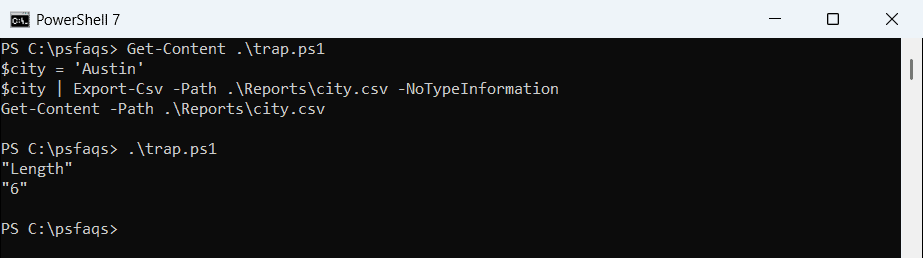
This is the most common Export-Csv question I get. The fix is always to give the value a column name. To see what an object will export, list all its properties.
Write several variables as one row
Build a [pscustomobject] from your variables. The property names become the header, in the order you write them:
$server  = 'NYC-WEB-01'
$status  = 'Running'
$checked = '2026-10-18 09:00'

$row = [pscustomobject]@{ Server = $server; Status = $status; Checked = $checked }
$row | Export-Csv -Path .\Reports\status.csv -NoTypeInformation
Get-Content -Path .\Reports\status.csv
Output:
"Server","Status","Checked"
"NYC-WEB-01","Running","2026-10-18 09:00"
I store the date as text, so it reads the same on every PC. A [datetime] value is written in the computer’s regional format. More object options are in creating objects in PowerShell.
The #TYPE line in Windows PowerShell 5.1
In 5.1, leave out -NoTypeInformation and the first line is a type name. PowerShell 7 dropped it:
$order = [pscustomobject]@{ Order = 'ORD-1001'; City = 'Austin'; Total = 250 }
$order | Export-Csv -Path .\Reports\order.csv
Get-Content -Path .\Reports\order.csv
Output:
"Order","City","Total"
"ORD-1001","Austin","250"
The output above is from PowerShell 7. Windows PowerShell 5.1 writes an extra first line, #TYPE System.Management.Automation.PSCustomObject, which breaks Excel headers. Keep -NoTypeInformation in scripts that may run in 5.1.
Write an array of strings as a column
For a list of values, turn each string into an object with a calculated property:
$cities = 'Austin', 'Denver', 'Seattle'
$cities | Select-Object -Property @{ Name = 'City'; Expression = { $_ } } |
    Export-Csv -Path .\Reports\cities.csv -NoTypeInformation
Get-Content -Path .\Reports\cities.csv
Output:
"City"
"Austin"
"Denver"
"Seattle"
Change ‘City’ to whatever header you need. For a file with a header row and no data yet, see creating CSV files with headers.
Write a hashtable to CSV
PowerShell 7.2 and later export a hashtable’s keys as columns. Windows PowerShell 5.1 exports the hashtable’s own properties instead:
$settings = [ordered]@{ Server = 'NYC-WEB-01'; Port = 443 }
$settings | Export-Csv -Path .\Reports\settings.csv -NoTypeInformation
Get-Content -Path .\Reports\settings.csv
Output:
"Server","Port"
"NYC-WEB-01","443"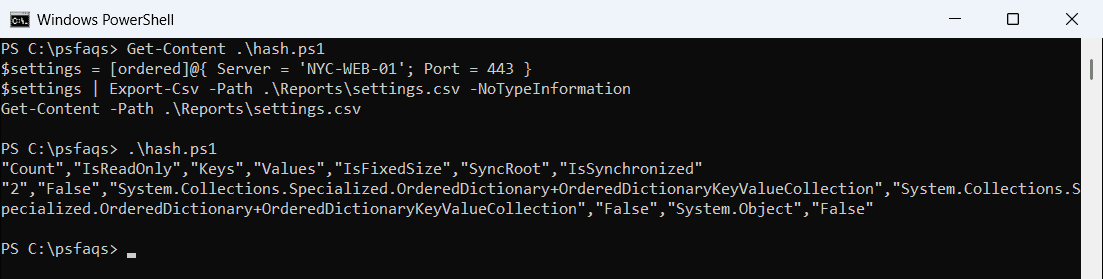
The output above is the correct one from PowerShell 7. Cast the hashtable to [pscustomobject] and both versions agree:
$settings = [ordered]@{ Server = 'NYC-WEB-01'; Port = 443 }
[pscustomobject]$settings | Export-Csv -Path .\Reports\settings.csv -NoTypeInformation
Get-Content -Path .\Reports\settings.csv
Output:
"Server","Port"
"NYC-WEB-01","443"
Use [ordered] so the columns keep your order. A plain hashtable can change the order between runs, as shown in dictionaries in PowerShell.
Collect rows in a loop
Return an object from each loop pass, collect them in a variable and export once at the end:
$servers = 'NYC-WEB-01', 'NYC-WEB-02', 'DAL-SQL-01'
$rows = foreach ($name in $servers) {
    [pscustomobject]@{
        Server  = $name
        Site    = $name.Substring(0, 3)
        Checked = '2026-10-18'
    }
}
$rows | Export-Csv -Path .\Reports\servers.csv -NoTypeInformation
Import-Csv -Path .\Reports\servers.csv | Format-Table
Output:
Server     Site Checked
------     ---- -------
NYC-WEB-01 NYC  2026-10-18
NYC-WEB-02 NYC  2026-10-18
DAL-SQL-01 DAL  2026-10-18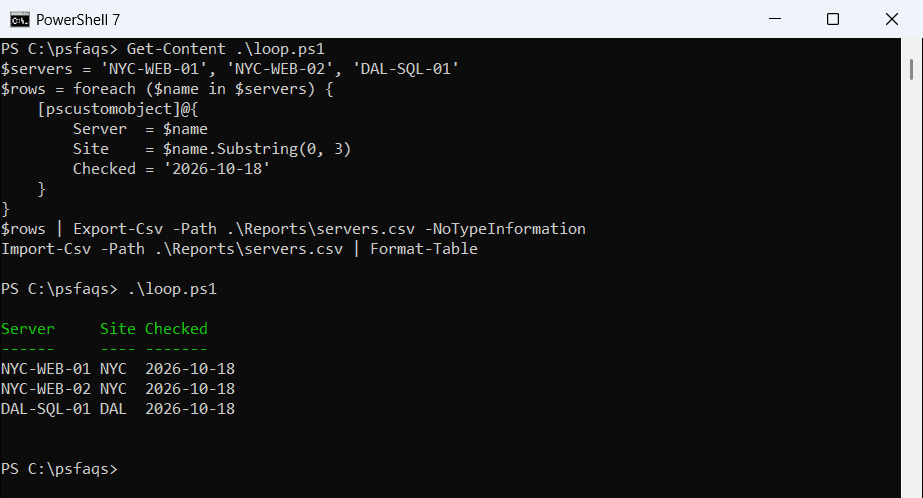
Exporting once is faster than writing inside the loop, because the file is opened only one time. To read the rows back one by one, see looping through CSV rows.
Append a row to an existing CSV
-Append adds rows below the existing ones. The new object must have the same columns, or Export-Csv stops:
[pscustomobject]@{ Order = 'ORD-1001'; Total = 250 } | Export-Csv -Path .\Reports\orders.csv -NoTypeInformation
[pscustomobject]@{ Order = 'ORD-1002'; Total = 75 }  | Export-Csv -Path .\Reports\orders.csv -NoTypeInformation -Append

try {
    [pscustomobject]@{ Order = 'ORD-1003' } | Export-Csv -Path .\Reports\orders.csv -NoTypeInformation -Append -ErrorAction Stop
}
catch { "Failed. $($_.Exception.Message)" }

[pscustomobject]@{ Order = 'ORD-1003'; Note = 'Rush' } | Export-Csv -Path .\Reports\orders.csv -NoTypeInformation -Append -Force
Get-Content -Path .\Reports\orders.csv
Output:
Failed. Cannot append CSV content to the following file: .\Reports\orders.csv. The appended object does not have a property that corresponds to the following column: Total. To continue with mismatched properties, add the -Force parameter, and then retry the command.
"Order","Total"
"ORD-1001","250"
"ORD-1002","75"
"ORD-1003",
With -Force, the last command appended ORD-1003 an