
To find invalid characters in a string in PowerShell, compare it against the characters Windows doesn’t allow. For file names, IndexOfAny with GetInvalidFileNameChars returns the position of the first bad one, or -1 if the name is clean:
$name.IndexOfAny([System.IO.Path]::GetInvalidFileNameChars())“Invalid” depends on where the text is going, though. Below I check file names, list every bad character, catch invisible Unicode characters that break comparisons, and validate user names against an allow-list. All of it ran in PowerShell 7 and Windows PowerShell 5.1.
Check a file name for invalid characters
My sample name has a colon, a slash, angle brackets and a question mark, which are all common in report titles:
$name = 'Q3 report: Austin/Dallas <final>?.xlsx'
$invalid = [System.IO.Path]::GetInvalidFileNameChars()

"Has invalid characters: $($name.IndexOfAny($invalid) -ge 0)"
"First one at index:     $($name.IndexOfAny($invalid))"
Output:
Has invalid characters: True
First one at index:     9
Index 9 is the colon. IndexOfAny only reports the first match, so it’s a quick yes-or-no test. For a single known character, see finding a character in a string.
List every invalid character and its position
To show the user everything that’s wrong, build a regex character class from the invalid characters. [regex]::Escape makes the backslash and other special characters safe inside the class:
$name = 'Q3 report: Austin/Dallas <final>?.xlsx'
$invalid = [System.IO.Path]::GetInvalidFileNameChars()
$pattern = '[{0}]' -f [regex]::Escape(-join $invalid)

[regex]::Matches($name, $pattern) | ForEach-Object {
    [pscustomobject]@{ Character = $_.Value; Index = $_.Index }
}
Output:
Character Index
--------- -----
:             9
/            17
<            25
>            31
?            32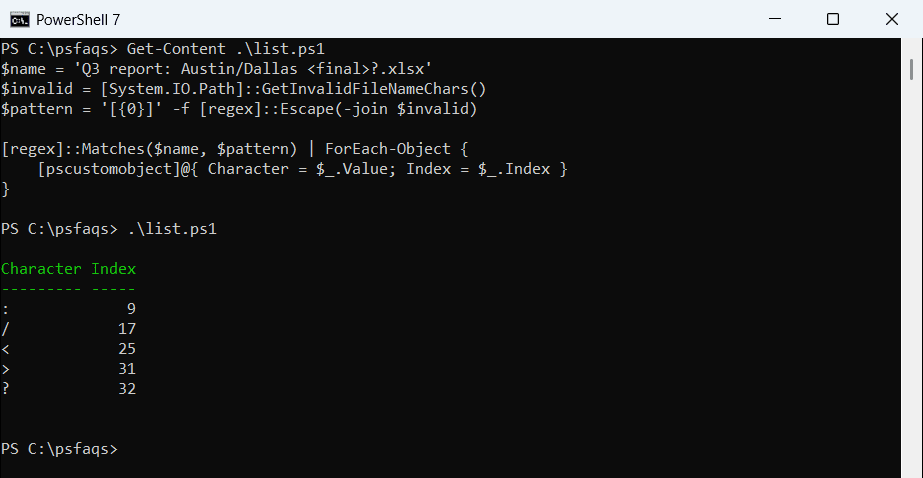
The same pattern works with -match when you only need True or False. More pattern tricks are in PowerShell regex.
File name vs path characters
Windows has two lists. A full path may contain a backslash and a colon, so the path list is shorter, and it isn’t the same in every version:
$file = [System.IO.Path]::GetInvalidFileNameChars()
$path = [System.IO.Path]::GetInvalidPathChars()

"Invalid in file names: $($file.Count) characters"
"Invalid in paths:      $($path.Count) characters"
"Visible file-name ones: $(($file | Where-Object { [int]$_ -ge 32 }) -join ' ')"
"Visible path ones:      $(($path | Where-Object { [int]$_ -ge 32 }) -join ' ')"
Output:
Invalid in file names: 41 characters
Invalid in paths:      33 characters
Visible file-name ones: " < > | : * ? \ /
Visible path ones:      |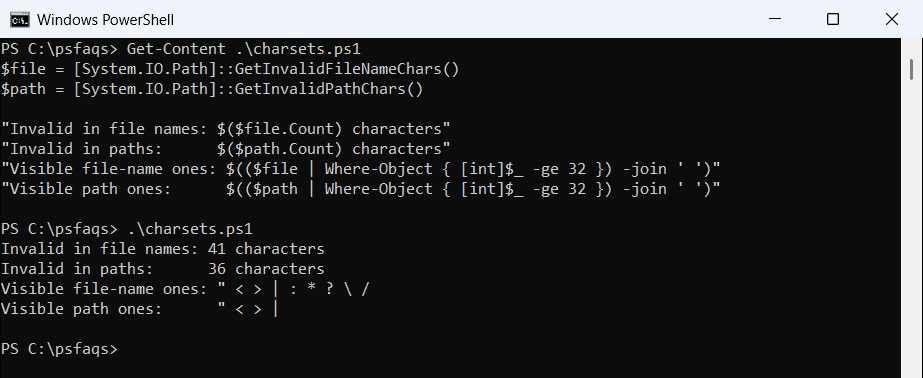
That’s the PowerShell 7 output, where only the pipe is visible. Windows PowerShell 5.1 returns 36 path characters and also rejects quotes and angle brackets. Check file names with GetInvalidFileNameChars, which is the same 41 characters in both.
The other 32 are control characters, codes 0 to 31, that you can’t see. To test whether a path exists, use Test-Path instead.
Find invisible characters
Text copied from web pages, Excel or PDFs often carries characters you can’t see, like a zero-width space. They make two strings look equal when they aren’t, and PowerShell versions don’t even agree on it:
$city = 'Austin' + [char]0x200B             # zero-width space, copied from a web page
$state = 'Texas' + [char]0x00A0             # no-break space

"-eq 'Austin':     $($city -eq 'Austin')"
"Equals('Austin'): $($city.Equals('Austin'))"
"Length:           $($city.Length)"
foreach ($text in $city, $state) {
    [regex]::Matches($text, '[^\x20-\x7E]') | ForEach-Object {
        $code = 'U+{0:X4}' -f [int][char]$_.Value
        '{0,-8} hidden {1} at index {2}' -f ($text -replace '[^\x20-\x7E]', ''), $code, $_.Index
    }
}
Output:
-eq 'Austin':     True
Equals('Austin'): False
Length:           7
Austin   hidden U+200B at index 6
Texas    hidden U+00A0 at index 5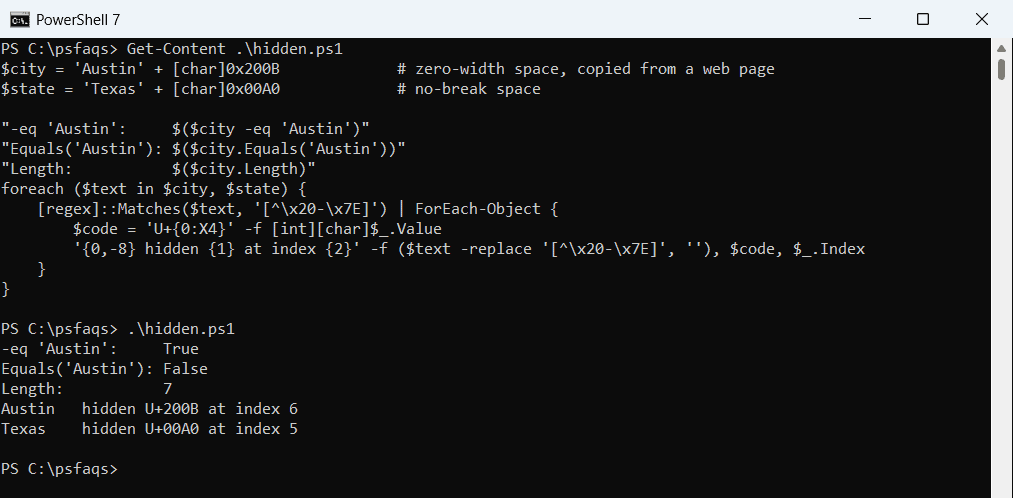
In PowerShell 7, -eq ignores the zero-width space and says True. Windows PowerShell 5.1 says False, and Equals() and Length show the extra character in both, so don’t trust -eq alone.
The class [^\x20-\x7E] matches anything outside plain printable ASCII, so accented letters show up too. Once you know the code, remove the characters with -replace.
Is the file name valid on Windows?
Characters aren’t the only rule. Windows also reserves device names like CON and NUL, even with an extension, and doesn’t allow a name to end with a dot or a space. This function checks all three:
function Test-FileName ([string]$Name) {
    $invalid  = [System.IO.Path]::GetInvalidFileNameChars()
    $reserved = 'CON', 'PRN', 'AUX', 'NUL', 'COM1', 'COM2', 'COM3', 'COM4', 'LPT1', 'LPT2', 'LPT3'
    if ($Name.IndexOfAny($invalid) -ge 0)                    { return 'Invalid character' }
    if ($reserved -contains ($Name -split '\.')[0])          { return 'Reserved name' }
    if ($Name -match '[. ]$')                                { return 'Ends with a dot or space' }
    'OK'
}

foreach ($name in 'budget-2026.xlsx', 'Q3: summary.docx', 'CON.txt', 'notes.', 'Austin office.pdf') {
    '{0,-18} {1}' -f $name, (Test-FileName $name)
}
Output:
budget-2026.xlsx   OK
Q3: summary.docx   Invalid character
CON.txt            Reserved name
notes.             Ends with a dot or space
Austin office.pdf  OK
I listed the common reserved names. The full list also covers COM5 to COM9 and LPT4 to LPT9. To get just the name part of a path first, see getting the file name from a path.