
To find duplicate files with PowerShell, hash every file with Get-FileHash and group the results by hash. Files with the same hash have the same content, whatever their names are:
Get-ChildItem -Path C:\Shared -File -Recurse | Get-FileHash | Group-Object -Property Hash | Where-Object Count -GT 1Below I run it on a sample folder, speed it up for big folders, catch same-name files that differ, plan a safe cleanup and compare two folders.
Find duplicates by content
My sample Shared folder has an office photo saved three times under different names, and a note saved twice. To keep the output short, I print paths relative to the folder:
$root = (Resolve-Path -Path .\Shared).Path + '\'

Get-ChildItem -Path .\Shared -File -Recurse |
    Get-FileHash -Algorithm SHA256 |
    Group-Object -Property Hash |
    Where-Object Count -GT 1 |
    Sort-Object -Property Count -Descending |
    ForEach-Object {
        "Duplicate set ($($_.Count) files):"
        $_.Group | Sort-Object -Property Path | ForEach-Object { '  ' + $_.Path.Replace($root, '') }
    }
Output:
Duplicate set (3 files):
  Docs\Old\office.jpg
  Photos\austin-office.jpg
  Photos\copy-of-austin-office.jpg
Duplicate set (2 files):
  Docs\backup-notes.txt
  Docs\notes.txt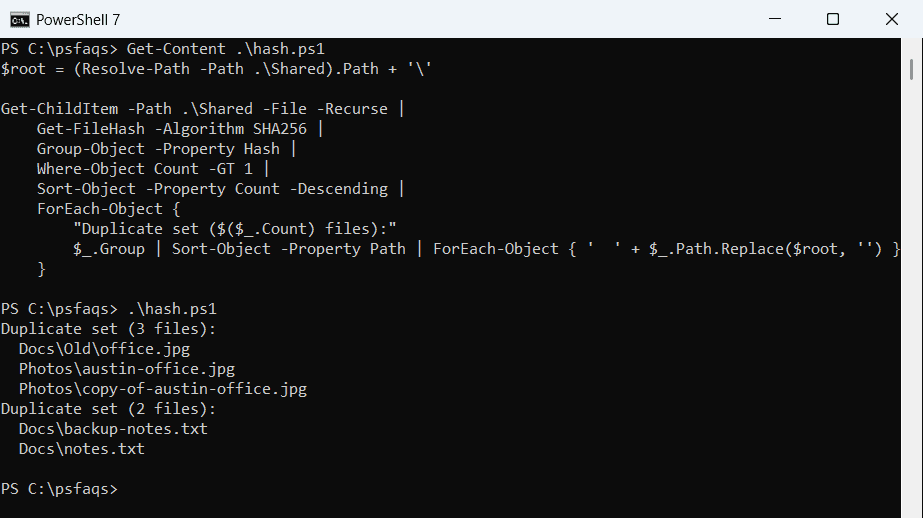
The two budget files share a name but have different content, so they’re correctly left out. SHA256 is the default algorithm, and a matching hash means the bytes are identical. To hash a single file, see getting the hash of a file.
Speed it up on big folders
Hashing reads every byte, which takes a while on a drive full of videos. Files with different sizes can’t be duplicates, so group by Length first and hash only the files that share a size:
$root = (Resolve-Path -Path .\Shared).Path + '\'

$candidates = Get-ChildItem -Path .\Shared -File -Recurse |
    Where-Object Length -GT 0 |
    Group-Object -Property Length |
    Where-Object Count -GT 1 |
    ForEach-Object Group

"Files hashed: $($candidates.Count) of $(@(Get-ChildItem -Path .\Shared -File -Recurse).Count)"
$candidates | Get-FileHash | Group-Object -Property Hash | Where-Object Count -GT 1 |
    Sort-Object -Property Count -Descending |
    ForEach-Object { ($_.Group.Path | Sort-Object | ForEach-Object { $_.Replace($root, '') }) -join '  =  ' }
Output:
Files hashed: 5 of 8
Docs\Old\office.jpg  =  Photos\austin-office.jpg  =  Photos\copy-of-austin-office.jpg
Docs\backup-notes.txt  =  Docs\notes.txt
Only 5 of the 8 files needed hashing here, and real folders save far more. Skipping empty files also avoids matching every zero-byte file with every other one.
Length is the size in bytes, the same value shown in getting a file’s size.
Same name, different content
Copies with the same name aren’t always duplicates. This check groups by name and counts how many different versions each name has:
$root = (Resolve-Path -Path .\Shared).Path + '\'

Get-ChildItem -Path .\Shared -File -Recurse |
    Group-Object -Property Name |
    Where-Object Count -GT 1 |
    ForEach-Object {
        $hashes = @($_.Group | Get-FileHash | Select-Object -ExpandProperty Hash -Unique)
        "$($_.Name): $($_.Count) copies, $($hashes.Count) different versions"
    }
Output:
budget-2026.xlsx: 2 copies, 2 different versionsTwo different versions means someone edited one copy, so don’t delete either without looking. To track down every copy of one name, see finding a file by name.
Plan which copies to delete
A common rule is to keep the oldest copy and remove the rest. This lists the plan without deleting anything:
$root = (Resolve-Path -Path .\Shared).Path + '\'

Get-ChildItem -Path .\Shared -File -Recurse | Where-Object Length -GT 0 |
    Get-FileHash | Group-Object -Property Hash | Where-Object Count -GT 1 |
    Sort-Object -Property Count -Descending |
    ForEach-Object {
        $files = $_.Group | ForEach-Object { Get-Item -Path $_.Path } | Sort-Object -Property LastWriteTime
        "Keep:   $($files[0].FullName.Replace($root, ''))"
        $files | Select-Object -Skip 1 | ForEach-Object { "Delete: $($_.FullName.Replace($root, ''))" }
    }
Output:
Keep:   Photos\austin-office.jpg
Delete: Photos\copy-of-austin-office.jpg
Delete: Docs\Old\office.jpg
Keep:   Docs\notes.txt
Delete: Docs\backup-notes.txt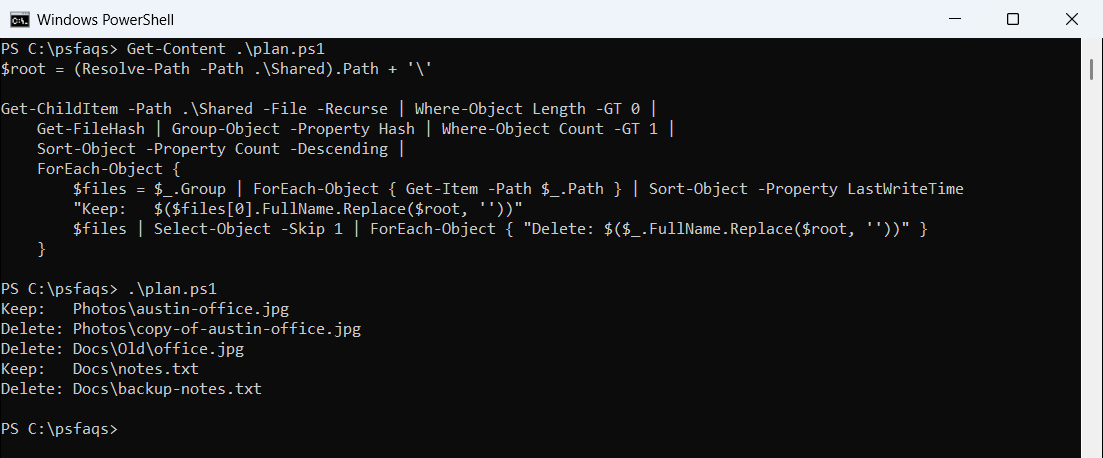
When the plan looks right, pipe the files after the first to Remove-Item -WhatIf, check the output again, then remove -WhatIf. Deleted files skip the Recycle Bin, as explained in PowerShell Remove-Item.
Compare two folders
Before you delete a backup folder, check which of its files already exist elsewhere. -in compares the hashes:
$shared = Get-ChildItem -Path .\Shared -File -Recurse | Get-FileHash
$backup = Get-ChildItem -Path .\Backup -File | Get-FileHash

$backup | Where-Object { $_.Hash -in $shared.Hash } | ForEach-Object { "Already in Shared: $(Split-Path -Path $_.Path -Leaf)" }
$backup | Where-Object { $_.Hash -notin $shared.Hash } | ForEach-Object { "Only in Backup:    $(Split-Path -Path $_.Path -Leaf)" }
Output:
Already in Shared: austin-office.jpg
Already in Shared: notes.txt
Only in Backup:    vendors.csv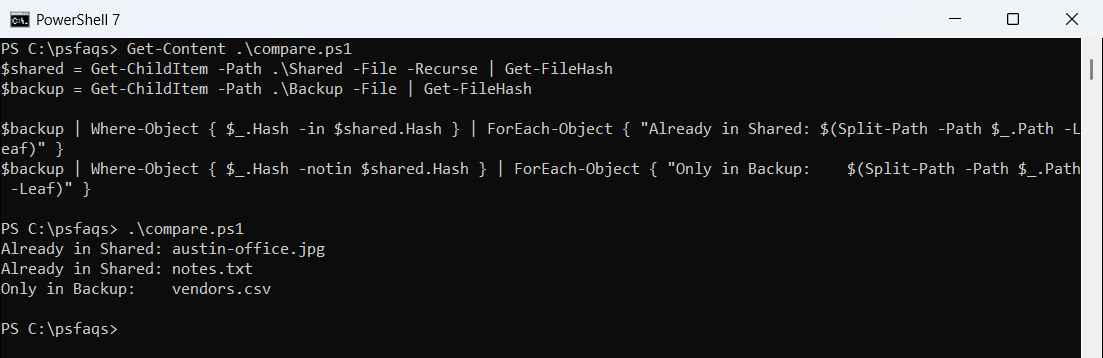
Only vendors.csv is unique to Backup, so that’s the one to keep. To find big files worth checking first, see finding the largest folders.
Frequently Asked Questions
How do I find duplicate files with PowerShell?
Run Get-ChildItem -Recurse -File | Get-FileHash | Group-Object Hash | Where-Object Count -GT 1. Grouping is covered in Microsoft’s Group-Object reference.
Does Get-FileHash find duplicates with different names?
Yes. The hash depends only on the content, so renamed copies still get the same hash.