
To manage self-service password reset (SSPR) with PowerShell, use Microsoft Graph to see who is enabled and registered. The registration report shows, for every user, whether they can reset their own password:
Connect-MgGraph -Scopes 'AuditLog.Read.All'
Get-MgReportAuthenticationMethodUserRegistrationDetail -All |
    Select-Object -Property UserPrincipalName, IsSsprEnabled, IsSsprRegistered, IsSsprCapable
SSPR itself is turned on in the Microsoft Entra admin center. PowerShell’s job is reporting and follow-up, so you can find the people who will call the help desk when they forget their password.
I didn’t sign in to a tenant for this post. The reports ran on sample data shaped exactly like the Graph response, in PowerShell 7 and Windows PowerShell 5.1.
Get the SSPR registration report
The report comes from Get-MgReportAuthenticationMethodUserRegistrationDetail in the Microsoft.Graph.Reports module. It needs AuditLog.Read.All and a role such as Reports Reader:
Install-Module -Name Microsoft.Graph.Reports -Scope CurrentUser
Connect-MgGraph -Scopes 'AuditLog.Read.All'
$users = Get-MgReportAuthenticationMethodUserRegistrationDetail -All
$users | ConvertTo-Json -Depth 5 | Set-Content -Path .\registration-details.json
Saving the result as JSON lets you rerun the reports without calling Graph again. Disabled users don’t appear in this report. For working with the saved file, see reading a JSON file into an array.
Filter on the server
The API supports $filter on the SSPR flags, which keeps large tenants fast:
Get-MgReportAuthenticationMethodUserRegistrationDetail -All -Filter 'isSsprEnabled eq true and isSsprRegistered eq false'Summarize SSPR readiness
Three flags matter. isSsprEnabled means policy allows the user to reset, isSsprRegistered means they set up their methods, and isSsprCapable means both are true:
$users = (Get-Content -Path .\Sspr\registration-details.json -Raw | ConvertFrom-Json).value

$enabled    = @($users | Where-Object isSsprEnabled)
$registered = @($enabled | Where-Object isSsprRegistered)

"Users in report:      $($users.Count)"
"Enabled for SSPR:     $($enabled.Count)"
"Registered for SSPR:  $($registered.Count)"
"Ready (capable):      $(@($users | Where-Object isSsprCapable).Count)"
"Registration rate:    {0:P0}" -f ($registered.Count / $enabled.Count)
Output:
Users in report:      6
Enabled for SSPR:     5
Registered for SSPR:  3
Ready (capable):      3
Registration rate:    60%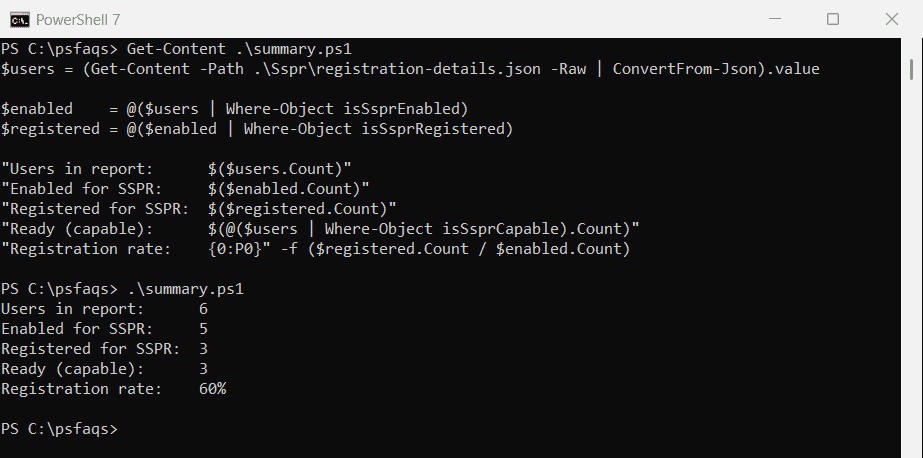
The guest account isn’t enabled, so it’s left out of the rate. The {0:P0} format turns the fraction into a percentage. More on Where-Object filters is in PowerShell Where-Object.
Find users who are enabled but not registered
These are the people who can’t reset a forgotten password yet:
$users = (Get-Content -Path .\Sspr\registration-details.json -Raw | ConvertFrom-Json).value

$users | Where-Object { $_.isSsprEnabled -and -not $_.isSsprRegistered } |
    Select-Object -Property userDisplayName, userPrincipalName,
        @{ Name = 'Methods'; Expression = { $_.methodsRegistered -join ', ' } } |
    Format-Table -AutoSize
Output:
userDisplayName userPrincipalName Methods
--------------- ----------------- -------
Tom Baker       tom@contoso.com
Kevin Price     kevin@contoso.com softwareOneTimePasscode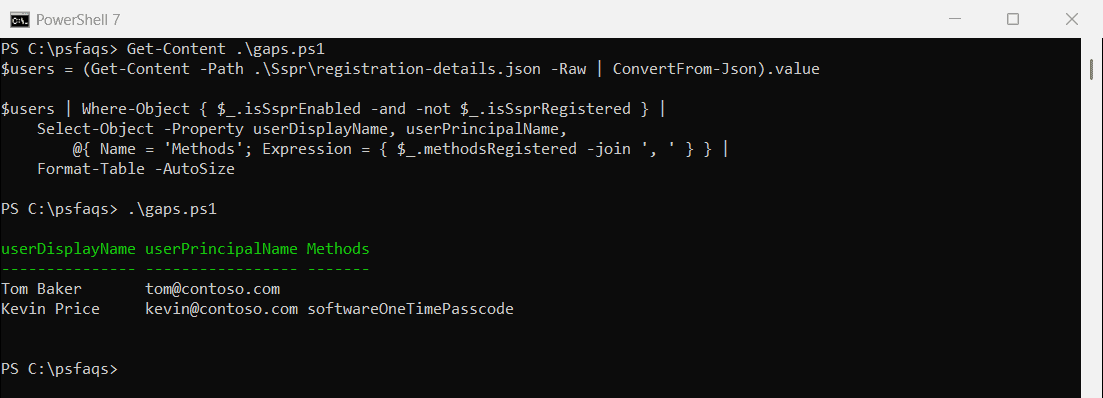
Tom has no methods at all. Kevin has an authenticator code app for MFA, but he isn’t registered for SSPR yet. Joining arrays into one column is covered in converting an array to a string.
See which methods people use
methodsRegistered is an array per user. Flatten it and count each method:
$users = (Get-Content -Path .\Sspr\registration-details.json -Raw | ConvertFrom-Json).value

$users | ForEach-Object { $_.methodsRegistered } |
    Group-Object | Sort-Object -Property @{ Expression = 'Count'; Descending = $true }, Name |
    Select-Object -Property @{ Name = 'Method'; Expression = { $_.Name } }, Count
Output:
Method                     Count
------                     -----
microsoftAuthenticatorPush     2
mobilePhone                    2
email                          1
fido2                          1
softwareOneTimePasscode        1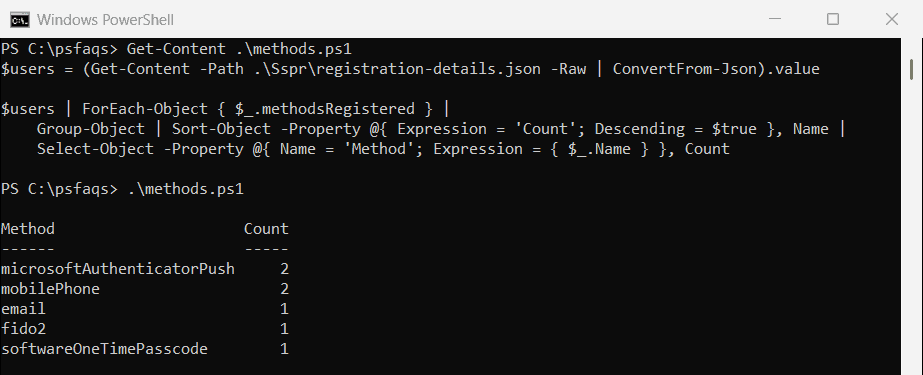
Sorting on Name as a second key keeps ties in the same order in both versions, because Windows PowerShell 5.1’s sort isn’t stable. If most people rely on a phone number, consider pushing the authenticator app. For more grouping, see Measure-Object in PowerShell.
Export a reminder list
Send the list to your communications team or a mail merge. The date column records when the report was taken:
$users = (Get-Content -Path .\Sspr\registration-details.json -Raw | ConvertFrom-Json).value

$todo = $users | Where-Object { $_.isSsprEnabled -and -not $_.isSsprRegistered } |
    Select-Object -Property @{ Name = 'Name'; Expression = { $_.userDisplayName } },
                            @{ Name = 'Email'; Expression = { $_.userPrincipalName } },
                            @{ Name = 'ReportDate'; Expression = { '2026-11-06' } }
$todo | Export-Csv -Path .\Sspr\sspr-reminders.csv -NoTypeInformation
"Reminder list: $(@($todo).Count) users"
Get-Content -Path .\Sspr\sspr-reminders.csv
Output:
Reminder list: 2 users
"Name","Email","ReportDate"
"Tom Baker","tom@contoso.com","2026-11-06"
"Kevin Price","kevin@contoso.com","2026-11-06"
Users register their methods at aka.ms/mysecurityinfo, and reset a forgotten password at aka.ms/sspr. More CSV options are in PowerShell Export-Csv.