
To set the default printer using PowerShell, get the printer from Win32_Printer and call its SetDefaultPrinter method with Invoke-CimMethod:
Get-CimInstance -ClassName Win32_Printer -Filter "Name = 'Office Laser'" |
    Invoke-CimMethod -MethodName SetDefaultPrinter
It works for the current user and doesn’t need admin rights. Below I list printers, check the default, preview the change with -WhatIf and stop Windows from switching it back. My own default stayed untouched.
List printers and see which one is the default
Win32_Printer includes a Default property, which Get-Printer doesn’t. This lists every printer with its default and network status:
Get-CimInstance -ClassName Win32_Printer |
    Sort-Object -Property Name |
    ForEach-Object { '{0,-24} Default: {1,-5} Network: {2}' -f $_.Name, $_.Default, $_.Network }
Output:
Microsoft Print to PDF   Default: True  Network: False
OneNote (Desktop)        Default: False Network: False
Office Laser              Default: False Network: False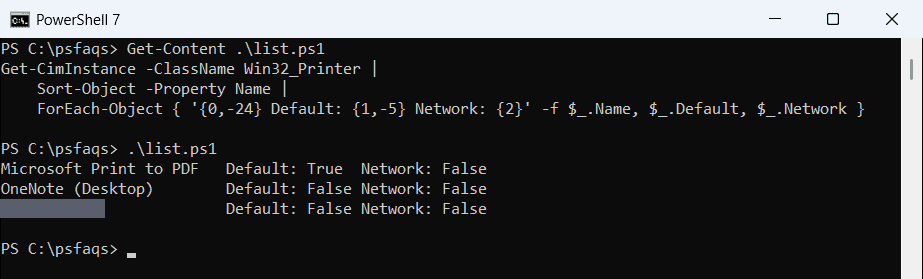
To get just the default printer, filter on Default:
$default = Get-CimInstance -ClassName Win32_Printer -Filter 'Default = TRUE'
"Default printer: $($default.Name)"
Output:
Default printer: Microsoft Print to PDFGet-Printer is still handy for driver and port details.
For more printer details, see listing printers with PowerShell.
Preview the change with -WhatIf
Invoke-CimMethod supports -WhatIf, so you can confirm you picked the right printer before switching:
Get-CimInstance -ClassName Win32_Printer -Filter "Name = 'OneNote (Desktop)'" |
    Invoke-CimMethod -MethodName SetDefaultPrinter -WhatIf
Output:
What if: Performing the operation "Invoke-CimMethod: SetDefaultPrinter" on target "Win32_Printer: OneNote (Desktop) (DeviceID = "OneNote (Desktop)")".
Remove -WhatIf to make the change. A ReturnValue of 0 means it worked.
Stop Windows from changing your default printer
Windows 10 and 11 can manage the default printer for you, switching it to the last printer you used at each location. Check whether that’s on:
$key = 'HKCU:\Software\Microsoft\Windows NT\CurrentVersion\Windows'
$legacy = (Get-ItemProperty -Path $key).LegacyDefaultPrinterMode

"LegacyDefaultPrinterMode:            $legacy"
"Windows manages the default printer: $($legacy -ne 1)"
Output:
LegacyDefaultPrinterMode:            0
Windows manages the default printer: True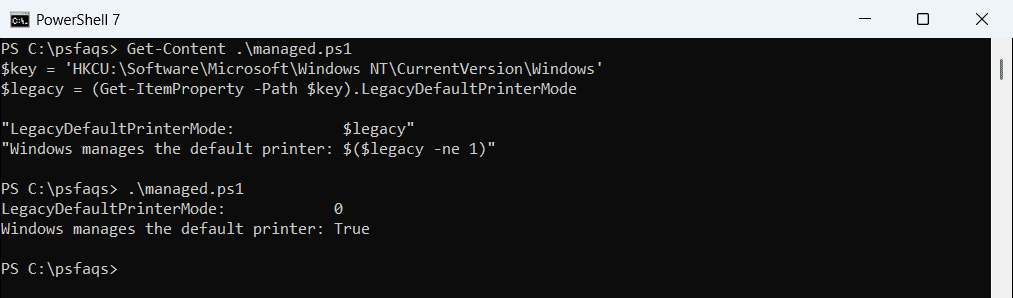
If it’s on, your choice may not stick. Turn it off for your account, then set the default again:
Set-ItemProperty -Path 'HKCU:\Software\Microsoft\Windows NT\CurrentVersion\Windows' `
    -Name LegacyDefaultPrinterMode -Value 1
That’s the same as clearing “Let Windows manage my default printer” in Settings > Bluetooth & devices > Printers & scanners.
To see every printer and its status, see listing printers with PowerShell.
Set a network printer as the default
Connect to the shared printer first, then set it as the default. Network printers use their \\server\share path as the name:
Add-Printer -ConnectionName '\\print01.contoso.com\Floor2-Color'
Get-CimInstance -ClassName Win32_Printer -Filter "Name = '\\\\print01.contoso.com\\Floor2-Color'" |
    Invoke-CimMethod -MethodName SetDefaultPrinter
In a WQL filter, each backslash must be doubled. For many users, a Group Policy preference is easier to manage. Getting computer information covers other device checks.
Frequently Asked Questions
How do I set the default printer with PowerShell?
Run Get-CimInstance Win32_Printer -Filter "Name = 'Printer Name'" | Invoke-CimMethod -MethodName SetDefaultPrinter.
How do I see the default printer in PowerShell?
Run Get-CimInstance Win32_Printer -Filter 'Default = TRUE' and read the Name property.
Why does my default printer keep changing?
“Let Windows manage my default printer” is on. Set LegacyDefaultPrinterMode to 1 or clear the option in Settings.
Do I need admin rights to change the default printer?
No. The default printer is a per-user setting.
Can Get-Printer show the default printer?
No, Get-Printer has no Default property. Use Win32_Printer instead. See Microsoft’s Get-Printer reference.
More Windows device tasks:
