
To restart a Windows service using PowerShell, open PowerShell as administrator and run Restart-Service with the service name:
Restart-Service -Name SpoolerRestart-Service stops the service and starts it again in one step. It works the same in PowerShell 7 and Windows PowerShell 5.1, but remote restarts and services with dependents need a little more care.
Find the service name before you restart it
Restart-Service takes the short service name, which is rarely what services.msc shows. Get-Service lists the name, the display name and the current status side by side:
Get-Service -Name Spooler, Dhcp, Winmgmt, W32Time |
    Select-Object Name, DisplayName, Status
Output:
Name    DisplayName                         Status
----    -----------                         ------
Dhcp    DHCP Client                        Running
Spooler Print Spooler                      Running
W32Time Windows Time                       Stopped
Winmgmt Windows Management Instrumentation Running
Print Spooler is Spooler and DHCP Client is Dhcp. Windows Time shows Stopped, which matters later, because restarting a stopped service simply starts it.
When you don’t know the name at all, list the running services and filter the DisplayName column with a wildcard.
Restart a service with Restart-Service
Restarting a service needs an elevated session. Before the real run, add -WhatIf to confirm which service the command would touch:
Restart-Service -Name Spooler -WhatIfOutput:
What if: Performing the operation "Restart-Service" on target "Print Spooler (Spooler)".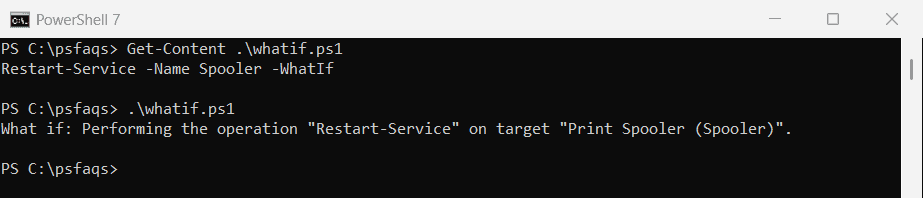
The What if line names the service and changes nothing. I kept every real restart out of this post, so my test PC’s services ran undisturbed.
In an elevated window, drop -WhatIf. Restart-Service prints nothing by default, so add -PassThru when you want the result on screen:
Restart-Service -Name Spooler -PassThru |
    Select-Object Name, Status
Status should read Running. -PassThru returns the service object, and Select-Object picks the properties you want to keep in a log.
Restart multiple services by name, display name or wildcard
-Name and -DisplayName both accept several values and wildcards, and -Exclude removes matches you want to leave alone. Here are both forms:
Restart-Service -DisplayName 'Print Spooler', 'Windows Time' -WhatIf
Restart-Service -Name 'Win*' -Exclude WinRM -WhatIf
Output:
What if: Performing the operation "Restart-Service" on target "Print Spooler (Spooler)".
What if: Performing the operation "Restart-Service" on target "Windows Time (W32Time)".
What if: Performing the operation "Restart-Service" on target "Microsoft Defender Antivirus Service (WinDefend)".
What if: Performing the operation "Restart-Service" on target "WinHTTP Web Proxy Auto-Discovery Service (WinHttpAutoProxySvc)".
What if: Performing the operation "Restart-Service" on target "Windows Management Instrumentation (Winmgmt)".
The first command matched two display names. The second matched every service whose name starts with Win, except WinRM, which -Exclude dropped.
Always preview a wildcard with -WhatIf. A broad pattern such as Win* can catch Windows Defender and WMI, which you probably didn’t mean to restart.
You can also pipe services in. To restart only the stopped ones that match a pattern, filter on Status first, as the Where-Object multiple conditions guide shows:
Get-Service -Name 'net*' |
    Where-Object Status -eq 'Stopped' |
    Restart-Service -WhatIf
What does -Force do in Restart-Service?
A restart starts with a stop, and Windows won’t stop a service while other running services depend on it. Check the dependents before you restart anything:
$svc = Get-Service -Name Dhcp
"$($svc.DisplayName) is $($svc.Status)"
"Running services that depend on it:"
$svc.DependentServices |
    Where-Object Status -eq 'Running' |
    Sort-Object Name |
    Select-Object Name, Status
Output:
DHCP Client is Running
Running services that depend on it:

Name                 Status
----                 ------
iphlpsvc            Running
Wcmsvc              Running
WinHttpAutoProxySvc Running
WlanSvc             Running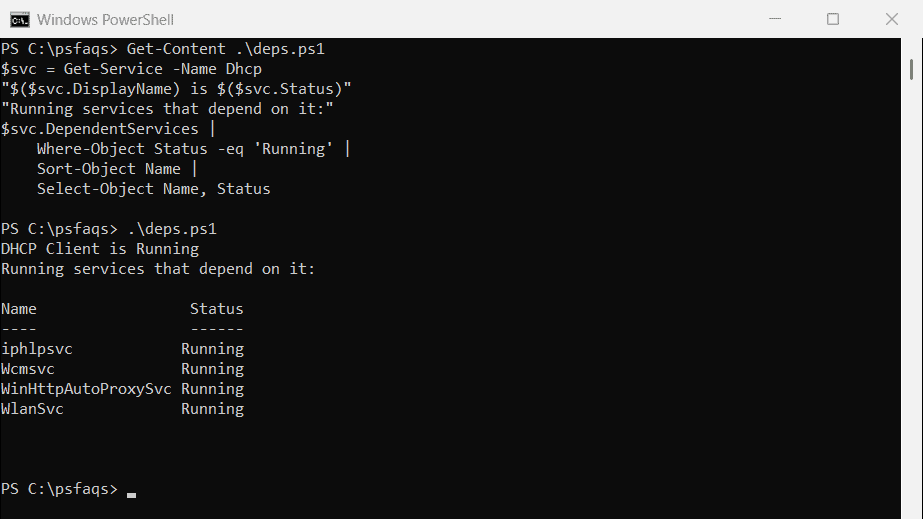
On my PC, 4 running services depend on DHCP Client. Microsoft’s Stop-Service documentation says -Force is required to stop a service that has dependent services, and Restart-Service uses the same switch:
Restart-Service -Name Dhcp -ForceThat stops the dependents as well, so the network features they provide drop briefly. Run the dependency check again afterward and start any service that didn’t come back.
Check that the service came back up
A restart can return before a slow service has finished starting. WaitForStatus pauses until the service reaches a state or the timeout passes, and Win32_Service shows its process ID:
$svc = Get-Service -Name Spooler
$svc.WaitForStatus('Running', '00:00:10')
$cim = Get-CimInstance -ClassName Win32_Service -Filter "Name='Spooler'"
"Status: $($svc.Status)"
"Process ID: $($cim.ProcessId)"
Output:
Status: Running
Process ID: 5196
Spooler was already running, so WaitForStatus returned at once. After a real restart, the process ID changes, which is the simplest proof that the service actually restarted.
Compare the ID before and after, then inspect that process with Get-Process if it keeps climbing in memory:
$before = (Get-CimInstance Win32_Service -Filter "Name='Spooler'").ProcessId
Restart-Service -Name Spooler
$after  = (Get-CimInstance Win32_Service -Filter "Name='Spooler'").ProcessId
"Restarted: $($before -ne $after)"
Some services share a process with others (svchost.exe), so a changed ID is reliable but an unchanged one needs a second look.
How do I restart a service on a remote computer?
Many older articles show Restart-Service -ComputerName. I checked whether the service cmdlets have that parameter at all:
'Get-Service', 'Restart-Service', 'Stop-Service', 'Start-Service' |
    ForEach-Object {
        $has = (Get-Command $_).Parameters.ContainsKey('ComputerName')
        '{0} has -ComputerName: {1}' -f $_, $has
    }