To run a batch file from PowerShell, type the call operator and the file’s full path in quotes, then any arguments:
& "C:\psfaqs\Sales Team\backup.bat" AustinInside its folder, .\backup.bat works too. Plain backup.bat fails, as you’ll see.
In this tutorial, I’ll show you five ways to run a batch file from PowerShell, plus arguments, exit codes, output and environment variables.
The sample batch file we’ll use
Every method runs this backup.bat for a made-up Austin, TX sales team. It sits in C:\psfaqs\Sales Team, a folder with a space on purpose:
@echo off
set "REGION=%~1"
if "%REGION%"=="" set "REGION=Austin"
set "DEST=%~2"
if "%DEST%"=="" set "DEST=%~dp0Backup"
if not exist "%~dp0Data\%REGION%" (
    1>&2 echo No data folder for %REGION%
    exit /b 2
)
if not exist "%DEST%" mkdir "%DEST%"
set COUNT=0
for %%F in ("%~dp0Data\%REGION%\*.csv") do (
    copy /y "%%F" "%DEST%\" >nul
    set /a COUNT+=1
)
echo Backed up %COUNT% %REGION% files to %DEST%
exit /b 0
It copies one region’s CSV files (%1, Austin by default) to a folder (%2) and returns exit code 2 when the region has no data. %~1 strips any quotes around the argument.
Save it in Notepad as backup.bat (Save as type: All files). You can also create the folder only if it doesn’t exist from PowerShell first.
Why doesn’t typing backup.bat work in PowerShell?
Command Prompt checks the current folder first. PowerShell only runs files from PATH folders unless you give a path:
Set-Location -Path 'C:\psfaqs\Sales Team'
try {
    backup.bat
}
catch {
    ($_.Exception.Message -split '(?<=\.)\s')[0]
}
.\backup.bat
Output:
The term 'backup.bat' is not recognized as a name of a cmdlet, function, script file, or executable program.
Backed up 3 Austin files to C:\psfaqs\Sales Team\Backup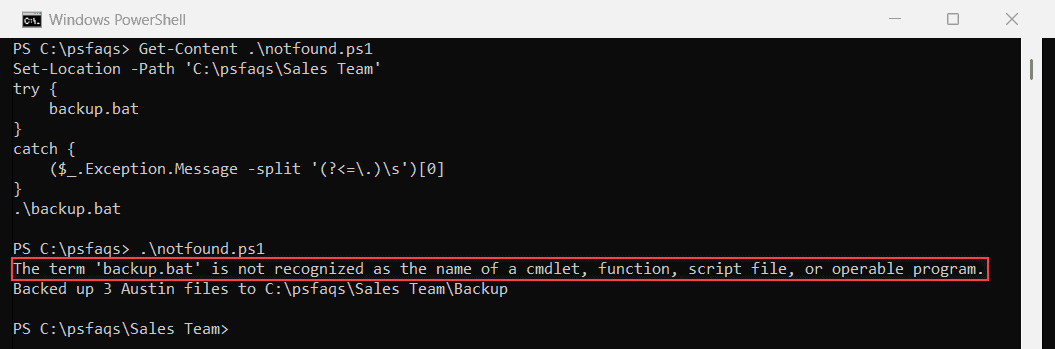
The output above is from PowerShell 7. Windows PowerShell 5.1 says “the name of a cmdlet… or operable program” instead of “a name of… executable program”.
No execution policy change is needed, because it only controls PowerShell scripts, not .bat files.
Method 1: Run a batch file with the & call operator (Recommended)
A quoted path alone is just a string. The call operator turns it into a command:
"C:\psfaqs\Sales Team\backup.bat"
& "C:\psfaqs\Sales Team\backup.bat" Denver
$bat = 'C:\psfaqs\Sales Team\backup.bat'
& $bat Austin 'C:\psfaqs\Q4 2026 Backup'
Output:
C:\psfaqs\Sales Team\backup.bat
Backed up 2 Denver files to C:\psfaqs\Sales Team\Backup
Backed up 3 Austin files to C:\psfaqs\Q4 2026 Backup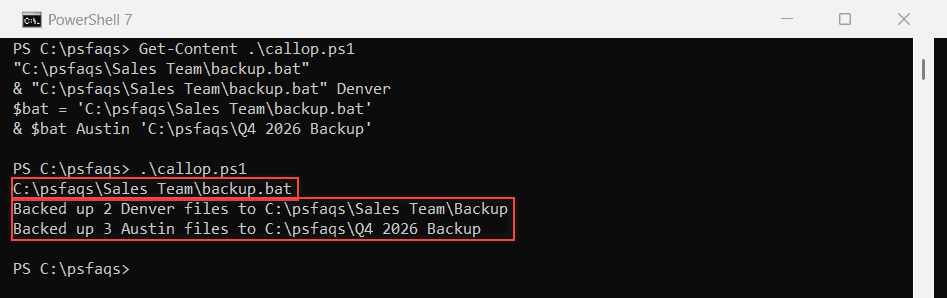
How does this code work?
Line 1 printed the path. Line 2 ran backup.bat with Denver as %1. Lines 3-4 used a variable and a destination with spaces, which PowerShell quoted for you.
Pro Tip: & runs the file in this console, so output reaches your pipeline and $LASTEXITCODE is set. Or rewrite the job with the Copy-Item cmdlet.
Method 2: Run a batch file with cmd.exe /c
cmd /c runs the string in Command Prompt and exits. Watch the quotes:
cmd /c "C:\psfaqs\Sales Team\backup.bat" Denver
cmd /c "C:\psfaqs\Sales Team\backup.bat" Denver "C:\psfaqs\Q4 2026 Backup"
"Exit code: $LASTEXITCODE"
cmd /c "`"C:\psfaqs\Sales Team\backup.bat`" Denver `"C:\psfaqs\Q4 2026 Backup`""
"Exit code: $LASTEXITCODE"
Output:
Backed up 2 Denver files to C:\psfaqs\Sales Team\Backup
'C:\psfaqs\Sales' is not recognized as an internal or external command,
operable program or batch file.
Exit code: 1
Backed up 2 Denver files to C:\psfaqs\Q4 2026 Backup
Exit code: 0
How does this code work?
With two quoted parts, cmd stripped the first and last quote and tried to run C:\psfaqs\Sales. One extra outer pair fixed it. See Windows PowerShell vs CMD for more differences.
Method 3: Run a batch file with Start-Process
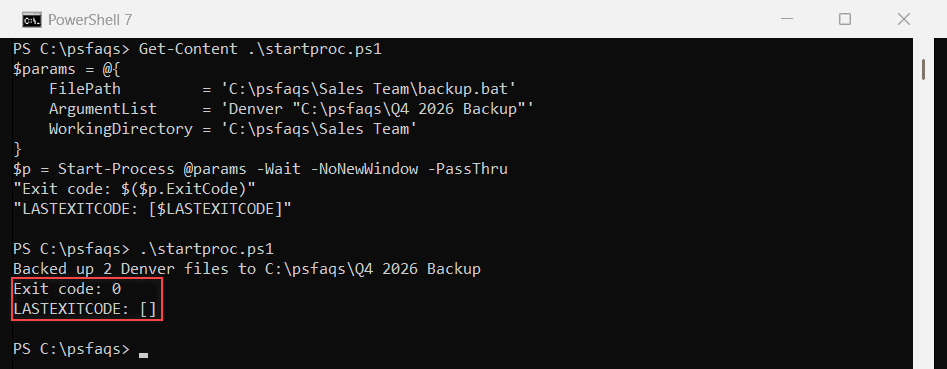
Start-Process starts a separate process you can wait for, point at a folder, or elevate:
$params = @{
    FilePath         = 'C:\psfaqs\Sales Team\backup.bat'
    ArgumentList     = 'Denver "C:\psfaqs\Q4 2026 Backup"'
    WorkingDirectory = 'C:\psfaqs\Sales Team'
}
$p = Start-Process @params -Wait -NoNewWindow -PassThru
"Exit code: $($p.ExitCode)"
"LASTEXITCODE: [$LASTEXITCODE]"
Output:
Backed up 2 Denver files to C:\psfaqs\Q4 2026 Backup
Exit code: 0
LASTEXITCODE: []