
To write an XML object to a file in PowerShell, call the Save() method of the [xml] document with a full path. It writes indented XML that other programs can read:
$xml.Save('C:\Data\inventory.xml')Two details trip people up: relative paths in Save(), and piping XML to Out-File. Below I cover both, plus building XML from scratch, controlling the encoding, updating a file and saving PowerShell objects. The output was the same in PowerShell 7 and Windows PowerShell 5.1.
Save an [xml] document
Cast a string to [xml] and Save() it. Join-Path with Resolve-Path builds the full path from a folder you know:
[xml]$xml = '<Inventory><Item sku="DSK-100"><Name>Standing desk</Name><Price>450</Price></Item></Inventory>'

$path = Join-Path -Path (Resolve-Path -Path .\Xml).Path -ChildPath 'inventory.xml'
$xml.Save($path)
Get-Content -Path $path
Output:
<Inventory>
  <Item sku="DSK-100">
    <Name>Standing desk</Name>
    <Price>450</Price>
  </Item>
</Inventory>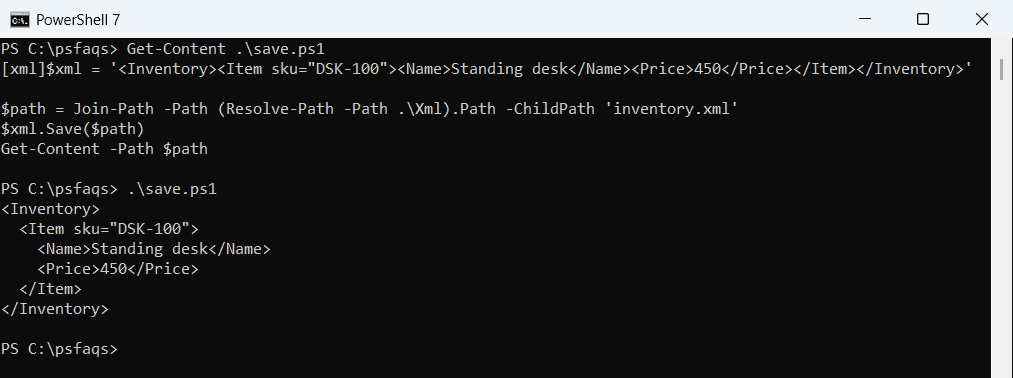
The one-line input came out nicely indented. To read XML files back in, see converting XML to a table.
Don’t pass a relative path to Save()
Save() is a .NET method, and .NET resolves relative paths against the process folder, not your PowerShell location:
[xml]$xml = '<Inventory />'
Set-Location -Path .\Xml
$xml.Save('.\inventory-lost.xml')

"In the Xml folder:    $(Test-Path -Path .\inventory-lost.xml)"
"In the process folder: $(Test-Path -Path (Join-Path -Path ([System.Environment]::CurrentDirectory) -ChildPath 'inventory-lost.xml'))"
Output:
In the Xml folder:    False
In the process folder: True
The file landed in the folder PowerShell started in, so scripts “lose” their output. Always pass a full path. For more on locations, see getting the current directory.
Build an XML file from scratch
To turn PowerShell objects into your own XML layout, create the elements one by one. SetAttribute adds attributes, and InnerText fills in the values:
$products = @(
    [pscustomobject]@{ Sku = 'DSK-100'; Name = 'Standing desk'; Price = 450 }
    [pscustomobject]@{ Sku = 'CHR-220'; Name = 'Desk & chair <set>'; Price = 610 }
)
$xml  = [xml]::new()
$root = $xml.AppendChild($xml.CreateElement('Inventory'))
foreach ($p in $products) {
    $item = $root.AppendChild($xml.CreateElement('Item'))
    $item.SetAttribute('sku', $p.Sku)
    $item.AppendChild($xml.CreateElement('Name')).InnerText  = $p.Name
    $item.AppendChild($xml.CreateElement('Price')).InnerText = $p.Price
}
$path = Join-Path -Path (Resolve-Path -Path .\Xml).Path -ChildPath 'products.xml'
$xml.Save($path)
Get-Content -Path $path
Output:
<Inventory>
<Item sku="DSK-100">
<Name>Standing desk</Name>
<Price>450</Price>
</Item>
<Item sku="CHR-220">
<Name>Desk & chair <set></Name>
<Price>610</Price>
</Item>
</Inventory>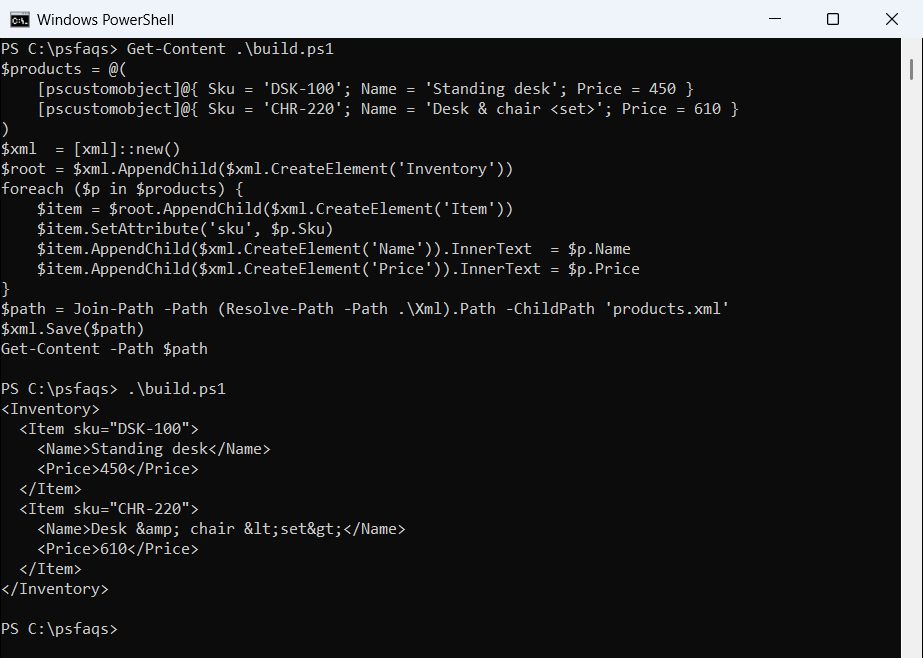
The ampersand and angle brackets in the second name were escaped automatically. That’s the big advantage over building XML by joining strings. To create the objects first, see creating an array of objects.
Add a declaration and control the encoding
Save() writes UTF-8. Without an XML declaration it writes no byte order mark (BOM), but once you add a UTF-8 declaration, it adds one. XmlWriterSettings lets you keep the declaration and drop the BOM:
function Show-Bytes ($Path) { (([System.IO.File]::ReadAllBytes($Path))[0..5] | ForEach-Object { '{0:X2}' -f $_ }) -join ' ' }

$dir = (Resolve-Path -Path .\Xml).Path
[xml]$xml = '<Inventory><Item sku="DSK-100" /></Inventory>'

$xml.Save("$dir\no-declaration.xml")
$xml.InsertBefore($xml.CreateXmlDeclaration('1.0', 'utf-8', $null), $xml.DocumentElement) | Out-Null
$xml.Save("$dir\with-declaration.xml")

$settings = [System.Xml.XmlWriterSettings]::new()
$settings.Indent   = $true
$settings.Encoding = [System.Text.UTF8Encoding]::new($false)
$writer = [System.Xml.XmlWriter]::Create("$dir\no-bom.xml", $settings)
$xml.Save($writer); $writer.Dispose()

foreach ($f in 'no-declaration.xml', 'with-declaration.xml', 'no-bom.xml') { '{0,-21} {1}' -f $f, (Show-Bytes "$dir\$f") }
Output:
no-declaration.xml    3C 49 6E 76 65 6E
with-declaration.xml  EF BB BF 3C 3F 78
no-bom.xml            3C 3F 78 6D 6C 20
EF BB BF is the BOM. Some Linux tools and older parsers choke on it, so use the XmlWriter version for files that leave Windows. For other encoding issues, see PowerShell Out-File.
Update an existing XML file
Load the file with the Load() method, change values through the dot notation, import new nodes, and save it again:
$path = Join-Path -Path (Resolve-Path -Path .\Xml).Path -ChildPath 'inventory.xml'
([xml]'<Inventory><Item sku="DSK-100"><Name>Standing desk</Name><Price>450</Price></Item></Inventory>').Save($path)

$xml = [xml]::new()
$xml.Load($path)
$xml.Inventory.Item.Price = '425'
$new = $xml.ImportNode(([xml]'<Item sku="MON-310"><Name>27-inch monitor</Name><Price>229</Price></Item>').DocumentElement, $true)
$xml.Inventory.AppendChild($new) | Out-Null
$xml.Save($path)

$check = [xml]::new(); $check.Load($path)
$check.Inventory.Item | Select-Object -Property sku, Name, Price
Output:
sku     Name            Price
---     ----            -----
DSK-100 Standing desk   425
MON-310 27-inch monitor 229
Load() reads the encoding from the file itself, which is safer than [xml](Get-Content) in Windows PowerShell 5.1. To find nodes by path instead, use Select-Xml or SelectNodes.
Why Out-File and Set-Content are the wrong tools
Piping an [xml] object to Out-File writes PowerShell’s display of the object, not the XML. OuterXml gives real XML, but all on one line:
[xml]$xml = '<Inventory><Item sku="DSK-100"><Name>Standing desk</Name></Item></Inventory>'
$xml | Out-File -FilePath .\Xml\wrong.xml
$xml.OuterXml | Set-Content -Path .\Xml\one-line.xml

'--- Out-File wrote:'
Get-Content -Path .\Xml\wrong.xml | Where-Object { $_.Trim() }
'--- OuterXml wrote:'
Get-Content -Path .\Xml\one-line.xml
Output:
--- Out-File wrote:
Inventory
---------
Inventory
--- OuterXml wrote:
<Inventory><Item sku="DSK-100"><Name>Standing desk</Name></Item></Inventory>