
PowerShell Get-ItemProperty reads the properties of an item: registry values under a key, or details like LastWriteTime on a file. Give it a path, and optionally a value name:
Get-ItemProperty -Path 'HKLM:\SOFTWARE\Microsoft\Windows\CurrentVersion' -Name ProgramFilesDirI’ll cover files first, then the registry, where this cmdlet does its real work. Registry reads are read-only, and demo values live in a throwaway test key.
Get file properties with Get-ItemProperty
Point Get-ItemProperty at a file and you get the file object back, with CreationTime, LastWriteTime, Length, and Attributes ready to read. My sample is a small sales CSV in C:\psfaqs\Reports:
$file = Get-ItemProperty -Path .\Reports\sales-2026.csv
'Name:          ' + $file.Name
'Length:        ' + $file.Length + ' bytes'
'CreationTime:  ' + $file.CreationTime.ToString('yyyy-MM-dd HH:mm')
'LastWriteTime: ' + $file.LastWriteTime.ToString('yyyy-MM-dd HH:mm')
'Attributes:    ' + $file.Attributes
'Type:          ' + $file.GetType().Name
Output:
Name:          sales-2026.csv
Length:        38 bytes
CreationTime:  2026-01-05 08:30
LastWriteTime: 2026-10-12 16:45
Attributes:    ReadOnly, Archive
Type:          FileInfo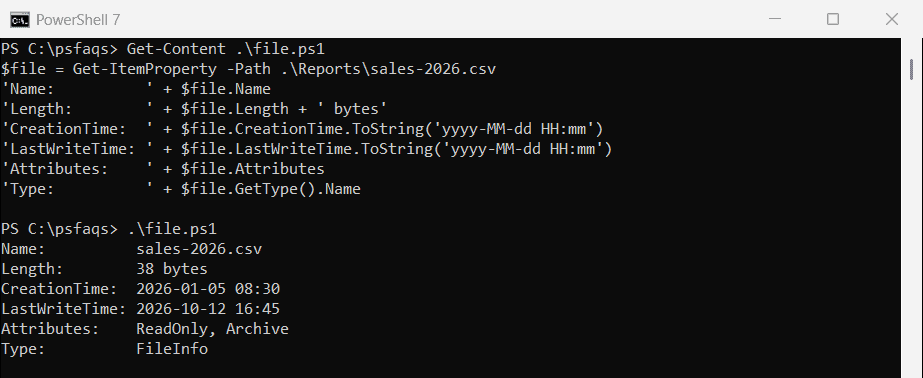
Length is in bytes, and the dates are DateTime objects that I formatted with ToString(). The type is FileInfo, the same object Get-Item returns.
For size math across many files, see how to get the size of a file in PowerShell. The file creation date guide covers CreationTime in more depth.
Mode looks different in PowerShell 7 and Windows PowerShell 5.1
Folders work the same way. One property didn’t match between the two shells, though, so I printed Mode for both the file and its folder:
(Get-ItemProperty -Path .\Reports\sales-2026.csv).Mode
(Get-ItemProperty -Path .\Reports).Mode
(Get-ItemProperty -Path .\Reports).Attributes
Output:
-ar--
d----
Directory
That’s PowerShell 7: five positions. Windows PowerShell 5.1 printed -ar--- and d-----, with one extra position for the same items.
If a script compares Mode strings, it can break when you move it between shells. Test the Attributes value instead, which said Directory in both, or use attribute filters like the hidden-file checks.
Read registry values with Get-ItemProperty
Registry keys are items, and the values inside a key are its properties, so one call returns every value as a property.
For the demos I created a test key under HKCU with this code. The post on how to create a registry key if it does not exist explains each line:
$key = 'HKCU:\Software\PsfaqsDemo'
New-Item -Path $key -Force | Out-Null
New-Item -Path "$key\Empty" -Force | Out-Null
Set-ItemProperty -Path $key -Name '(default)' -Value 'Demo key'
New-ItemProperty -Path $key -Name AppName -Value 'Contoso Billing' | Out-Null
New-ItemProperty -Path $key -Name Region -Value 'Denver, CO' | Out-Null
New-ItemProperty -Path $key -Name MaxUsers -Value 25 -PropertyType DWord | Out-Null
New-ItemProperty -Path $key -Name MaxRetries -Value 3 -PropertyType DWord | Out-Null
New-ItemProperty -Path $key -Name LogPath -Value '%SystemRoot%\Temp\billing' -PropertyType ExpandString | Out-Null
Without -Name, you get every value in the key as one object. Here I read two real folder paths from HKLM, which is safe because it only reads:
$cv = Get-ItemProperty -Path 'HKLM:\SOFTWARE\Microsoft\Windows\CurrentVersion'
$cv.ProgramFilesDir
$cv.CommonFilesDir
Output:
C:\Program Files
C:\Program Files\Common Files
Now the test key. Select-Object drops the PS* properties so only the values are left:
Get-ItemProperty -Path 'HKCU:\Software\PsfaqsDemo' |
    Select-Object -Property * -ExcludeProperty PS* | Format-List
Output:
(default)  : Demo key
AppName    : Contoso Billing
Region     : Denver, CO
MaxUsers   : 25
MaxRetries : 3
LogPath    : C:\WINDOWS\Temp\billing