
To convert a relative path to an absolute path in PowerShell, use Resolve-Path. It resolves the path against your current PowerShell location and returns the full path:
(Resolve-Path -Path .\Reports\q3-2026.csv).PathResolve-Path only works for paths that exist, though, and the popular .NET shortcut can quietly use the wrong folder. Below I cover both problems, plus paths relative to a script. Every example ran in PowerShell 7 and Windows PowerShell 5.1 in a test folder.
Resolve-Path and Convert-Path
Both resolve . and .. against the current location. Resolve-Path returns a PathInfo object, so add .Path for the string. Convert-Path returns the string directly:
Set-Location -Path .\Projects\Austin
"Location:     $((Get-Location).Path)"
"Resolve-Path: $((Resolve-Path -Path .\Reports\q3-2026.csv).Path)"
"Convert-Path: $(Convert-Path -Path ..\Austin\Reports)"
Output:
Location:     C:\psfaqs\Projects\Austin
Resolve-Path: C:\psfaqs\Projects\Austin\Reports\q3-2026.csv
Convert-Path: C:\psfaqs\Projects\Austin\Reports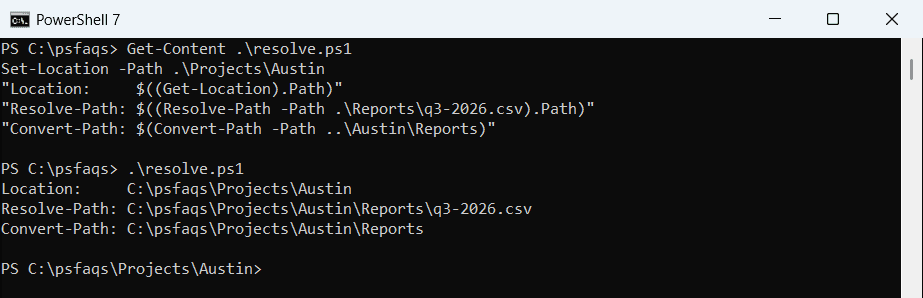
To see or change the current location first, read getting the current directory.
Get the full path of a file that doesn’t exist yet
Resolve-Path fails when the target isn’t there, which is common when you build an output path for a new report:
Set-Location -Path .\Projects\Austin
try   { Resolve-Path -Path .\Reports\q1-2027.csv -ErrorAction Stop }
catch { "Failed.     $($_.Exception.Message)" }

$full = $ExecutionContext.SessionState.Path.GetUnresolvedProviderPathFromPSPath('.\Reports\q1-2027.csv')
"Unresolved:   $full"
Output:
Failed.     Cannot find path 'C:\psfaqs\Projects\Austin\Reports\q1-2027.csv' because it does not exist.
Unresolved:   C:\psfaqs\Projects\Austin\Reports\q1-2027.csv
GetUnresolvedProviderPathFromPSPath makes the full path without checking the disk. It uses the PowerShell location, so it’s the right tool for output files. To check whether a path exists, use Test-Path.
Why GetFullPath can return the wrong folder
[System.IO.Path]::GetFullPath is popular because it works for missing files too. But .NET doesn’t know about Set-Location. It resolves against the process folder, which usually stays where PowerShell started:
Set-Location -Path .\Projects\Austin
"PowerShell location: $((Get-Location).Path)"
"Process folder:      $([System.Environment]::CurrentDirectory)"
"GetFullPath:         $([System.IO.Path]::GetFullPath('.\Reports\q3-2026.csv'))"
"Resolve-Path:        $((Resolve-Path -Path .\Reports\q3-2026.csv).Path)"
Output:
PowerShell location: C:\psfaqs\Projects\Austin
Process folder:      C:\psfaqs
GetFullPath:         C:\psfaqs\Reports\q3-2026.csv
Resolve-Path:        C:\psfaqs\Projects\Austin\Reports\q3-2026.csv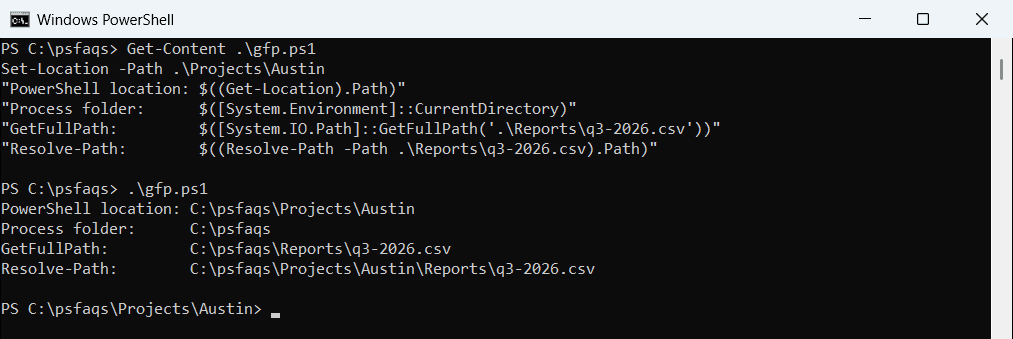
The result points to a Reports folder that doesn’t exist. Scripts that pass that path to .NET methods then fail or, worse, write files to the wrong place. Both versions behave this way.
Pass a base folder in PowerShell 7
PowerShell 7 can give GetFullPath a base path, which fixes the problem:
Set-Location -Path .\Projects\Austin
try   { [System.IO.Path]::GetFullPath('.\Reports\q3-2026.csv', (Get-Location).Path) }
catch { "Failed. $($_.Exception.Message)" }
Output:
C:\psfaqs\Projects\Austin\Reports\q3-2026.csvThat’s the PowerShell 7 output. Windows PowerShell 5.1 runs on .NET Framework, which has no two-argument GetFullPath, and fails with Cannot find an overload for GetFullPath. Use GetUnresolvedProviderPathFromPSPath in 5.1 instead.
Clean up .. and . in a path
GetFullPath is safe when the input is already absolute. Then it only removes .. and . segments, and the folders don’t need to exist:
[System.IO.Path]::GetFullPath('C:\Data\Austin\..\Denver\.\sales-2026.csv')
[System.IO.Path]::GetFullPath('C:\Data\Austin\Reports\..\..\archive')
Output:
C:\Data\Denver\sales-2026.csv
C:\Data\archive
This is handy for logging the real path after joining folder names. For joining and splitting paths, see extracting the folder from a file path.
Resolve wildcards and make paths relative
Resolve-Path expands wildcards into every match. With -Relative, it goes the other way and returns a path relative to the current location:
Set-Location -Path .\Projects\Austin
(Resolve-Path -Path .\Reports\*.csv).Path
Resolve-Path -Path .\Reports\q4-2026.csv -Relative
Output:
C:\psfaqs\Projects\Austin\Reports\q3-2026.csv
C:\psfaqs\Projects\Austin\Reports\q4-2026.csv
.\Reports\q4-2026.csv
PowerShell 7.4 added -RelativeBasePath. It resolves the path from another folder without Set-Location, and with -Relative it returns a path relative to that folder:
(Resolve-Path -Path .\Austin\Reports\q3-2026.csv -RelativeBasePath .\Projects).Path
Resolve-Path -Path .\Austin\Reports\q3-2026.csv -RelativeBasePath .\Projects -Relative
Output:
C:\psfaqs\Projects\Austin\Reports\q3-2026.csv
.\Austin\Reports\q3-2026.csv
Windows PowerShell 5.1 doesn’t have -RelativeBasePath. For just the file name, see getting the file name from a path.
Paths relative to the script
Paths in a script should usually be relative to the script file, not to wherever the user ran it. $PSScriptRoot holds the script’s folder. My report.ps1 reads a settings file one folder up:
$settings = Join-Path -Path $PSScriptRoot -ChildPath '..\Data\settings.json'
"Settings file: $([System.IO.Path]::GetFullPath($settings))"
I ran it from the Projects folder, which isn’t the script’s folder:
Set-Location -Path .\Projects
& .\Austin\Scripts\report.ps1
Output:
Script folder: C:\psfaqs\Projects\Austin\Scripts
Settings file: C:\psfaqs\Projects\Austin\Data\settings.json
City:          Austin