
To convert Excel to PDF with PowerShell, open the workbook through Excel’s COM object and call ExportAsFixedFormat with type 0, which means PDF:
$excel = New-Object -ComObject Excel.Application
$workbook = $excel.Workbooks.Open('C:\Reports\q3-sales-2026.xlsx')
$workbook.ExportAsFixedFormat(0, 'C:\Reports\q3-sales-2026.pdf')
$workbook.Close($false); $excel.Quit()
This needs Excel installed on the PC. Below I wrap it in a function that always closes Excel, export a single sheet, fit wide sheets on one page and convert a folder.
Every example ran in PowerShell 7 and Windows PowerShell 5.1 on workbooks I created for the test.
Check that Excel is installed
The COM approach only works where Excel is installed. Its COM class is registered in the registry, so a quick check avoids a confusing error later:
"Excel installed: $(Test-Path -Path 'Registry::HKEY_CLASSES_ROOT\Excel.Application')"Output:
Excel installed: TrueServers usually don’t have Office. Microsoft doesn’t support automating Office from unattended server jobs, so run conversions on a workstation. To check other installed software, see getting a list of installed programs.
A ConvertTo-PdfFromExcel function
Excel runs hidden, with alerts turned off so no dialog can block the script. The finally block quits Excel even when something fails. ReleaseComObject plus a garbage collection lets the hidden EXCEL.EXE process exit right away:
function ConvertTo-PdfFromExcel {
    param([string]$Path, [string]$Destination, [string]$Sheet, [switch]$FitWidth)

    $excel = New-Object -ComObject Excel.Application
    $excel.Visible = $false
    $excel.DisplayAlerts = $false
    try {
        $workbook = $excel.Workbooks.Open($Path)
        $target = if ($Sheet) { $workbook.Worksheets.Item($Sheet) } else { $workbook }
        foreach ($ws in @($(if ($Sheet) { $target } else { $workbook.Worksheets }))) {
            $ws.PageSetup.PaperSize = 1                    # xlPaperLetter
            if ($FitWidth) {
                $ws.PageSetup.Orientation    = 2           # xlLandscape
                $ws.PageSetup.Zoom           = $false
                $ws.PageSetup.FitToPagesWide = 1
                $ws.PageSetup.FitToPagesTall = $false
            }
        }
        $target.ExportAsFixedFormat(0, $Destination)       # 0 = xlTypePDF
        $workbook.Close($false)
    }
    finally {
        $excel.Quit()
        [void][System.Runtime.InteropServices.Marshal]::ReleaseComObject($excel)
        $ws = $target = $workbook = $excel = $null
        [GC]::Collect(); [GC]::WaitForPendingFinalizers()  # lets the hidden EXCEL.EXE exit
    }
}
I also set Letter paper, so the page layout doesn’t change with the PC’s default printer. A small helper counts the pages in the PDF:
function Get-PdfPageCount ($Path) {
    $text = [System.IO.File]::ReadAllText($Path, [System.Text.Encoding]::ASCII)
    [regex]::Matches($text, '/Type\s*/Page[^s]').Count
}
Both are in ConvertTo-PdfFromExcel.ps1, which I dot-source here:
. .\ConvertTo-PdfFromExcel.ps1
$xlsx = (Resolve-Path -Path .\Excel\q3-sales-2026.xlsx).Path
$pdf  = [System.IO.Path]::ChangeExtension($xlsx, '.pdf')
ConvertTo-PdfFromExcel -Path $xlsx -Destination $pdf

"Created: $(Split-Path -Path $pdf -Leaf)"
"Starts:  $(-join [char[]][System.IO.File]::ReadAllBytes($pdf)[0..4])"
"Pages:   $(Get-PdfPageCount $pdf)"
Output:
Created: q3-sales-2026.pdf
Starts:  %PDF-
Pages:   2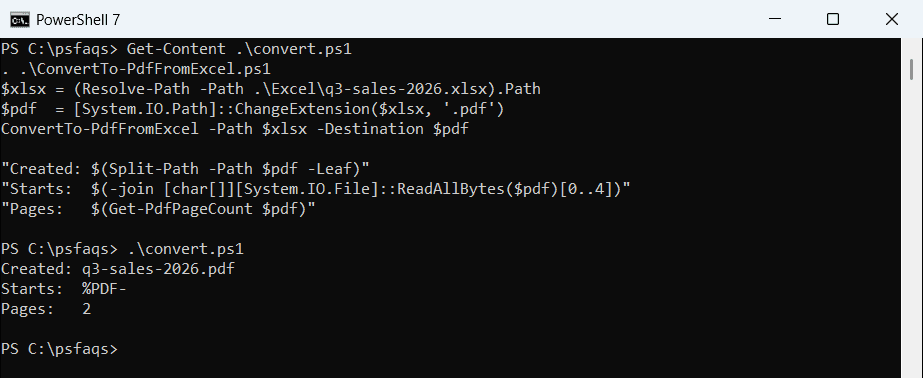
Exporting the workbook includes every sheet, one after another. Always pass full paths to Excel, because it doesn’t know PowerShell’s current folder. See getting the full path of a file.
Export only one sheet
Call ExportAsFixedFormat on a worksheet instead of the workbook. The function does that when you pass -Sheet:
. .\ConvertTo-PdfFromExcel.ps1
$xlsx = (Resolve-Path -Path .\Excel\q3-sales-2026.xlsx).Path
$pdf  = Join-Path -Path (Split-Path -Path $xlsx) -ChildPath 'q3-sales-only.pdf'
ConvertTo-PdfFromExcel -Path $xlsx -Destination $pdf -Sheet 'Q3 Sales'
"Pages with one sheet: $(Get-PdfPageCount $pdf)"
Output:
Pages with one sheet: 1The Notes sheet is left out. To read the sheet’s data into PowerShell instead, see reading Excel files into an array.
Fit a wide sheet on one page
Wide sheets spill onto extra pages by default. -FitWidth switches to landscape and sets FitToPagesWide to 1, with Zoom off so the fit settings apply:
. .\ConvertTo-PdfFromExcel.ps1
$xlsx = (Resolve-Path -Path .\Excel\inventory-wide.xlsx).Path
$dir  = Split-Path -Path $xlsx
ConvertTo-PdfFromExcel -Path $xlsx -Destination "$dir\inventory-default.pdf"
ConvertTo-PdfFromExcel -Path $xlsx -Destination "$dir\inventory-fit.pdf" -FitWidth

"Pages, default layout:         $(Get-PdfPageCount "$dir\inventory-default.pdf")"
"Pages, landscape 1 page wide:  $(Get-PdfPageCount "$dir\inventory-fit.pdf")"
Output:
Pages, default layout:         2
Pages, landscape 1 page wide:  1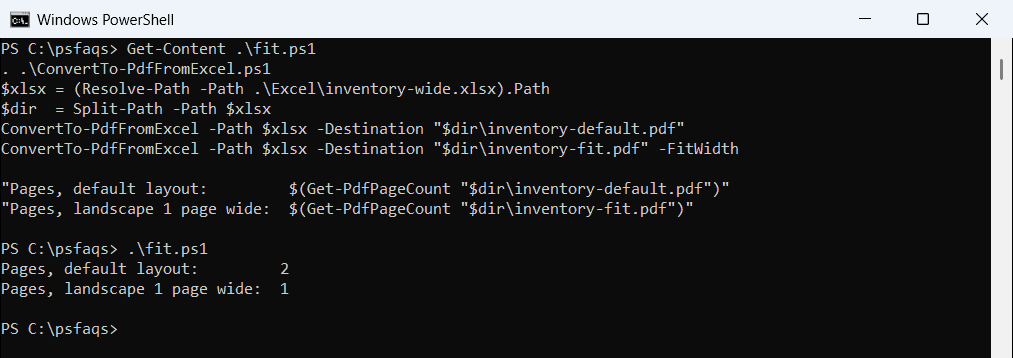
FitToPagesTall is set to $false, so long sheets still flow onto more pages instead of shrinking to tiny text. For saving data as CSV instead, see converting Excel files to CSV.
Convert every workbook in a folder
Loop over the .xlsx files and write a PDF next to each one:
. .\ConvertTo-PdfFromExcel.ps1
Get-ChildItem -Path .\Excel\Batch -Filter *.xlsx | ForEach-Object {
    $pdf = [System.IO.Path]::ChangeExtension($_.FullName, '.pdf')
    ConvertTo-PdfFromExcel -Path $_.FullName -Destination $pdf
    '{0,-19} -> {1}' -f $_.Name, (Split-Path -Path $pdf -Leaf)
}
Output:
budget-austin.xlsx  -> budget-austin.pdf
budget-denver.xlsx  -> budget-denver.pdf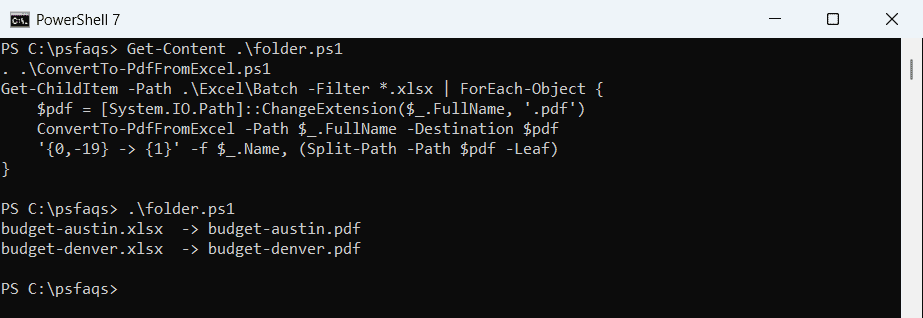
For big folders, open Excel once and loop inside the try block instead of starting it for every file. For more loop patterns, see PowerShell foreach file in a folder.
Frequently Asked Questions
How do I convert Excel to PDF with PowerShell?
Open the workbook with the Excel.Application COM object and call $w