
To find users whose PwdLastSet is older than 90 days, filter Get-ADUser on PasswordLastSet, the converted version of the pwdLastSet attribute:
$cutoff = (Get-Date).AddDays(-90)
Get-ADUser -Filter 'Enabled -eq $true -and PasswordLastSet -lt $cutoff' -Properties PasswordLastSet, PasswordNeverExpires |
    Select-Object -Property SamAccountName, PasswordLastSet, PasswordNeverExpires
Below I test the filter on sample accounts, handle users who must change their password, build an LDAP filter for big domains and export an audit report.
My test PC isn’t on a domain, so the filtering ran on sample users with today set to October 4, 2026. The AD commands are shown as code and need the ActiveDirectory module.
Test the 90-day filter
These sample objects have the same properties Get-ADUser returns. The filter keeps enabled users whose password is older than the cutoff:
$today = Get-Date -Date '2026-10-04'
$users = @(
    [pscustomobject]@{ SamAccountName = 'jsmith';  Enabled = $true;  PasswordNeverExpires = $false; PasswordLastSet = [datetime]'2026-09-12' }
    [pscustomobject]@{ SamAccountName = 'amiller'; Enabled = $true;  PasswordNeverExpires = $false; PasswordLastSet = [datetime]'2026-05-30' }
    [pscustomobject]@{ SamAccountName = 'svc-sql'; Enabled = $true;  PasswordNeverExpires = $true;  PasswordLastSet = [datetime]'2025-11-02' }
    [pscustomobject]@{ SamAccountName = 'dbrooks'; Enabled = $false; PasswordNeverExpires = $false; PasswordLastSet = [datetime]'2026-01-15' }
    [pscustomobject]@{ SamAccountName = 'newhire'; Enabled = $true;  PasswordNeverExpires = $false; PasswordLastSet = $null }
)

$cutoff = $today.AddDays(-90)
$users |
    Where-Object { $_.Enabled -and $_.PasswordLastSet -and $_.PasswordLastSet -lt $cutoff } |
    Select-Object -Property SamAccountName, PasswordNeverExpires,
        @{ Name = 'PasswordLastSet'; Expression = { $_.PasswordLastSet.ToString('yyyy-MM-dd') } },
        @{ Name = 'DaysOld';         Expression = { ($today - $_.PasswordLastSet).Days } }
Output:
SamAccountName PasswordNeverExpires PasswordLastSet DaysOld
-------------- -------------------- --------------- -------
amiller                       False 2026-05-30          127
svc-sql                        True 2025-11-02          336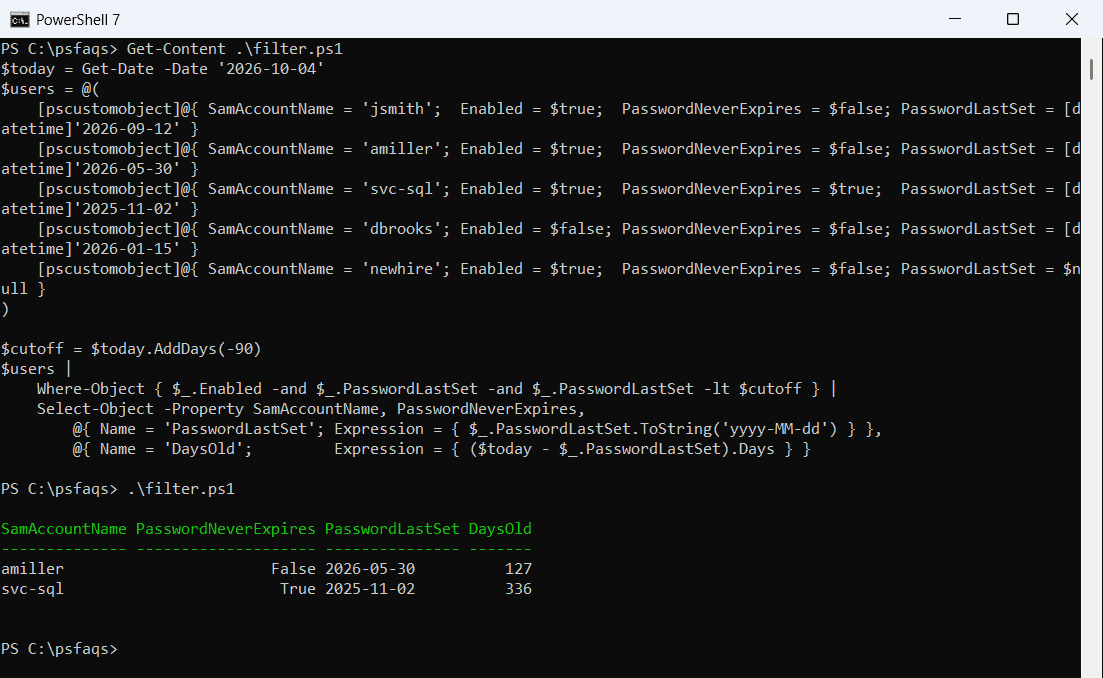
jsmith changed recently, dbrooks is disabled, and newhire has no date yet, so all three are left out. svc-sql shows up because PasswordNeverExpires lets service accounts keep a password for years, and those are the riskiest ones.
The filter combines two tests in one script block, the same way as Where-Object with multiple conditions.
When pwdLastSet is 0
A pwdLastSet of 0 doesn’t mean 1601. It means the user must change the password at the next sign-in, so PasswordLastSet is empty. Raw values are FILETIME numbers in UTC:
foreach ($raw in 0, 134277696000000000) {
    if ($raw -eq 0) { "pwdLastSet $raw -> must change password at next sign-in" }
    else { "pwdLastSet $raw -> $([datetime]::FromFileTimeUtc($raw).ToString('yyyy-MM-dd')) UTC" }
}
Output:
pwdLastSet 0 -> must change password at next sign-in
pwdLastSet 134277696000000000 -> 2026-07-06 UTC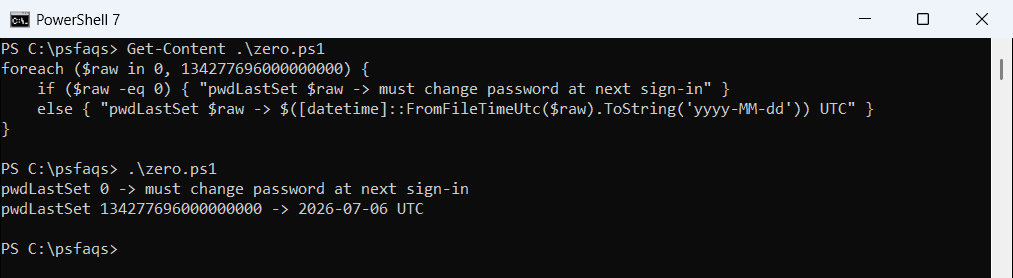
Find those accounts separately with Get-ADUser -Filter 'pwdLastSet -eq 0'. For more on UTC times, see Get-Date in UTC.
Use an LDAP filter in large domains
An LDAP filter runs entirely on the domain controller. It needs the cutoff as a FILETIME number, which you can build from a UTC date:
$cutoff = [datetime]::new(2026, 7, 6, 0, 0, 0, [System.DateTimeKind]::Utc)
$fileTime = $cutoff.ToFileTimeUtc()
"Cutoff FILETIME: $fileTime"
"LDAP filter:     (&(objectCategory=person)(objectClass=user)(pwdLastSet<=$fileTime)(!(pwdLastSet=0)))"
Output:
Cutoff FILETIME: 134277696000000000
LDAP filter:     (&(objectCategory=person)(objectClass=user)(pwdLastSet<=134277696000000000)(!(pwdLastSet=0)))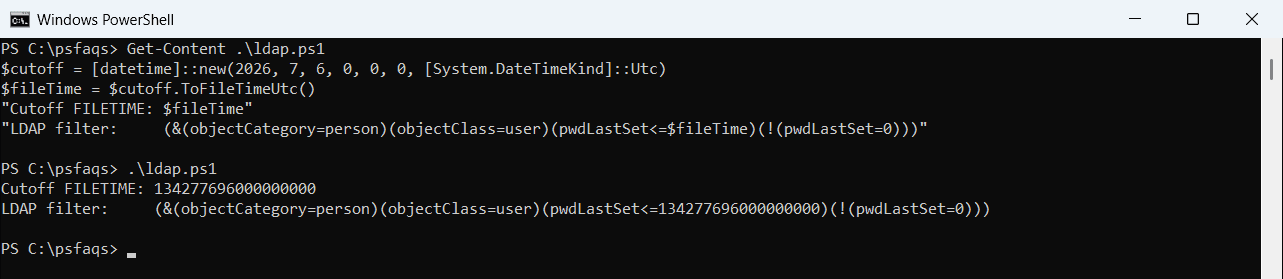
The (!(pwdLastSet=0)) part skips must-change accounts. Use it like this:
$fileTime = (Get-Date).ToUniversalTime().AddDays(-90).ToFileTimeUtc()
Get-ADUser -LDAPFilter "(&(objectCategory=person)(objectClass=user)(pwdLastSet<=$fileTime)(!(pwdLastSet=0)))" -Properties PasswordLastSet |
    Select-Object -Property SamAccountName, PasswordLastSet
Without the AD module, the same LDAP filter works with [adsisearcher]. To check for other risky accounts, see checking locked accounts.
Export an audit report
Security reviews usually want a file. With the sample data, the report looks like this:
$today = Get-Date -Date '2026-10-04'
$users = @(
    [pscustomobject]@{ SamAccountName = 'jsmith';  Enabled = $true;  PasswordNeverExpires = $false; PasswordLastSet = [datetime]'2026-09-12' }
    [pscustomobject]@{ SamAccountName = 'amiller'; Enabled = $true;  PasswordNeverExpires = $false; PasswordLastSet = [datetime]'2026-05-30' }
    [pscustomobject]@{ SamAccountName = 'svc-sql'; Enabled = $true;  PasswordNeverExpires = $true;  PasswordLastSet = [datetime]'2025-11-02' }
    [pscustomobject]@{ SamAccountName = 'dbrooks'; Enabled = $false; PasswordNeverExpires = $false; PasswordLastSet = [datetime]'2026-01-15' }
    [pscustomobject]@{ SamAccountName = 'newhire'; Enabled = $true;  PasswordNeverExpires = $false; PasswordLastSet = $null }
)

$cutoff = $today.AddDays(-90)
$users | Where-Object { $_.Enabled -and $_.PasswordLastSet -lt $cutoff -and $_.PasswordLastSet } |
    Select-Object -Property SamAccountName, PasswordLastSet, PasswordNeverExpires |
    Export-Csv -Path .\stale-passwords-2026-10.csv -NoTypeInformation
Get-Content -Path .\stale-passwords-2026-10.csv
Output:
"SamAccountName","PasswordLastSet","PasswordNeverExpires"
"amiller","5/30/2026 12:00:00 AM","False"
"svc-sql","11/2/2025 12:00:00 AM","True"
Send it to the account owners, and set service accounts to rotate their passwords or move them to group Managed Service Accounts. To see when passwords will expire, read checking the password expiration date.
Microsoft Entra ID users
For cloud accounts, Microsoft Graph has LastPasswordChangeDateTime, which plays the same role:
Connect-MgGraph -Scopes 'User.Read.All'
$cutoff = (Get-Date).AddDays(-90)
Get-MgUser -All -Property UserPrincipalName, LastPasswordChangeDateTime, AccountEnabled |
    Where-Object { $_.AccountEnabled -and $_