
To convert bytes to KB, MB or GB in PowerShell, divide the number by the built-in literal 1KB, 1MB or 1GB. Here’s 5,368,709,120 bytes in gigabytes:
$bytes = 5368709120
$bytes / 1GB
Output:
5In this tutorial, I’ll show you how to convert bytes to KB, MB, GB and TB, round the result, pick the best unit and convert back, tested in PowerShell 7.6 and 5.1.
PowerShell size literals: 1KB, 1MB, 1GB, 1TB and 1PB
PowerShell reads KB, MB, GB, TB and PB as number suffixes, in any letter case. Each one is a power of 1024:
1KB, 1MB, 1GB, 1TB, 1PB | ForEach-Object { '{0,-18} {1}' -f $_, $_.GetType().Name }Output:
1024               Int32
1048576            Int32
1073741824         Int32
1099511627776      Int64
1125899906842624   Int64
1TB and 1PB don’t fit in an Int32, so PowerShell makes them Int64. A file’s Length is in bytes, so you divide by these literals whenever you get the size of a file.
Round the result with [math]::Round or the -f operator
Most byte counts don’t divide evenly, so the raw result has a long tail of decimals:
$bytes = 123456789
$bytes / 1MB
[math]::Round($bytes / 1MB, 2)
'{0:N2} MB' -f ($bytes / 1MB)
Output:
117.737568855286
117.74
117.74 MB
[math]::Round(value, 2) returns a number you can still sort. The -f operator with {0:N2} returns text with a unit label. More options: rounding to 2 decimal places in PowerShell.
A function that picks the best unit
GB looks silly for an 812-byte file. This function divides by 1KB until the number drops below 1024, then adds the unit:
function Format-ByteSize {
    param([Parameter(Mandatory, ValueFromPipeline)][double]$Bytes)
    process {
        $units = 'bytes', 'KB', 'MB', 'GB', 'TB', 'PB'
        $i = 0
        while ($Bytes -ge 1KB -and $i -lt $units.Count - 1) { $Bytes /= 1KB; $i++ }
        if ($i -eq 0) { "$Bytes bytes" } else { '{0:N2} {1}' -f $Bytes, $units[$i] }
    }
}

812, 48213, 1536000, 5368709120, 1.6TB | Format-ByteSize
Output:
812 bytes
47.08 KB
1.46 MB
5.00 GB
1.60 TB
Each value got its own unit, from bytes to TB. If functions are new to you, start with writing your own PowerShell functions.
Show file sizes in KB and MB with Get-ChildItem
Calculated properties turn each file’s Length into KB and MB. I made four sample files in C:\psfaqs\Sizes:
Get-ChildItem -Path C:\psfaqs\Sizes -File | Sort-Object -Property Length |
    Select-Object -Property Name,
        @{ Name = 'SizeKB'; Expression = { [math]::Round($_.Length / 1KB, 2) } },
        @{ Name = 'SizeMB'; Expression = { [math]::Round($_.Length / 1MB, 2) } }
Output:
Name                 SizeKB  SizeMB
----                 ------  ------
notes.txt             0.790   0.000
Budget-2026.xlsx     47.080   0.050
Austin-sales.csv   1500.000   1.460
Denver-demo.mp4  307200.000 300.000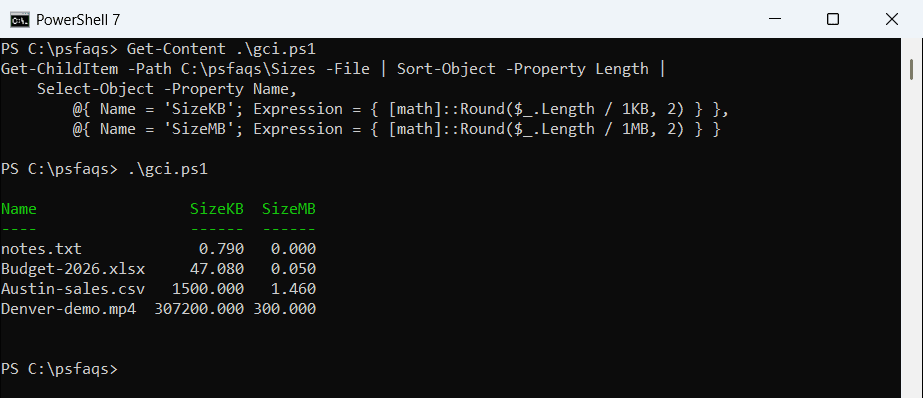
PowerShell 7 pads the columns to three decimals; Windows PowerShell 5.1 prints 0.79 and 300. The values are the same.
Add -Recurse and Measure-Object to get the total size of a folder, or compare Length with 100MB when finding files larger than a specific size.
How do you convert MB or GB back to bytes?
Multiply instead of dividing:
2.5GB
750 * 1MB
[long](1.5 * 1TB)
Output:
2684354560
786432000
1649267441664
2.5GB comes back as a Double, so cast it with [long] when you need whole bytes. The same math works on drives when you check hard drive space with Get-Volume.