
To create a file if it does not exist in PowerShell, check the path with Test-Path -PathType Leaf and call New-Item -ItemType File only when the check comes back False:
if (-not (Test-Path -LiteralPath $path -PathType Leaf)) {
    New-Item -Path $path -ItemType File
}
That pattern never touches a file that’s already there. The details matter, though, because the obvious shortcut, New-Item -Force, wipes an existing file to 0 bytes without asking.
I ran every snippet below in PowerShell 7 and Windows PowerShell 5.1 inside a small demo folder, and I’ll point out where the two versions disagree.
Create a file only if it doesn’t exist (Test-Path and New-Item)
Test-Path returns True or False, and -PathType Leaf makes it return True only for a file, not a folder. Here I run the same check twice so you can see both branches:
$path = 'C:\psfaqs\t\createfile\demo\Logs\app.log'

foreach ($run in 1..2) {
    if (-not (Test-Path -LiteralPath $path -PathType Leaf)) {
        New-Item -Path $path -ItemType File | Out-Null
        "Run ${run}: created app.log"
    } else {
        "Run ${run}: app.log already exists, left it alone"
    }
}
Output:
Run 1: created app.log
Run 2: app.log already exists, left it alone
The first pass creates an empty app.log. The second pass finds it and leaves it alone. The Test-Path cmdlet guide covers its other switches, and the New-Item cmdlet guide covers folders, links and other item types.
I use -LiteralPath on purpose. The reason is in the Test-Path pitfalls section further down.
What happens if the file already exists? (the -Force trap)
Without a check, New-Item refuses to create a file that’s already there. Many scripts add -Force to silence that error, but -Force replaces the file with an empty one:
$path = 'C:\psfaqs\t\createfile\demo\Logs\app.log'
'2026-10-25 09:00 Service started' | Set-Content -Path $path
"Size before:       $((Get-Item -Path $path).Length) bytes"

try   { New-Item -Path $path -ItemType File -ErrorAction Stop | Out-Null }
catch { "Without -Force:    Failed. $($_.Exception.Message)" }

New-Item -Path $path -ItemType File -Force | Out-Null
"Size after -Force: $((Get-Item -Path $path).Length) bytes"
Output:
Size before:       34 bytes
Without -Force:    Failed. The file 'C:\psfaqs\t\createfile\demo\Logs\app.log' already exists.
Size after -Force: 0 bytes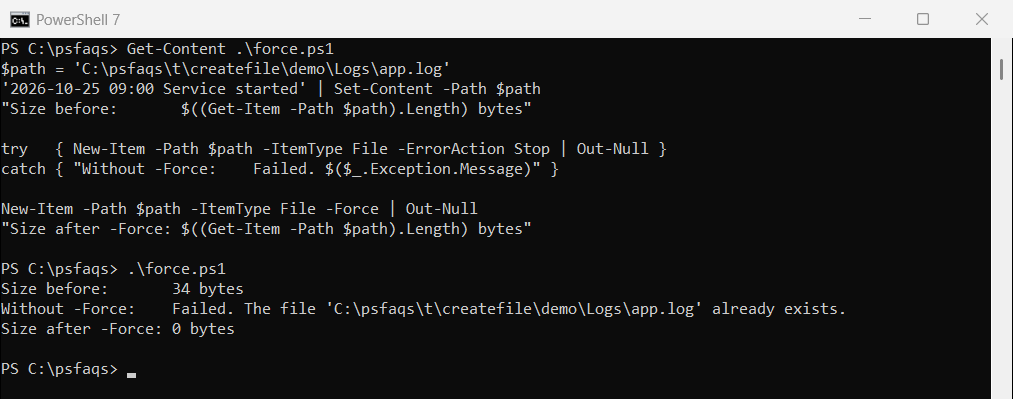
Windows PowerShell 5.1 gave the same result: the error without -Force, and a 0-byte file with it. Microsoft’s own New-Item example shows the same overwrite.
So treat -Force on a file as “create or empty it”, never as “create if missing”. If you catch the error yourself, the try/catch guide for PowerShell explains why -ErrorAction Stop is needed first.
Create the file and any missing parent folders
New-Item can’t create a file inside a folder that doesn’t exist yet. The fix is to create the folder first, and -Force is safe there because it returns an existing folder untouched:
$path = 'C:\psfaqs\t\createfile\demo\Reports\2026\October\summary.txt'
try   { New-Item -Path $path -ItemType File -ErrorAction Stop | Out-Null }
catch { "Failed. $($_.Exception.Message)" }

$folder = Split-Path -Path $path -Parent
New-Item -Path $folder -ItemType Directory -Force | Out-Null
if (-not (Test-Path -LiteralPath $path -PathType Leaf)) {
    New-Item -Path $path -ItemType File | Out-Null
}
"summary.txt exists now: $(Test-Path -LiteralPath $path -PathType Leaf)"
Output:
Failed. Could not find a part of the path 'C:\psfaqs\t\createfile\demo\Reports\2026\October\summary.txt'.
summary.txt exists now: True
Split-Path -Parent pulls the folder out of the full path, and New-Item -ItemType Directory -Force builds the whole Reports\2026\October chain in one call. For more ways to get the folder part, see extracting the directory from a file path.
New-Item -ItemType File -Force would also create the missing folders, but only use it after the Test-Path check, or you’re back to the overwrite trap. Folder-only scripts are covered in creating a folder if it doesn’t exist.
Create a file with a header, or append if it exists
A common job is a CSV or log that needs a header line only the first time. Create the file with -Value when it’s missing, then append every time:
$csv = 'C:\psfaqs\t\createfile\demo\Logs\sales.csv'

foreach ($row in 'Austin,1250', 'Denver,980') {
    if (-not (Test-Path -LiteralPath $csv -PathType Leaf)) {
        New-Item -Path $csv -ItemType File -Value "City,Amount`r`n" | Out-Null
    }
    Add-Content -Path $csv -Value $row
}
Get-Content -Path $csv
Output:
City,Amount
Austin,1250
Denver,980
The header shows up once even though the loop ran twice. Add-Content creates a missing file on its own, but then there’s no header, which is why the check comes first. More on appending in the Add-Content cmdlet guide.
If you need full CSV objects instead of raw lines, creating CSV files with headers walks through Export-Csv.
Use Out-File -NoClobber to avoid overwriting a file
Out-File overwrites a file by default. Its -NoClobber switch turns that into an error, which is handy when the file should be written only once:
$path = 'C:\psfaqs\t\createfile\demo\Logs\app.log'
'Original entry' | Set-Content -Path $path

try   { 'New entry' | Out-File -FilePath $path -NoClobber -ErrorAction Stop }
catch { "Failed. $($_.Exception.Message)" }
"Content kept: $(Get-Content -Path $path)"
Output:
Failed. The file 'C:\psfaqs\t\createfile\demo\Logs\app.log' already exists.
Content kept: Original entry
The original line survived. Out-File’s -Force switch doesn’t help here; Microsoft docu