
To split large text files with PowerShell, read the file in batches with Get-Content -ReadCount and write each batch to its own numbered file:
$part = 0
Get-Content -Path .\web-2026.log -ReadCount 100000 | ForEach-Object {
    $part++
    Set-Content -Path ('web-2026-part-{0:D3}.log' -f $part) -Value $_
}
Each pass of ForEach-Object gets an array of up to 100,000 lines, so the script never holds the whole file in memory. That’s the quick version.
Below I split a 500,000-line web server log (about 38 MB) by line count, by size in MB and at a marker line, split a CSV with its header in every part, and join the parts back with a hash check.
I timed each method in PowerShell 7.6 and Windows PowerShell 5.1, and the results weren’t what I expected. Encoding also changes the output files in 5.1, so there’s a section on that too.
Split a large text file by number of lines
The -ReadCount parameter sets how many lines Get-Content sends down the pipeline at a time. The default is 1. With 100000, $_ inside ForEach-Object is a whole chunk, and Set-Content writes it in one call:
$src = 'C:\psfaqs\t\splitfiles\web-2026.log'

$out = 'C:\psfaqs\t\splitfiles\parts'
$null = New-Item -ItemType Directory -Path $out -Force

$part = 0
Get-Content -Path $src -ReadCount 100000 | ForEach-Object {
    $part++
    $name = Join-Path $out ('web-2026-part-{0:D3}.log' -f $part)
    Set-Content -Path $name -Value $_
}

Get-ChildItem -Path $out | ForEach-Object {
    $lines = [Linq.Enumerable]::Count([IO.File]::ReadLines($_.FullName))
    '{0}  {1} lines  {2} MB' -f $_.Name, $lines, [math]::Round($_.Length / 1MB, 2)
}
Output:
web-2026-part-001.log  100000 lines  7.68 MB
web-2026-part-002.log  100000 lines  7.68 MB
web-2026-part-003.log  100000 lines  7.68 MB
web-2026-part-004.log  100000 lines  7.68 MB
web-2026-part-005.log  100000 lines  7.68 MB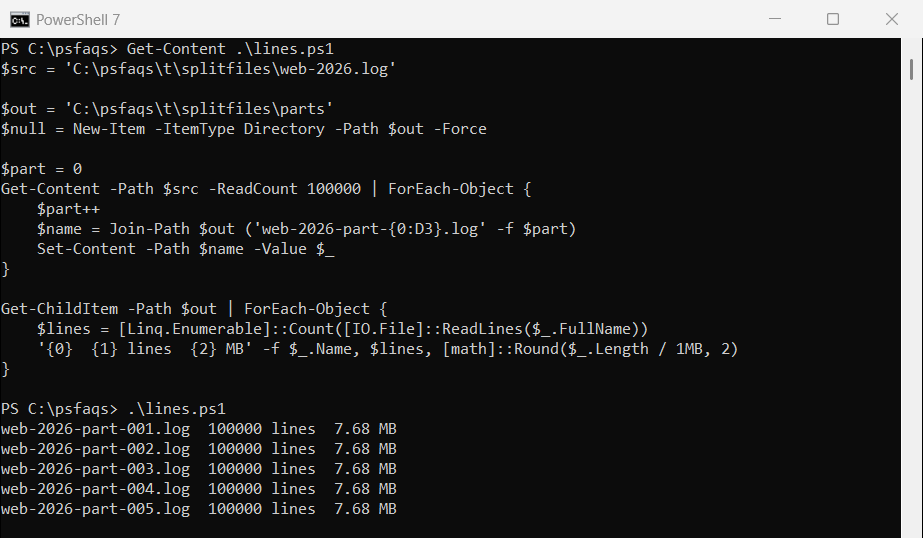
The {0:D3} format pads the counter to three digits, so part-001 through part-005 sort in the right order in File Explorer and in Sort-Object. Use D4 if you expect more than 999 parts.
I counted the lines with [IO.File]::ReadLines, which streams the file instead of loading it. For other ways to check the totals, see counting lines in a file with PowerShell.
Split huge log files with StreamReader and StreamWriter
For multi-GB files, the classic advice is to skip the cmdlets and use the .NET StreamReader and StreamWriter classes. The reader returns one line at a time, and only the current line is in memory:
$src = 'C:\psfaqs\t\splitfiles\web-2026.log'

$out = 'C:\psfaqs\t\splitfiles\parts-stream'
$null = New-Item -ItemType Directory -Path $out -Force
$linesPerFile = 100000

$reader = [System.IO.StreamReader]::new($src)
$writer = $null; $part = 0; $count = 0
try {
    while ($null -ne ($line = $reader.ReadLine())) {
        if ($count % $linesPerFile -eq 0) {
            if ($writer) { $writer.Dispose() }
            $part++
            $name = Join-Path $out ('web-2026-part-{0:D3}.log' -f $part)
            $writer = [System.IO.StreamWriter]::new($name)
        }
        $writer.WriteLine($line)
        $count++
    }
} finally {
    if ($writer) { $writer.Dispose() }
    $reader.Dispose()
}
"Split $count lines into $part files"
(Get-ChildItem -Path $out).Name -join ', '
Output:
Split 500000 lines into 5 files
web-2026-part-001.log, web-2026-part-002.log, web-2026-part-003.log, web-2026-part-004.log, web-2026-part-005.log
The finally block closes the last writer and the reader even if the script fails halfway. StreamWriter writes UTF-8 without a BOM by default in both versions, which matters for the hash check later.
The same ReadLine loop is the basis of reading a file line by line in PowerShell, and it works well for filtering big log files before you split them.